1. Introduction
This manual provides essential information for setting up, operating, maintaining, and troubleshooting your Lenovo V14 Gen 4 Business Laptop. Please read this guide thoroughly to ensure optimal performance and longevity of your device.
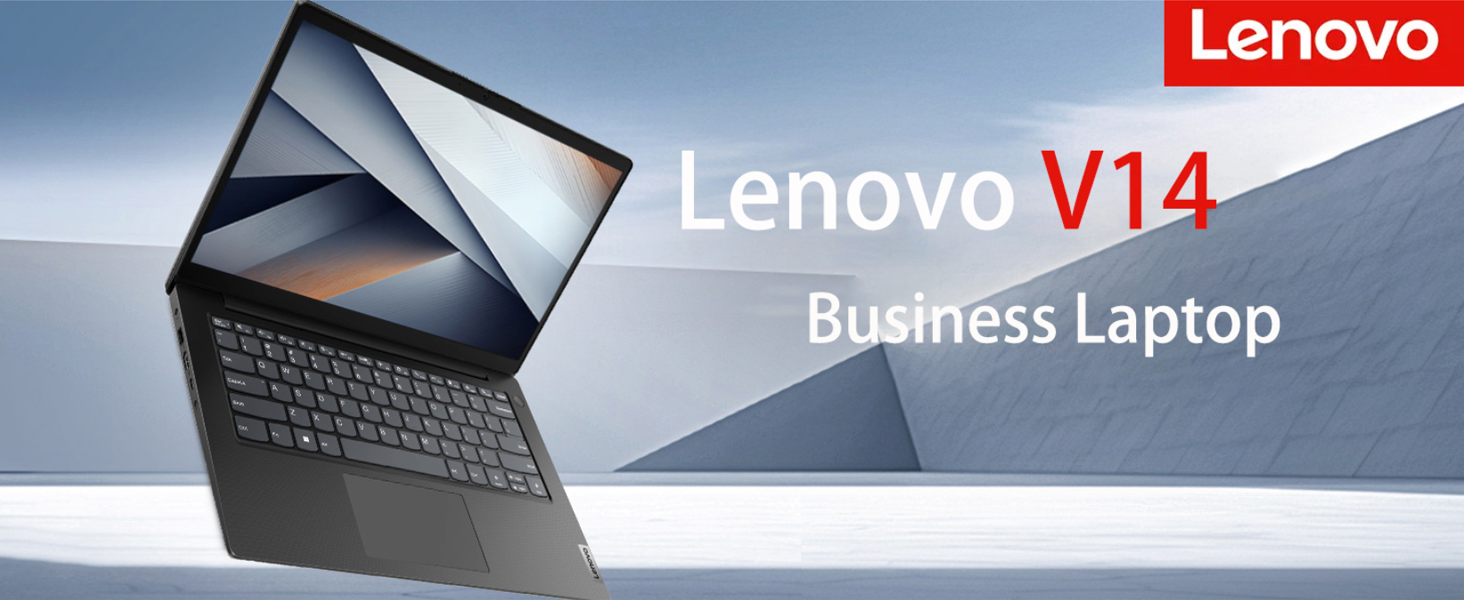
Image 1.1: Lenovo V14 Gen 4 Business Laptop overview.
2. Product Overview
2.1 Key Components
- Display: 14-inch Full HD (1920x1080) Anti-glare display with 45% NTSC color gamut and 250 nits brightness. Features TÜV Rheinland Low Blue Light certification for eye comfort.
- Processor: Intel Core i7-1355U (up to 5.0 GHz, 10 Cores, 12 Threads) with Intel Iris Xe Graphics.
- Memory: 16GB high-bandwidth DDR4 RAM.
- Storage: 1TB PCIe NVMe M.2 Solid State Drive (SSD).
- Webcam: 720p HD camera with a physical Privacy Shutter.
- Keyboard: Spill-resistant design for enhanced durability.
- Hinge: 180-degree lay-flat hinge for flexible viewing and collaboration.
- Audio: Integrated speakers with Dolby Audio support.
- Wireless Connectivity: Wi-Fi 6 (802.11ax) and Bluetooth.
- Bundled Accessory: Thunderobot ML101 Wireless Mouse.

Image 2.1: Overview of the Intel Core i7-1355U processor and key specifications.

Image 2.2: The 14-inch Full HD anti-glare display of the Lenovo V14 Gen 4.
2.2 Input/Output (I/O) Ports
The Lenovo V14 Gen 4 laptop features a variety of ports for connecting external devices and peripherals.

Image 2.3: Detailed view of the laptop's input/output ports.
- USB-A 3.2 Gen 1 Port
- Ethernet (RJ45) Port
- Kensington Security Slot
- Power Input Port
- USB-A 3.2 Gen 1 Port
- HDMI Port
- USB-C 3.2 Gen 1 Port
- Headphone / Microphone Combo Jack
3. Setup Instructions
3.1 Initial Power-On
- Unpack the laptop and all accessories from the box.
- Connect the power adapter to the laptop's power input port and then to a power outlet.
- Open the laptop lid and press the power button, typically located on the top right of the keyboard or on the side.
- Follow the on-screen instructions to complete the initial Windows 11 Pro setup, including language, region, network connection, and user account creation.
3.2 Connecting the Wireless Mouse
The bundled Thunderobot ML101 Wireless Mouse requires a USB Nano Receiver for connection.

Image 3.1: The Thunderobot ML101 Wireless Mouse, bundled with the laptop.
- Locate the USB Nano Receiver for the wireless mouse, usually found in the mouse's battery compartment or packaged separately.
- Insert the USB Nano Receiver into an available USB-A port on your laptop.
- Ensure the mouse has batteries installed and is powered on (check for a switch on the bottom of the mouse).
- The mouse should automatically connect to your laptop.
3.3 External Monitor Connection
You can expand your workspace by connecting up to two external monitors.
- HDMI: Connect an HDMI cable from your external monitor to the laptop's HDMI port.
- USB-C: Connect a compatible USB-C to DisplayPort/HDMI adapter or a USB-C monitor directly to the laptop's USB-C 3.2 Gen 1 port.
After connecting, Windows 11 Pro should automatically detect the external display. You can configure display settings (extend, duplicate, second screen only) via the Display Settings in Windows.
4. Operating Instructions
4.1 Power Management
- Power On: Press the power button.
- Sleep Mode: Close the lid or select "Sleep" from the Start Menu.
- Shut Down: Select "Shut down" from the Start Menu.
- Restart: Select "Restart" from the Start Menu.
4.2 Multitasking and Performance
With 16GB of RAM and an Intel Core i7 processor, your laptop is designed for efficient multitasking. You can run multiple applications and browser tabs simultaneously without significant performance degradation.

Image 4.1: The laptop's design supports effortless multitasking and flexible use.
4.3 Wireless Connectivity
- Wi-Fi 6: To connect to a wireless network, click the Wi-Fi icon in the taskbar, select your desired network, and enter the password if prompted.
- Bluetooth: To pair Bluetooth devices, go to Windows Settings > Bluetooth & devices, and follow the instructions to add a new device.
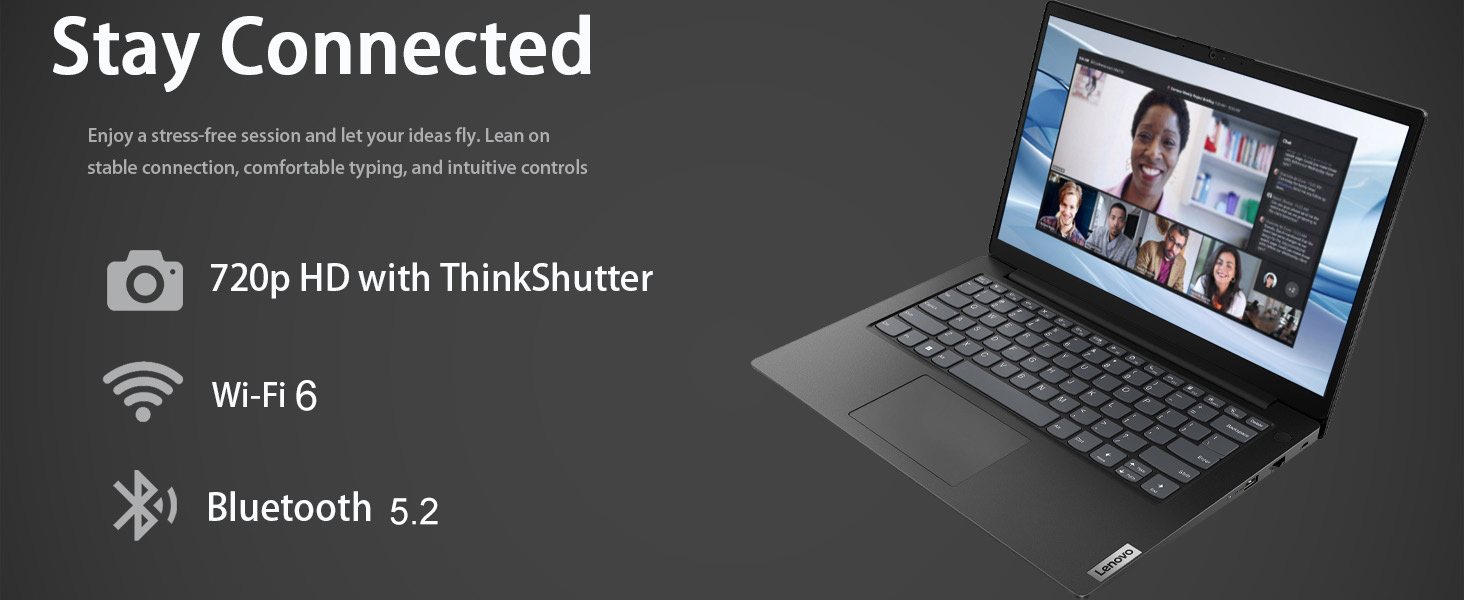
Image 4.2: The laptop offers robust connectivity with Wi-Fi 6 and Bluetooth.
4.4 Webcam and Privacy Shutter
The integrated 720p HD webcam is suitable for video calls and conferences. For privacy, slide the physical shutter located above the camera lens to cover or uncover it.
4.5 Flexible Display Usage
The 180-degree hinge allows you to lay the screen flat, which can be useful for presentations or collaborative work. Adjust the screen angle to your preference for comfortable viewing.

Image 4.3: The laptop's 180-degree hinge enables flexible screen positioning.
4.6 Audio Experience
The laptop features Dolby Audio for an enhanced sound experience. Adjust volume settings through the Windows taskbar or keyboard function keys.

Image 4.4: The laptop provides an immersive audio-visual experience with Dolby Audio.
5. Maintenance
5.1 Cleaning Your Laptop
- Screen: Use a soft, lint-free cloth lightly dampened with water or a screen-cleaning solution. Do not spray liquid directly onto the screen.
- Keyboard and Chassis: Use a soft, dry cloth. For stubborn dirt, a slightly damp cloth with mild soap solution can be used, ensuring no liquid enters openings. The keyboard is spill-resistant, but excessive liquid should be avoided.
- Ports: Use compressed air to gently clear dust from ports.
5.2 Battery Care
- Avoid fully discharging the battery frequently.
- Store the laptop in a cool, dry place if not used for extended periods.
- For optimal battery health, avoid exposing the laptop to extreme temperatures.
5.3 Software Updates
Regularly update your Windows 11 Pro operating system and drivers to ensure optimal performance, security, and compatibility. You can check for updates via Windows Settings > Windows Update.
5.4 Physical Durability
The Lenovo V14 Gen 4 is MIL-STD-810H military-grade tested, indicating its robust design and ability to withstand various environmental conditions. However, avoid intentional drops, impacts, or exposure to extreme conditions to prevent damage.

Image 5.1: The laptop has passed MIL-STD-810H military-grade tests for durability.
6. Troubleshooting
This section addresses common issues you might encounter. For more complex problems, refer to the Lenovo support website.
| Problem | Possible Solution |
|---|---|
| Laptop does not power on. | Ensure the power adapter is securely connected to both the laptop and a working power outlet. Check if the power outlet is functional. Try a different power adapter if available. |
| No display on screen. | Check if the laptop is powered on. Adjust screen brightness using function keys. If an external monitor is connected, ensure it's properly connected and selected as the display output. |
| Wi-Fi connection issues. | Ensure Wi-Fi is enabled in Windows settings. Restart your router and modem. Check for updated Wi-Fi drivers. |
| Wireless mouse not responding. | Check mouse batteries and ensure it's powered on. Verify the USB Nano Receiver is securely plugged into a USB port. Try a different USB port. |
| Slow performance. | Close unnecessary applications. Check for background processes consuming high resources (Task Manager). Ensure Windows and drivers are up to date. Run a malware scan. |
7. Specifications
| Feature | Detail |
|---|---|
| Model Name | Lenovo V14 G4 |
| Processor | Intel Core i7-1355U (up to 5.0 GHz, 10 Cores, 12 Threads) |
| Graphics | Intel Iris Xe Graphics (Integrated) |
| RAM | 16GB DDR4 SDRAM (3200 MHz) |
| Storage | 1TB PCIe NVMe M.2 SSD |
| Display | 14-inch FHD (1920x1080) Anti-glare, 45% NTSC, 250 nits |
| Operating System | Windows 11 Pro |
| Wireless Connectivity | Wi-Fi 6 (802.11ax), Bluetooth |
| Ports | 1x USB 2.0, 2x USB-A 3.2 Gen 1, 1x USB-C 3.2 Gen 1, 1x HDMI, 1x Ethernet (RJ45), 1x Headphone/mic combo |
| Webcam | 720p HD with Privacy Shutter |
| Dimensions (LxWxH) | 12.67 x 8.47 x 0.78 inches |
| Weight | Approximately 3.15 pounds (1.43 kg) |
| Special Features | Spill Resistant Keyboard, MIL-STD-810H Tested, Dolby Audio |
8. Warranty and Support
8.1 Product Warranty
Your Lenovo V14 Gen 4 Business Laptop comes with a 1-Year Manufacturer Warranty on original components. Additionally, any upgraded RAM/SSD/HDD components are covered by a 1-Year Warranty from PCOnline US.
Please retain your proof of purchase for warranty claims.
8.2 Technical Support
For technical assistance, driver downloads, or further support, please visit the official Lenovo support website. You can find detailed information and contact options there.
For issues related to upgraded components, please contact PCOnline US directly.


