
Atheewon U8
Atheewon Bluetooth Headset V5.4 User Manual
Model: U8
1. Introduction
Thank you for choosing the Atheewon Bluetooth Headset V5.4. This wireless earpiece is designed for clear communication and extended use, featuring advanced noise cancellation, long battery life, and multi-device compatibility. This manual provides detailed instructions on how to set up, operate, and maintain your headset to ensure optimal performance.
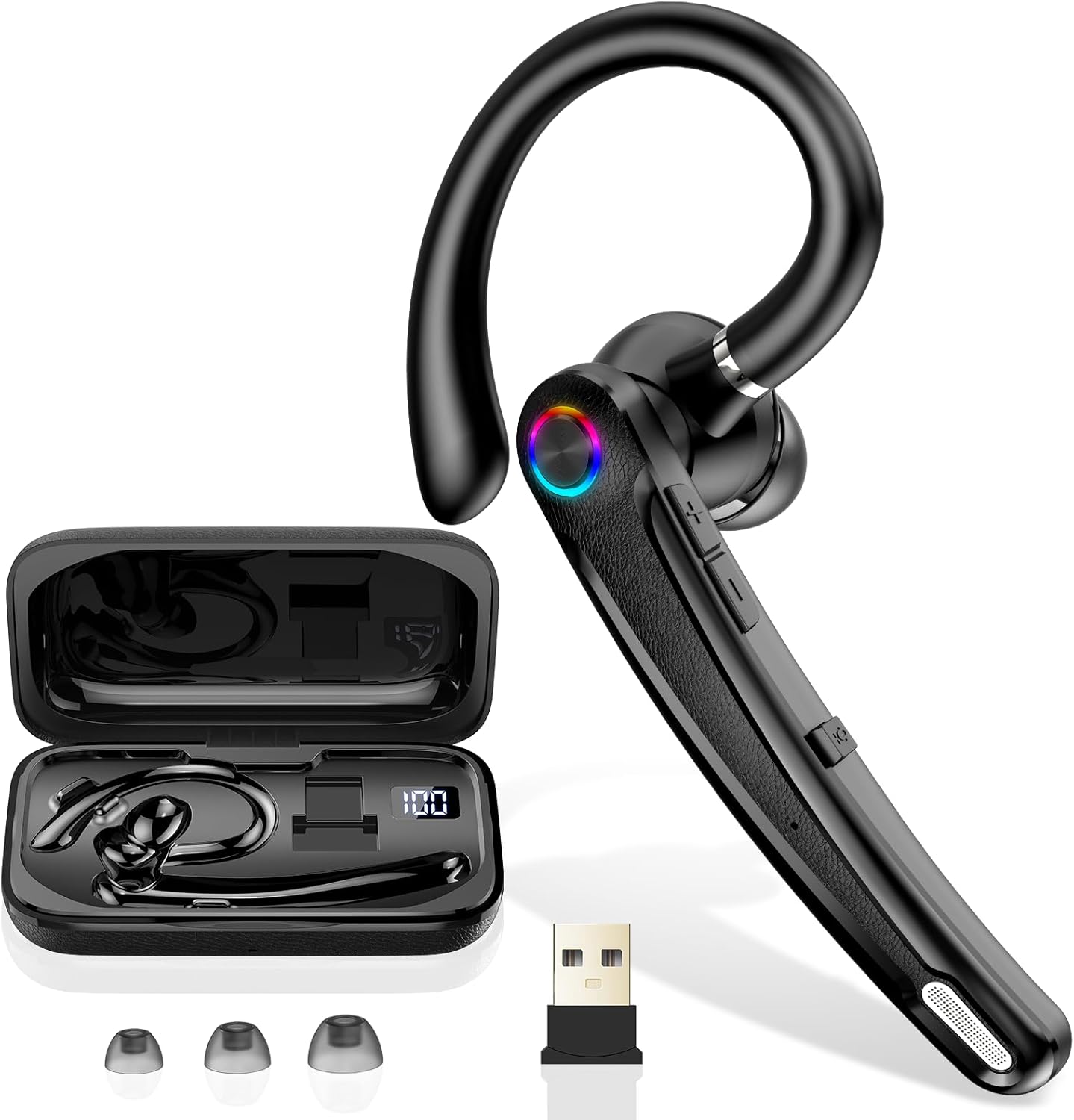
Image: Atheewon Bluetooth Headset V5.4, showing the headset, charging case, USB dongle, and ear tips.
2. What's in the Box?
- Bluetooth Headset
- Charging Case
- USB Dongle
- USB-C Charging Cable
- S/M/L Ear Tips (one set pre-installed)
- User Manual
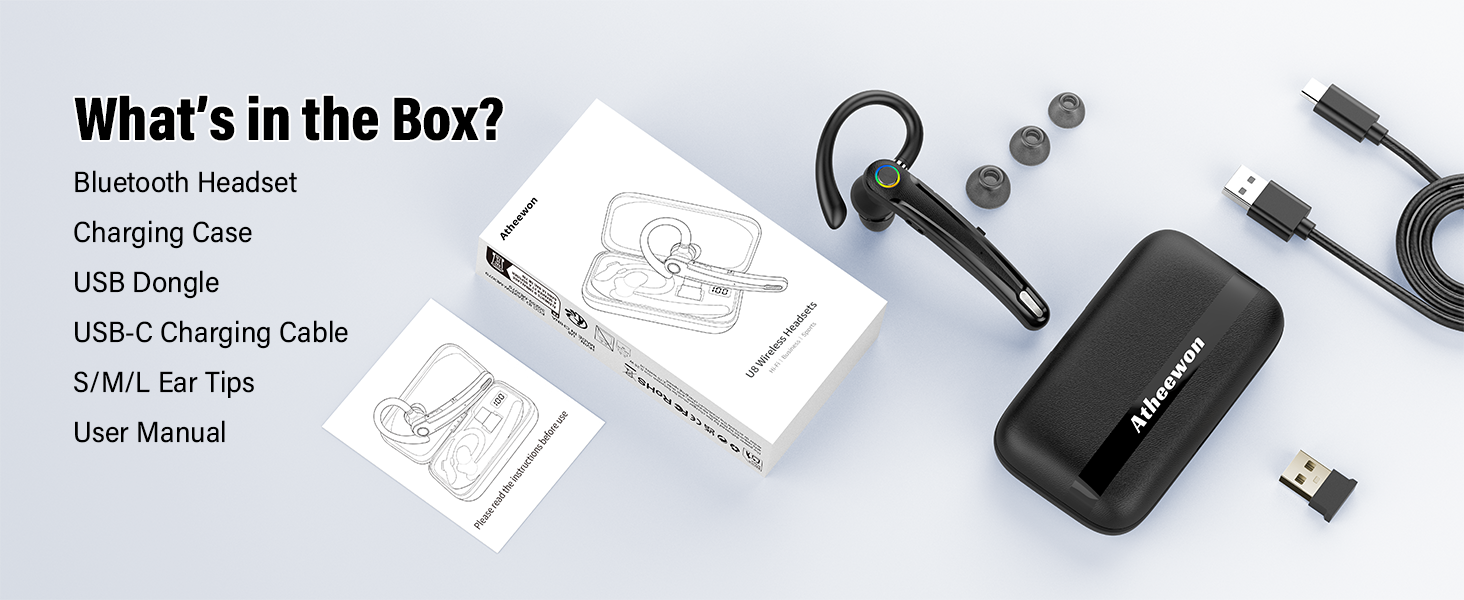
Image: A visual representation of all items included in the product packaging.
3. Product Overview
3.1 Headset Components
- Ear Hook: Rotates for left or right ear wear.
- Multi-function Button: Power on/off, answer/end calls, play/pause music.
- Volume Buttons (+/-): Adjust volume, skip tracks.
- Mute Button: Mute/unmute microphone during calls.
- Microphones: Dual ENC noise-cancelling microphones.
- LED Indicator: Shows pairing status, battery, and charging.
- Charging Port: USB-C port for charging.

Image: Detailed diagram illustrating the various buttons and their functions on the headset.
3.2 Charging Case
- Charging Slots: Securely holds and charges the headset.
- LED Display: Shows the charging case battery percentage.
- USB-C Input: For charging the case itself.

Image: The headset inside its charging case, highlighting the LED battery display and total playtime.
4. Setup
4.1 Charging the Headset and Case
- Place the headset into the charging case. Ensure it is properly seated.
- Connect the USB-C charging cable to the charging case and a power source (e.g., wall adapter, computer USB port).
- The LED display on the charging case will show the current battery level. A full charge is indicated by '100'.
- Allow approximately 1.5 hours for a full charge of the headset and case.
4.2 Pairing with Devices
4.2.1 Bluetooth Pairing (Mobile Devices)
- Ensure the headset is charged.
- Turn on the headset by pressing and holding the Multi-function Button until the LED indicator flashes blue and red, indicating pairing mode.
- On your mobile device, go to Bluetooth settings and enable Bluetooth.
- Search for available devices and select "U8" from the list.
- Once connected, the headset's LED indicator will flash blue slowly.
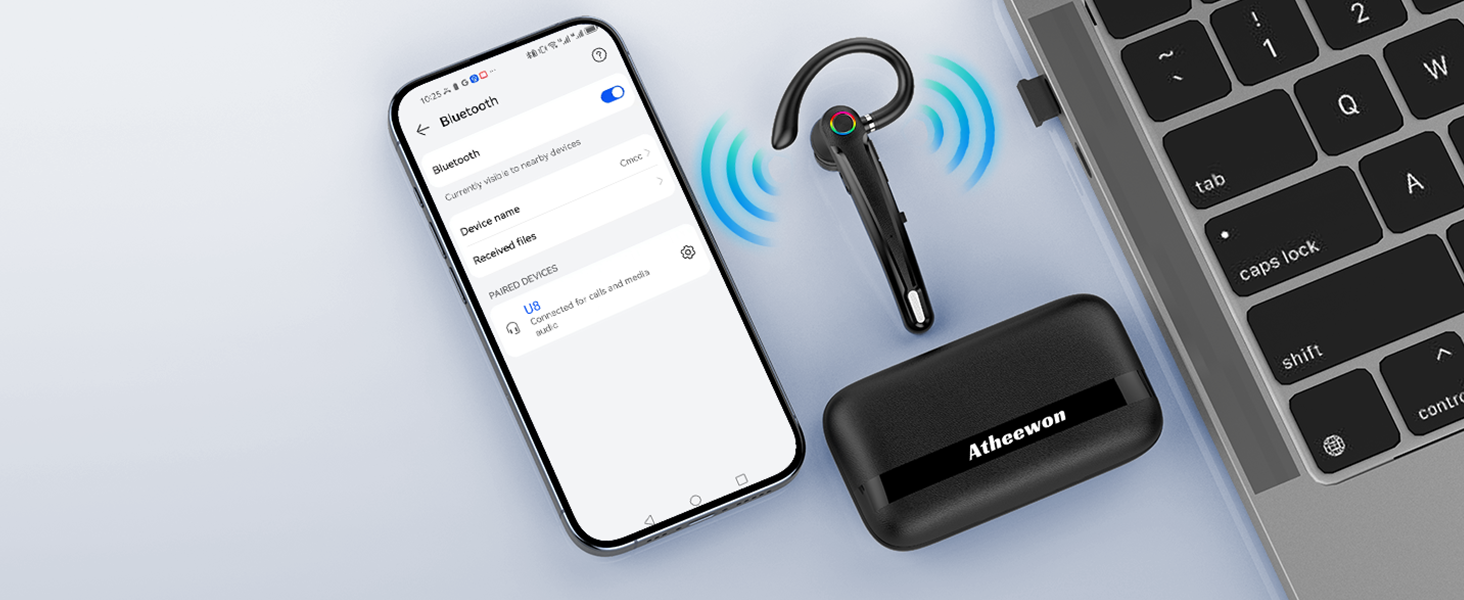
Image: Illustrates the headset pairing with a smartphone and a laptop via Bluetooth.
4.2.2 USB Dongle Pairing (Computers/Laptops)
- Insert the USB dongle into an available USB port on your computer or laptop.
- Turn on the headset. It will automatically attempt to connect to the USB dongle.
- The headset's LED indicator will flash blue slowly once connected.
- Ensure the headset is selected as the audio input/output device in your computer's sound settings.

Image: The headset, charging case, and USB dongle, with icons indicating compatibility with iOS, Android, Laptops, and Tablets.
4.3 Wearing the Headset
The headset features a rotating ear hook and three ear tip sizes (S/M/L) for a secure and comfortable fit. Adjust the ear hook to fit either your left or right ear. Experiment with different ear tip sizes to find the best seal for optimal sound quality and comfort.

Image: Visual guide demonstrating the 360-degree rotation of the ear hook, 180-degree adjustment of the microphone arm, and extensibility for a comfortable fit.
5. Operating Instructions
5.1 Basic Controls
| Function | Button/Action | Description |
|---|---|---|
| Power On/Off | Press and hold Multi-function Button | Turns the headset on or off. |
| Answer/End Call | Single press Multi-function Button | Answers an incoming call or ends an active call. |
| Reject Call | Press and hold Multi-function Button | Rejects an incoming call. |
| Play/Pause Music | Single press Multi-function Button | Plays or pauses audio playback. |
| Volume Up | Single press Volume + Button | Increases the listening volume. |
| Volume Down | Single press Volume - Button | Decreases the listening volume. |
| Next Track | Press and hold Volume + Button | Skips to the next song. |
| Previous Track | Press and hold Volume - Button | Goes back to the previous song. |
| Mute/Unmute Mic | Single press Mute Button | Mutes or unmutes your microphone during a call. |
| Activate Voice Assistant (Siri/Google Assistant) | Double press Multi-function Button | Activates your device's voice assistant. |
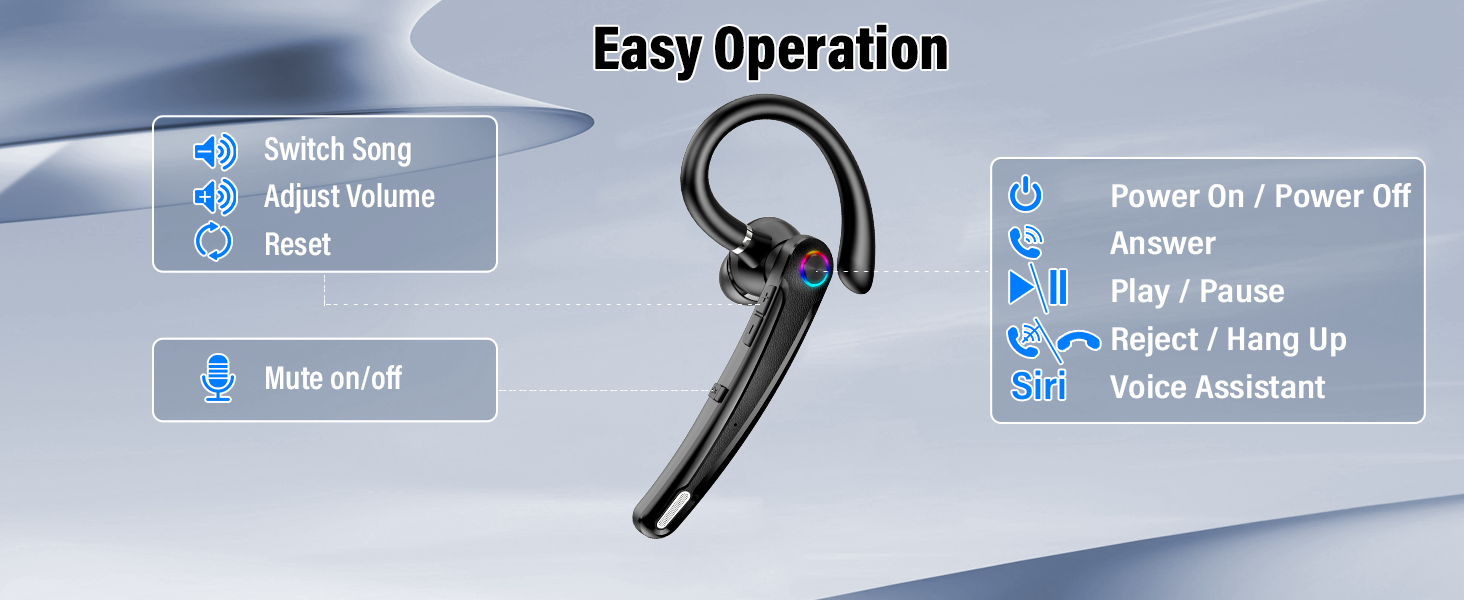
Image: A visual guide to the headset's button controls for various functions like power, calls, music, and voice assistant.
5.2 Dual Device Connectivity
The Atheewon Bluetooth Headset supports simultaneous connection to two devices. This allows you to seamlessly switch between, for example, your mobile phone for calls and your laptop for online meetings or music.
- Pair the headset with the first device (e.g., your phone) as described in section 4.2.1.
- Disconnect Bluetooth on the first device. The headset will re-enter pairing mode.
- Pair the headset with the second device (e.g., your laptop) as described in section 4.2.1 or 4.2.2.
- Once connected to the second device, re-enable Bluetooth on the first device. The headset should automatically reconnect to both.
- The headset will prioritize incoming calls from either device. For audio playback, you may need to manually select the headset as the output device on the desired source.

Image: The headset shown connected to both a smartphone (for calls) and another smartphone (for music), demonstrating dual device connectivity.
5.3 Noise Cancellation (ENC)
The headset features dual Environmental Noise Cancelling (ENC) microphones. These microphones work together to filter out up to 90% of background noise, ensuring your voice is clear and audible to the person on the other end of the call, even in noisy environments.
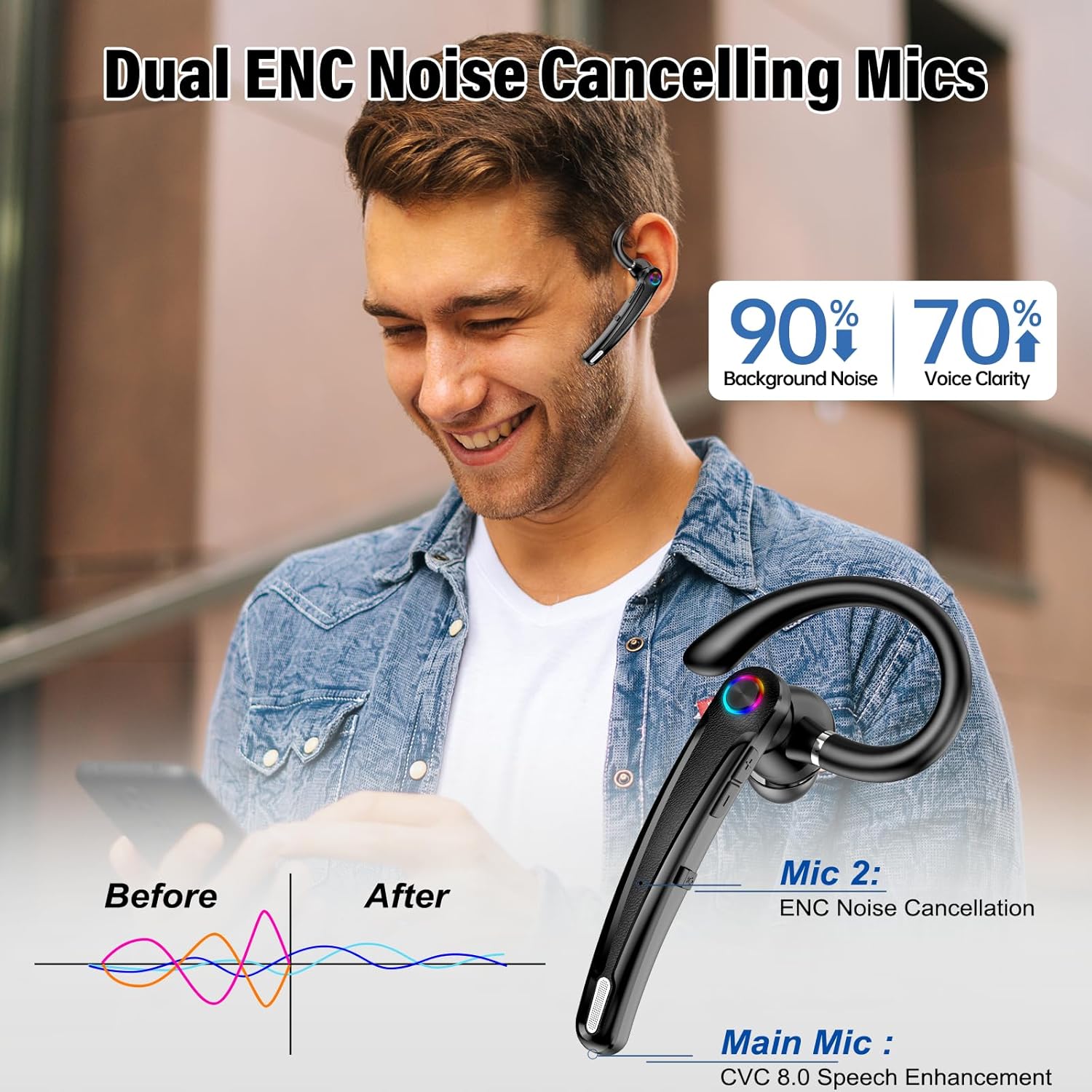
Image: A visual representation of how the dual ENC microphones reduce background noise and enhance voice clarity during calls.
6. Maintenance
6.1 Cleaning
- Wipe the headset and charging case with a soft, dry, lint-free cloth.
- For ear tips, remove them from the headset and clean with a mild soap solution if necessary. Rinse thoroughly and allow to dry completely before reattaching.
- Do not use abrasive cleaners, alcohol, or chemical solvents.
6.2 Storage
- Store the headset in its charging case when not in use to protect it and keep it charged.
- Keep the device in a cool, dry place, away from extreme temperatures and direct sunlight.
6.3 Battery Care
- To prolong battery life, avoid fully discharging the headset and charging case frequently.
- Charge the device regularly, even if not used for extended periods (e.g., once every 3 months).
7. Troubleshooting
| Problem | Possible Cause | Solution |
|---|---|---|
| Headset won't turn on. | Low battery. | Charge the headset and charging case fully. |
| Cannot pair with device. | Headset not in pairing mode; Bluetooth off on device; too many paired devices. | Ensure headset is in pairing mode (flashing blue/red). Turn Bluetooth off/on on your device. Forget previous pairings on your device and try again. |
| No sound or poor sound quality. | Volume too low; headset not selected as audio output; interference. | Increase volume on both headset and device. Check device's audio settings. Move closer to the device, away from other wireless signals. |
| Microphone not working. | Microphone muted; incorrect input device selected. | Press the Mute Button to unmute. Check your device's sound settings to ensure the headset is selected as the input device. |
| Connection drops frequently. | Out of range; interference; low battery. | Stay within 50ft (15m) of your device. Avoid obstacles. Charge the headset. |
8. Specifications
| Feature | Specification |
|---|---|
| Model Name | U8 |
| Bluetooth Version | 5.4 |
| Chipset | Qualcomm QCC |
| Wireless Range | Up to 50ft (15m) |
| Playtime (Headset) | Up to 15 hours |
| Total Playtime (with Charging Case) | Up to 115 hours |
| Charging Time | Approx. 1.5 hours |
| Microphone | Dual ENC Noise Cancelling Mics (-42dBV/Pa sensitivity) |
| Water Resistance | IPX7-rated |
| Connectivity | Wireless (Bluetooth), USB Dongle |
| Compatibility | Windows, Mac, Android, iOS |
| Item Weight | 4.2 ounces |
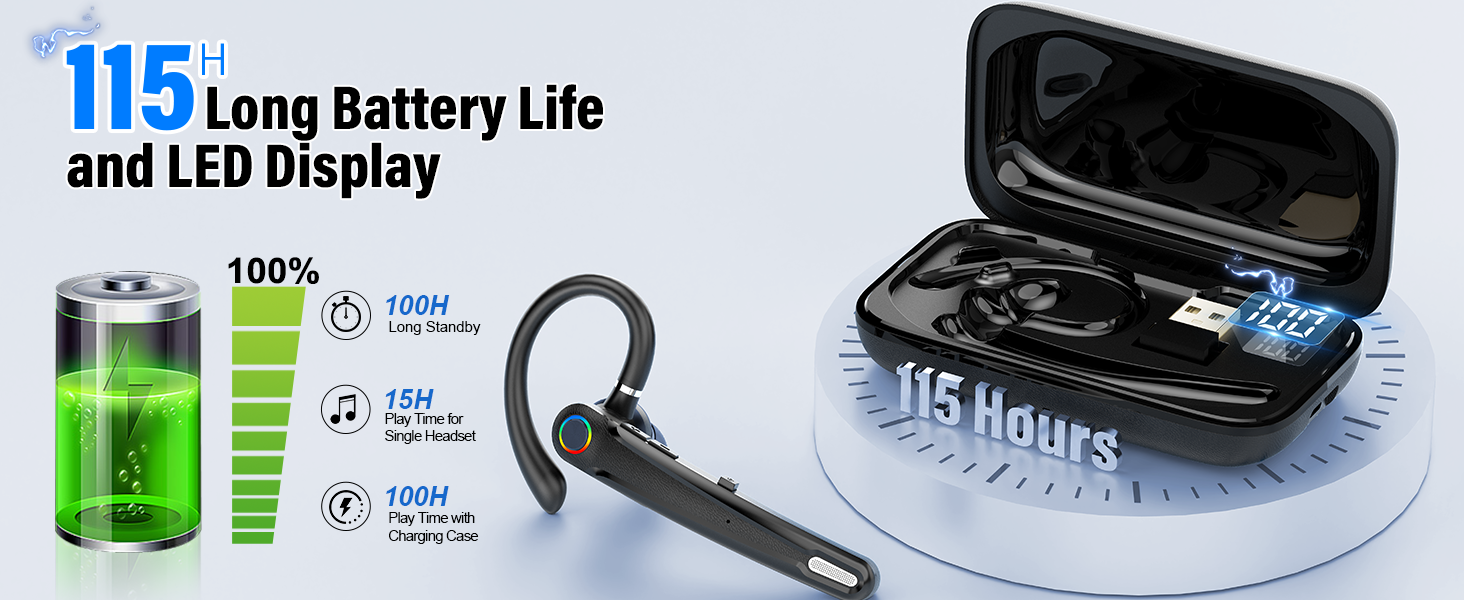
Image: Highlights the 115-hour total battery life with the charging case and the digital LED display.
9. Warranty and Support
Atheewon provides dedicated product support for this Bluetooth headset. If you encounter any issues during normal use, you can request assistance directly through Amazon. Our team is committed to delivering a smooth and reliable experience and will help with troubleshooting steps or replacement options.
For further assistance, please refer to your Amazon order details to contact the seller directly.
Ask a question about this manual
Ask about setup, troubleshooting, compatibility, parts, safety, or missing instructions. Manuals+ will review the question and use this page’s manual context to help answer it.