
1. Introduction
This manual provides detailed instructions for the proper use and maintenance of your ORICO K5PLUS 2TB Magnetic Portable Solid State Drive (SSD). Please read this manual thoroughly before using the product to ensure optimal performance and longevity. The ORICO K5PLUS is designed for high-speed data transfer and convenient storage expansion across various devices.
2. Safety Information
- Do not expose the device to extreme temperatures, moisture, or direct sunlight.
- Avoid dropping or subjecting the device to strong impacts.
- Do not attempt to disassemble or modify the SSD. This will void the warranty.
- Keep the device away from strong magnetic fields to prevent data corruption, except for its intended magnetic attachment feature.
- Ensure proper ventilation when in use to prevent overheating.
- Use only the provided cable or certified USB cables to connect the SSD.
3. Package Contents
Verify that all items are present in your package:
- ORICO K5PLUS Magnetic Portable SSD
- USB-C & USB-A 2-in-1 Data Cable
- Portable Protection Case
- Magnetic Attraction Ring
- User Manual (this document)

Figure 3.1: The ORICO K5PLUS Magnetic Portable SSD shown alongside its included portable protection case. The SSD has a sleek gray finish with the ORICO logo, and the case features a carbon fiber texture with a zipper closure.
4. Product Overview
The ORICO K5PLUS SSD features a compact design with an aluminum alloy body for efficient heat dissipation. It includes a versatile USB-C & USB-A 2-in-1 cable for broad compatibility and a magnetic attachment system for secure mounting to compatible devices.

Figure 4.1: The ORICO K5PLUS SSD magnetically attached to the back of a smartphone, connected via its USB-C port. The 2-in-1 cable is shown with both USB-C and USB-A connectors.
5. Setup
5.1 Connecting the SSD
- Identify the appropriate port on your device (USB-C or USB-A).
- Connect the 2-in-1 cable to the SSD's USB-C port.
- Connect the other end of the cable (USB-C or USB-A) to your computer, tablet, smartphone, or camera.
- The SSD is plug-and-play and should be recognized automatically by most operating systems. If prompted, you may need to format the drive for first-time use, especially on certain operating systems or for specific applications.
5.2 Magnetic Attachment
The ORICO K5PLUS features a strong magnetic attachment for convenient use with compatible devices.
- For devices with built-in magnetic compatibility: Simply align the SSD with the magnetic area on your device until it securely attaches.
- For devices without built-in magnetic compatibility: Use the included magnetic attraction ring.
- Clean the surface of your device or phone case where you intend to attach the ring.
- Peel off the adhesive backing from the magnetic attraction ring.
- Carefully center and press the ring firmly onto the desired location. Allow sufficient time for the adhesive to bond before attaching the SSD.
Note: The magnetic attachment feature is not compatible with Apple phones using a Lightning connector.

Figure 5.1: Illustration demonstrating the magnetic attachment of the ORICO K5PLUS SSD to a smartphone. It highlights the N52 high-strength magnetic feature and shows how the included magnetic ring can be used for devices without native magnetic support. Compatibility examples for iPhone cases and Android phones are also shown.
6. Operating Instructions
6.1 Data Transfer
Once connected, the ORICO K5PLUS SSD will appear as an external drive on your device. You can drag and drop files, copy and paste, or use your device's file management system to transfer data to and from the SSD.
- For optimal transfer speeds, ensure your device supports USB 3.0 Gen1 or higher. The SSD supports speeds up to 460MB/s.
- Always safely eject the SSD from your operating system before disconnecting the cable to prevent data corruption.

Figure 6.1: Visual representation of the ORICO K5PLUS SSD's transfer speed, indicating up to 5Gbps for USB 3.0 Gen1 interface devices, with a data transfer rate of 460MB/s. It also shows a comparison to USB 2.0 speeds.
6.2 Expanding Device Capacity
The ORICO K5PLUS can be used to expand storage for various devices:
- Computers: Connect to laptops or desktops for additional storage for documents, media, and backups.
- Tablets: Store large files, movies, or work documents directly on the SSD for easy access.
- Cameras: Directly record or offload photos and videos from compatible cameras.
- Smartphones: Expand storage for photos, videos, and applications, especially useful for high-resolution media.

Figure 6.2: The ORICO K5PLUS SSD attached to a smartphone, illustrating its use for expanding capacity across different devices such as computers, tablets, and cameras.
6.3 4K 120 fps ProRes Video Recording (iPhone 16 Pro/Pro Max)
The ORICO K5PLUS SSD supports direct external recording of 4K 120 fps ProRes HDR video from compatible devices like the iPhone 16 Pro/Pro Max. This allows you to save high-quality video directly to the SSD, enabling instant editing without the need for a second transfer.

Figure 6.3: The ORICO K5PLUS SSD mounted on an iPhone 16 Pro/Max, demonstrating its capability for direct 4K 120Hz ProRes video recording. The image shows the SSD attached to a phone in a camera rig setup.
7. Maintenance
7.1 Cleaning and Care
- Wipe the SSD and case with a soft, dry cloth. Avoid using liquid cleaners or solvents.
- Keep the USB ports free from dust and debris.
7.2 Protection Case
The included portable protection case is designed to safeguard your SSD and accessories.
- The external material offers wear, shock, and crush resistance.
- The interior features a soft fluff lining to prevent scratches and absorb minor impacts.
- Use the internal mesh pocket and elastic strap to organize the cable and other small items.
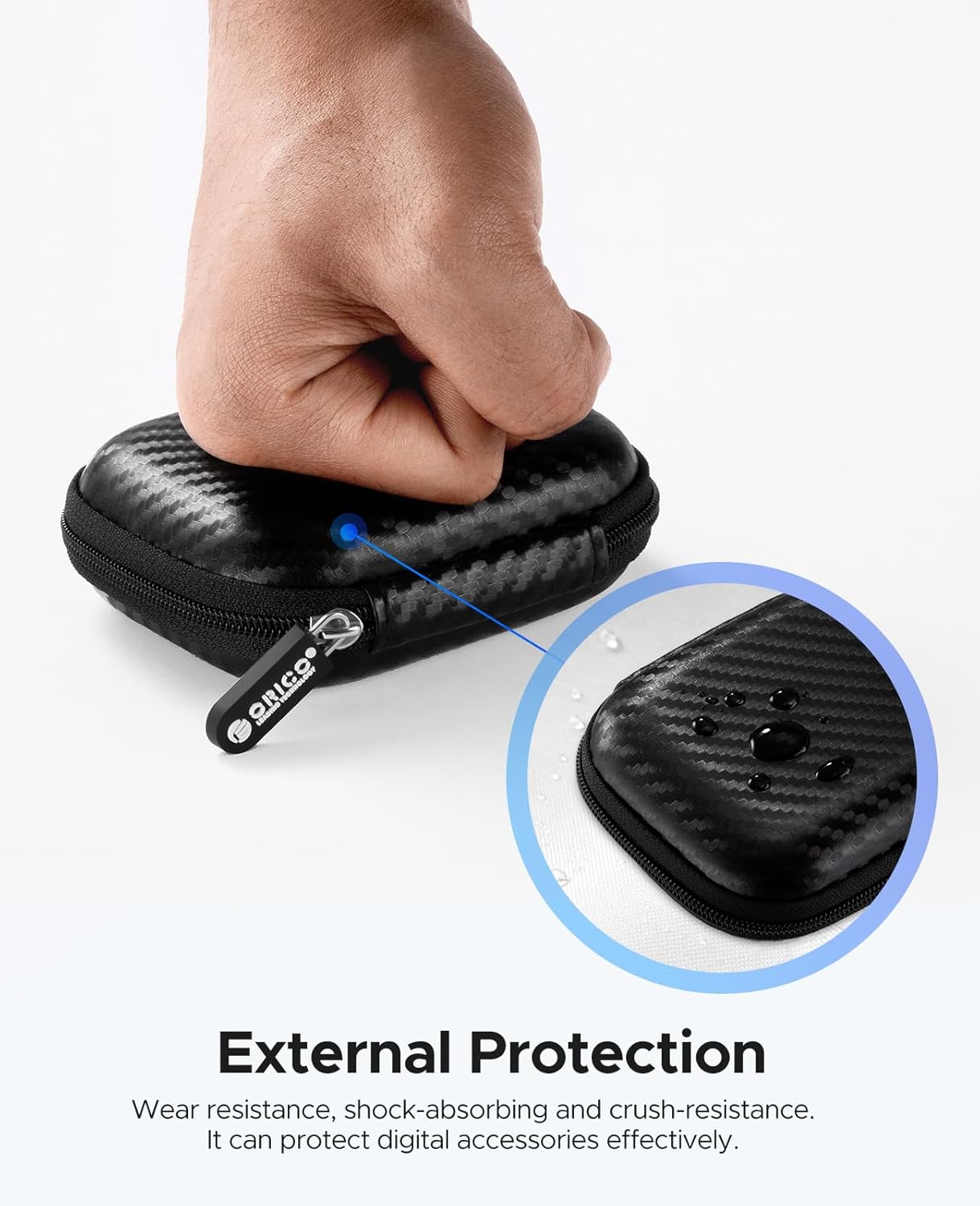
Figure 7.1: The external view of the ORICO K5PLUS protection case, highlighting its wear-resistant, shock-absorbing, and crush-resistant properties. A hand is shown pressing down on the case to demonstrate its durability.

Figure 7.2: The interior of the ORICO K5PLUS protection case, showing the soft fluff lining designed to protect the SSD and accessories from scratches. An SSD and cable are stored inside.

Figure 7.3: The ORICO K5PLUS protection case shown with various small items like USB drives, chargers, and memory cards, illustrating its capacity for organizing and protecting digital accessories.
8. Troubleshooting
- SSD not recognized:
- Ensure the cable is securely connected to both the SSD and your device.
- Try a different USB port on your device.
- Try connecting to a different computer or device to rule out a port issue.
- Check your device's disk management utility (Windows) or Disk Utility (macOS) to see if the drive is detected but unformatted.
- Slow transfer speeds:
- Ensure you are connected to a USB 3.0 Gen1 (or higher) port. USB 2.0 ports will result in significantly slower speeds.
- Verify that your device's drivers are up to date.
- Avoid transferring many small files simultaneously, as this can reduce overall speed.
- Magnetic attachment issues:
- Ensure the magnetic attraction ring is properly installed and adhered if your device lacks native magnetic support.
- Confirm your device is not an Apple phone with a Lightning connector, as these are not supported for magnetic attachment.
9. Specifications
| Model | K5PLUS |
| Brand | ORICO |
| Capacity | 2TB |
| Interface | USB 3.0 Gen1 (USB-C port on SSD) |
| Transfer Speed | Up to 460MB/s |
| Connector Type | USB-C (SSD side), USB-C & USB-A (Cable side) |
| Material | Aluminum Alloy (SSD body) |
| Dimensions | 2.36 x 3.15 x 0.47 inches (SSD) |
| Special Features | Magnetic Attachment, 4K 120 fps ProRes Recording Support (iPhone 16 Pro/Pro Max) |
10. Warranty and Support
ORICO products come with a standard manufacturer's warranty. Please refer to the warranty card included in your package or visit the official ORICO website for detailed warranty terms and conditions.
For technical support, troubleshooting assistance, or warranty claims, please contact ORICO customer service through their official website or the contact information provided with your purchase.
Official ORICO Website: www.orico.cc


