
1. Product Overview
The Zebronics ZEB-LIVE PRO is a Full HD USB webcam designed for clear video communication and streaming. It features a 2.0MP CMOS sensor, 2P2G lens, and a built-in microphone, making it suitable for various applications including online meetings, video calls, and content creation. The webcam includes automatic white balance and exposure for optimal image quality in different lighting conditions, along with a privacy shutter for enhanced security.
Package Contents
- Zebronics ZEB-LIVE PRO FHD USB Webcam - 1 unit
2. Setup Instructions
Connecting the Webcam
- Unpack the Webcam: Carefully remove the webcam from its packaging.
- Position the Webcam:
- On a Monitor/Laptop Screen: Open the webcam's clip base and place it on top of your monitor or laptop screen. Adjust the angle to ensure the webcam is stable and facing you.
- On a Flat Surface: The clip base can also be folded to allow the webcam to stand on a flat surface, such as a desk.
- On a Tripod: The webcam features tripod support. Attach it to a compatible tripod for more flexible positioning.
- Connect to Computer: Plug the USB cable from the webcam into an available USB port on your personal computer or laptop. The webcam is plug-and-play and typically does not require additional driver installation.
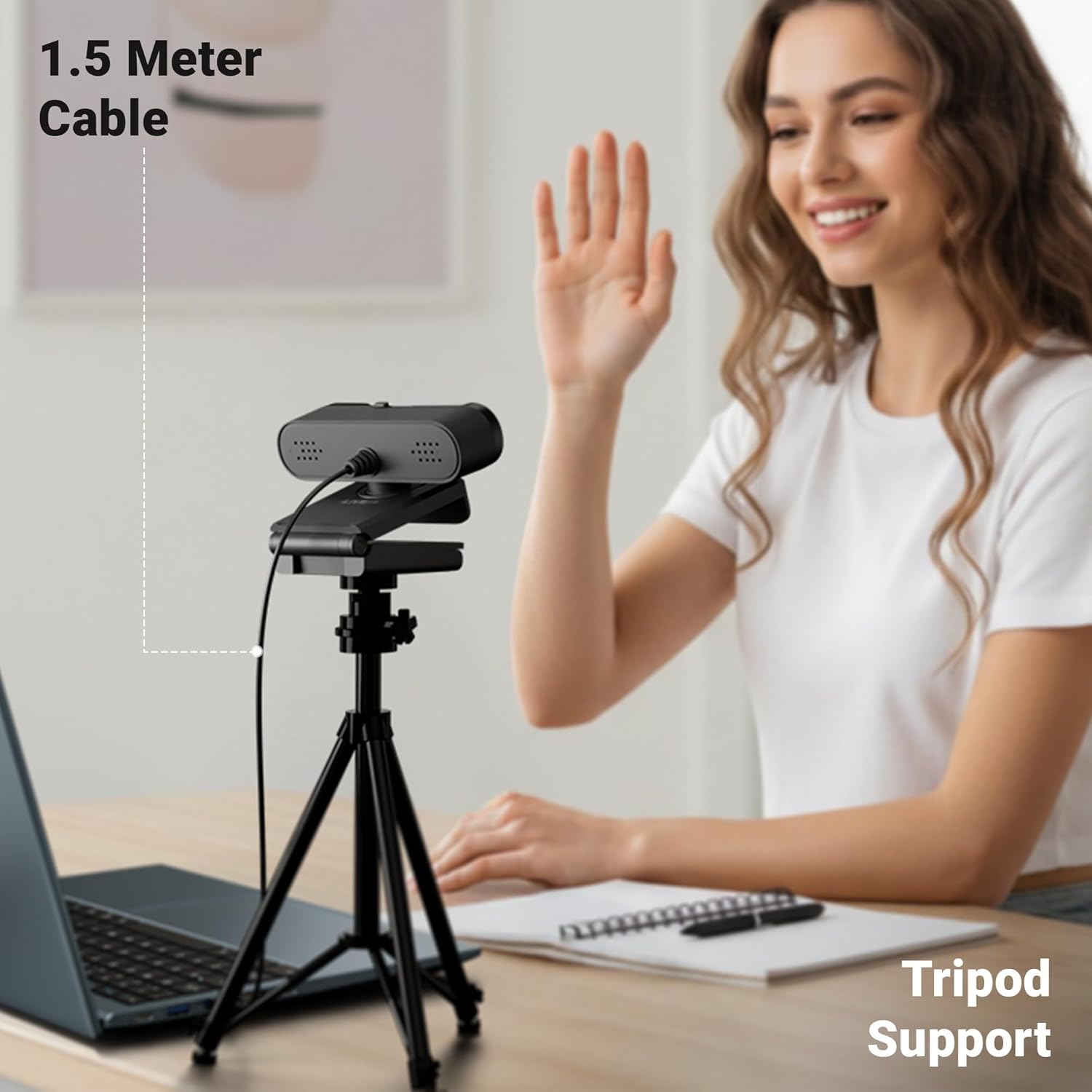
Image: Webcam on a tripod, illustrating the 1.5 meter cable and tripod support.
Initial Setup (Windows/macOS)
Once connected, your operating system should automatically detect the webcam. You can verify its installation through your system's device manager or sound settings.
- Windows: Go to Settings > Devices > Cameras or Device Manager > Imaging devices.
- macOS: Open System Settings > Sound > Input to check the microphone, and use an application like Photo Booth or FaceTime to verify video input.
3. Operating Instructions
Using the Webcam for Video Calls and Streaming
The ZEB-LIVE PRO webcam is compatible with most popular video conferencing and streaming applications.
- Launch Application: Open your preferred video conferencing software (e.g., Zoom, Microsoft Teams, Google Meet, FaceTime) or streaming platform.
- Select Webcam: In the application's settings, navigate to the video and audio input options. Select "Zebronics ZEB-LIVE PRO" as your camera and microphone.
- Adjust Settings: Most applications allow you to preview your video feed and adjust settings like resolution or brightness if needed.
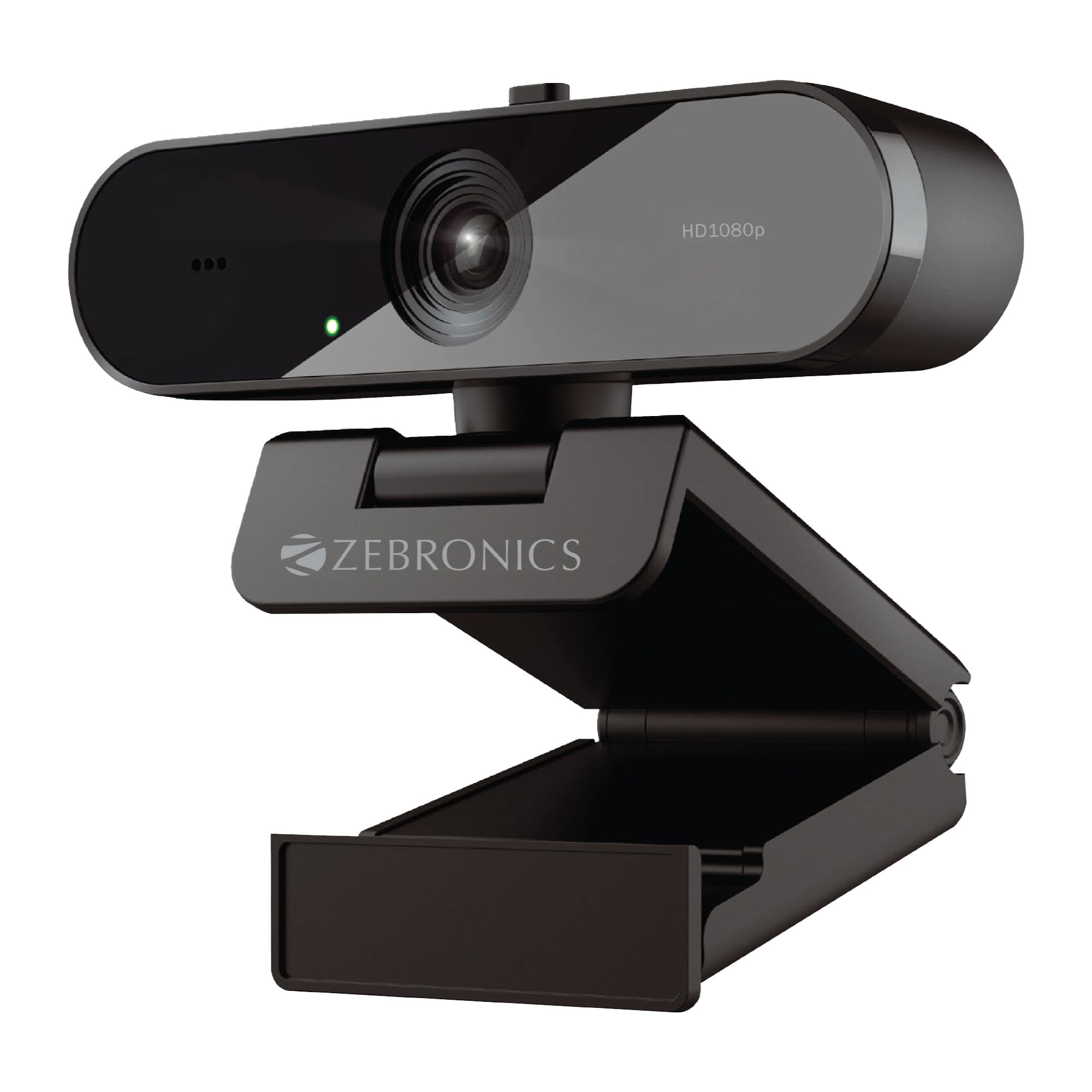
Image: High Resolution 1080p output for clear visuals.
Key Features
- Full HD 1080p Resolution: Provides sharp and detailed video at 1920 x 1080 pixels, ensuring clarity for your calls and streams.
- 30 Frames Per Second (FPS): Delivers smooth video motion, crucial for natural-looking interactions.
- Auto-White Balance: The webcam automatically adjusts color tones to ensure natural and accurate visuals, adapting to various lighting environments.

Image: Automatic White Balance and Auto Exposure in action during a video call.
- Auto-Exposure: Automatically adjusts brightness levels to prevent over or under-exposure, ensuring clear images even in challenging lighting.
- Built-in Microphone: Captures clear audio without the need for an external microphone. Ensure it is selected as the audio input device in your application settings.

Image: Built-in microphone capturing audio during use.
- Privacy Shutter: A physical slider allows you to cover the lens when the webcam is not in use, providing privacy and peace of mind.

Image: Dedicated privacy shutter in open and closed states.
4. Maintenance
Proper maintenance ensures the longevity and optimal performance of your webcam.
- Cleaning the Lens: Use a soft, lint-free cloth specifically designed for optics to gently wipe the lens. Avoid abrasive materials or harsh chemicals.
- Cleaning the Body: Wipe the webcam's body with a soft, dry cloth. Do not use liquid cleaners directly on the device.
- Storage: When not in use, especially for extended periods, store the webcam in a clean, dry place away from direct sunlight and extreme temperatures. Utilize the privacy shutter to protect the lens from dust.
- Cable Care: Avoid bending or twisting the USB cable excessively. Do not pull the cable to disconnect the webcam; always grasp the USB connector.
5. Troubleshooting
If you encounter issues with your Zebronics ZEB-LIVE PRO webcam, refer to the following common solutions:
| Problem | Possible Solution |
|---|---|
| No image or video feed |
|
| Microphone not working |
|
| Poor video quality (blurry, dark, grainy) |
|
| Webcam not detected by computer |
|
6. Specifications
Detailed technical specifications for the Zebronics ZEB-LIVE PRO FHD USB Webcam:
| Feature | Specification |
|---|---|
| Model Name | ZEB-LIVE PRO (ZEB-IWC 1) |
| Video Capture Resolution | 1080p (Full HD) |
| Effective Still Resolution | 2 MP |
| Frame Rate | 30 FPS |
| Photo Sensor Technology | CMOS |
| Lens Type | 2P2G Lens |
| Focus Type | Fixed Focus |
| Built-in Microphone | Yes |
| Special Features | Auto-White Balance, Auto-Exposure, Privacy Shutter |
| Connectivity Technology | USB |
| Compatible Devices | Personal Computer, Laptop, Tablet |
| Item Weight | 95 Grams |
| Item Dimensions (D x W x H) | 6.2D x 9W x 5H Centimeters |
| Country of Origin | India |
7. Warranty and Support
Warranty Information
The Zebronics ZEB-LIVE PRO webcam comes with a 1-year carry-in warranty. For warranty claims, please contact the service center directly. Keep your purchase receipt as proof of purchase.
Customer Support
For further assistance, technical support, or service inquiries, please contact Zebronics customer support. Refer to the official Zebronics website or your product packaging for the most current contact information.
Manufacturer: Zebronics India Private Limited
Importer Contact Information: 13/7, Smith Road, Royapettah, CHENNAI-600002