
XNANO X3
XNANO X3 Projector User Manual
WiFi and Bluetooth Home Theater Projector
1. Introduction
This manual provides essential information for the safe and efficient operation of your XNANO X3 Projector. Please read it thoroughly before using the device and retain it for future reference. This projector is designed to deliver a high-quality home theater experience with its advanced features, including WiFi, Bluetooth, and support for 4K video decoding.
2. Safety Information
- Power Supply: Use only the specified power adapter. Ensure the voltage matches the projector's requirements.
- Placement: Place the projector on a stable, level surface. Avoid placing it in direct sunlight, near heat sources, or in environments with high humidity or dust. Ensure adequate ventilation around the projector.
- Heat: The projector generates heat during operation. Do not block ventilation openings. Allow sufficient space for heat dissipation.
- Lens: Do not look directly into the projector lens when the lamp is on, as the bright light can cause eye damage.
- Cleaning: Disconnect the power cord before cleaning. Use a soft, dry cloth. Do not use liquid or aerosol cleaners.
- Battery: The built-in battery is rechargeable. If storing the projector for an extended period, separate the battery from the projector as instructed in the feature bullets to prevent damage.
- Repairs: Do not attempt to repair the projector yourself. Refer all servicing to qualified personnel.
3. Package Contents
Please check that all items are present in your package:
- XNANO X3 Projector
- Remote Control
- Power Adapter
- User Manual (this document)
4. Product Overview
The XNANO X3 Projector is a compact and versatile home theater device. It features a built-in rechargeable battery for portability, electric focus for easy image adjustment, and a smart interface with pre-installed applications.

Image 1: The XNANO X3 Projector shown with its accompanying remote control. The projector has a sleek, compact design with a prominent lens and ventilation grilles.

Image 2: The XNANO X3 Projector highlighting its RGB lighting effect and electric focus capability. The projector supports 4K video and features a modern aesthetic.
Key Features:
- Built-in 15Ah Rechargeable Battery: Provides portability for outdoor and indoor use.
- Electric Focus: Adjust image clarity easily via remote control.
- Voice Remote & Touch Keys: Multiple control options for convenience.
- 300 ANSI Brightness: Delivers clear images (recommended for dark environments).
- 4K Video Decode Support: Enhances viewing experience.
- 5W Speaker: Integrated audio solution.
- Fast 2.4G/5G WiFi & Bluetooth 5.2: Stable and quick wireless connectivity.
- Multiple Ports: HDMI, USB, Audio, LAN, Type-C for versatile connectivity.
5. Setup
5.1 Charging the Battery
The projector includes a built-in 15Ah rechargeable battery. Before first use or if the battery is low, connect the power adapter to the projector and a power outlet. Charging time is approximately 6 hours. The projector can be used while charging.
5.2 Placement
Position the projector on a flat, stable surface. Ensure there are no obstructions to the projection path or the ventilation openings. For optimal viewing, project onto a smooth, light-colored wall or a projector screen.
5.3 Powering On/Off
- Power On: Press and hold the power button on the projector or the remote control.
- Power Off: Press the power button again. Confirm shutdown if prompted.
5.4 Initial Focus Adjustment
After powering on, use the F+/- buttons on the remote control to adjust the electric focus until the projected image is clear and sharp.
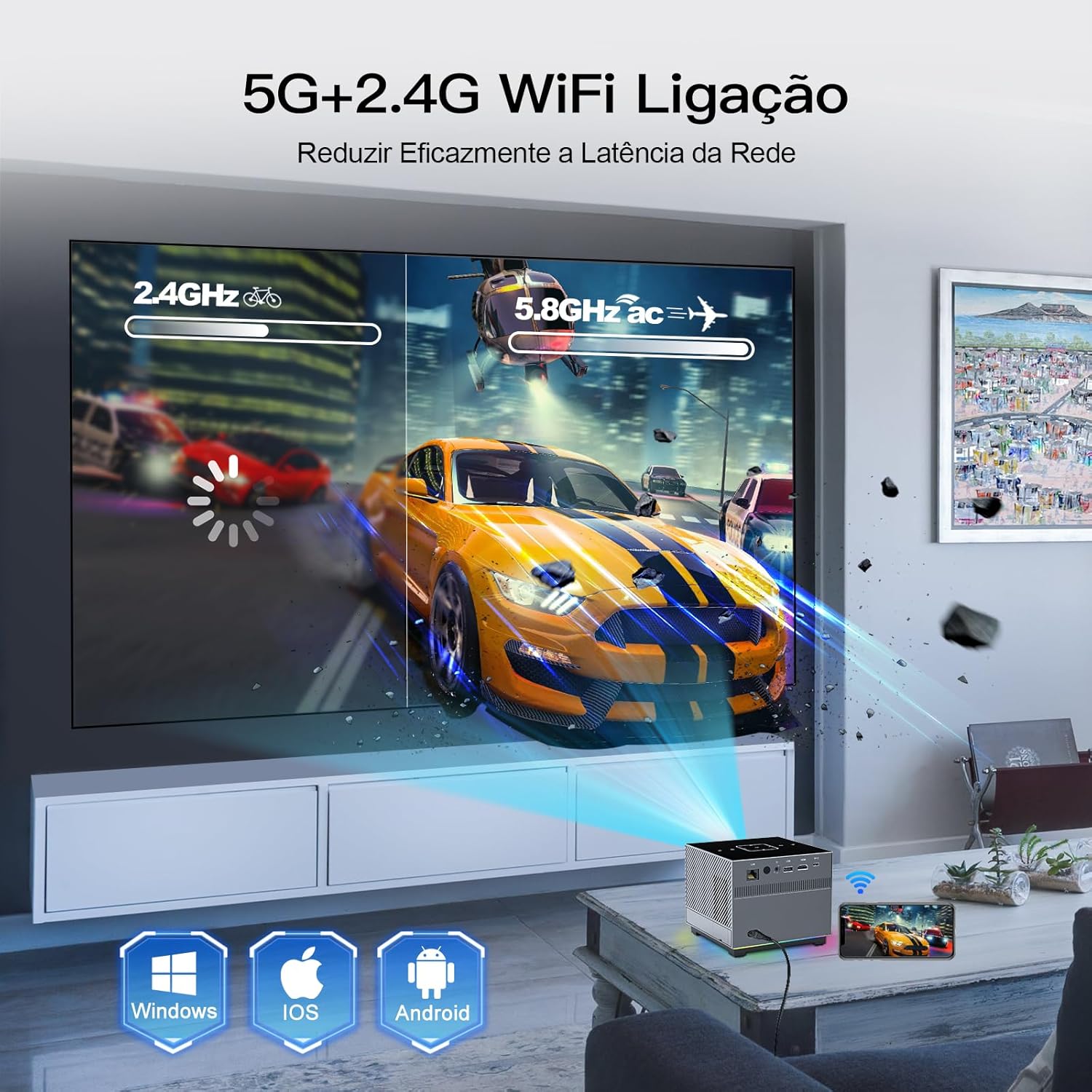
Image 3: The XNANO X3 Projector in an operational setting, projecting an image onto a screen. The image also illustrates the dual-band 2.4G and 5G WiFi connectivity.
6. Operating Instructions
6.1 Using the Remote Control
The remote control is your primary interface for the projector. Ensure it is paired via Bluetooth for full functionality, including the voice assistant.
- Navigation: Use the directional pad and OK button to navigate menus.
- Focus: Use F+/- buttons for electric focus adjustment.
- Voice Assistant: Press the voice button (if available and paired) to activate voice commands for most projector functions.
- Volume: Adjust audio output.
6.2 Using Touch Keys
The projector's top panel features touch-sensitive keys for basic operations. Gently touch the keys to activate functions such as power, volume, and navigation.
6.3 Navigation and Settings
The projector runs on a smart operating system. Navigate through the home screen to access installed applications, input sources, and system settings. Adjust picture settings (brightness, contrast, color) and sound settings as desired.
7. Connectivity
7.1 WiFi Setup (2.4G/5G)
- Go to the 'Settings' menu on the projector.
- Select 'Network' or 'WiFi'.
- Turn on WiFi and select your desired network (2.4G or 5G).
- Enter the password and connect. The 5G WiFi offers faster speeds for smoother streaming.
7.2 Bluetooth Pairing
Connect Bluetooth speakers, headphones, or the remote control for enhanced audio or control.
- Go to 'Settings' and select 'Bluetooth'.
- Turn on Bluetooth and scan for devices.
- Select your device from the list to pair.
7.3 Connecting External Devices
The projector offers various ports for connecting external devices:
- HDMI: Connect Blu-ray players, game consoles, laptops, or TV sticks.
- USB: Play media files directly from USB drives.
- Audio Out: Connect external wired speakers or sound systems.
- LAN: For wired internet connection.
- Type-C: For compatible devices.

Image 4: The XNANO X3 Projector displaying its smart interface with pre-installed apps like Netflix and YouTube. The image also illustrates the various connectivity options including LAN, HDMI, USB, and Type-C ports.
8. Apps and Media Playback
8.1 Built-in Applications
The projector comes with pre-installed applications such as Netflix, YouTube, and the Play Store. Access these directly from the home screen to stream movies, TV shows, and music.
8.2 Playing Local Media
Insert a USB drive into the USB port. The projector's media player will allow you to browse and play compatible video, audio, and image files stored on the drive.
8.3 Screen Mirroring
The projector supports screen mirroring from various devices, including Windows, iOS, and Android. Refer to the projector's on-screen instructions or settings for specific mirroring protocols (e.g., Miracast, AirPlay).
9. Maintenance
9.1 Cleaning the Lens
Use a soft, lint-free cloth specifically designed for optical lenses. Gently wipe the lens to remove dust or smudges. Avoid using abrasive materials or harsh chemicals.
9.2 Cleaning the Projector Body
Wipe the exterior of the projector with a soft, dry cloth. Do not use liquid cleaners directly on the device. Ensure ventilation openings are free from dust accumulation.
9.3 Battery Care for Long-Term Storage
If you do not plan to use the projector for an extended period, it is recommended to separate the battery from the projector to maintain battery health and prevent potential issues.
10. Troubleshooting
- No Power: Ensure the power adapter is securely connected and the power outlet is functional. Check if the battery is charged.
- No Image: Verify the input source is correctly selected. Check all cable connections (HDMI, etc.). Adjust focus using the remote. Ensure the lens cap is removed.
- Blurred Image: Use the F+/- buttons on the remote to adjust the electric focus. Ensure the projector is at an appropriate distance from the screen.
- No Sound: Check the projector's volume settings and any connected external audio devices. Ensure Bluetooth audio is correctly paired.
- WiFi/Bluetooth Connectivity Issues: Ensure the projector is within range of the router/device. Restart the projector and the router/device. Re-enter WiFi password or re-pair Bluetooth device.
- Remote Control Not Responding: Check battery in the remote. Ensure the remote is paired via Bluetooth for full functionality.
11. Specifications
| Feature | Specification |
|---|---|
| Brand | XNANO |
| Model | X3 |
| Item Weight | 1.65 pounds |
| Product Dimensions | 10.16 x 5.43 x 5.75 inches |
| Display Resolution | 1280 x 720 (Native) |
| Connectivity Technology | Ethernet, WiFi (2.4G/5G), Bluetooth 5.2, HDMI, USB, Type-C, Audio |
| Special Features | Built-in Speakers, Rechargeable Battery, Electric Focus, Voice Remote |
| Recommended Uses | Indoor/Outdoor |
| Brightness | 300 ANSI Lumens |
| Video Decode Support | Up to 4K |
12. Warranty and Support
XNANO provides a one-year warranty for the X3 Projector. For technical assistance, troubleshooting, or warranty claims, please contact XNANO customer service. Professional technical support is available for the lifetime of the product.
For further assistance, please visit the XNANO Store on Amazon.
Related documentsX3


Ask a question about this manual
Ask about setup, troubleshooting, compatibility, parts, safety, or missing instructions. Manuals+ will review the question and use this page’s manual context to help answer it.