
1. Introduction
Thank you for choosing the TOKQI M05 3-Axis Gimbal Stabilizer. This device is designed to enhance your smartphone videography by providing smooth, stable footage across various shooting scenarios. It features advanced stabilization, intelligent AI tracking, a magnetic remote control, and a built-in fill light. This manual provides detailed instructions for setup, operation, maintenance, and troubleshooting to ensure optimal performance.

Image: The TOKQI M05 Gimbal Stabilizer illustrating its three-axis stabilization technology, which uses three motors to counteract shake and ensure stable footage. A comparison shows the difference between handheld shooting and TOKQI M05 shooting, highlighting the enhanced stability.
2. Product Components
The TOKQI M05 package includes the following items:
- TOKQI Gimbal Stabilizer M05 x 1
- A08 AI Tracking Camera x 1 (Optional, may be purchased separately)
- D08 Magnetic Fill Light x 1
- Magnetic Remote Control x 1
- Magnetic Phone Grip x 1
- Extension Rod (built-in)
- Tripod Handle x 1
- USB Charging Cable x 1
- User Manual x 1
- Soft Pouch x 1
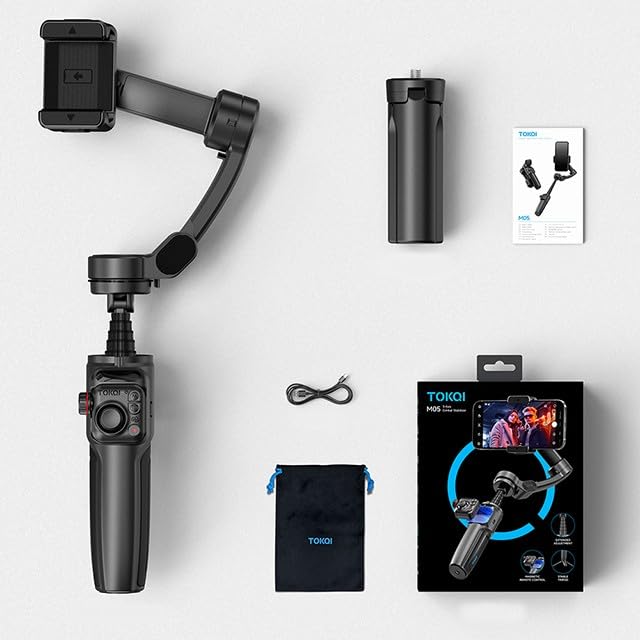
Image: An overhead view displaying all included components of the TOKQI M05 Gimbal Stabilizer package, neatly arranged. These include the gimbal, tripod, AI tracking camera, fill light, remote control, phone grip, USB cable, soft pouch, and user manual.
3. Setup Guide
3.1 Unboxing and Initial Inspection
Carefully remove all components from the packaging. Inspect for any visible damage. Ensure all listed components are present.
3.2 Charging the Gimbal
Before first use, fully charge the gimbal using the provided USB charging cable. Connect the cable to the gimbal's charging port and a standard USB power adapter (not included). The indicator light will show charging status.
3.3 Attaching the Smartphone
- Extend the gimbal arm and open the magnetic phone grip.
- Securely place your smartphone into the grip. Ensure the phone is centered and balanced.
- The gimbal supports both horizontal and vertical phone orientations.

Image: The TOKQI M05 Gimbal Stabilizer with a smartphone securely mounted in the phone grip, ready for use. The image highlights the compact design and the phone's vertical orientation.
3.4 Balancing the Gimbal
The M05 features an automatic balancing system. After attaching your phone, power on the gimbal, and it will self-adjust to balance the phone. If the phone is significantly off-center, manually adjust its position in the grip for optimal performance.
3.5 Attaching Accessories
- Tripod Handle: Screw the tripod handle onto the 1/4-inch interface at the bottom of the gimbal for stable tabletop use or as an extended grip.
- AI Tracking Camera (A08): Attach the A08 AI Tracking Camera to its designated magnetic port on the gimbal. Ensure it is securely connected.
- Magnetic Fill Light (D08): Attach the D08 Magnetic Fill Light to its designated magnetic port.
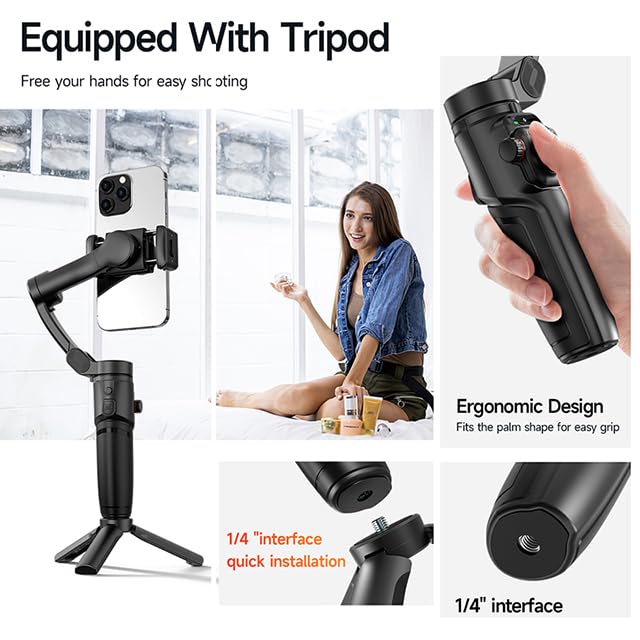
Image: The TOKQI M05 Gimbal Stabilizer shown with its detachable tripod base, illustrating how it provides stability for hands-free shooting. The image also highlights the ergonomic design of the gimbal handle and the 1/4-inch interface for quick installation.
4. Operating Instructions
4.1 Powering On/Off
Press and hold the power button (usually integrated with the M button) for a few seconds to power the gimbal on or off. The indicator lights will illuminate upon power-on.
4.2 Control Layout
The TOKQI M05 features an intuitive control panel for one-handed operation:
- Zoom/Multiplier Control Wheel: Adjusts zoom or focus. (Note: Zoom function may not be supported by all smartphone models.)
- M Button/Remote Control Power Button: Powers the remote, switches shooting modes, or switches between front and rear lenses.
- Lockout Button/Trigger Button: Used for locking the gimbal's orientation or triggering specific functions.
- Camera Button: Initiates photo capture or video recording.
- Joystick: Controls the rotation and pan of the gimbal.

Image: A detailed view of the TOKQI M05 Gimbal Stabilizer's multi-functional control panel, highlighting the zoom/multiplier control wheel, M button/remote control power button, lockout button, camera button, and joystick for precise one-handed operation.
4.3 Shooting Modes
The TOKQI M05 offers seven distinct shooting modes for various creative effects:
- Semi-follow Mode: The gimbal follows pan movements while tilt and roll axes are locked.
- Fully Locked Mode: All three axes are locked, keeping the camera pointing in a fixed direction.
- Semi-follow Go Mode: Similar to Semi-follow but with faster response for dynamic shots.
- Full Follow Mode: The gimbal follows both pan and tilt movements, keeping the camera stable.
- Inception Space Mode: Rotates the smartphone 360 degrees along the roll axis for a unique spinning effect.
- POV Mode: Provides a first-person perspective, allowing the gimbal to follow all three axes (pan, tilt, roll) with slight angle changes.
- Full Follow Go Mode: An accelerated version of Full Follow, ideal for fast-moving subjects.
Image: A visual representation of the seven distinct shooting modes available on the TOKQI M05 Gimbal Stabilizer, including Semi-follow, Fully locked, Semi-follow Go, Full follow, Inception Space, POV, and Full follow Go modes, each with an icon indicating its function.
4.4 AI Tracking and Gesture Control
The optional A08 AI Tracking Camera enables intelligent subject tracking without requiring an app. Once attached and activated, it can precisely lock onto a target. Gesture control allows you to initiate tracking or other functions with specific hand gestures.

Image: A visual guide to the AI Tracking Camera and Gesture Control features of the TOKQI M05. It shows the compact AI tracking camera, its magnetic design, 180-degree flip capability, and an example of the 'Double Eight Gesture' for composition tracking start.
4.5 Magnetic Remote Control
The included magnetic remote control allows wireless operation of the gimbal from up to 10 meters away. It can be detached from the gimbal handle for convenient remote shooting.
4.6 Fill Light Operation
The D08 Magnetic Fill Light provides additional illumination for low-light conditions. It can be attached magnetically and typically has its own power button or is controlled via the gimbal's main controls.
4.7 Horizontal and Vertical Shooting
The gimbal supports quick transitions between horizontal (landscape) and vertical (portrait) shooting orientations. This is achieved by rotating the phone grip or using a dedicated button/trigger for a 180-degree flip, ideal for social media content.
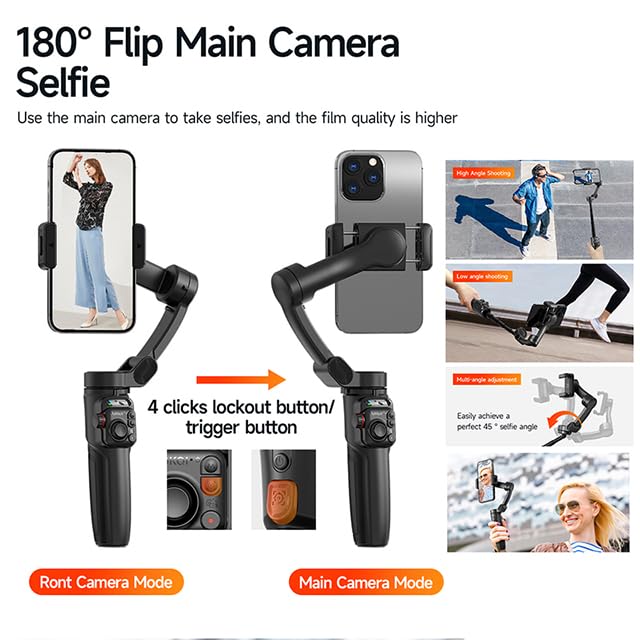
Image: The TOKQI M05 Gimbal Stabilizer showcasing its 180-degree flip capability, allowing users to switch between front camera (selfie) mode and main camera mode. It illustrates how to achieve various shooting angles, including high-angle, low-angle, and multi-angle adjustments.
4.8 Using the Gimbal Show App
For extended features and advanced controls, download the official TOKQI 'Gimbal Show' application from the App Store or Google Play. The app provides additional functionalities such as AI One-click film, PANO CloneMe, Dyna-Zoom, Intelligent Tracking, and Timelapse modes.

Image: A display of the 'Gimbal Show' exclusive application, showing its various features like AI One-click film, Gesture Control, PANO CloneMe, Dyna-Zoom, Intelligent Tracking, and Timelapse. It indicates the app is available on both the App Store and Google Play.
5. Maintenance and Care
- Cleaning: Use a soft, dry cloth to clean the gimbal. Avoid using liquid cleaners or solvents.
- Storage: Store the gimbal in its soft pouch in a cool, dry place away from direct sunlight and extreme temperatures.
- Battery Care: To prolong battery life, fully charge the gimbal at least once every three months, even if not in use. Avoid completely draining the battery regularly.
- Handling: Handle the gimbal with care. Avoid dropping or subjecting it to strong impacts.
6. Troubleshooting
- Gimbal not powering on: Ensure the battery is charged. Connect to a power source and try again.
- Gimbal not stabilizing: Ensure the smartphone is properly mounted and balanced. Restart the gimbal.
- Remote control not working: Check the remote's battery. Ensure it is paired correctly with the gimbal.
- AI Tracking not functioning: Ensure the A08 AI Tracking Camera is correctly attached and powered on. Check for clear line of sight to the subject.
- App connectivity issues: Ensure Bluetooth is enabled on your smartphone and the gimbal. Restart both devices and the app.
7. Technical Specifications
| Feature | Specification |
|---|---|
| Model Number | M05 |
| Product Dimensions | 5D x 15W x 28H Centimeters |
| Item Weight | 392 Grams |
| Compatible Devices | Android Phones, Apple Phones, Cellphone, Smartphones |
| Stabilization | 3-Axis |
| Shooting Modes | 7 (Full Follow, Semi-Follow, POV, etc.) |
| AI Tracking | Yes (with optional A08 AI Tracking Camera) |
| Remote Control Range | Up to 10 meters |
| Material | Aluminium Alloy |
| Manufacturer | SUBHAGA TRADING |
| Country of Origin | China |
8. Warranty and Support
For warranty information, please refer to the warranty card included in your product packaging or contact your point of purchase. For technical support or further assistance, please contact TOKQI customer service through the official website or the contact information provided with your product.

