
1. Product Overview
The Dell Wired Headset WH125 is designed for clear audio communication and comfortable all-day wear. It features simple USB-A connectivity for a plug-and-play experience, an inline controller for easy access to volume and mute functions, and a rotatable boom microphone for optimal voice pickup.
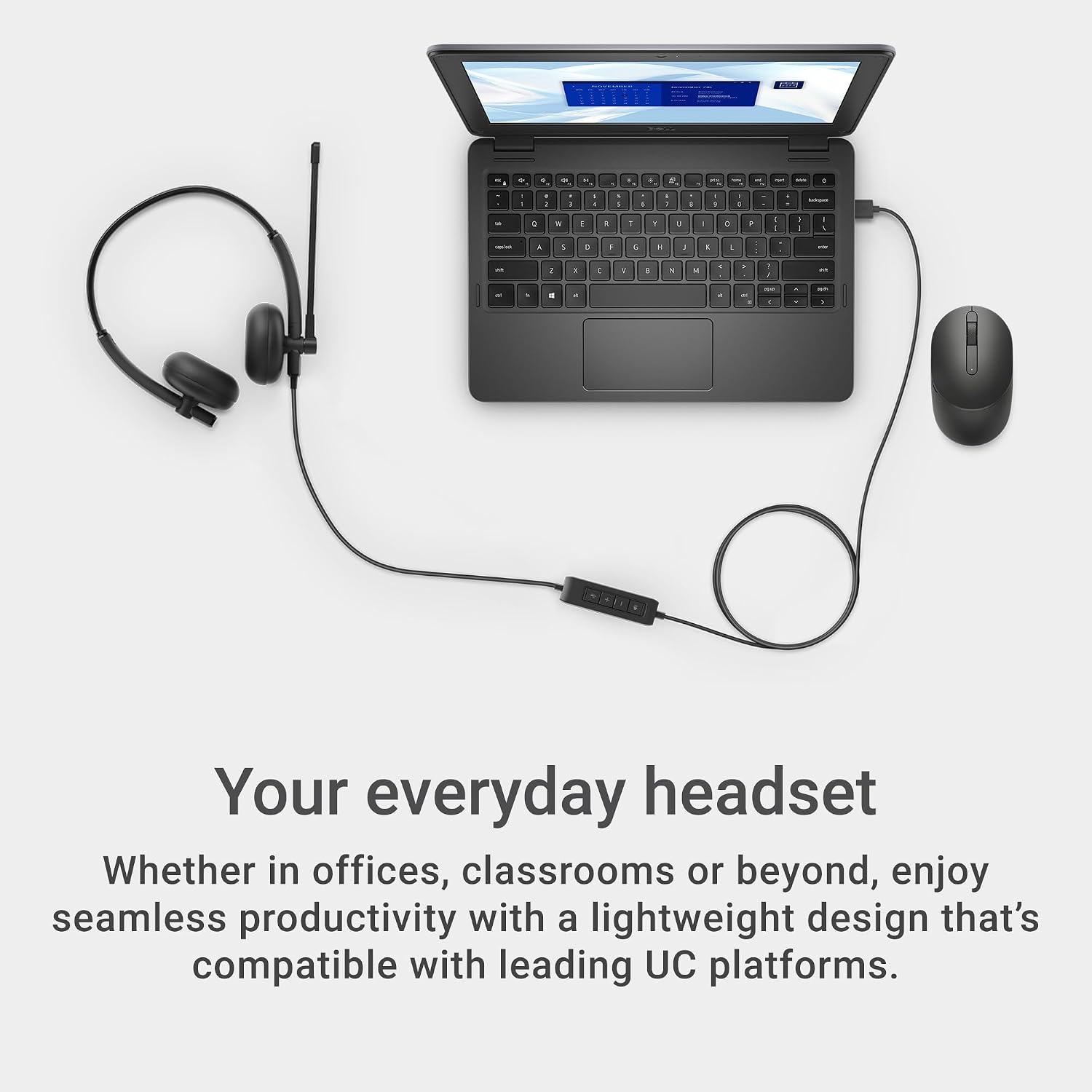
Image: The Dell WH125 Wired Headset in a typical usage scenario, connected to a laptop.
This headset is compatible with leading Unified Communications (UC) platforms and is suitable for various environments, including offices and classrooms.
2. What's in the Box
Verify that all items are present in the package:
- Dell Wired Headset WH125
- User Documentation
3. Setup Instructions
The Dell Wired Headset WH125 is designed for easy setup with its USB-A connectivity.
- Connect the Headset: Locate an available USB-A port on your computer (desktop or laptop). Insert the USB-A connector of the headset into the port.
- Automatic Driver Installation: Your operating system should automatically detect the headset and install the necessary drivers. This process may take a few moments.
- Verify Audio Settings: After connection, check your computer's audio settings to ensure the Dell WH125 is selected as the default playback and recording device.

Image: The headset's USB-A connector and inline controller for easy plug-and-play setup.
4. Operating Your Headset
The headset features an inline controller and an adjustable boom microphone for convenient use.
4.1 Inline Controller Functions
The inline controller provides quick access to essential audio controls:
- Volume Up (+): Press to increase the listening volume.
- Volume Down (-): Press to decrease the listening volume.
- Microphone Mute: Press the microphone icon button to mute or unmute the microphone.
- Speaker Mute: Press the speaker icon button to mute or unmute the headset speakers.

Image: Detailed view of the inline controller for volume and mute adjustments.
4.2 Microphone Adjustment
The uni-directional boom microphone can be adjusted for optimal voice clarity:
- The microphone boom is 270° rotatable, allowing it to be positioned on either the left or right side of your head.
- Position the microphone approximately one inch from your mouth for the best voice pickup.

Image: The headset with its adjustable boom microphone extended for use.
5. Care and Maintenance
Proper care ensures the longevity and performance of your Dell Wired Headset WH125.
- Cleaning: Use a soft, dry cloth to wipe the headset. For stubborn dirt, a slightly damp cloth can be used, but ensure no moisture enters the earcups or microphone. Avoid harsh chemicals or abrasive cleaners.
- Storage: When not in use, store the headset in a clean, dry place away from extreme temperatures. Use the integrated Cord Storage fastener to keep the cable organized and prevent tangling.
- Handling: Avoid pulling the cable forcefully or bending the connectors excessively. Handle the headset gently to prevent damage.
6. Troubleshooting
If you encounter issues with your Dell Wired Headset WH125, try the following solutions:
6.1 No Sound from Headset
- Check Connection: Ensure the USB-A connector is fully inserted into the computer's port. Try a different USB-A port.
- Verify Volume: Check the volume level on the inline controller and your computer's operating system. Ensure the speaker mute button on the inline controller is not active.
- Audio Output Settings: Confirm that the Dell WH125 is selected as the default playback device in your computer's sound settings.
- Restart Application/Computer: Close and reopen the application you are using (e.g., video conferencing software). If the issue persists, restart your computer.
6.2 Microphone Not Working
- Check Mute Button: Ensure the microphone mute button on the inline controller is not active.
- Microphone Position: Adjust the boom microphone closer to your mouth.
- Audio Input Settings: Confirm that the Dell WH125 is selected as the default recording device in your computer's sound settings and within the application you are using.
- Test Microphone: Use your computer's sound recorder or a communication application to test the microphone functionality.
7. Technical Specifications
| Feature | Specification |
|---|---|
| Brand | Dell |
| Model Number | WH125 |
| Connectivity | Wired (USB-A) |
| Ear Placement | Over Ear |
| Form Factor | Over Ear |
| Frequency Response | 20 KHz |
| Microphone Type | Uni-directional, 270° rotatable boom |
| Controller Type | Inline (Touch) |
| Material | Plastic Faux Leather |
| Color | Black |
| Weight | 0.13 Kilograms |
| Compatible Devices | Desktops, Laptops |
| Specific Uses | Business, Entertainment, School |
8. Warranty and Support
The Dell Wired Headset WH125 comes with a 3-year warranty, providing reliability and peace of mind.
For technical assistance, warranty claims, or further information, please contact Dell Support through their official website or the contact details provided in your product documentation.
You can find additional resources and support information by visiting the official Dell support page for your region.


