
Introduction
This manual provides detailed instructions for the assembly, operation, and maintenance of your Cooler Master Elite 502 White ATX High Airflow Minimalist PC Case. Please read this manual thoroughly before beginning installation to ensure proper setup and optimal performance.
Product Overview
The Cooler Master Elite 502 is an ATX mid-tower PC case designed for high airflow and compatibility with modern components. It features a high-performance mesh front panel and supports a wide range of hardware configurations.
Key Features:
- Motherboard Compatibility: Supports ATX and Micro-ATX motherboards.
- GPU Clearance: Accommodates graphics cards up to 410mm in length.
- Cooling Support: Supports up to a 360mm liquid cooler and seven fans for efficient thermal management.
- Component Clearance: CPU coolers up to 170mm height, PSUs up to 170mm length.
- Airflow Design: Large, unrestricted intake grill for superior airflow.
- Front I/O: Integrated USB Type-C port.

Figure 1: Motherboard Compatibility. This image illustrates the dimensions for ATX (12.0 in x 9.6 in) and Micro-ATX (9.6 in x 9.6 in) motherboards, demonstrating the case's support for both form factors.

Figure 2: GPU Clearance. An internal view of the case showing the maximum GPU length of 410mm, indicating ample space for high-performance graphics cards.

Figure 3: Cooling Support. This image highlights the areas within the case that support liquid coolers up to 360mm and multiple cooling fans for optimal thermal efficiency.
Setup and Installation
Follow these steps for proper assembly of your PC components within the Elite 502 case.
- Prepare the Case:
Carefully remove the side panels. The tempered glass side panel is typically secured with thumb screws at the rear. The opposite side panel may also use thumb screws or a latch mechanism. Place the case on a stable, flat surface.

Figure 4: Case Interior. An unobstructed view of the case's interior, showing the motherboard tray, drive bays, and cable management cutouts, ready for component installation.
- Install the Power Supply Unit (PSU):
Mount the PSU into its designated compartment at the bottom rear of the case. Secure it with screws. Ensure proper cable routing through the PSU shroud cutouts.

Figure 5: PSU Shroud. This image displays the ventilated PSU cover, designed to efficiently cool the power supply unit regardless of its orientation.
- Install the Motherboard:
Align your ATX or Micro-ATX motherboard with the standoffs inside the case. Secure the motherboard with screws. Connect the front panel headers (power, reset, USB, audio) to the motherboard. The case includes a USB Type-C port on the front I/O panel.

Figure 6: Front I/O Panel. A detailed view of the integrated USB Type-C port and other front panel connectors, facilitating modern connectivity.
- Install Storage Drives:
Install 2.5-inch SSDs or 3.5-inch HDDs into the designated drive bays. Refer to the case's internal layout for specific mounting points, often located behind the motherboard tray or within the PSU shroud area.
- Install Graphics Card (GPU):
Insert your graphics card into the appropriate PCIe slot on the motherboard. Secure it with the retention clip and a screw to the case's expansion slots. Ensure the GPU length does not exceed 410mm.
- Install Cooling Components:
Install CPU cooler (up to 170mm height) and any additional case fans or liquid cooling radiators. The case supports up to a 360mm liquid cooler. Ensure fans are oriented for optimal airflow (intake at front/bottom, exhaust at rear/top).

Figure 7: Unrestricted Airflow. This image demonstrates the effective airflow through the front mesh panel, highlighting the case's design for optimal cooling performance.

Figure 8: Large Intake Grill. A detailed view of the front panel's large intake grill, designed to maximize air intake for efficient cooling.
- Cable Management:
Route all cables neatly behind the motherboard tray using the provided cutouts and tie-down points. This improves airflow and aesthetics.
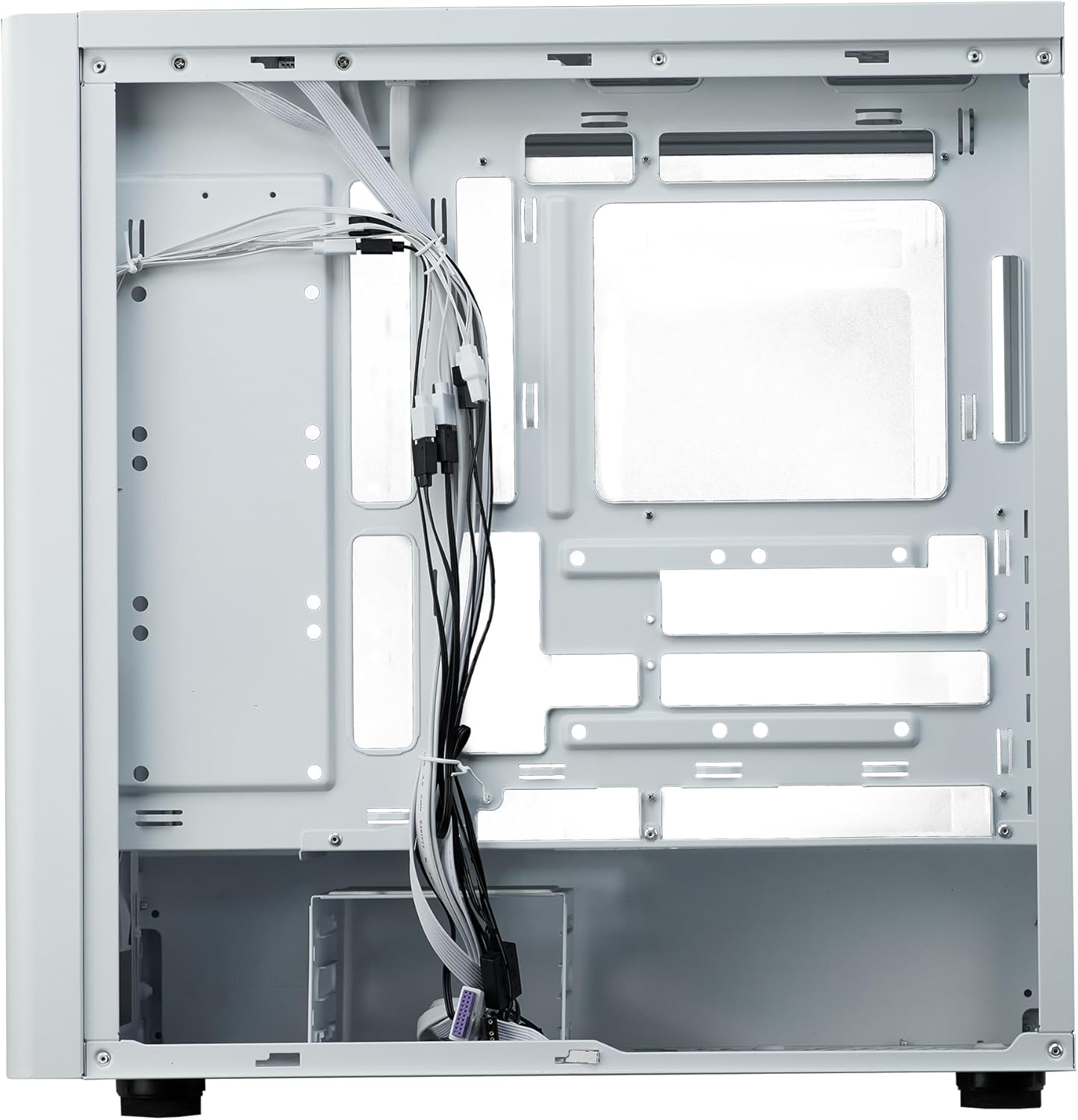
Figure 9: Cable Management. An internal view from the rear side of the case, illustrating the space and tie-down points available for organized cable routing.
- Close the Case:
Once all components are installed and cables are managed, reattach the side panels. Ensure they are securely fastened.
Operating Instructions
The Cooler Master Elite 502 is designed for continuous operation once components are properly installed. Ensure adequate ventilation around the case to maintain optimal temperatures.
- Power On: Press the power button located on the front I/O panel to start your system.
- Airflow: The case's design prioritizes high airflow. Ensure the front mesh panel and any top/rear fan exhausts are not obstructed.
- Connectivity: Utilize the front panel USB ports, including the USB Type-C, for convenient peripheral connections.
Maintenance
Regular maintenance helps ensure the longevity and performance of your PC case and components.
- Dust Cleaning: Periodically clean dust filters (front, top, bottom) to maintain optimal airflow. The front mesh panel is removable for easy cleaning.
- Interior Cleaning: Use compressed air to remove dust from internal components and fan blades. Ensure the system is powered off and unplugged before cleaning.
- Cable Management Check: Occasionally verify that internal cables remain neatly routed and do not obstruct airflow or fan operation.
Troubleshooting
If you encounter issues, consider the following common troubleshooting steps:
- No Power:
Check all power connections, including the PSU to the wall outlet, PSU to motherboard, and front panel power switch header to the motherboard. Ensure the PSU switch is in the 'ON' position.
- Overheating:
Verify all case fans and CPU cooler fans are spinning correctly. Clean any dust filters or internal components that may be obstructing airflow. Ensure proper fan orientation (intake/exhaust).
- Front Panel USB/Audio Not Working:
Confirm that the front panel USB and audio headers are correctly connected to the motherboard. Check motherboard manual for correct pin assignments.
- Loose Components:
If experiencing intermittent issues, power down the system and check that all components (GPU, RAM, storage drives) are securely seated in their slots and properly fastened.
Specifications
| Feature | Detail |
|---|---|
| Brand | Cooler Master |
| Model Name | Elite 502 White |
| Item Model Number | E502-WGNN-SAZ |
| Case Type | Mid Tower |
| Motherboard Compatibility | ATX, Micro ATX |
| GPU Clearance | Up to 410mm |
| CPU Cooler Height | Up to 170mm |
| PSU Length | Up to 170mm |
| Liquid Cooling Support | Up to 360mm radiator |
| Fan Support | Up to 7 fans |
| Front I/O Ports | 1x USB 3.0, 1x USB Type-C |
| Material | Alloy Steel, Tempered Glass |
| Color | White |
| Item Weight | 17.73 pounds (8.04 kg) |
| Product Dimensions (LxWxH) | 18.66 x 18.94 x 9.06 inches (47.4 x 48.1 x 23.0 cm) |

Figure 10: Product Dimensions. An illustration detailing the length, width, and height of the Cooler Master Elite 502 case.
Warranty and Support
For warranty information and technical support, please refer to the official Cooler Master website or contact their customer service directly. Keep your proof of purchase for warranty claims.
- Official Website: www.coolermaster.com
- Customer Support: Refer to the support section on the official website for contact details and FAQs.


