
1. Introduction
Thank you for choosing the WSTER WS-X65 Pickup Truck Replica Bluetooth Speaker. This portable speaker combines a unique pickup truck design with advanced audio features, including HD sound, TWS stereo pairing, FM radio, and multi-source playback options. Please read this manual carefully to ensure proper use and optimal performance of your device.
2. What's in the Box
- 1 x WSTER WS-X65 Pickup Truck Replica Bluetooth Speaker
- 1 x Power Cable
- 1 x Quick Start Guide
3. Product Overview & Controls
The WS-X65 speaker features a detailed pickup truck design with integrated controls and ports for various functions. Familiarize yourself with the layout below:

Image: Top-rear view of the WSTER WS-X65 speaker, highlighting the control panel and digital display in the truck bed area. The display shows 'BLUE' indicating Bluetooth mode.

Image: Detailed diagram illustrating the location and function of all ports and control buttons on the WS-X65 speaker, including USB, TF card slot, AUX, and power/mode buttons.
Control Buttons:
- M/O (Power/Mode Switch): Short press to switch modes (Bluetooth/Selfie-Timer/USB/TF/FM/AUX). Long press to power ON/OFF.
- Play/Pause (►▮▮): Short press for Play/Pause. In FM/Bluetooth modes, long press for automatic FM station search. Press to answer phone calls. Double-click for TWS pairing.
- Previous/Volume Down (◀◀/V-): Short press for previous track/station. Long press to decrease volume. In Selfie-Timer mode, short press for selfie function.
- Next/Volume Up (►►/V+): Short press for next track/station. Long press to increase volume. In Selfie-Timer mode, short press for selfie function.
Ports:
- DC 5V/ANT: Charging port (USB-C) and external antenna input.
- USB: USB interface for playback from USB drives.
- TF: TF card slot for playback from TF cards.
- AUX: 3.5mm audio input for wired connection.
4. Setup
4.1. Charging the Speaker
Before first use, fully charge the speaker. Connect the provided power cable to the DC 5V/ANT port on the speaker and a compatible USB power source. The charging indicator will show the charging status.
4.2. Power ON/OFF
Long press the M/O button to power the speaker ON or OFF. A startup sound and LED lights will indicate the device is active.
Video: This video demonstrates the startup sequence of the WSTER WS-X65 speaker, showing the LED lights activating and the display indicating 'BLUE' for Bluetooth mode.
4.3. Bluetooth Pairing
After powering on, the speaker will automatically enter Bluetooth mode, indicated by 'BLUE' on the display and a blinking Bluetooth icon. To pair:
- Enable Bluetooth on your mobile device (smartphone, tablet, etc.).
- Search for available devices and select 'WS-X65' from the list.
- Once connected, the speaker will emit a confirmation tone, and the Bluetooth icon on the display will become solid.

Image: A smartphone screen displaying Bluetooth settings, showing a successful connection to the WS-X65 speaker, with the speaker itself illuminated.
4.4. TWS (True Wireless Stereo) Pairing
For an immersive stereo experience, you can pair two WS-X65 speakers together:
- Ensure both WS-X65 speakers are powered on and in Bluetooth mode, but not yet connected to any mobile device.
- On one of the speakers, double-click the Play/Pause button. You will hear a 'beep' sound.
- The two speakers will automatically search and connect to each other. Once connected, you will hear a confirmation tone.
- Now, connect your mobile device to one of the paired speakers via Bluetooth as described in section 4.3. Both speakers will play audio simultaneously.

Image: Two black WS-X65 speakers are shown side-by-side, illustrating the True Wireless Stereo (TWS) pairing feature for enhanced audio.
5. Operating Modes
The WS-X65 speaker supports multiple playback modes. Short press the M/O button to cycle through the available modes: Bluetooth, Selfie-Timer, USB, TF Card, FM Radio, and AUX.
5.1. Bluetooth Mode
After successful pairing (see section 4.3), you can play audio from your connected device. Use the Play/Pause, Previous/Volume Down, and Next/Volume Up buttons to control playback and volume.
5.2. FM Radio Mode
In FM Radio mode:
- Automatic Station Search: Long press the Play/Pause button to automatically scan and save available FM stations.
- Change Station: Short press the Previous/Volume Down or Next/Volume Up buttons to switch between saved stations.
Video: This video provides detailed instructions on how to operate the speaker, including switching modes and using the FM radio function.
5.3. USB/TF Card Playback
Insert a USB drive into the USB port or a TF card into the TF slot. The speaker will automatically switch to the corresponding mode and begin playing audio files. Use the Play/Pause, Previous/Volume Down, and Next/Volume Up buttons to control playback and volume.
5.4. AUX Mode
Connect an external audio device using a 3.5mm audio cable to the AUX port. The speaker will automatically switch to AUX mode. Control playback from your connected device.
5.5. Hands-Free Calls
When connected via Bluetooth, the built-in microphone allows for hands-free calling:
- Answer Call: Short press the Play/Pause button when an incoming call rings.
- End Call: Short press the Play/Pause button during a call to hang up.
- Redial Last Number: Long press the Play/Pause button to redial the last dialed number.
Video: This video demonstrates various operational aspects of the WSTER speaker, including handling phone calls and switching between different modes.
5.6. Selfie-Timer Mode
In Selfie-Timer mode (for compatible mobile phones):
- Switch the speaker to Selfie-Timer mode.
- Open your mobile phone's camera app.
- Short press the Previous/Volume Down or Next/Volume Up buttons on the speaker to trigger your phone's camera shutter.
6. LED Party Lights
The WS-X65 features built-in LED lights that pulse with the rhythm of the music, adding a dynamic visual element to your listening experience. The lights activate automatically when the speaker is powered on and playing audio.

Image: Two black WS-X65 speakers are shown on a table in a dimly lit room, with their LED lights glowing and pulsing, creating a party atmosphere.
7. Specifications
| Feature | Description |
|---|---|
| Brand | WSTER |
| Model Number | WS-X65 |
| Speaker Maximum Output Power | 10 Watts |
| Frequency Response | 18 KHz |
| Connectivity Technology | Bluetooth, USB |
| Audio Output Mode | Stereo |
| Material | Acrylonitrile Butadiene Styrene (ABS) |
| Control Method | Remote (and onboard buttons) |
| Item Dimensions (D x W x H) | 10.2"D x 5.2"W x 4.53"H |
| Item Weight | 686.5 Grams |
| Power Source | Battery Powered (1 Nonstandard Battery included) |
| Additional Features | Bluetooth Connection, Built-In Microphone, FM Radio, LED Light, TWS |
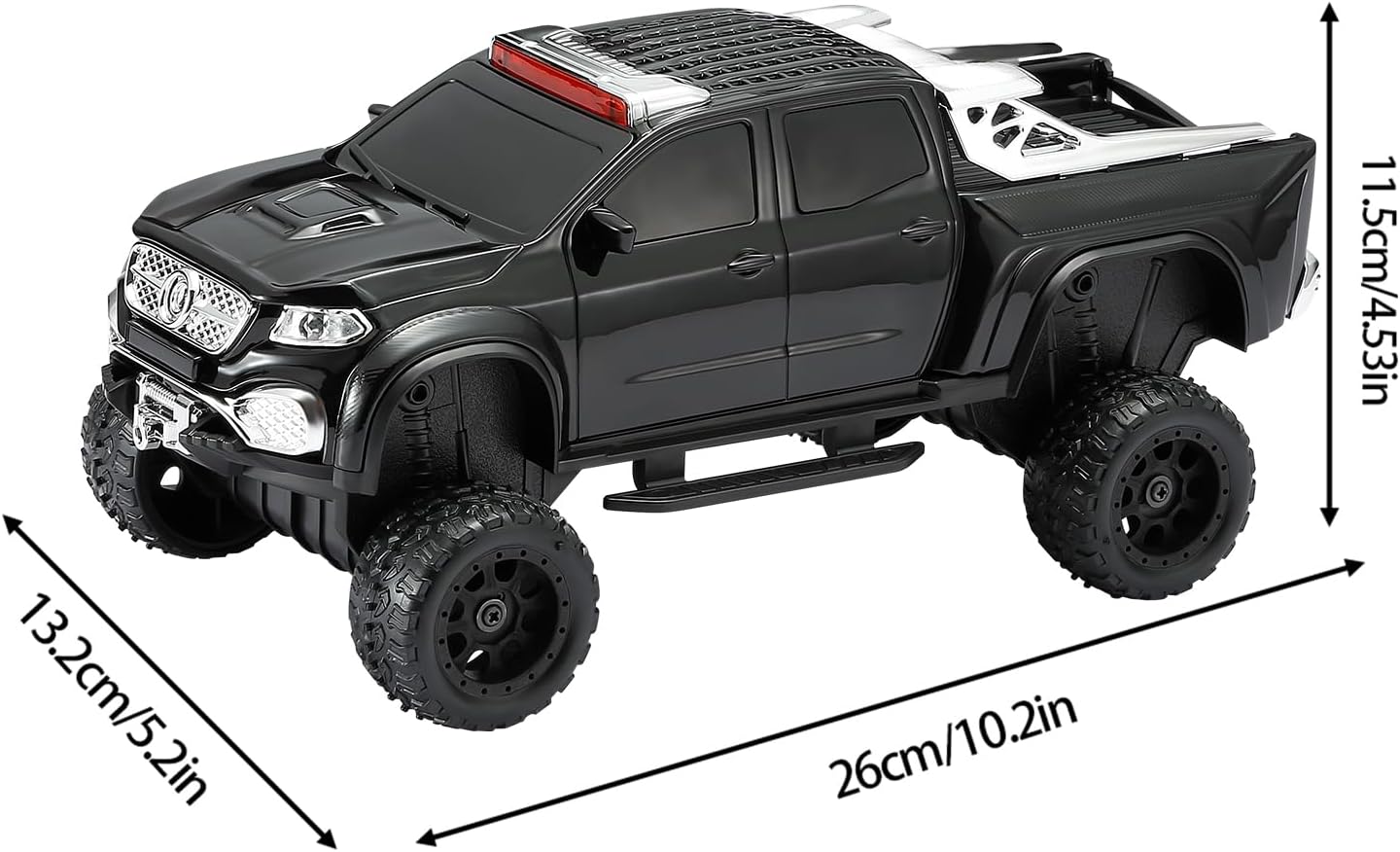
Image: A visual representation of the WS-X65 speaker with its dimensions clearly labeled in both centimeters and inches.
8. Maintenance
- Keep the speaker away from water, moisture, and extreme temperatures.
- Clean the speaker with a soft, dry cloth. Do not use abrasive cleaners.
- Avoid dropping or subjecting the speaker to strong impacts.
- Store in a cool, dry place when not in use for extended periods.
9. Troubleshooting
| Problem | Solution |
|---|---|
| Speaker does not power on. | Ensure the battery is charged. Connect to a power source and try again. |
| Cannot pair via Bluetooth. | Make sure the speaker is in Bluetooth mode and not connected to another device. Disable and re-enable Bluetooth on your mobile device. Move closer to the speaker. |
| No sound or low volume. | Check the volume levels on both the speaker and your connected device. Ensure the correct input mode is selected. |
| FM radio reception is poor. | Extend the external antenna (if applicable) or reposition the speaker for better signal. Perform an automatic station search again. |
| USB/TF card not playing. | Ensure the card/drive is inserted correctly and contains compatible audio files (e.g., MP3). Check if the speaker is in the correct playback mode. |
10. Warranty & Support
This product does not come with a specified warranty description. For any support or inquiries, please refer to the contact information provided with your purchase or visit the WSTER official website.
11. Safety Information
- Do not disassemble, repair, or modify the device.
- Do not expose to fire or extreme heat.
- Keep out of reach of children.
- Dispose of the product responsibly according to local regulations.