
1. Introduction
This manual provides essential information for the safe and effective operation of your ACMER S1 Laser Engraver. The ACMER S1 is a high-precision laser engraving and cutting machine designed for various materials, offering a 2500mW diode laser power and a 130x130mm working area. It is suitable for hobbyists, DIY enthusiasts, and small businesses.
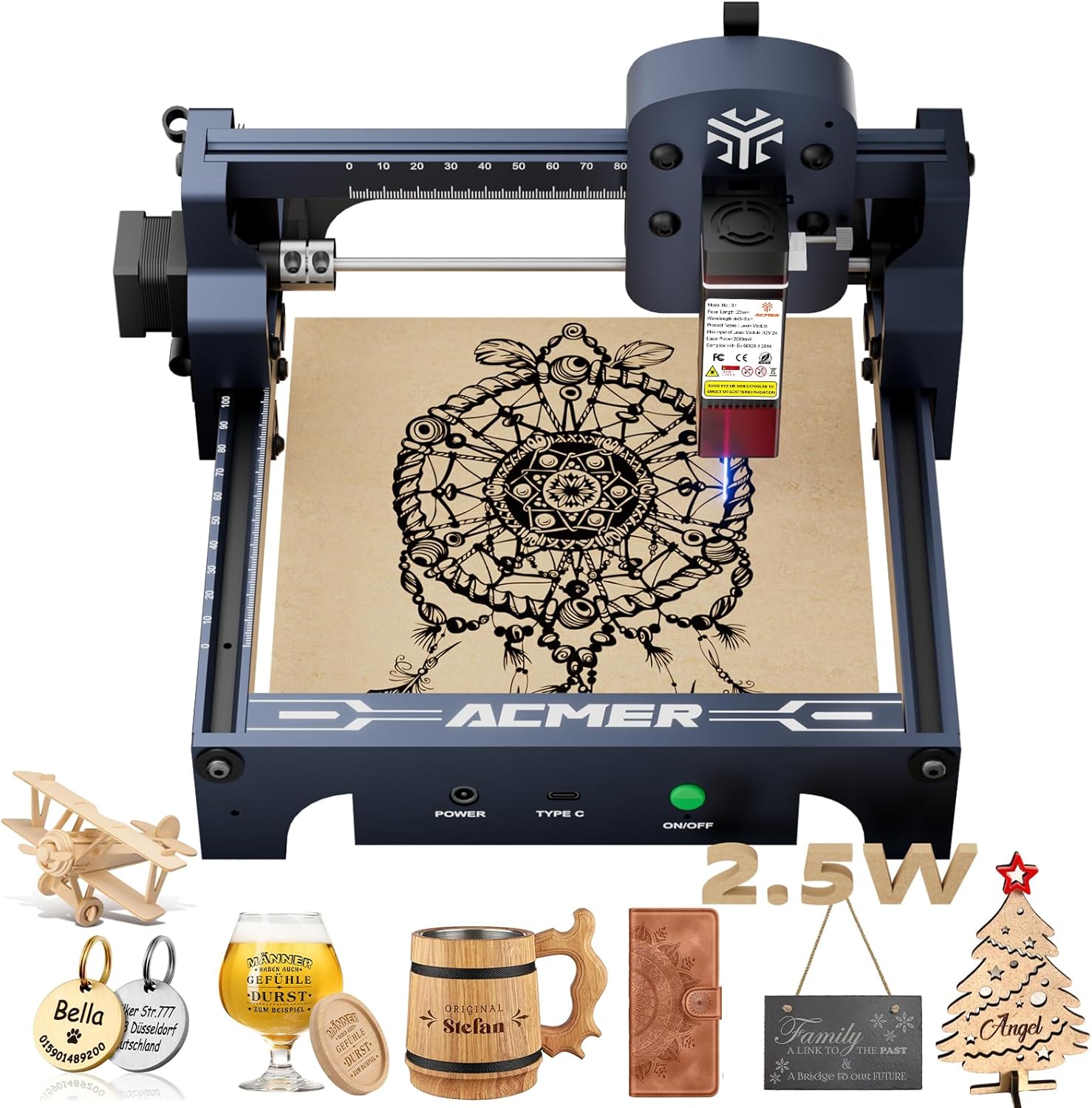
Figure 1: The ACMER S1 Laser Engraver with examples of engraved items.
2. Safety Information
The ACMER S1 is a Class 4 laser product. Always prioritize safety during operation. Failure to follow safety guidelines can result in serious injury or damage.
- Eye Protection: Always wear the provided laser safety goggles when the machine is operating. Direct exposure to the laser beam can cause permanent eye damage.
- Ventilation: Ensure adequate ventilation in your workspace. Laser engraving and cutting can produce smoke and fumes, which may be harmful if inhaled.
- Material Safety: Only engrave or cut materials approved for laser use. Some materials can produce toxic fumes or catch fire.
- Supervision: Never leave the machine unattended during operation.
- Emergency Stop: Familiarize yourself with the emergency stop procedure.
Figure 2: ACMER S1 complies with Class 4 laser certification and IEC 60825-1 standards.
3. Setup
The ACMER S1 arrives 99% preassembled, requiring minimal setup before first use.
3.1 Unpacking and Assembly
- Carefully remove all components from the packaging.
- Install the laser head onto the main frame. This typically takes less than one minute.
- Connect the power adapter and USB cable to the machine.
3.2 Software Installation
The ACMER S1 is compatible with LightBurn and LaserGRBL software. Both are widely used for laser engraving and cutting.
- Download Software: Visit the official websites for LightBurn (lightburnsoftware.com) or LaserGRBL (lasergrbl.com) to download the latest version.
- Install Drivers: Follow the software's instructions to install any necessary drivers (e.g., CH340 driver for LaserGRBL).
- System Compatibility: The software supports macOS, Windows, and Linux operating systems.
Video 1: Step-by-step guide on how to install GRBL software for your laser engraver.
Video 2: Step-by-step guide on how to install LightBurn software for your laser engraver.
3.3 Focusing the Laser
Proper focus is crucial for optimal engraving and cutting results.
- Place a small piece of the material you intend to use under the laser module.
- Adjust the height of the laser module by loosening the screws on the side, moving the module up or down until the laser spot is at its smallest and sharpest point on the material surface.
- Tighten the screws to secure the laser module in place.
Video 3: A short preview demonstrating the portable nature and quick setup of the Acmer S1 Laser Engraver.
4. Operating Instructions
4.1 Loading Material
Place your material flat on the working surface within the 130x130mm engraving area. Ensure it is stable and will not move during operation.
4.2 Software Usage
- Import/Create Design: Open your chosen software (LightBurn or LaserGRBL). Import your desired image (NC, DXF, BMP, JPG, PNG files are supported) or create a new design.
- Set Parameters: Adjust engraving/cutting parameters such as speed (up to 10,000mm/min), power, and number of passes based on your material and desired outcome. Refer to the software's documentation for detailed guidance on settings.
- Frame Work Area: Use the software's framing function to preview the laser's path on your material. This ensures your design is positioned correctly.
4.3 Starting Operation
- Ensure all safety precautions are in place, including wearing safety goggles.
- Click 'Start' or 'Run' in your software to begin the engraving or cutting process.
- Monitor the process closely.

Figure 3: The laser engraver actively working on a material.
Video 4: Demonstration of the ACMER S1 laser cutting leather to create a mask.
Video 5: The ACMER S1 laser engraver cutting and assembling skull earrings from wood.
Video 6: The ACMER S1 laser engraver cutting and assembling a magic card box from wood.
Video 7: An overview of the Acmer S1 Laser Engraver's capabilities for wood cutting and engraving.
5. Maintenance
Regular maintenance ensures the longevity and optimal performance of your laser engraver.
- Clean Laser Lens: Regularly clean the laser lens to prevent residue buildup, which can affect laser performance. Use a soft, lint-free cloth and appropriate lens cleaning solution.
- Keep Workspace Clean: Ensure the working area is free of debris and dust.
- Inspect Components: Periodically check all moving parts, belts, and connections for wear or damage.
6. Troubleshooting
If you encounter issues, refer to the software's help documentation or the official ACMER support resources.
- Connection Issues: Ensure the USB cable is securely connected and the correct COM port is selected in the software. Reinstalling drivers may resolve connectivity problems.
- Poor Engraving/Cutting Quality: Check laser focus, power settings, and speed. Ensure the material is clean and flat. A dirty laser lens can also cause poor quality.
- Machine Not Responding: Verify the power supply is connected and the machine is turned on. Restart the software and the machine.
7. Specifications
| Feature | Specification |
|---|---|
| Laser Power | 2500mW Diode Laser |
| Machine Output | 24W |
| Wavelength | 455±5nm |
| Focal Length | 2mm |
| Laser Spot Size | 0.04mm |
| Engraving Speed | Up to 10,000mm/min |
| Repeatable Positioning Accuracy | 0.01mm |
| Working Area | 130x130mm |
| Machine Dimensions | 250×250×162mm (9.84 x 9.84 x 6.38 inches) |
| Item Weight | 3.98 pounds |
| Compatibility | macOS, Windows, Linux (LightBurn & LaserGRBL) |
| Supported File Formats | NC, DXF, BMP, JPG, PNG |

Figure 4: One-pass laser cutting depth capabilities for various materials and laser wattages.

Figure 5: Visual comparison demonstrating the 0.01mm precision engraving of the ACMER S1.

Figure 6: Speed comparison illustrating the ACMER S1's faster operating speed.
8. Warranty and Support
Your ACMER S1 Laser Engraver comes with a 12-month warranty. For any technical assistance or inquiries, please contact ACMER customer support.
- Customer Support: 24/7 customer support is available. Refer to your product packaging or the official ACMER website for contact details.
- Protection Plans: Extended protection plans are available for purchase, including 3-Year and 4-Year options.

Figure 7: Information regarding 24/7 online support for ACMER products.


