
1. Introduction
This manual provides detailed instructions for the proper use and maintenance of your Baseus Inspire XH1 Adaptive Active Noise Cancelling Headphones. Please read this manual thoroughly before using the product to ensure optimal performance and longevity.

Image: Baseus Inspire XH1 Adaptive Active Noise Cancelling Headphones in Cosmic Black.
2. Package Contents
Verify that all items are present in your package:
- Baseus Inspire XH1 Active Noise Cancelling Headphones ×1
- Audio Cable ×1
- USB-A to USB-C Charging Cable ×1
- Protective Carrying Case ×1
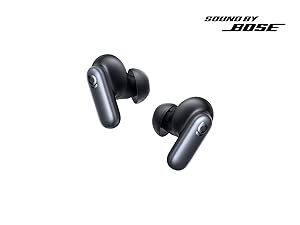
Image: All items included in the Baseus Inspire XH1 headphone package.
3. Setup
3.1 Charging the Headphones
Before first use, fully charge the headphones. Connect the USB-C charging cable to the headphone's charging port and the other end to a USB power source. The indicator light will show charging status and turn off when fully charged.
3.2 Bluetooth Pairing
- Ensure the headphones are powered off.
- Press and hold the power button until the indicator light flashes, indicating pairing mode.
- On your device (smartphone, tablet, laptop), enable Bluetooth and search for available devices.
- Select "Baseus Inspire XH1" from the list to connect. A voice prompt will confirm successful pairing.
3.3 Baseus App and SoundFit Personalization
For full functionality and personalized audio, download the Baseus App (V2.8.9+). Ensure your headphone firmware is updated to V1.1.07+ via the app. The app allows for SoundFit hearing personalization, EQ adjustments, and control over various features.

Image: The Baseus app interface for smart control and personalization.
4. Operating Instructions
4.1 Power On/Off
- Power On: Press and hold the power button for 2 seconds.
- Power Off: Press and hold the power button for 3 seconds.
4.2 Active Noise Cancellation (ANC) and Transparency Mode
- Toggle ANC/Transparency: Press the ANC button once. Cycle through ANC On, Transparency Mode, and ANC Off.
- Quick Attention: Press and hold the ANC button for 2 seconds to temporarily activate Transparency Mode and lower volume. Release to return to previous mode.
4.3 Music Playback and Call Control
- Play/Pause: Press the Multifunction button once.
- Next Track: Press and hold the Volume Up button for 2 seconds.
- Previous Track: Press and hold the Volume Down button for 2 seconds.
- Answer/End Call: Press the Multifunction button once.
- Reject Call: Press and hold the Multifunction button for 2 seconds.
4.4 Volume Control
- Volume Up: Press the Volume Up button once.
- Volume Down: Press the Volume Down button once.
4.5 Dolby Audio and Low Latency Mode
- Toggle Dolby Audio: Press the Multifunction button twice.
- Activate Low Latency Mode: Press the Multifunction button three times.

Image: Overview of headphone button controls.
Video: An official product video demonstrating the features and design of the Baseus Inspire headphones, highlighting the 'Sound by Bose' collaboration.
5. Maintenance
5.1 Cleaning
Wipe the headphones with a soft, dry cloth. Do not use harsh chemicals or abrasive materials. Avoid getting moisture into any openings.
5.2 Storage
When not in use, store the headphones in the provided protective carrying case to prevent damage from dust, scratches, and impacts. Store in a cool, dry place.

Image: Headphones folded and stored in their protective case.
5.3 Battery Care
To prolong battery life, avoid fully discharging the headphones frequently. Charge them regularly, even if not in constant use. Do not expose to extreme temperatures.
6. Troubleshooting
- No Power: Ensure the headphones are charged. Connect to a power source and check the charging indicator.
- Cannot Pair: Ensure the headphones are in pairing mode (flashing indicator). Turn off and on your device's Bluetooth. If issues persist, try forgetting the device in your Bluetooth settings and re-pairing.
- No Sound: Check volume levels on both headphones and the connected device. Ensure the headphones are correctly paired.
- Poor ANC Performance: Ensure the earcups form a proper seal around your ears. Adjust the fit if necessary. Update headphone firmware via the Baseus App.
- App Connectivity Issues: Ensure Bluetooth is enabled and the headphones are connected to your device. Update the Baseus App to the latest version.
7. Specifications
| Feature | Specification |
|---|---|
| Model Number | Baseus Inspire XH1 |
| Bluetooth Version | 6.1 |
| Full Charge Time | Approx. 1.5 hours |
| Charging Port | USB-C |
| Music Playback Time (ANC OFF) | Up to 100 hours |
| Music Playback Time (ANC ON) | Up to 65 hours |
| Impedance | 16 ohm |
| Audio Driver Type | Dynamic Driver |
| Audio Driver Size | 35 millimeters |
| Frequency Range | 20Hz - 40kHz |
| Noise Control | Active Noise Cancellation |
| Enclosure Material | Leather, Foam, Plastic/Silicone |

Image: Product dimensions of the Baseus Inspire XH1 headphones.
8. Warranty and Support
The Baseus Inspire XH1 headphones come with a 2-Year Warranty from the date of purchase. This warranty covers manufacturing defects and ensures the product meets its specified performance standards under normal use.
For warranty claims, technical support, or further assistance, please contact Baseus customer service through their official website or the contact information provided with your purchase documentation. Please retain your proof of purchase for warranty validation.


