
Introduction
Welcome to the user manual for your new Zenva T310 Android 16 Tablet. This guide provides essential information to help you set up, operate, and maintain your device. The Zenva T310 is a versatile 10.1-inch tablet designed for both productivity and entertainment, featuring the Android 16 operating system and Gemini AI 2.0.
What's in the Box
Upon unboxing your Zenva T310 tablet, you should find the following items:
- Zenva T310 Tablet (with pre-installed protective case)
- Bluetooth Keyboard
- Wireless Mouse
- Stylus Pen
- Tablet Stand
- Screen Protector
- Charger & Cable
- User Manual

Image: All accessories included with the Zenva T310 tablet, neatly arranged in the packaging.
Setup Guide
1. Initial Power On
Press and hold the power button located on the side of the tablet until the Zenva logo appears. Follow the on-screen prompts to select your language, connect to a Wi-Fi network, and complete the initial Android setup.
2. Connecting Bluetooth Accessories
- Keyboard: Turn on the Bluetooth keyboard using its power switch. On your tablet, go to Settings > Connected devices > Pair new device. Select the keyboard from the list of available devices to pair.
- Mouse: Turn on the wireless mouse. On your tablet, go to Settings > Connected devices > Pair new device. Select the mouse from the list of available devices to pair.
- Stylus: The included stylus is a passive stylus and does not require Bluetooth pairing. Simply use it directly on the screen for navigation or writing.
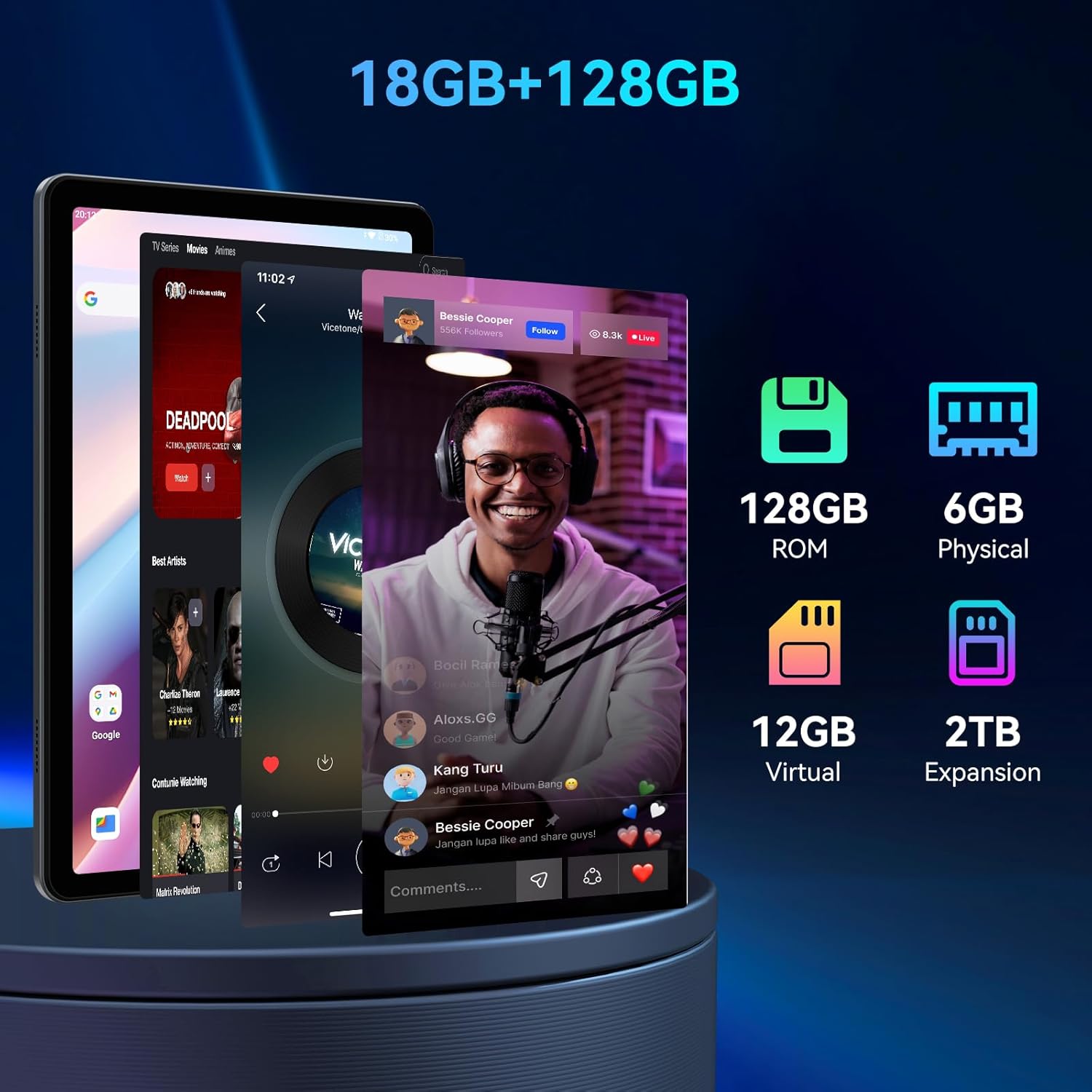
Image: The Zenva T310 tablet with its accompanying keyboard, mouse, and stylus, demonstrating a complete workstation setup.
3. Memory Expansion
To activate the full 18GB of RAM (6GB physical + 12GB virtual), navigate to Settings > About Tablet > Memory Expansion and enable the feature. You can also expand storage up to 2TB using a TF card.
Operating Instructions
Basic Navigation
- Touch Gestures: Swipe, tap, pinch-to-zoom for intuitive interaction.
- Keyboard & Mouse: Use the connected keyboard for typing and the mouse for precise cursor control, transforming your tablet into a laptop-like experience.
Multitasking with Android 16
Android 16 offers enhanced multitasking capabilities. You can run multiple applications simultaneously, switch between them seamlessly, and utilize split-screen mode for increased productivity. Gemini AI 2.0 assists in optimizing app performance and managing tasks efficiently.

Image: Various usage scenarios of the Zenva T310 tablet, highlighting its versatility for work, education, and entertainment.
Using Gemini AI 2.0
The integrated Gemini AI 2.0 allows for voice commands to schedule tasks, get answers, and optimize tablet settings hands-free. Explore its features in the Gemini AI application or through voice activation.

Image: A visual representation of Gemini AI 2.0's core functionalities, emphasizing its role as an intelligent partner.
Features Overview
Display and Audio
The Zenva T310 features a 10.1-inch HD (1280x800) display, providing clear and vibrant visuals. With Widevine L1 certification, you can enjoy high-definition content from streaming services like YouTube and Prime Video. Dual stereo speakers deliver immersive sound.

Image: The tablet's display showcasing its visual quality and key display specifications.
Performance and Storage
Powered by an Unisoc T310 Eight-Core Processor, the tablet ensures smooth performance. It comes with 18GB RAM (6GB physical + 12GB virtual) and 128GB internal storage, expandable up to 2TB via TF card, allowing for extensive app usage and media storage.

Image: A detailed view of the Unisoc T310 processor, highlighting its technical specifications.
Battery Life
Equipped with a 6000mAh battery, the Zenva T310 provides up to 8 hours of video streaming, 6 hours of gaming, or 35 hours of music playback on a single charge.

Image: The tablet's battery capacity prominently displayed, signifying extended usage.
Cameras
The tablet features a 5MP rear camera and a 2MP front camera. The 5MP camera is powered by Google Lens for object identification, text translation, and enhanced low-light shots.
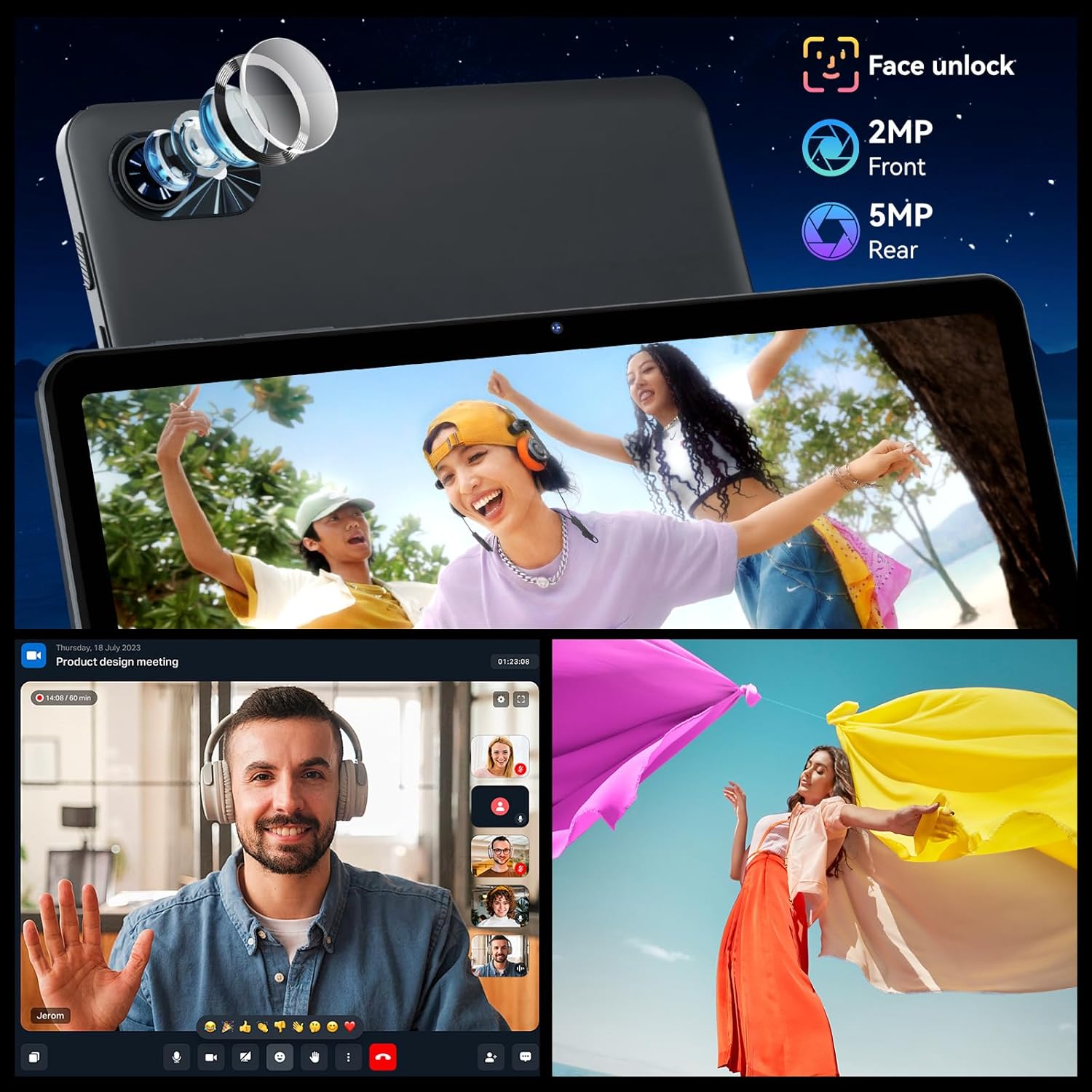
Image: The tablet's camera specifications and examples of its photographic capabilities.
Connectivity
Experience fast and stable connections with dual-band 5G WiFi and Bluetooth 5.0.
Specifications
| Feature | Specification |
|---|---|
| Brand | Zenva |
| Model Name | Tablet 2026 (T310) |
| Operating System | Android 16 |
| Screen Size | 10.1 Inches |
| Screen Resolution | 1280 x 800 pixels |
| Processor | Unisoc T310 (2 GHz) |
| RAM | 18GB (6GB physical + 12GB virtual) |
| Internal Storage | 128 GB |
| Expandable Storage | Up to 2TB via TF card |
| Rear Camera | 5 MP |
| Front Camera | 2 MP |
| Battery Capacity | 6000mAh |
| Wireless Type | 802.11a/b/g/n/ac (5G WiFi), Bluetooth 5.0 |
| Item Weight | 1.15 pounds |
| Product Dimensions | 9.7 x 6.8 x 0.3 inches |
Maintenance
Cleaning Your Tablet
Use a soft, lint-free cloth to clean the screen and body of your tablet. Avoid using harsh chemicals or abrasive materials that could damage the surface. For stubborn smudges, lightly dampen the cloth with water.
Software Updates
Regularly check for and install software updates to ensure your tablet has the latest features, security patches, and performance improvements. Go to Settings > System > System update to check for updates.
Battery Care
To prolong battery life, avoid extreme temperatures and fully discharging the battery frequently. Charge your tablet using the provided charger and cable.
Troubleshooting
Tablet Not Turning On
Ensure the tablet is charged. Connect the charger and wait for at least 30 minutes before attempting to power it on again. If the issue persists, contact customer support.
Connectivity Issues
If you experience problems with Wi-Fi or Bluetooth, try restarting the tablet and your router/Bluetooth device. Ensure Bluetooth is enabled in settings for accessory pairing.
Slow Performance
Close unused applications, clear cache, and ensure you have sufficient storage space. Activating the full 18GB RAM in settings can also improve performance.
Warranty and Support
The Zenva T310 tablet comes with a robust 4-year warranty (2 standard + 2 extended). For any issues or inquiries, 24/7 customer support is available. Please refer to the included User Manual & Warranty Card for detailed terms and contact information.

Image: Visual representation of available customer support services.
Product Videos
Zenva T310 Tablet Overview
Video: A comprehensive overview of the Zenva T310 Android 15 Tablet, showcasing its design, accessories, and key functionalities. This video provides a quick visual guide to the tablet's features and how it integrates with its keyboard.
Detailed Features of the Zenva T310 Tablet
Video: An in-depth look at the various features of the Zenva T310 Android 15 Tablet, including its operating system, performance, display, and camera capabilities. This video offers a more detailed explanation of the tablet's advanced functions.


