
1. Introduction
This manual provides detailed instructions for the operation and maintenance of your MAXKERUN W3 Digital Camera. Please read this manual thoroughly before using the camera to ensure proper function and to maximize your photography experience. Keep this manual for future reference.
2. Product Overview
The MAXKERUN W3 is a versatile digital camera designed for photography and vlogging, featuring 4K video recording, 72MP image capture, 12X optical zoom, and a 180° flip screen. It includes Wi-Fi connectivity for easy transfer and a webcam function.
2.1 Camera Components

Image 1: Overview of the MAXKERUN W3 Digital Camera, showing the camera body, lens, flip screen, and included 32GB SD card and battery information.
The camera body includes the lens, flash, mode dial, control buttons, and a 3-inch IPS flip screen. Essential accessories such as a 32GB SD card and two rechargeable lithium-ion batteries are included.
2.2 Key Features
- 12X Optical Zoom: Allows for detailed magnification without compromising image quality.
- 4K Video & 72MP Photos: Capture high-resolution videos at 4K/24FPS and still images up to 72 megapixels.
- 59mm Wide-Angle & Macro Lens: Equipped with a professional lens suitable for both expansive scenes and close-up details.
- 180° Flip Screen: A 3-inch IPS display that rotates for easy self-recording and framing from various angles.
- Wi-Fi Connectivity: Enables wireless transfer of photos and videos to a smartphone and remote control via an app.
- Webcam Function: Connects to a PC via USB for live streaming and video calls.
- Auto Focus & Anti-Shake: Features for clear and stable imaging.
- Integrated Flash Light: Provides illumination in low-light conditions.
- Multiple Shooting Modes: Includes Auto, Program (P), Shutter Priority (Tv), Aperture Priority (Av), Manual (M), Scene (SCN), Continuous Shooting, Intelligent Scene, and Filter modes.
3. Setup
3.1 Battery Installation
- Locate the battery compartment cover on the bottom of the camera.
- Slide the latch to open the cover.
- Insert one of the provided NP-120 lithium-ion batteries, ensuring the correct orientation according to the diagram inside the compartment.
- Close the battery compartment cover until it clicks securely.
The camera requires 2 A batteries, which are included. Ensure batteries are fully charged before first use.
3.2 SD Card Installation
- Locate the SD card slot, typically near the battery compartment or on the side of the camera.
- Insert the included 32GB SD card into the slot with the metal contacts facing the correct direction (refer to the camera's indicator).
- Push the card gently until it clicks into place. To remove, push the card again until it springs out.
3.3 Initial Power On
Press and hold the power button (usually located on the top of the camera) until the screen illuminates. The camera will perform a brief startup sequence.
4. Operating Instructions
4.1 Basic Photography

Image 2: Demonstrates the camera's capability to capture high-resolution 4K video and 72MP still images, ideal for detailed landscapes.
- Power On: Press the power button.
- Focus: Half-press the shutter button to activate autofocus. The focus frame will turn green when focus is achieved.
- Capture: Fully press the shutter button to take a photo.
- Zoom: Use the zoom lever (typically around the shutter button) to adjust the 12X optical zoom.

Image 3: Visual representation of the 12X optical zoom feature and the 59mm focal length range of the MAXKERUN W3 camera.
4.2 Shooting Modes

Image 4: The mode dial of the MAXKERUN W3 camera, illustrating various shooting modes such as Auto, Program, Shutter Priority, Aperture Priority, Manual, Scene, Continuous Shooting, Intelligent Scene, and Filter modes.
Rotate the mode dial on the top of the camera to select your desired shooting mode:
- Auto Mode (A): Camera automatically adjusts settings for optimal results.
- Program Mode (P): Camera sets aperture and shutter speed, but allows user control over other settings.
- Shutter Priority (Tv): User sets shutter speed, camera sets aperture.
- Aperture Priority (Av): User sets aperture, camera sets shutter speed.
- Manual Mode (M): User controls both aperture and shutter speed.
- Scene Mode (SCN): Pre-set modes for specific scenarios (e.g., Portrait, Landscape).
- Continuous Shooting Mode: Captures multiple photos in quick succession.
- Filter Mode: Applies creative filters to images.
4.3 Video Recording
To record video, switch the mode dial to video mode (often indicated by a camera icon). Press the shutter button to start recording and press it again to stop. The camera supports a video pause feature, allowing you to pause and resume recording within a single clip.
4.4 Using the Flip Screen

Image 5: The 3-inch IPS flip screen of the MAXKERUN W3 camera, demonstrating its 180° rotation capability for vlogging and flexible shooting angles.
The 3-inch IPS screen can be rotated 180 degrees forward for self-recording or vlogging, and 270 degrees for various low or high-angle shots. Adjust the screen to your preferred viewing angle.
4.5 Flash Light Operation
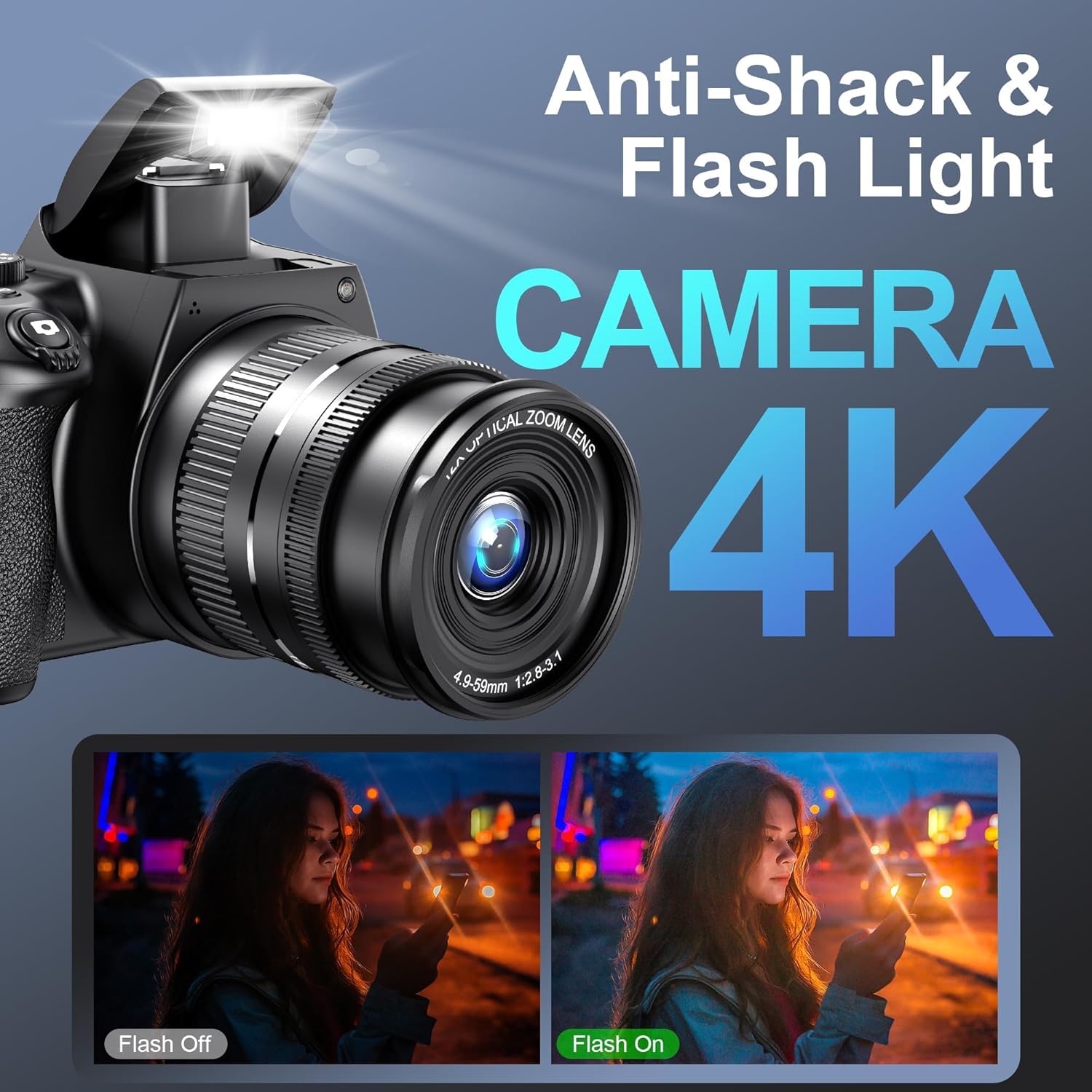
Image 6: Illustrates the built-in flash light and anti-shake capabilities of the MAXKERUN W3 camera, showing its effectiveness in low-light conditions.
The camera features a built-in flash light. You can typically control the flash mode (Automatic, Manual On/Off) through the camera's menu settings or a dedicated flash button.
4.6 Connectivity Features

Image 7: Depicts the MAXKERUN W3 camera's webcam functionality when connected to a computer via USB, and its Wi-Fi transfer capability for sharing photos and videos with a smartphone.
- Wi-Fi Transfer: Activate Wi-Fi in the camera settings. Use a compatible smartphone app to connect to the camera's Wi-Fi network. This allows for instant photo/video transfer and remote control.
- Webcam Function: Connect the camera to your computer using the provided USB-C cable. Select "PC Camera" mode on the camera when prompted. This enables the camera to function as a webcam for live streaming or video calls.
- HDMI Output: Connect the camera to an external display using a Micro HDMI cable (not included) to view photos and videos on a larger screen.
5. Maintenance
- Cleaning the Lens: Use a soft, lint-free cloth specifically designed for camera lenses. Avoid touching the lens surface with your fingers.
- Cleaning the Body: Wipe the camera body with a soft, dry cloth. For stubborn dirt, slightly dampen the cloth with water.
- Battery Care: Store batteries in a cool, dry place. Do not expose them to extreme temperatures. Charge batteries fully before extended storage.
- Storage: When not in use, store the camera in a dry, dust-free environment, preferably in a camera bag.
6. Troubleshooting
- Camera does not power on: Ensure batteries are fully charged and correctly inserted. Try using the second included battery.
- Images are blurry: Check if autofocus is enabled. Ensure the lens is clean. In low light, use the flash or a tripod.
- SD card error: Ensure the SD card is properly inserted. If the issue persists, try formatting the card (this will erase all data) or using a different compatible SD card.
- Wi-Fi connection issues: Ensure Wi-Fi is enabled on the camera and your smartphone. Restart both devices. Check the camera's Wi-Fi settings and your phone's network connections.
- No image on external display via HDMI: Verify the HDMI cable connection and ensure the external display is set to the correct input source.
7. Specifications
| Feature | Specification |
|---|---|
| Brand | MAXKERUN |
| Model Name | W3 |
| Maximum Resolution | 72 MP |
| Video Capture Resolution | 4K (2160p) |
| Optical Zoom | 12x |
| Min Focal Length | 59 Millimeters |
| Display Type | 3-inch IPS Flip Screen |
| Memory Storage Capacity | 32 GB (SD Card included) |
| Batteries | 2 A Lithium Ion batteries (included) |
| Connectivity | Micro HDMI, USB, Wi-Fi |
| Special Features | Flip Screen, Autofocus, Anti-shake, Flash light, Webcam Function, Pause Function, Continuous shooting, Slow motion, Time-lapse Recording, Self-timer, Smile Detection, Date Stamp |
| Item Weight | 948 g |
8. Warranty and Support
For any inquiries or technical assistance, a dedicated customer service team is available 24/7. Please refer to your purchase documentation for specific warranty details.