
1. Introduction
This manual provides instructions for the Redragon M695 Wired Gaming Mouse. Please read this manual thoroughly before using the product to ensure proper operation and to maximize its features. Keep this manual for future reference.

Image: Top-down view of the Redragon M695 Wired Gaming Mouse, showcasing its ergonomic shape and button layout.
2. Product Features
The Redragon M695 Wired Gaming Mouse is designed for precision and comfort, offering a range of customizable options for an optimized user experience.
- High-Precision Sensor: Equipped with an optical sensor supporting up to 24,000 Max DPI.
- Adjustable DPI: Five redefinable DPI levels (default: 400/800/1600/2400/3200) with software support for 100-24,000 DPI.
- Programmable Buttons: Seven customizable buttons for personalized keybinds and macros.
- Ergonomic Design: Natural grip build for extended comfort during use.
- Durable Switches: Built with switches rated for over 20 million clicks.
- Customization Software: Dedicated software for advanced settings including DPI, keybinds, and lighting.
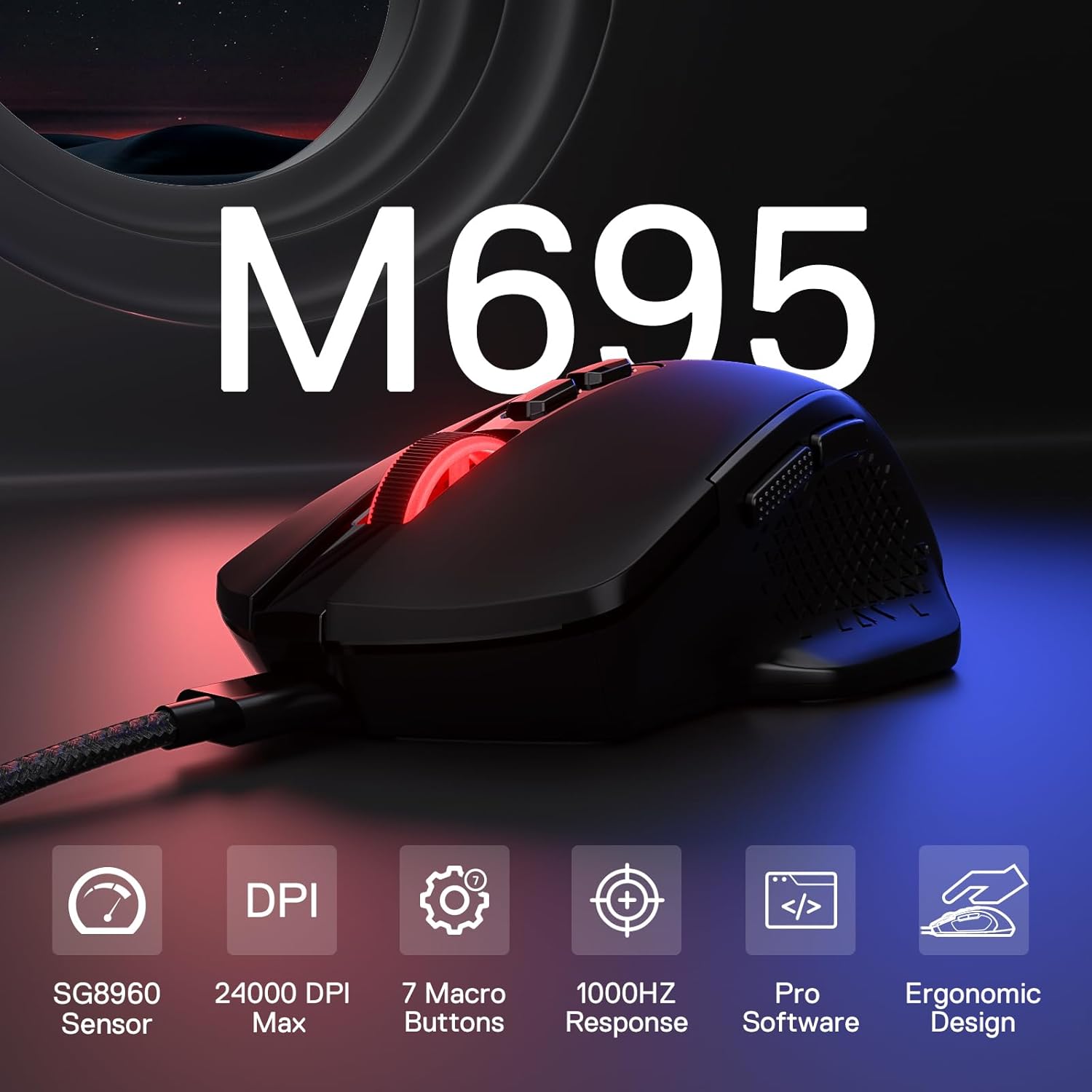
Image: The Redragon M695 mouse highlighting its key features: SG8960 Sensor, 24000 DPI Max, 7 Macro Buttons, 1000Hz Response, Pro Software, and Ergonomic Design.
3. Package Contents
Verify that all items are present in the package:
- Redragon M695 Wired Gaming Mouse
- User Manual
4. Setup Instructions
Follow these steps to set up your Redragon M695 Gaming Mouse:
- Connect the Mouse: Plug the USB connector of the Redragon M695 mouse into an available USB port on your computer.
- Driver Installation: The operating system will typically install the necessary drivers automatically. Allow a few moments for this process to complete.
- Software Installation (Optional but Recommended): For full customization, download the Redragon M695 software from the official Redragon website. Install the software by following the on-screen instructions.
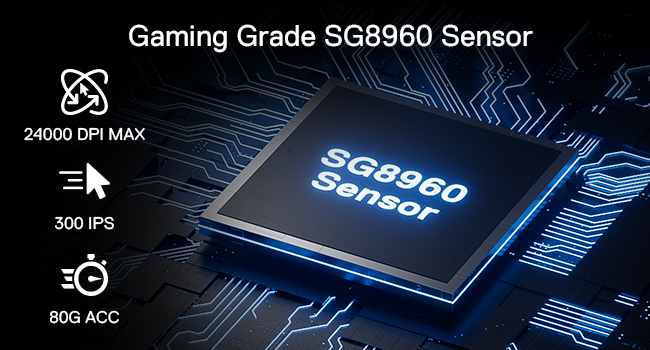
Image: Detailed view of the Redragon M695 mouse, highlighting the high texture scroll wheel, DPI adjustment buttons, non-slip side wings, and the Type-C cable connection point.
5. Operating Instructions
5.1 DPI Adjustment
The M695 mouse features on-the-fly DPI adjustment. Use the dedicated DPI buttons located behind the scroll wheel to cycle through preset DPI levels.
- Default DPI Levels: 400 (Red), 800 (Blue), 1600 (Green), 2400 (Purple), 3200 (Yellow).
- Custom DPI: The software allows for fine-tuning DPI settings from 100 to 24,000.
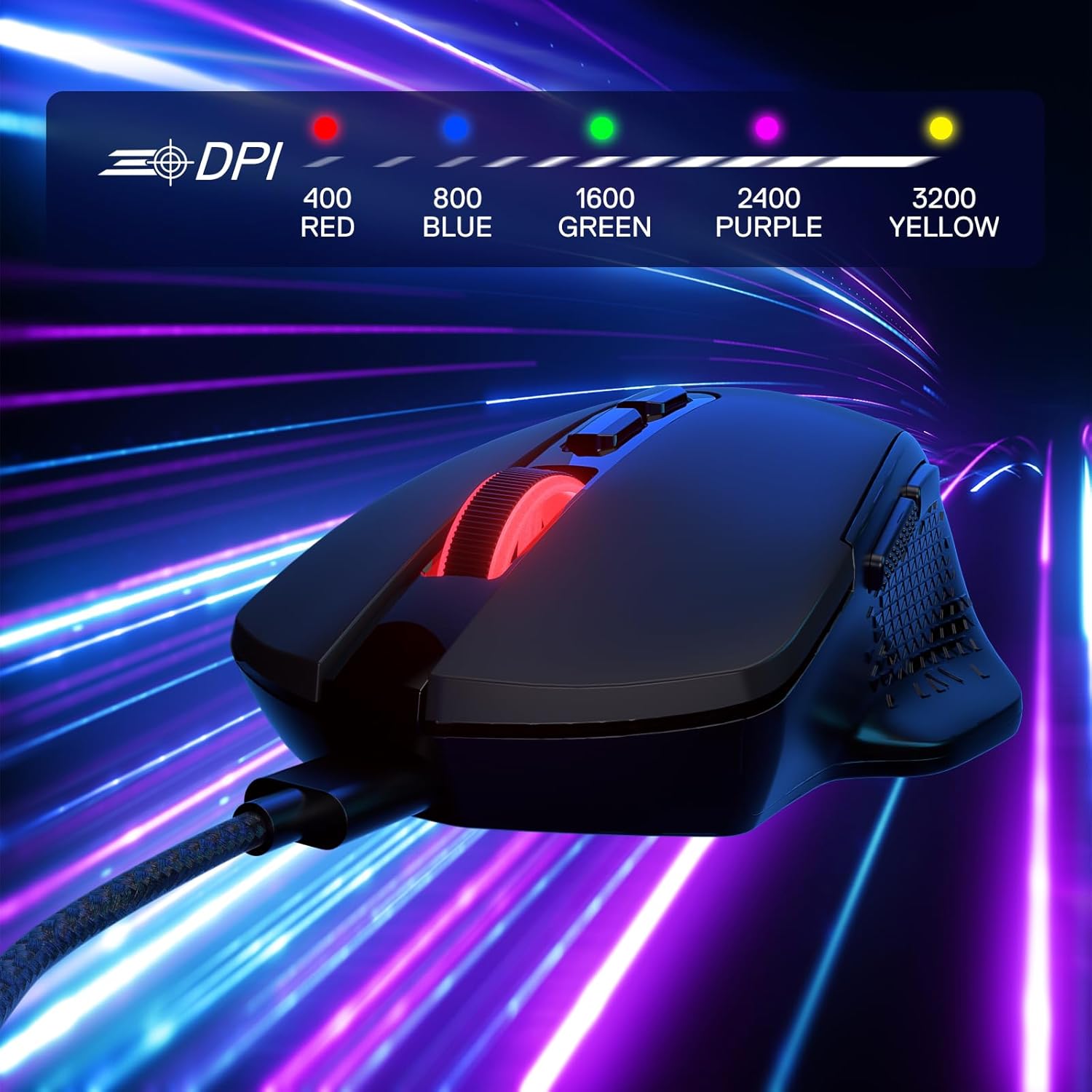
Image: The Redragon M695 mouse with an overlay showing the five default DPI levels (400, 800, 1600, 2400, 3200) and their associated indicator colors.
5.2 Programmable Buttons
The M695 is equipped with 7 programmable buttons. These buttons can be assigned various functions, macros, or keybinds using the Redragon customization software.
- Standard Buttons: Left Click, Right Click, Middle Button (Scroll Wheel Click).
- DPI Buttons: DPI+ (increase DPI), DPI- (decrease DPI).
- Side Buttons: Forward, Backward.
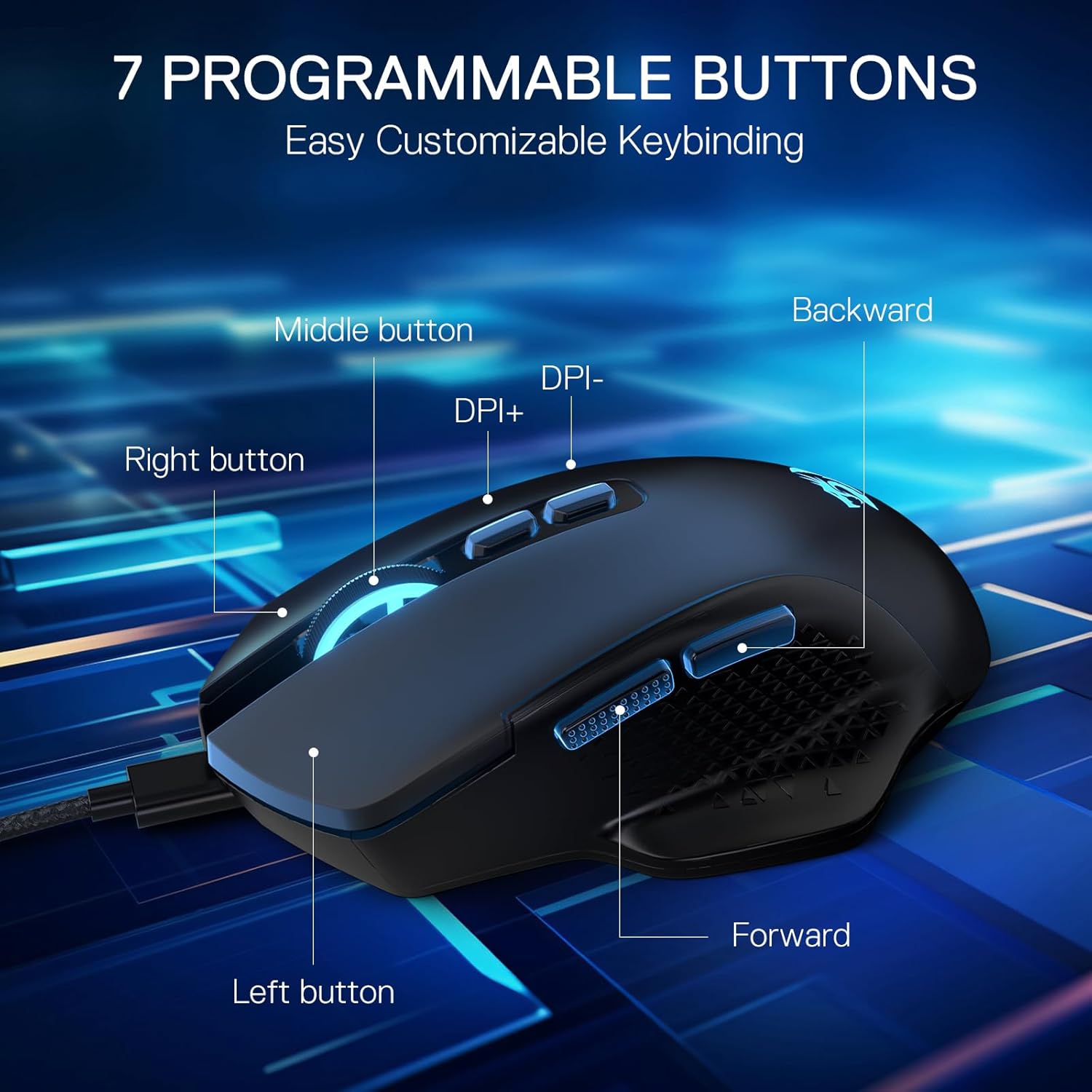
Image: A diagram of the Redragon M695 mouse, clearly labeling the Left button, Right button, Middle button, DPI+ button, DPI- button, Forward button, and Backward button.
5.3 Software Customization
The Redragon software provides comprehensive control over your mouse settings. After installation, launch the software to access options for:
- Lighting: Adjust RGB lighting effects, brightness, and speed.
- Customize: Reassign functions to any of the 7 programmable buttons.
- DPI: Create custom DPI profiles and set precise DPI values.
- Macro: Record and assign complex macro sequences to buttons.
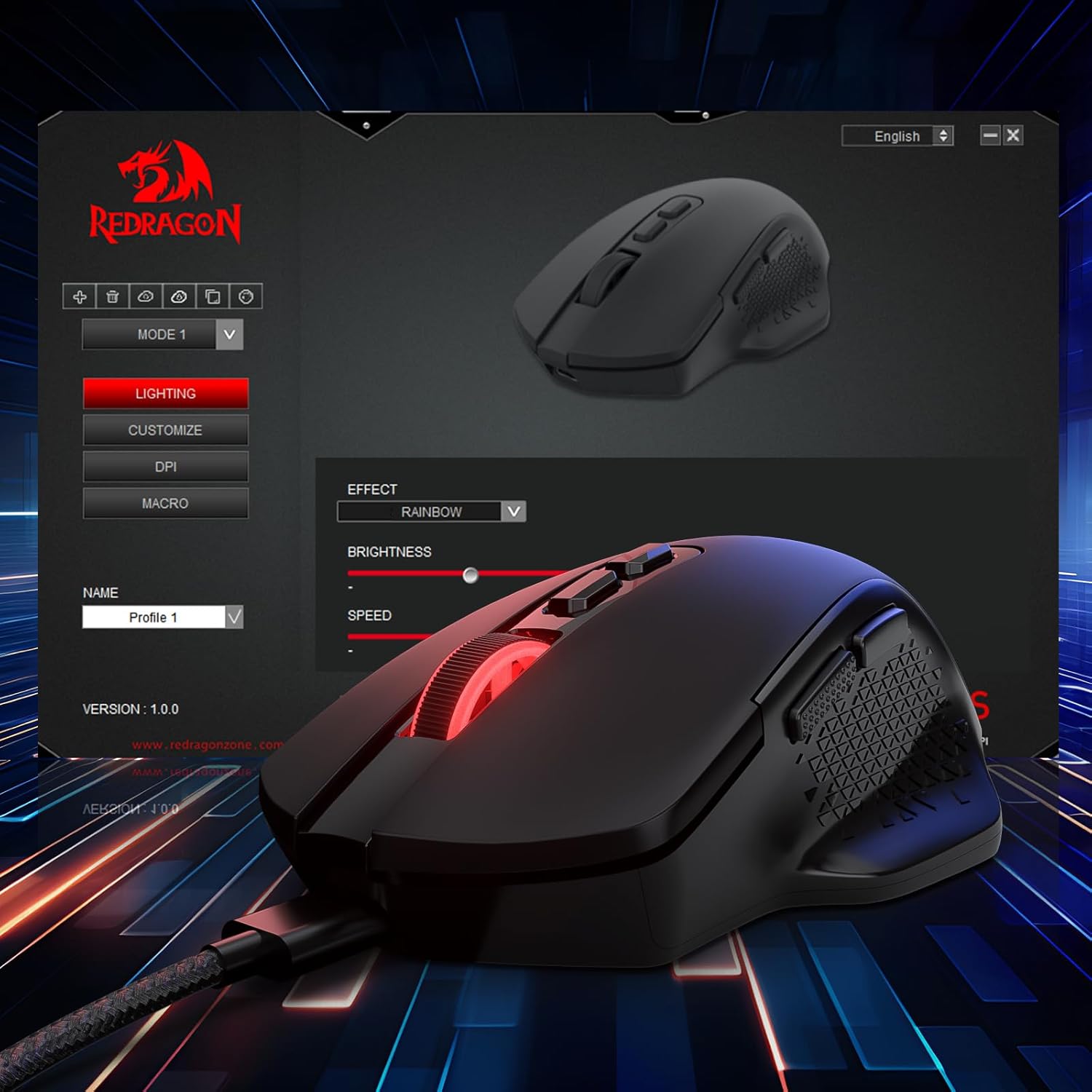
Image: A screenshot of the Redragon customization software interface, showing options for lighting, button customization, DPI settings, and macro creation, with the M695 mouse displayed.
6. Maintenance
To ensure the longevity and optimal performance of your Redragon M695 mouse, follow these maintenance guidelines:
- Cleaning: Use a soft, dry cloth to clean the mouse surface. For optical sensor cleaning, use a cotton swab lightly dampened with isopropyl alcohol. Avoid harsh chemicals or abrasive materials.
- Storage: Store the mouse in a clean, dry environment away from extreme temperatures and direct sunlight.
- Cable Care: Avoid sharply bending or pulling the USB cable to prevent internal damage.
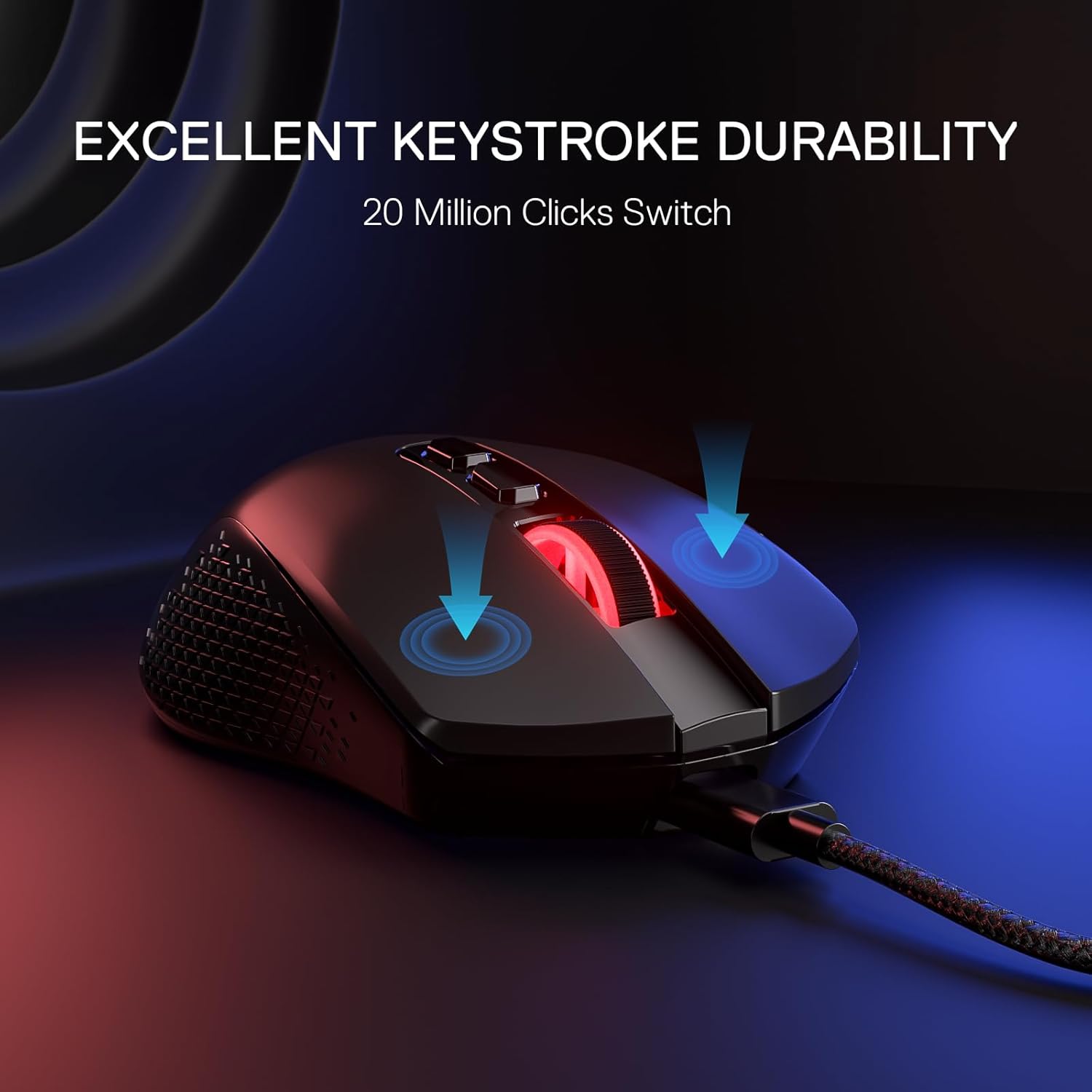
Image: The Redragon M695 mouse with an overlay indicating "Excellent Keystroke Durability" and "20 Million Clicks Switch," emphasizing the robust build quality.
7. Troubleshooting
If you encounter issues with your Redragon M695 mouse, refer to the following common solutions:
| Problem | Possible Solution |
|---|---|
| Mouse is not responding. |
|
| DPI settings are not changing. |
|
| Buttons are not programmable. |
|
| Mouse movement is erratic or inaccurate. |
|
8. Specifications
Key technical specifications for the Redragon M695 Wired Gaming Mouse:
- Model: M695
- Connectivity: Wired (USB)
- Sensor Type: Optical (SG8960)
- Max DPI: 24,000 (Software adjustable)
- Default DPI Levels: 400/800/1600/2400/3200
- Programmable Buttons: 7
- Switch Durability: 20 Million Clicks
- Polling Rate: 1000Hz (via software)
- Acceleration: 80G
- Tracking Speed: 300 IPS
- Color: Black
- Item Weight: Approximately 4.6 ounces (130 grams)
- Dimensions: 7.87 x 6.02 x 2.13 inches (Package)
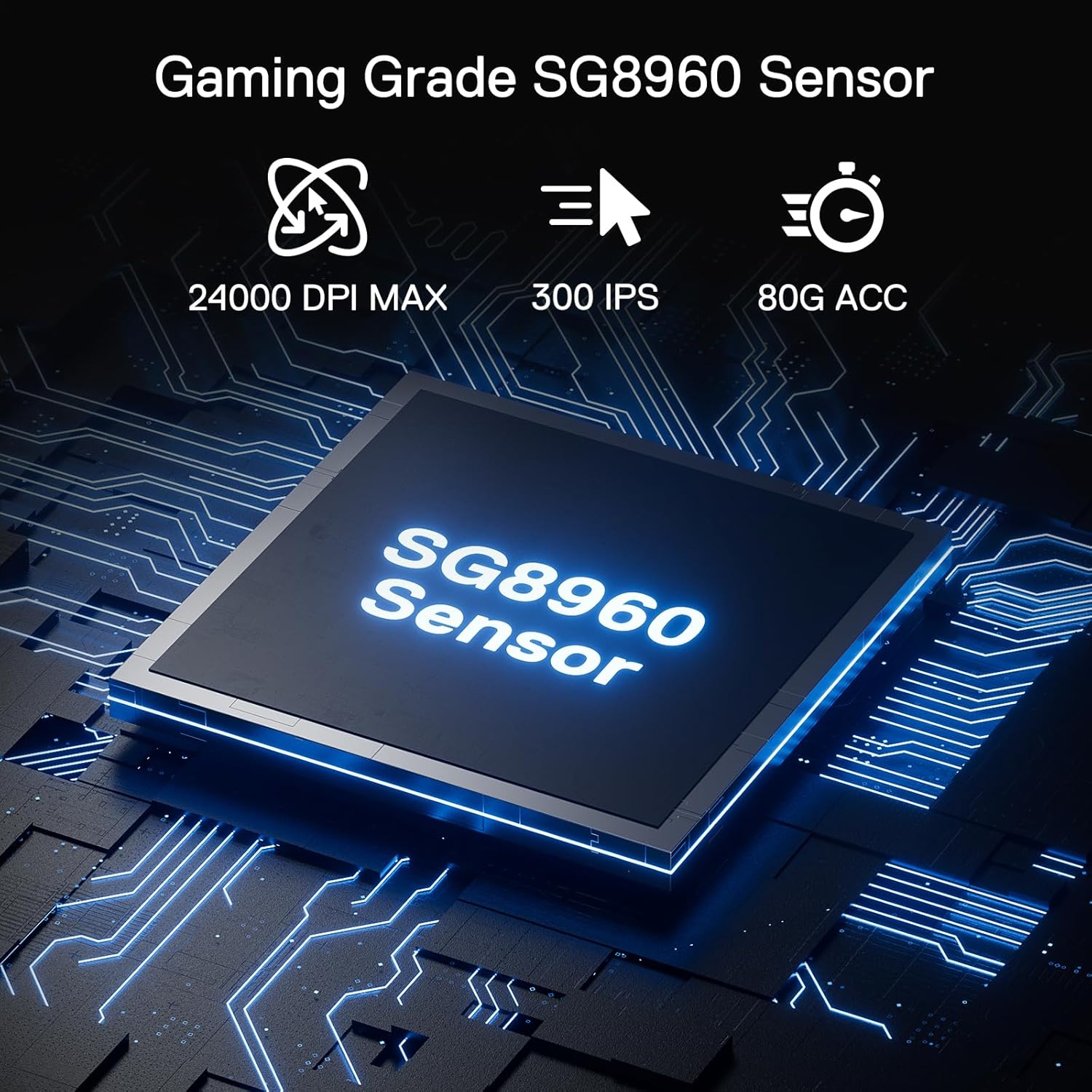
Image: A visual representation of the Gaming Grade SG8960 Sensor, detailing its capabilities: 24000 DPI Max, 300 IPS tracking speed, and 80G acceleration.
9. Warranty and Support
Redragon products are designed for reliability and performance. For specific warranty information, please refer to the warranty card included with your product or visit the official Redragon website.
For technical support, driver downloads, or further assistance, please visit the Redragon support page or contact their customer service. Contact information can typically be found on the official Redragon website.


