
1. Introduction
This manual provides essential information for the safe and efficient operation of your Crossbeats Lumex Solis Projector. Please read this manual thoroughly before using the device and retain it for future reference. The Crossbeats Lumex Solis is a smart mini projector featuring Google TV, 4K Ultra HD support, native 1080p resolution, Wi-Fi 6, and Bluetooth 5.4 connectivity, designed for versatile home entertainment.
2. Safety Information
- Do not block ventilation openings. Ensure adequate airflow around the projector to prevent overheating.
- Avoid direct eye exposure to the projector lens when the lamp is on.
- Use only the power cord supplied with the projector.
- Do not attempt to disassemble or modify the projector. Refer all servicing to qualified personnel.
- Keep the projector away from water or other liquids.
- Operate the projector within the specified temperature and humidity ranges.
3. Package Contents
Verify that all items are present in your package:
- Crossbeats Lumex Solis Projector
- Remote Control
- Power Cord
- User Manual
- Warranty Card
- Cleaning Kit
4. Product Overview
The Crossbeats Lumex Solis Projector integrates advanced features for a comprehensive viewing experience.

Image: The Crossbeats Lumex Solis Projector displaying the Google TV interface, accompanied by its remote control.
Key Features:
- Google TV Built-in: Access 10,000+ apps and 800+ channels, including popular streaming services.
- 4K Ultra HD Support & Native 1080p: Delivers crisp visuals with HDR10+ dynamic optimization.
- 1000 ANSI Lumens: Provides bright images suitable for various lighting conditions.
- Intelligent Voice Control: Integrated Google Assistant for hands-free operation.
- Auto Keystone & Electric Focus: Automatic image correction and easy focus adjustment.
- Dual-Stereo Hi-Fi Speakers: 2x15W audio-visual separation speakers for immersive sound.
- Wi-Fi 6 & Bluetooth 5.4: High-speed wireless connectivity for streaming and peripherals.
- 360-Degree Flexible Stand: Allows projection at various angles, including ceiling projection.
- 100% Dust-Proof Design: Sealed optical engine to prevent dust accumulation and extend lifespan.
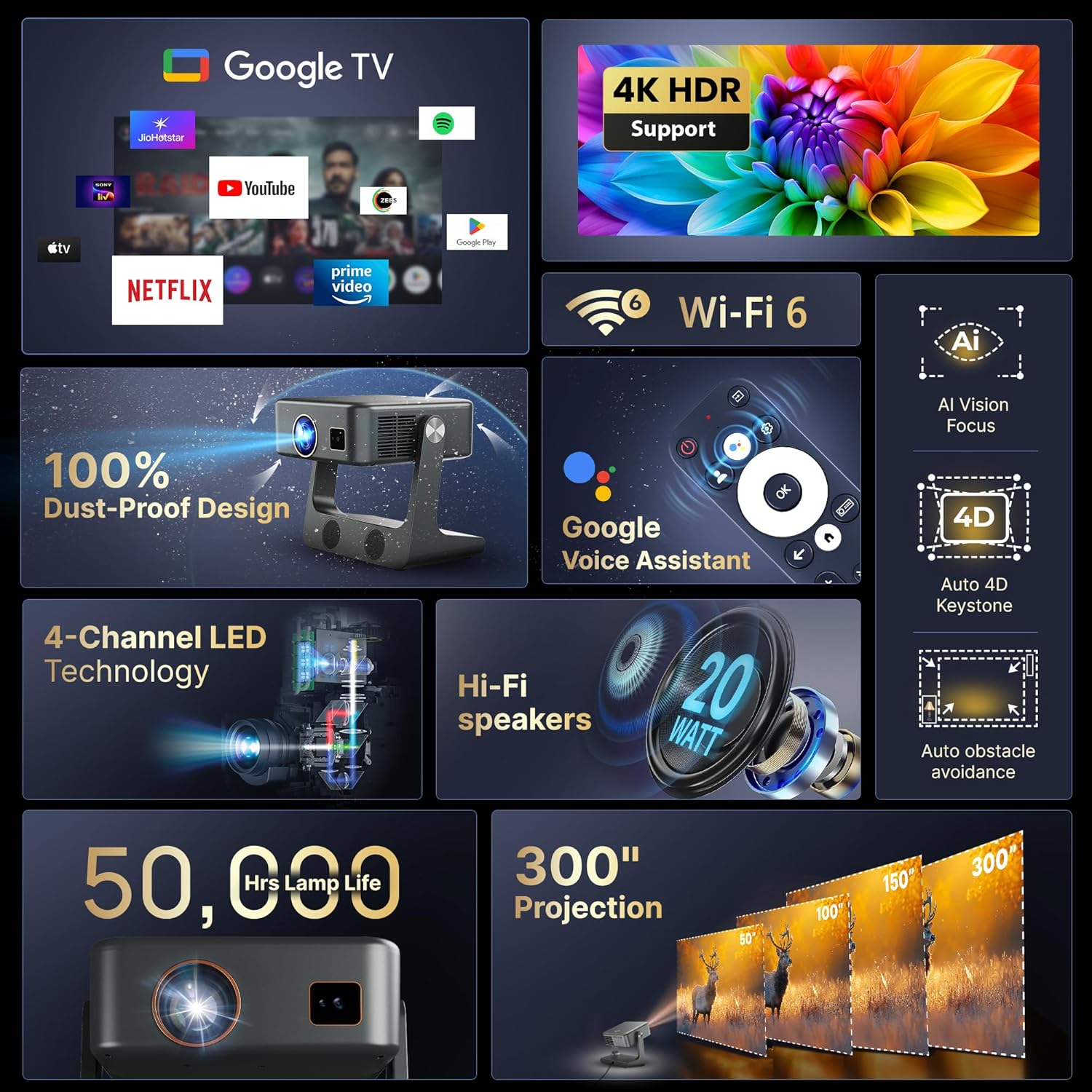
Image: An infographic highlighting the key features and technologies of the Lumex Solis Projector.
5. Setup
5.1 Physical Placement
Position the projector on a stable, flat surface. The Lumex Solis features a 360-degree flexible stand, allowing you to adjust the projection angle for various setups, including wall or ceiling projection. Its short-throw ratio enables a large screen size from a short distance.
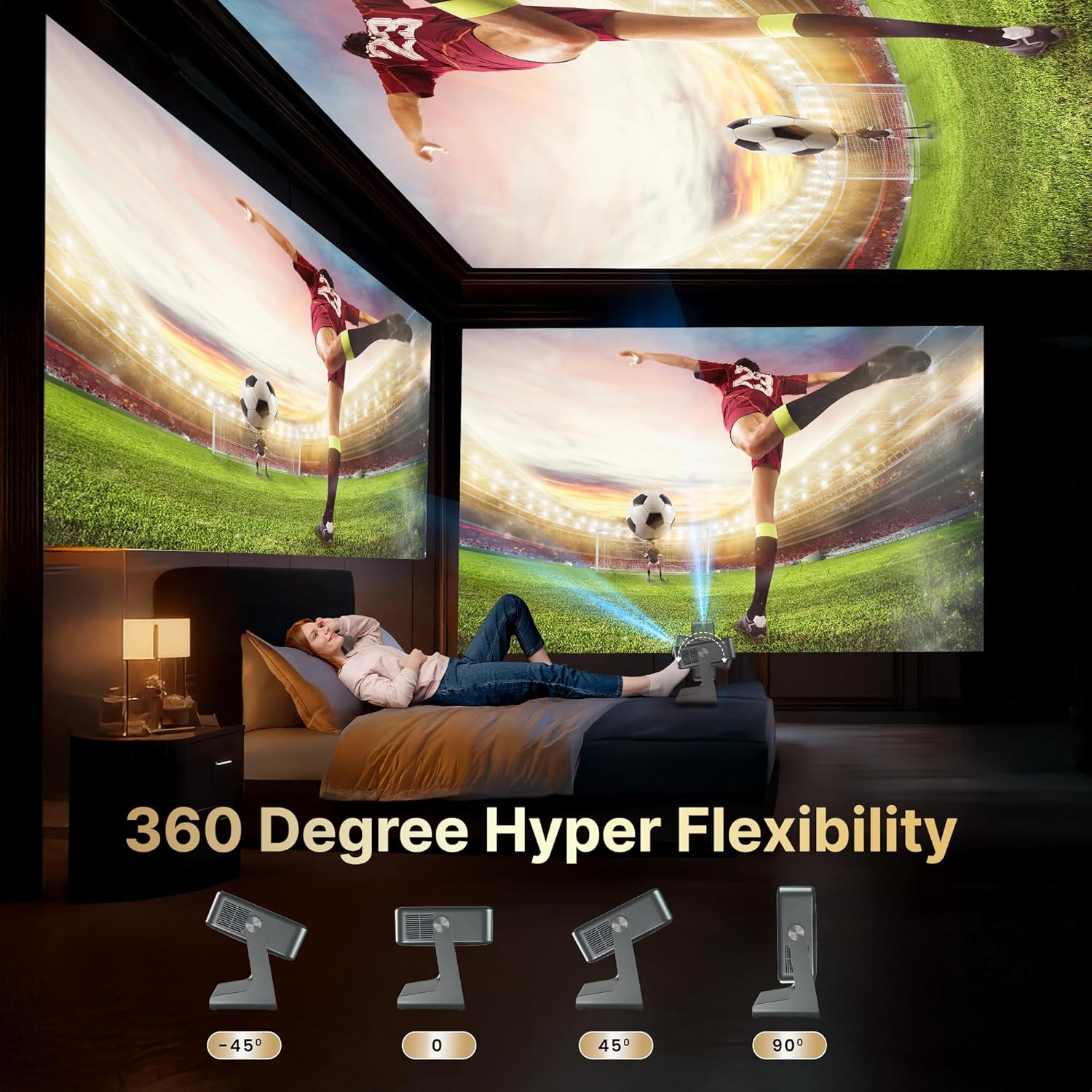
Image: The projector demonstrating its 360-degree rotation capability for flexible placement.
5.2 Power Connection
Connect the supplied power cord to the projector's power input and then to a power outlet.
5.3 Initial Power On
Press the power button on the projector or the remote control to turn on the device. Follow the on-screen instructions for initial setup, including language selection and network connection.
5.4 Focus and Keystone Correction
The projector features automatic keystone correction and electric focus. The device will automatically adjust the image shape and clarity. Manual adjustments can be made via the settings menu if needed. The AI Vision Focus and Auto 4D Keystone features ensure a clear and properly aligned image.
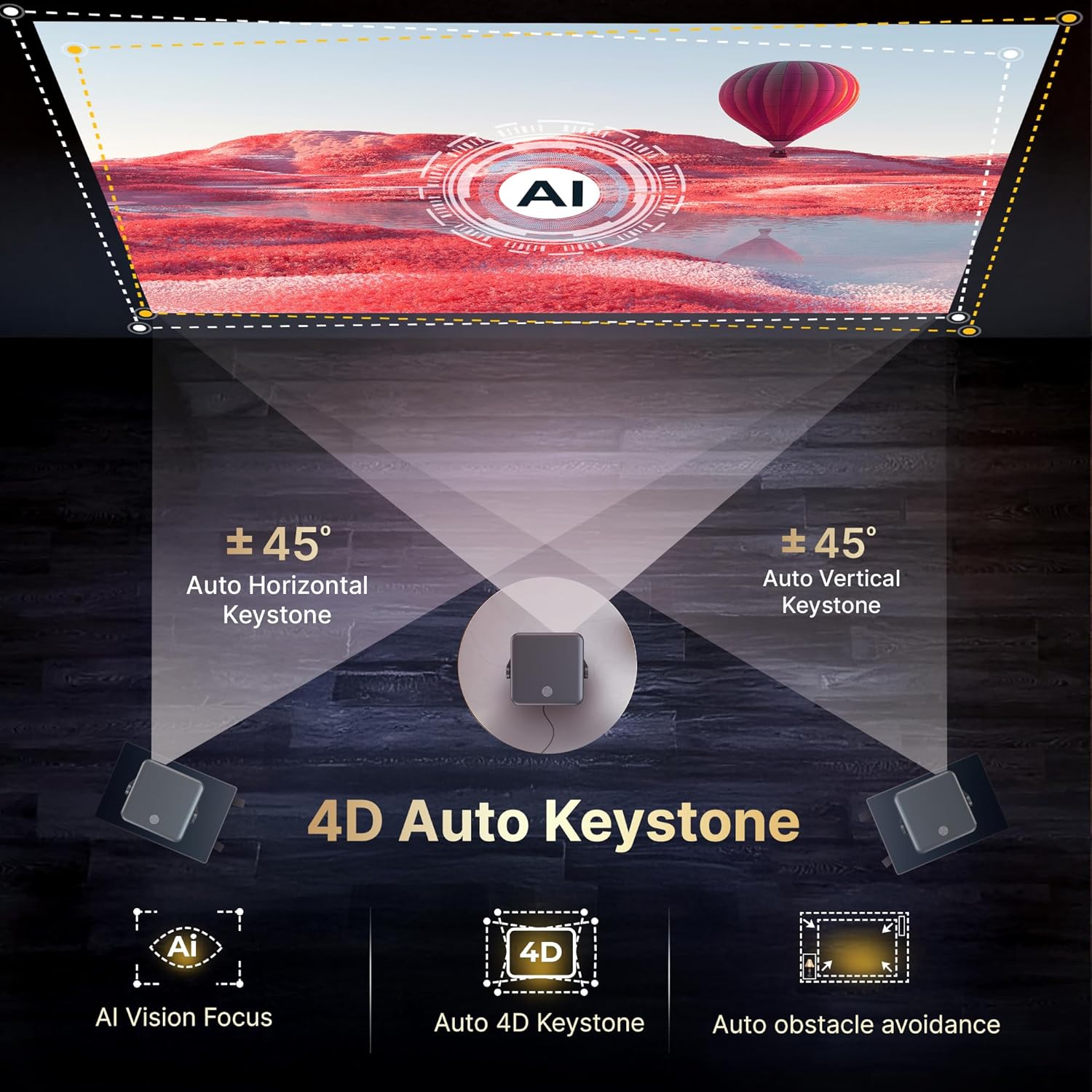
Image: Visual representation of the projector's 4D Auto Keystone and AI Vision Focus capabilities.
6. Operating Instructions
6.1 Google TV Interface
Navigate the Google TV interface using the remote control. The home screen provides access to installed apps, content recommendations, and settings. You can personalize user accounts and viewing lists.
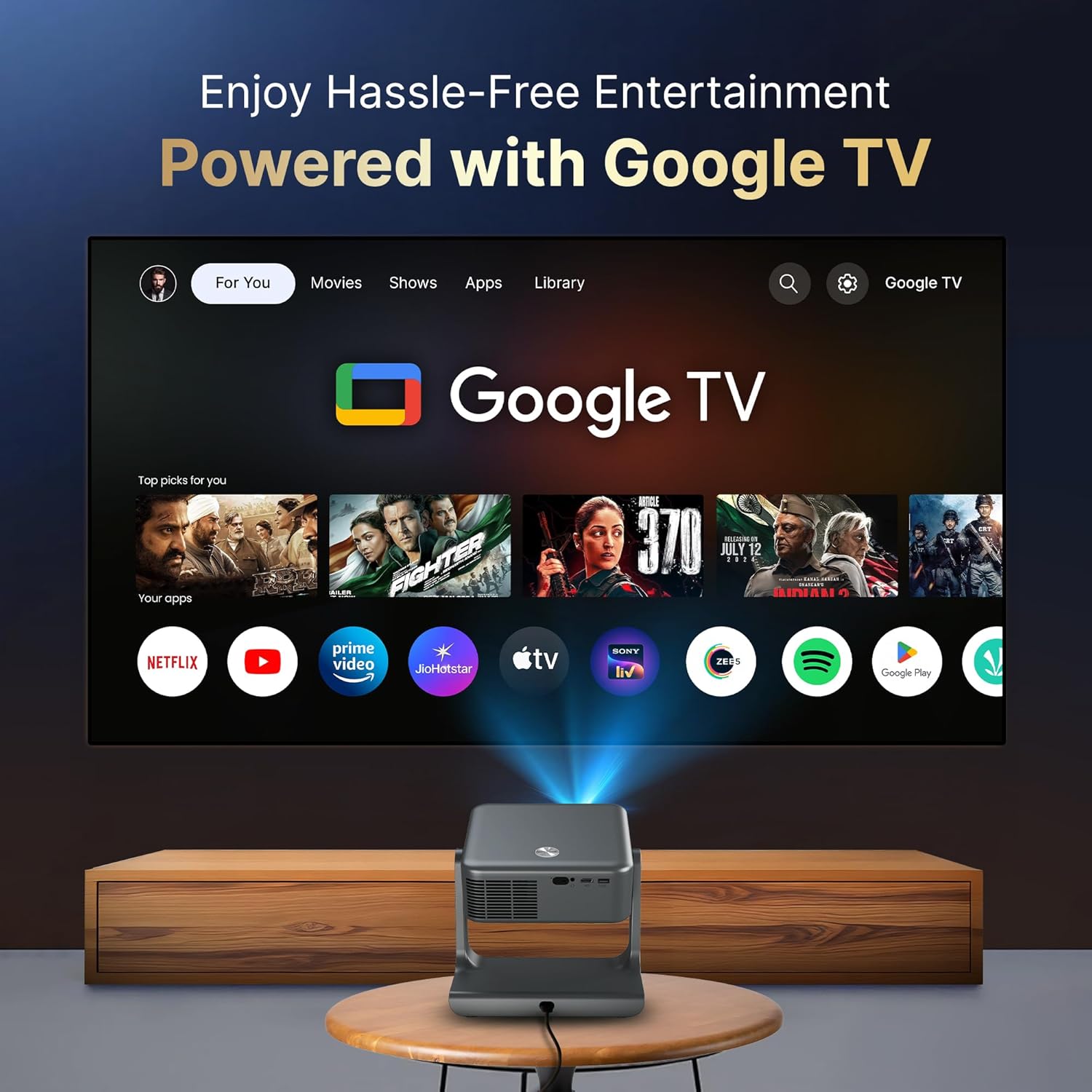
Image: The projector displaying the Google TV interface with access to numerous applications.
6.2 Voice Control
Press the Google Assistant button on your remote control and speak your commands. You can search for content, open apps, adjust volume, and more.
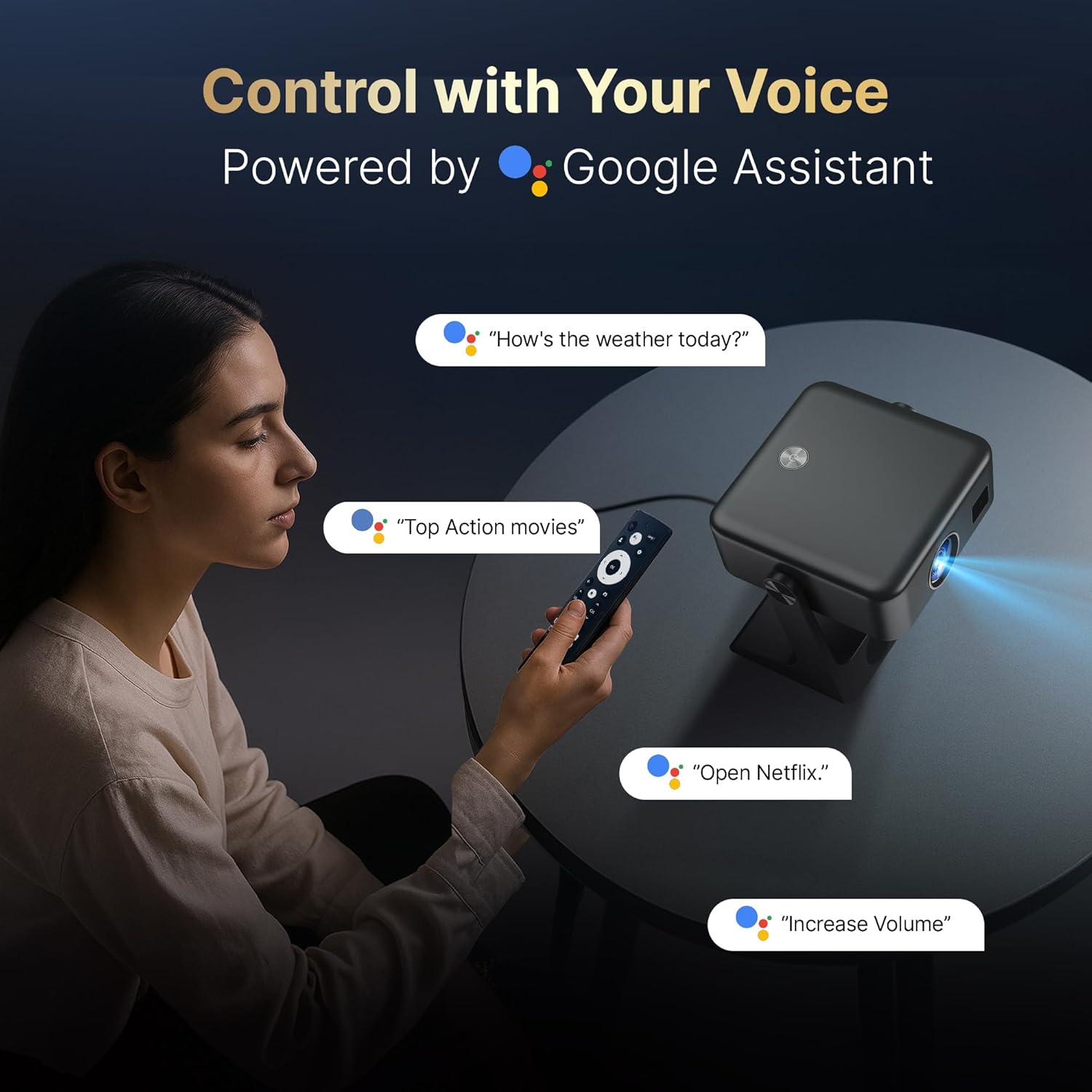
Image: Demonstrating voice control functionality with the Google Assistant.
6.3 Connecting External Devices
The projector supports various connectivity options:
- HDMI: Connect gaming consoles, laptops, or other media players.
- USB: Play media files directly from USB storage devices.
- Bluetooth: Pair with external speakers, headphones, or other Bluetooth-enabled devices.
- Wi-Fi 6: Connect to your home network for streaming and online content.
- Screen Casting (Google Cast): Wirelessly cast content from Android and iOS devices.

Image: The projector's multi-source connectivity options, including HDMI, USB, Wi-Fi 6, and Bluetooth.
6.4 Audio Output
The projector features built-in dual-stereo Hi-Fi speakers. For enhanced audio, connect external speakers via Bluetooth or the 3.5mm audio port.

Image: Detailed view of the projector's integrated dual-stereo Hi-Fi speakers.
6.5 Parental Controls (Kids Space)
Utilize the Kids Space feature within Google TV to filter content and manage screen time for children. This allows for a safe and controlled viewing environment.
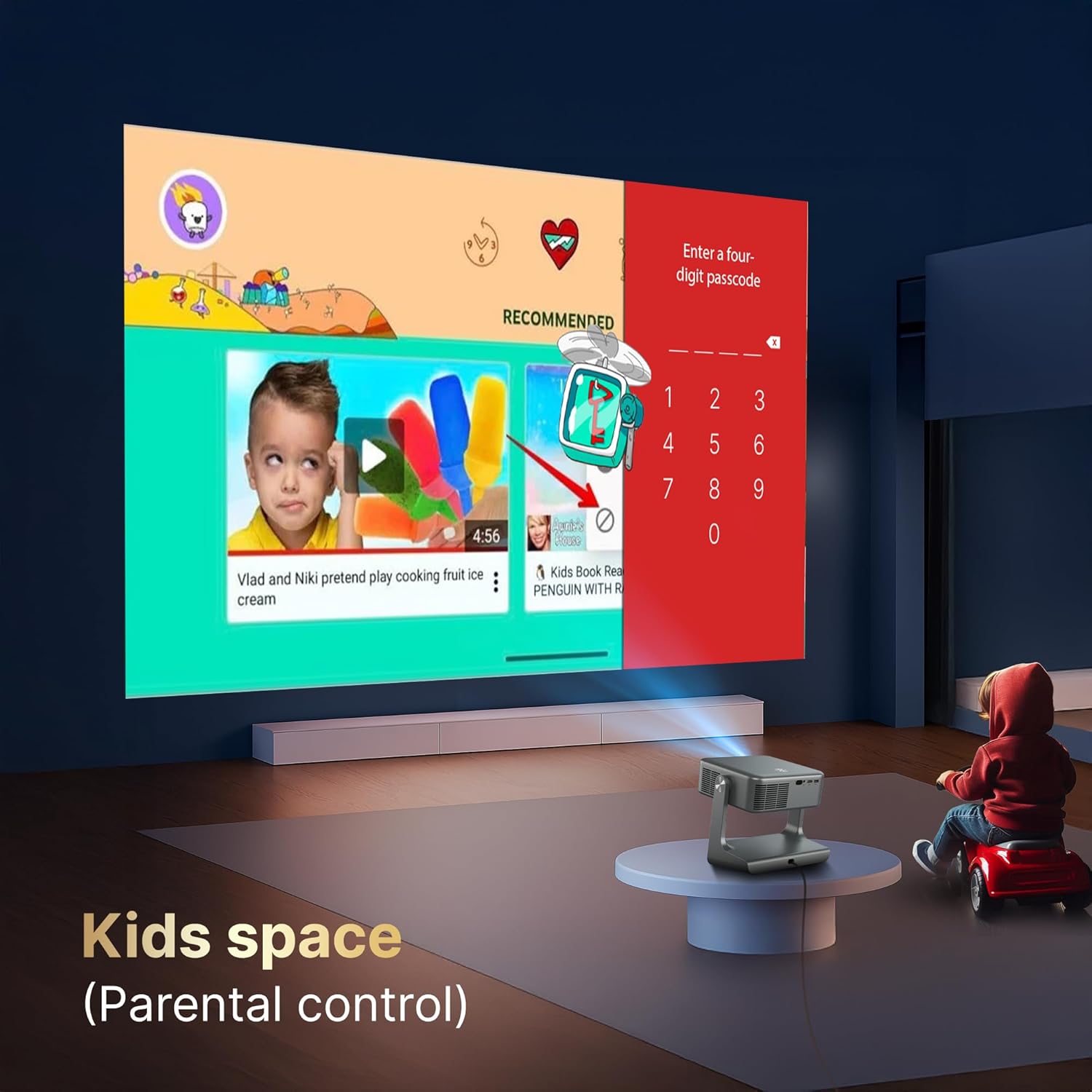
Image: The Kids Space interface, demonstrating parental control features.
7. Maintenance
7.1 Cleaning
Use the provided cleaning kit to gently wipe the projector lens and exterior. Avoid abrasive cleaners or solvents. The projector features a 100% dust-proof sealed optical engine, minimizing internal dust accumulation.
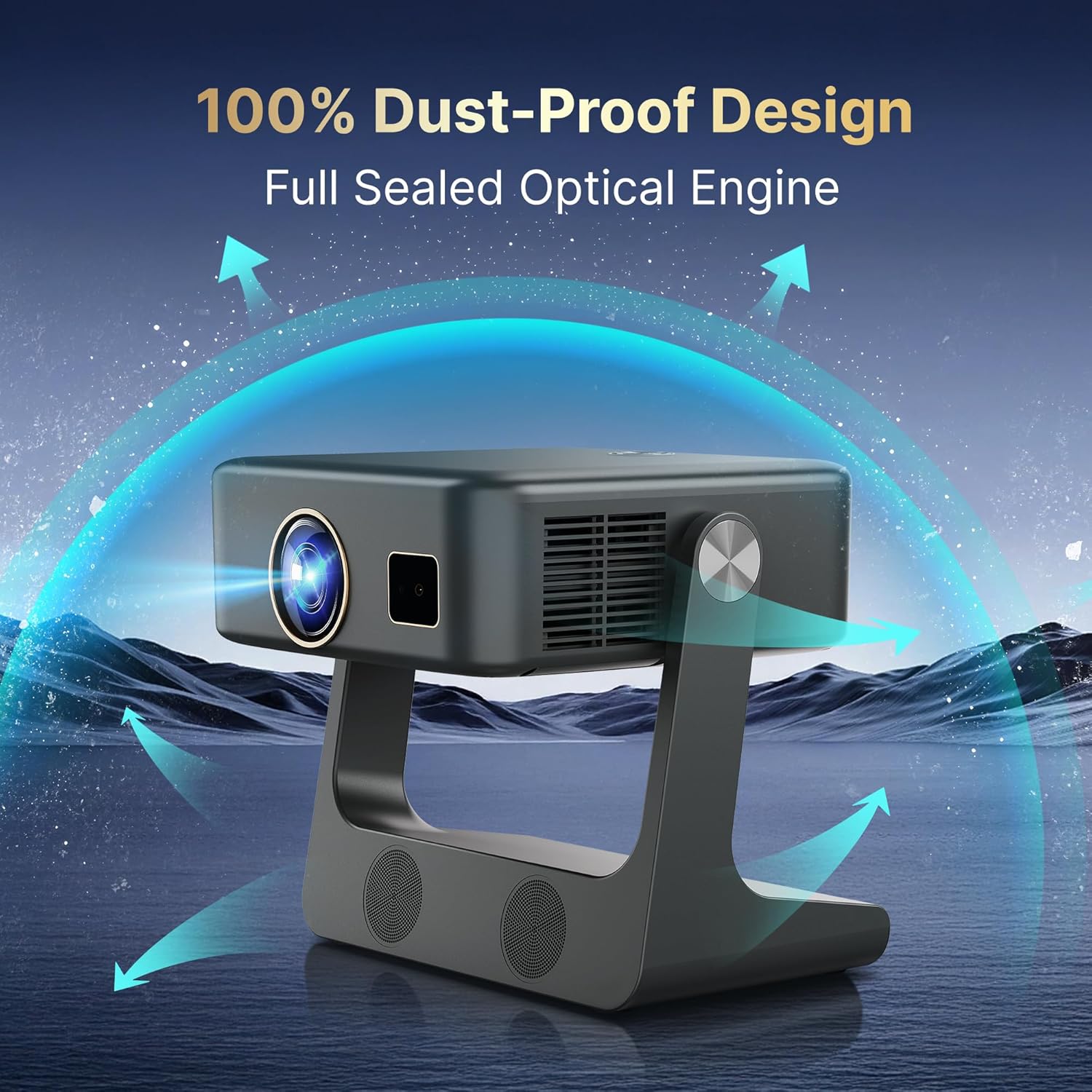
Image: The dust-proof design of the projector's sealed optical engine.
7.2 Lamp Life
The projector's LED lamp has an estimated lifespan of 50,000 hours, providing long-term usage without frequent lamp replacement.
7.3 Cooling System
The integrated dual-fan turbo cooling system helps maintain optimal operating temperatures, ensuring stable performance and extending the device's lifespan.
8. Troubleshooting
- No Power: Ensure the power cord is securely connected and the power outlet is functional.
- No Image: Check input source selection. Verify HDMI or USB connections.
- Blurry Image: Allow auto-focus to complete. If needed, manually adjust focus via settings. Ensure the projection surface is flat.
- Distorted Image: The auto keystone correction should resolve this. If not, check for physical obstructions or extreme projection angles.
- No Sound: Check volume levels on the projector and connected devices. Ensure external speakers are properly paired via Bluetooth or connected via audio cable.
- Remote Not Responding: Check battery levels in the remote. Ensure no obstructions between the remote and the projector.
- Wi-Fi/Bluetooth Connectivity Issues: Restart the projector and your router/Bluetooth device. Ensure the projector is within range.
9. Specifications
| Feature | Specification |
|---|---|
| Brand | CrossBeats |
| Model | SOLIS |
| Display Technology | LCD, DLP (4K Support) |
| Native Resolution | 1920 x 1080 (1080p) |
| Supported Resolution | Up to 3840 x 2160 (4K) |
| Image Brightness | 1000 ANSI Lumens (16000 Lumens marketing value) |
| Image Contrast Ratio | 20000:1 |
| Aspect Ratio | 16:9 |
| Operating System | Google TV (Android OS) |
| Connectivity | Bluetooth 5.4, HDMI, USB, Wi-Fi 6 (2.4G/5G) |
| Audio Output | Dual 15W Stereo Speakers, 3.5mm Audio Jack |
| Special Features | Auto Focus, Auto Keystone, Built-In Cooling System, Built-In Speaker, Digital Keystone Correction, Lightweight, Rotatable Design, Ultra Short Throw, Google Assistant, Google Cast, Kids Mode |
| Lamp Life | 50,000 hours |
| Product Dimensions | 27 x 16.9 x 30 cm |
| Item Weight | 1.8 kg |
| Refresh Rate | 120 Hz |
10. Warranty and Support
Your Crossbeats Lumex Solis Projector comes with a warranty. Please refer to the included Warranty Card for detailed terms and conditions. For technical support, product inquiries, or service requests, please contact Crossbeats customer support through their official website or the contact information provided in your warranty documentation.


