
1. Introduction
This manual provides comprehensive instructions for setting up, operating, and maintaining your UXD A5 10-inch Android Tablet. Please read this manual thoroughly before using your device to ensure optimal performance and longevity.
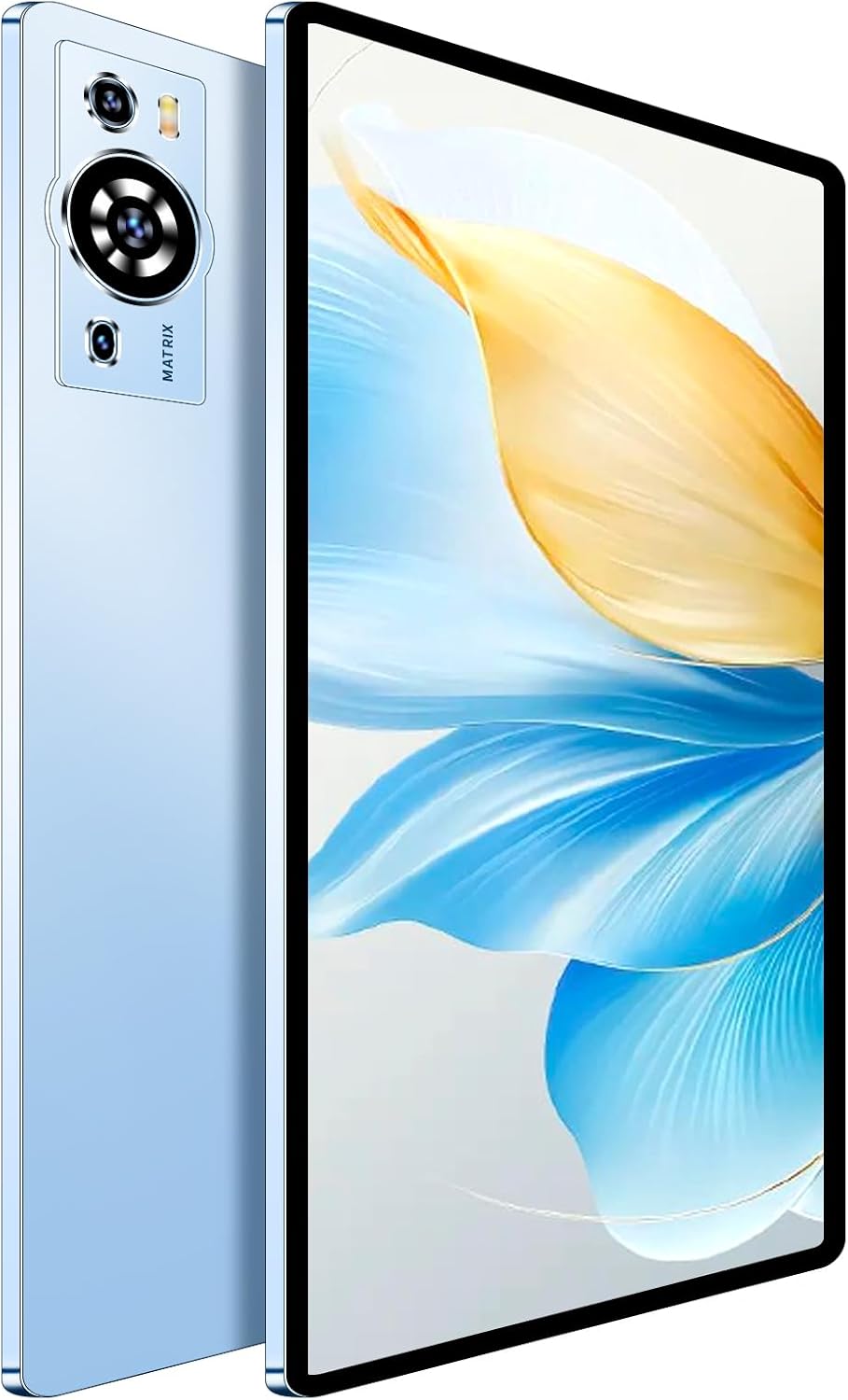
Figure 1: UXD A5 10-inch Android Tablet (Blue), showcasing its sleek design and camera module.
2. Package Contents
Verify that all items are present in your product package:
- UXD A5 10-inch Android Tablet
- Detachable Keyboard
- Precision Mouse
- Stylus
- Screen Protector (pre-applied or included)
- OTG Adapter
- Foldable Case
- Charging Cable (USB-C)
- Charging Block
- User Manual (this document)

Figure 2: The tablet is designed for everyday use and comes with a comprehensive set of accessories for enhanced functionality.
3. Initial Setup
3.1 Charging the Tablet
Before first use, fully charge your tablet. Connect the provided USB-C charging cable to the tablet's charging port and the charging block to a power outlet. The battery indicator on the screen will show charging status.

Figure 3: Charging the tablet. A full charge provides approximately 8 hours of continuous use, with a 30-minute quick charge option.
3.2 Powering On/Off
- To power on: Press and hold the Power button located on the side of the tablet until the screen illuminates.
- To power off: Press and hold the Power button, then select "Power off" from the on-screen options.
3.3 Initial Configuration
Upon first startup, follow the on-screen prompts to configure your tablet:
- Select your language.
- Connect to a Wi-Fi network.
- Sign in with your Google account or create a new one.
- Review and accept the terms and conditions.
- Set up screen lock (PIN, pattern, or password).
Video 1: Unboxing and initial setup of the UXD A5 tablet, demonstrating power-on and basic navigation.
4. Operating Your Tablet
4.1 Navigation and Interface
The UXD A5 tablet runs on Android 15, offering an intuitive user interface. Swipe down from the top of the screen to access quick settings and notifications. Swipe up from the bottom to access the app drawer.

Figure 4: The tablet supports various activities, from creative tasks to entertainment and productivity.
4.2 Connecting Accessories
- Keyboard: The detachable keyboard connects via Bluetooth. Enable Bluetooth in settings, pair the keyboard, and attach it to the tablet's magnetic connector.
- Mouse: The precision mouse also connects via Bluetooth. Follow the same pairing procedure as the keyboard.
- Stylus: Use the stylus for precise input, drawing, and navigation.
- OTG Adapter: Connect USB devices like flash drives using the included OTG adapter.
4.3 Camera Functions
The tablet features a 5MP front camera and a 15MP rear camera. Open the Camera app to capture photos and videos. Tap the camera icon to switch between front and rear cameras.

Figure 5: Key features of the tablet, including its dual-lens camera system for photography and Android 15 operating system.
4.4 Storage Management
The tablet comes with 256GB of internal storage, expandable up to 1TB via a microSD card (not included). To manage storage, go to Settings > Storage. Insert a microSD card into the designated slot for expanded storage.
5. Maintenance and Care
- Cleaning: Use a soft, lint-free cloth to clean the screen and body. Avoid abrasive cleaners or solvents.
- Battery Care: To prolong battery life, avoid extreme temperatures and fully discharge and recharge the battery periodically.
- Software Updates: Regularly check for and install system updates to ensure optimal performance and security. Go to Settings > System > System update.
- Storage: Periodically clear unnecessary files and apps to maintain performance.
6. Troubleshooting
- Tablet not turning on: Ensure the battery is charged. Connect to the charger and try again.
- Screen unresponsive: Perform a forced restart by holding the Power button for 10-15 seconds.
- Wi-Fi connection issues:
- Check if Wi-Fi is enabled in settings.
- Restart your router and the tablet.
- Forget the network and reconnect.
- Accessories not connecting: Ensure Bluetooth is enabled on the tablet and the accessory is in pairing mode. Refer to the accessory's individual manual for specific pairing instructions.
- Slow performance:
- Close unused apps.
- Clear cache and temporary files.
- Check for available storage space.
7. Specifications
| Feature | Specification |
|---|---|
| Model | A5 |
| Display Size | 10.1 Inches |
| Max Screen Resolution | 1280x800 Pixels (IPS) |
| Operating System | Android 15 |
| Processor | Octa-Core CPU |
| RAM | 12GB |
| Internal Storage | 256GB (Expandable up to 1TB via microSD) |
| Rear Camera | 15MP |
| Front Camera | 5MP |
| Connectivity | WiFi 6, 4G LTE, Bluetooth 5.0 |
| Battery Capacity | 6000mAh (Up to 8 hours usage) |
| Dimensions (LxWxH) | 9.4 x 6.3 x 2.7 inches |
| Weight | 3 pounds |

Figure 6: Overview of the UXD A5 Tablet's technical specifications.
8. Warranty and Support
For warranty information and customer support, please refer to the warranty card included in your package or visit the official UXD website. Keep your purchase receipt for warranty claims.
For additional assistance, you may contact UXD customer service through their official channels.