
1. Introduction
Thank you for choosing the Dinosoo Wired Controller. This manual provides essential information for setting up, operating, and maintaining your controller. Please read it carefully to ensure optimal performance and longevity of your device.
This controller is designed for use with PlayStation 5, PlayStation 4, PC, and Mac systems, offering a versatile gaming experience.
2. Product Overview
The Dinosoo Wired Controller features Hall Effect joysticks for precision, programmable back buttons, a multi-touch pad, and a 3.5mm headphone jack. Its wired connection ensures stable performance without latency.

Figure 2.1: Front and Rear View of the Dinosoo Wired Controller with Labeled Components. Key features include the Touchpad, Share button, Options button, PS button, D-pad, Left Stick, Right Stick, Turbo button, Action buttons (Triangle, Circle, Cross, Square), R1/R2/L1/L2 triggers, Type-C charging port, 3.5mm Headphone Jack, and programmable PR/PL back buttons with a SET button.
3. Setup and Connection
3.1 Multi-Platform Compatibility
The Dinosoo Wired Controller is compatible with PlayStation 5, PlayStation 4, PC, and Mac. It connects via a 10-foot USB cable, providing a stable and responsive connection without the need for batteries or charging.
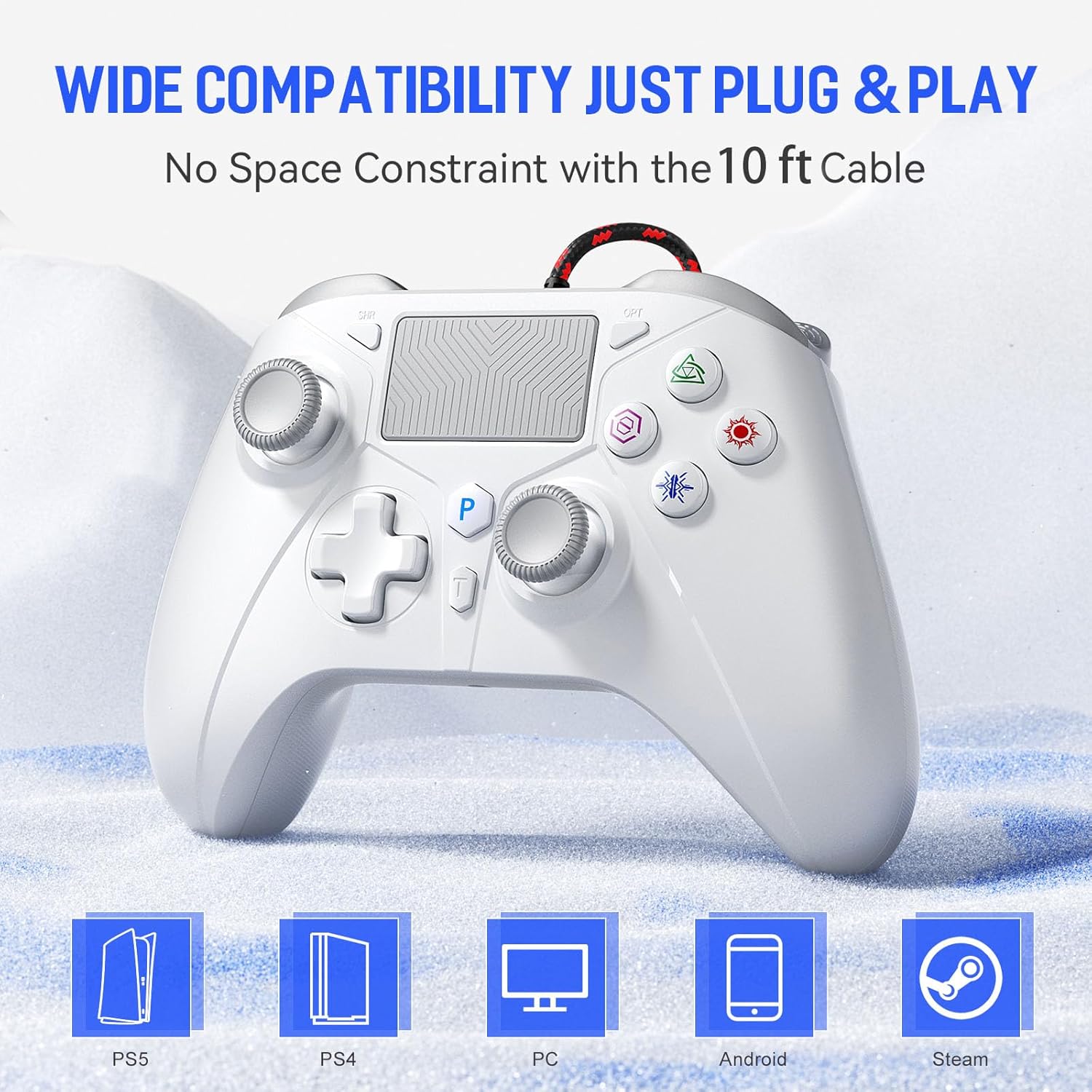
Figure 3.1: The Dinosoo Wired Controller is compatible with multiple platforms including PlayStation 5, PlayStation 4, PC, Android, and Steam, offering broad usability.
3.2 Connecting to PlayStation 5 (PS5)
To ensure proper functionality with your PlayStation 5 console, a specific setting adjustment is required:
- Navigate to the PS5 system settings.
- Select Accessories.
- Choose Controller (General).
- Select Communication Method.
- Set the option to Use USB Cable.
This setting ensures the PS5 recognizes and communicates with the wired controller via the USB cable.

Figure 3.2: Visual guide for setting the PS5 console to 'Use USB Cable' for wired controller connection. This step is crucial for the controller to function correctly with the PlayStation 5.
3.3 Connecting to PlayStation 4 (PS4) and PC/Mac
For PS4, PC, and Mac, simply plug the controller's USB cable into an available USB port on your console or computer. The system should automatically detect and install the necessary drivers. If prompted, follow any on-screen instructions.
4. Operating Instructions
4.1 Core Features
- Hall Effect Joysticks: Designed for high sensitivity and accuracy, minimizing drift and input delay.
- Hall Effect Triggers: Provide a smooth and precise feel, reducing friction and potential jamming.
- Vibration System: Integrated lightweight vibration motors offer tactile feedback for an immersive experience.
- 3.5mm Headphone Jack: Supports stereo headset output and chat functionality.
- Multi-Touch Pad: Functions as a touch-sensitive input area, similar to the original PS5/PS4 controller.

Figure 4.1: Detailed view of the controller's internal mechanisms, showcasing Hall Effect Triggers for smooth action, an accurate joystick designed to prevent drift, and vibration motors for an immersive gaming experience.
4.2 Programmable Back Buttons (PL/PR)
The controller features two programmable back buttons, PL (left) and PR (right), allowing you to map complex operations or frequently used button combinations for quick access during gameplay.
- Press the SET button located on the back of the controller. The indicator light will flash.
- Press the PL or PR button you wish to program.
- Press the button(s) or combination of buttons you want to assign to the PL/PR button.
- Press the SET button again to save the mapping. The indicator light will stop flashing.

Figure 4.2: Illustration of the two programmable back buttons (PL and PR) and the SET button, designed to simplify complex in-game actions.
4.3 Turbo Function
The Turbo function enables rapid-fire input for selected buttons, which can be advantageous in certain games.
- Press and hold the Turbo (T) button.
- While holding Turbo, press the action button (e.g., X, O, Square, Triangle, R1, R2, L1, L2) you wish to apply the rapid-fire function to.
- Release both buttons. The selected action button will now activate rapid-fire when pressed.
- To deactivate Turbo for a specific button, repeat the process: hold Turbo (T) and press the previously assigned action button.

Figure 4.3: The Turbo button (T) and its corresponding mappable buttons (Y, X, B, A, RT, LT, RB, LB) for activating rapid-fire functionality.
4.4 Anti-Slip Grips
The controller features laser-etched anti-slip grips on the handles, designed to provide a comfortable and secure hold during extended gaming sessions, reducing the likelihood of slippage due to sweat.

Figure 4.4: Close-up view of the controller's anti-slip grips, designed for enhanced comfort and stability during use.
5. Maintenance
Proper care and maintenance will extend the life of your Dinosoo Wired Controller:
- Cleaning: Use a soft, dry cloth to wipe the controller. For stubborn dirt, slightly dampen the cloth with water or a mild cleaning solution. Avoid harsh chemicals or abrasive materials.
- Storage: Store the controller in a cool, dry place away from direct sunlight and extreme temperatures. Avoid placing heavy objects on top of the controller.
- Cable Care: Do not sharply bend or pull the USB cable. Store it neatly to prevent tangling and damage.
- Avoid Liquids: Keep the controller away from liquids to prevent internal damage.
6. Troubleshooting
If you encounter issues with your Dinosoo Wired Controller, please refer to the following common solutions:
- Controller Not Responding (PS5):
Ensure you have followed the PS5 connection steps outlined in Section 3.2: PS5 system settings > Accessories > Controller (General) > Communication Method > Use USB Cable. This is a common oversight for PS5 users. - Controller Not Responding (PS4/PC/Mac):
Verify that the USB cable is securely plugged into both the controller and the console/computer. Try a different USB port. On PC, check Device Manager to see if the controller is recognized and if drivers are installed correctly. - Difficulty Reconnecting After Switching Consoles:
If switching between different consoles (e.g., PS5 to PS4, or console to PC), fully disconnect the controller and restart the console/PC before plugging the controller back in. For PS5, re-verify the 'Use USB Cable' setting. - Buttons or Joysticks Not Working Correctly:
Ensure no debris is lodged around the buttons or joysticks. Test the controller on another game or platform to determine if the issue is specific to a game or the controller itself. If the issue persists, contact customer support. - Headphone Jack Not Working:
Check that your headphones are fully plugged into the 3.5mm jack. Test your headphones with another device to ensure they are functional. Verify audio settings on your console/PC.
7. Specifications
| Model Number (ASIN) | B0FLK6DCNS |
| Brand | Dinosoo |
| Connectivity | Wired (10ft USB Cable) |
| Compatibility | PlayStation 5, PlayStation 4, PC, Mac |
| Joystick Type | Hall Effect Joysticks (Anti-drift) |
| Trigger Type | Hall Effect Linear Triggers |
| Special Features | Turbo Function, 2 Programmable Back Buttons (PL/PR), Multi-Touch Pad, Vibration Feedback, 3.5mm Headphone Jack, Anti-Slip Grips |
| Item Weight | 12.2 ounces (approx. 346 grams) |
| Package Dimensions | 6.81 x 5 x 2.87 inches |
| Manufacturer | Dinosoo |
| Date First Available | August 7, 2025 |
8. Warranty and Support
8.1 Warranty Information
Dinosoo products are covered by a limited warranty against defects in materials and workmanship. Please refer to the product packaging or the official Dinosoo website for specific warranty terms and duration. Keep your purchase receipt as proof of purchase for warranty claims.
8.2 Customer Support
For technical assistance, troubleshooting, or warranty inquiries, please contact Dinosoo customer support through the retailer where the product was purchased or visit the official Dinosoo website for contact information.
When contacting support, please have your product model number (B0FLK6DCNS) and a detailed description of the issue ready.