
1. Introduction
This manual provides essential information for the NIMO 17.3-inch FHD Gaming Laptop, Model N177. It covers the initial setup, operational guidelines, maintenance procedures, troubleshooting tips, and detailed product specifications. Please read this manual thoroughly to ensure proper use and to maximize the lifespan of your laptop.
Package Contents
Upon unpacking your NIMO N177 Laptop, please verify that all items listed below are present:
- 1 x NIMO N177 Laptop
- 1 x Type-C 100W PD Fast Charger
- 1 x User Manual (this document)
- Windows 11 Home (pre-installed)
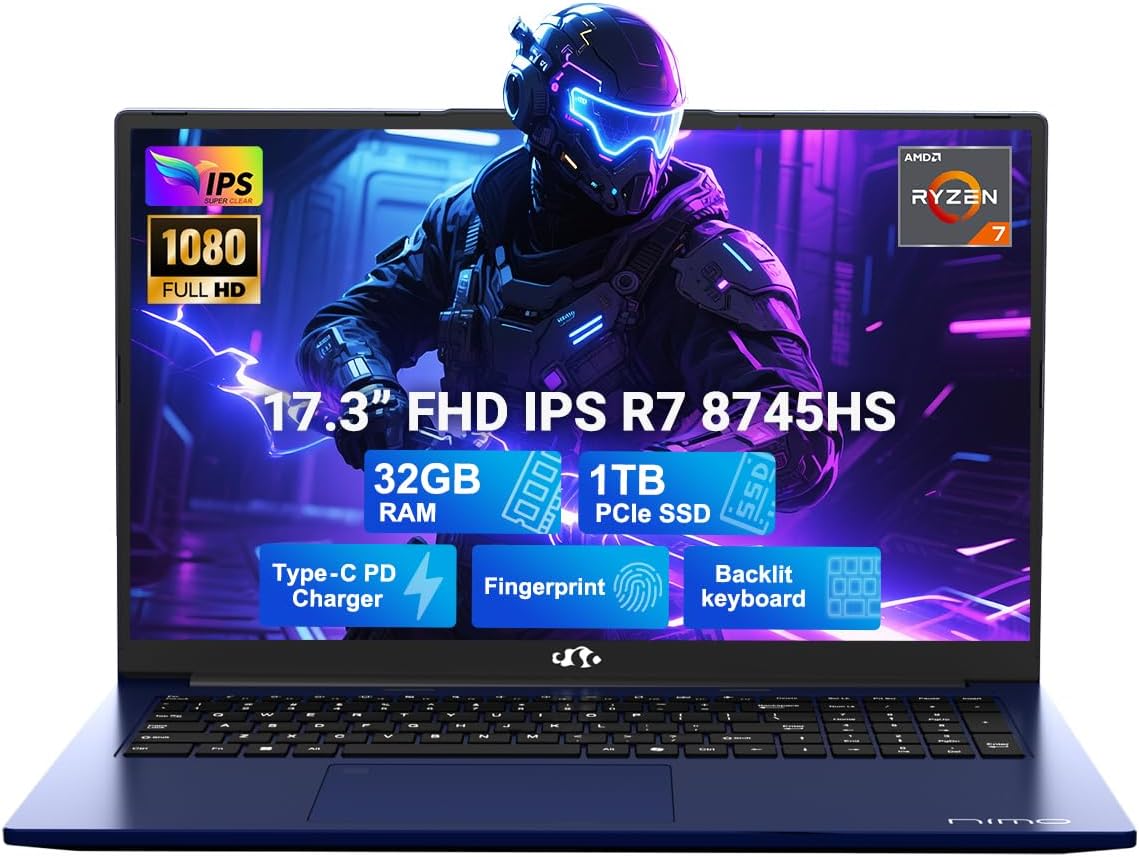
Image 1.1: The NIMO 17.3-inch FHD Gaming Laptop N177, showcasing its 17.3-inch display, 32GB RAM, 1TB SSD, Type-C PD Charger, Fingerprint sensor, and Backlit Keyboard features.
2. Product Features
The NIMO N177 Laptop is designed for performance and user convenience, incorporating several key features:
- Processor: Equipped with an AMD Ryzen 7 8745HS processor, featuring 8 cores and 16 threads, capable of turbo speeds up to 4.9GHz for efficient handling of demanding tasks.
- Graphics: Integrated AMD Radeon 780M Graphics provide capable visual performance for gaming and content creation.
- Memory and Storage: Features 32GB DDR5 RAM and a 1TB PCIe 4.0 SSD for fast data access and multitasking. The design allows for memory and storage upgrades.
- Display: A 17.3-inch Full HD (1920x1080) IPS anti-glare display offers clear visuals with an 85% screen-to-body ratio.
- Charging: Includes a 100W USB-C Power Delivery (PD) fast charger, providing rapid charging capabilities.
- Security and Convenience: Integrated fingerprint sensor for secure login and a backlit keyboard for comfortable typing in various lighting conditions.
- Connectivity: Multiple ports including USB 2.0, USB 3.0, USB 4.0 Type-C, HDMI, headphone jack, SD card reader, and Kensington Lock slot.
Detailed Feature Overview

Image 2.1: Close-up of the AMD Ryzen 7 8745HS processor, highlighting its 8 cores, 16 threads, 780M iGPU Radeon, and 4.9GHz Precision Boost capabilities.
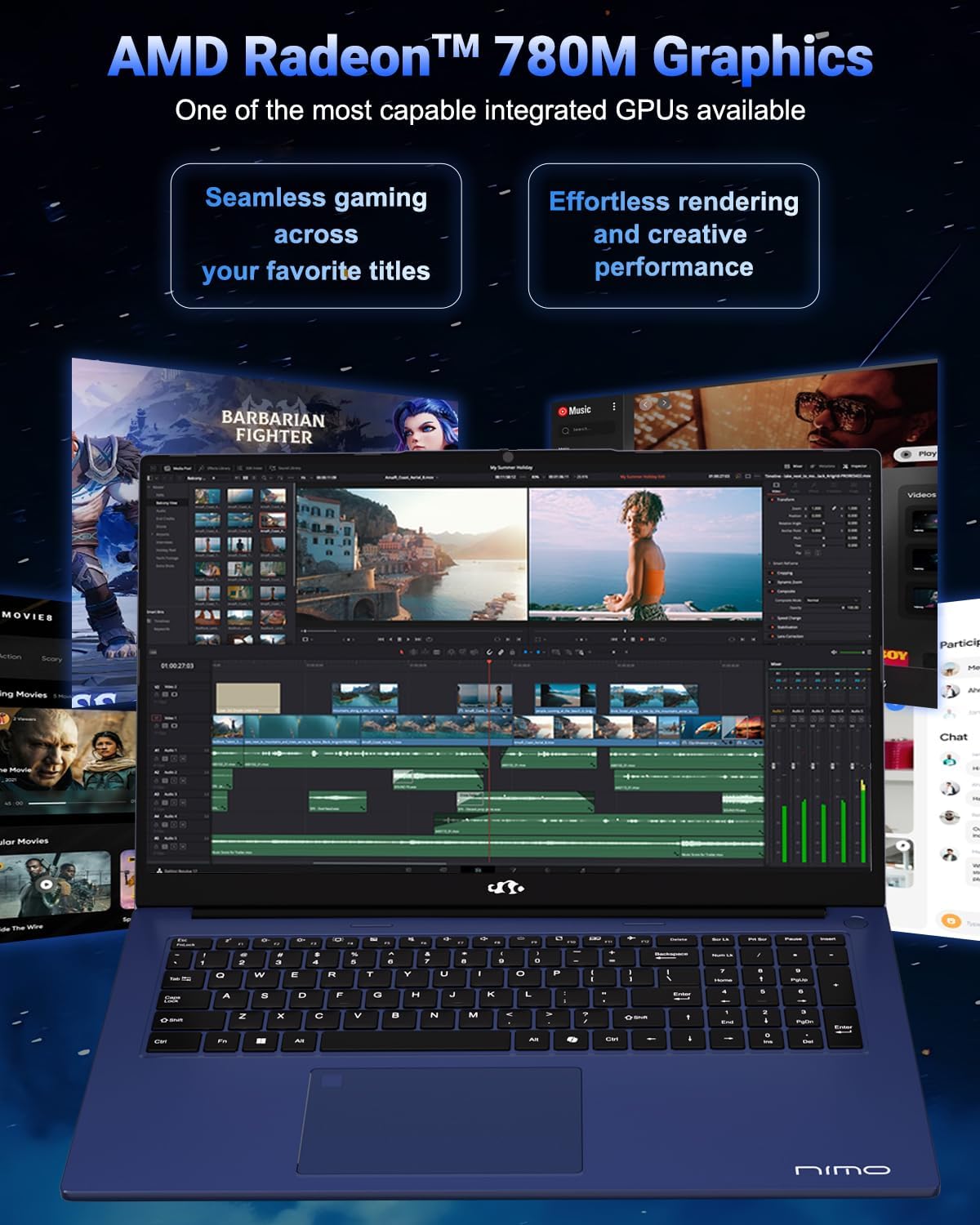
Image 2.2: Visual representation of the AMD Radeon 780M Graphics, illustrating its capacity for seamless gaming and efficient rendering for creative tasks.
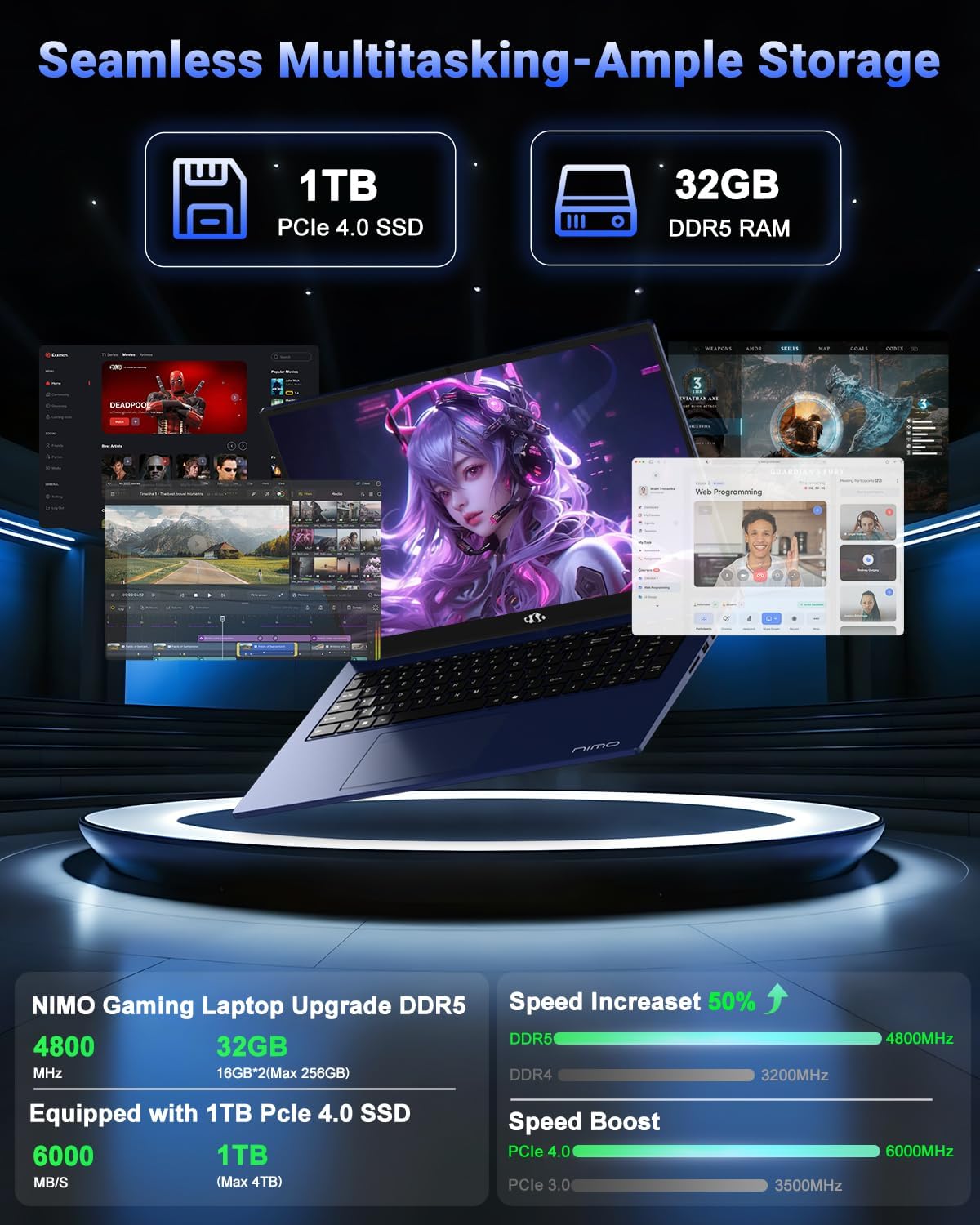
Image 2.3: Depiction of the laptop's 32GB DDR5 RAM and 1TB PCIe 4.0 SSD, emphasizing seamless multitasking and ample storage for various applications and files.

Image 2.4: Illustration of the 100W USB-C fast charger connected to the laptop, highlighting the 75Wh smart battery and its charging efficiency.
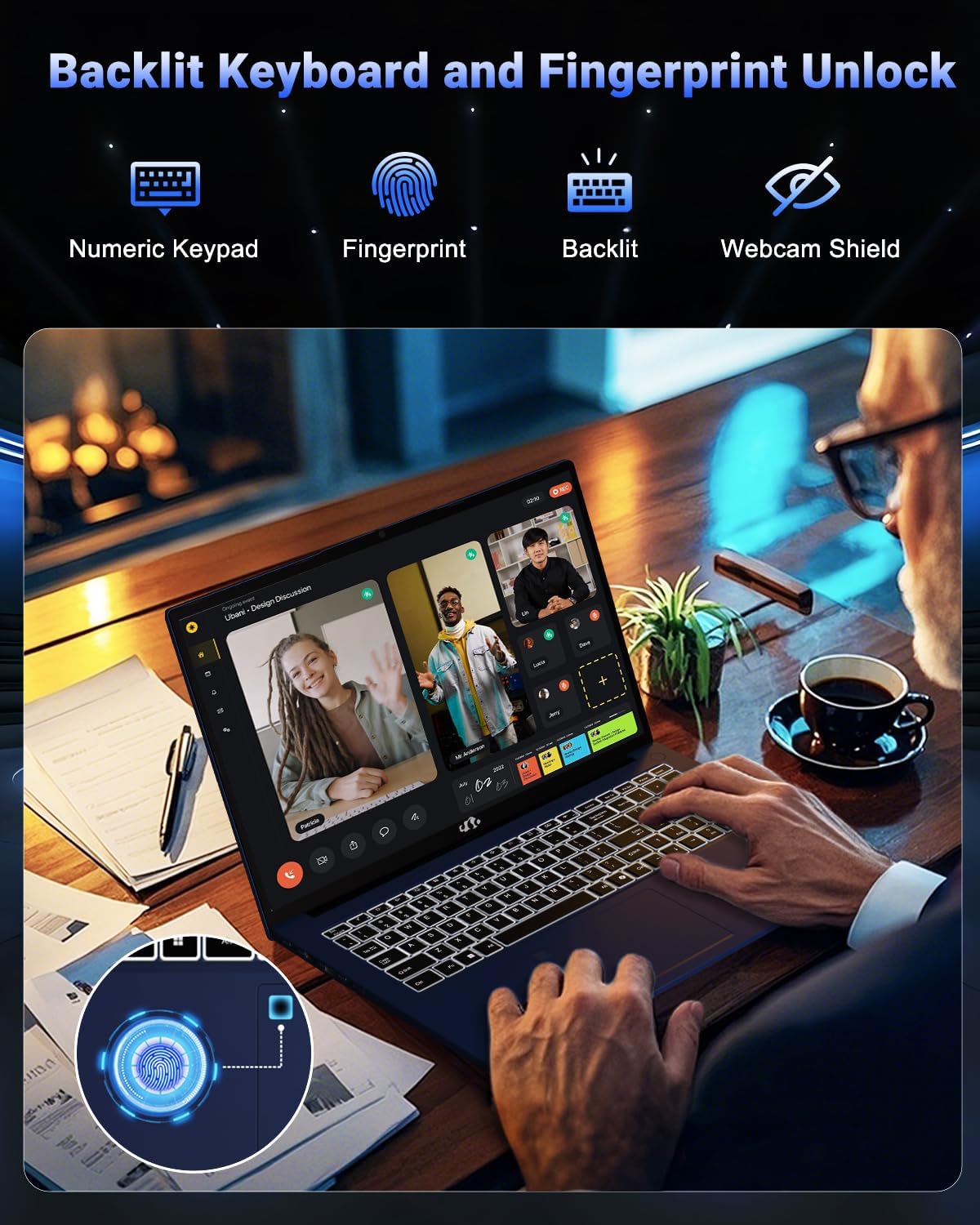
Image 2.5: The backlit keyboard and fingerprint unlock feature, showing the numeric keypad, fingerprint sensor, and webcam shield for enhanced usability and security.
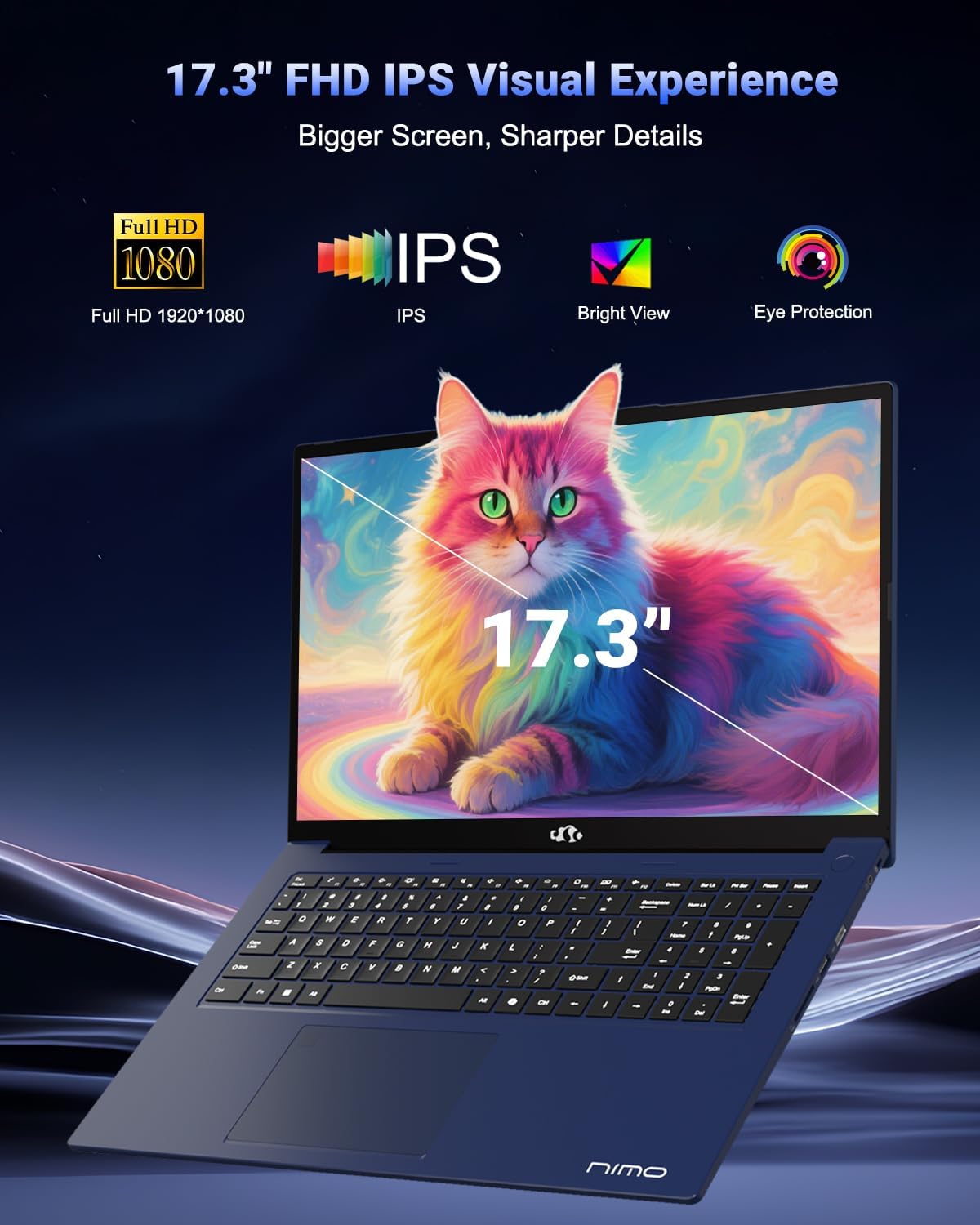
Image 2.6: The 17.3-inch FHD IPS display, emphasizing its larger screen size, sharper details, and eye protection features for an immersive visual experience.
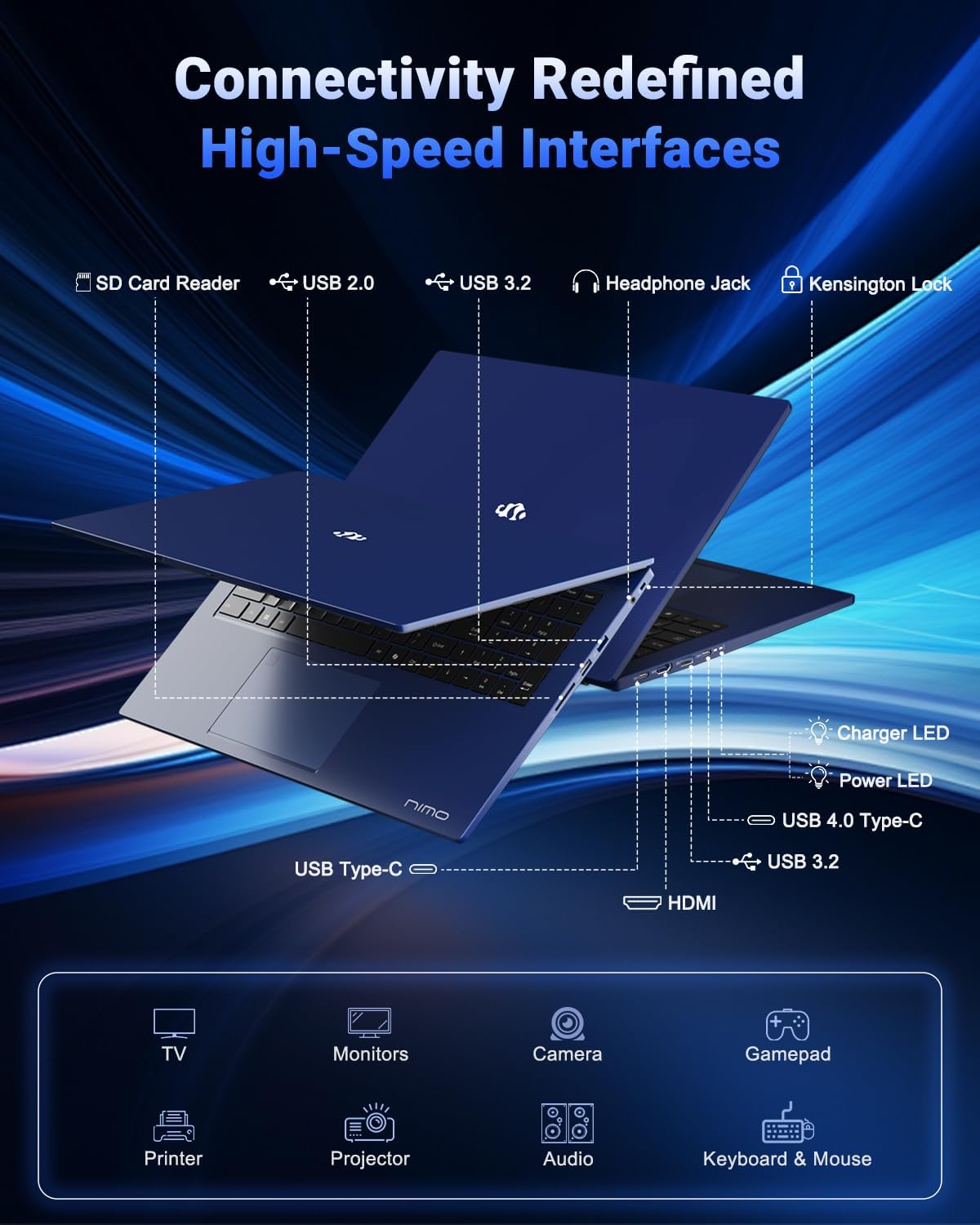
Image 2.7: Diagram illustrating the various high-speed interfaces and connectivity ports available on the NIMO N177 Laptop, including USB, HDMI, and Type-C ports.
3. Setup
3.1 Initial Charging
Before first use, it is recommended to fully charge your NIMO N177 Laptop. Connect the provided 100W Type-C PD Fast Charger to the laptop's USB-C port and then to a power outlet. The charging indicator light will illuminate. A full charge typically takes approximately 45 minutes, providing several hours of usage.
3.2 First Power On
Open the laptop lid. Press the power button, usually located on the top right of the keyboard or side. The laptop will boot up, and you will be guided through the initial Windows 11 setup process. Follow the on-screen instructions to configure your language, region, network, and user account.
3.3 Network Connection
During the Windows 11 setup, you will be prompted to connect to a Wi-Fi network. Select your preferred network and enter the password. For a wired connection, connect an Ethernet cable (if an adapter is used, as the laptop does not have a built-in Ethernet port) to a USB port.
4. Operating Your Laptop
4.1 Keyboard and Touchpad
The laptop features a full-size keyboard with a numeric keypad and backlighting. To adjust the keyboard backlight, use the dedicated function keys (refer to the keyboard layout for specific key combinations, often Fn + Fx). The precision gesture touchpad supports multi-touch gestures for navigation.
4.2 Fingerprint Sensor
The integrated fingerprint sensor allows for quick and secure login. During Windows 11 setup or via Windows Settings > Accounts > Sign-in options, you can set up Windows Hello Fingerprint recognition. Follow the prompts to register your fingerprints.
4.3 Connecting External Devices
Utilize the available ports to connect peripherals:
- USB Ports: Connect USB drives, external keyboards, mice, or other USB devices.
- USB-C 4.0 Port: Supports data transfer, power delivery, and display output. This port can be used with compatible docking stations or external GPUs (eGPU dock not included).
- HDMI Port: Connect to external monitors or TVs for extended display.
- Headphone Jack: Connect headphones or external speakers.
- SD Card Reader: Insert SD cards for data transfer.
4.4 Display Settings
To adjust display settings such as resolution, brightness, or to configure multiple monitors, right-click on the desktop and select 'Display settings' or navigate through Windows Settings > System > Display.
5. Maintenance
5.1 Cleaning the Laptop
To clean the laptop, power it off and disconnect the charger. Use a soft, lint-free cloth slightly dampened with water or a screen cleaner for the display. For the keyboard and chassis, use a dry or slightly damp cloth. Avoid harsh chemicals or abrasive materials.
5.2 Battery Care
To prolong battery life:
- Avoid extreme temperatures.
- Do not fully discharge the battery frequently.
- If storing the laptop for an extended period, ensure the battery is charged to approximately 50-70%.
5.3 Storage and Memory Upgrades
The NIMO N177 Laptop features an upgradeable design for both RAM and SSD. If you intend to upgrade, it is recommended to consult a professional or refer to specific upgrade guides to avoid damaging components and potentially voiding your warranty.
6. Troubleshooting
This section addresses common issues you might encounter with your NIMO N177 Laptop.
| Issue | Possible Solution |
|---|---|
| Laptop does not power on. | Ensure the charger is securely connected and the power outlet is functional. Allow the laptop to charge for at least 30 minutes before attempting to power on again. |
| Display is blank or flickering. | Check display cable connections if using an external monitor. Try adjusting screen brightness. Restart the laptop. Update graphics drivers. |
| Battery life is shorter than expected. | Adjust power settings in Windows to a more power-efficient mode. Close unnecessary applications running in the background. Reduce screen brightness. |
| Wi-Fi connection issues. | Restart your router and the laptop. Ensure Wi-Fi is enabled in Windows settings. Update network drivers. |
| Fingerprint sensor not working. | Ensure your finger is clean and dry. Re-register your fingerprint in Windows Hello settings. |
If you encounter issues not listed here or if the suggested solutions do not resolve the problem, please contact NIMO customer support for further assistance.
7. Specifications
The following table outlines the technical specifications for the NIMO 17.3-inch FHD Gaming Laptop N177:
| Feature | Specification |
|---|---|
| Brand | NIMO |
| Model Name | NIMO N177B |
| Standing Screen Display Size | 17.3 Inches |
| Max Screen Resolution | 1920x1080 Pixels (FHD) |
| Processor | AMD Ryzen 7 8745HS (up to 4.9 GHz) |
| RAM | 32 GB DDR5 (4800 MHz) |
| Hard Drive | 1024 GB SSD (PCIe 4.0) |
| Graphics Coprocessor | AMD Radeon 780M (Integrated) |
| Operating System | Windows 11 Home |
| Wireless Type | 802.11a/b/g/n/ac |
| USB 2.0 Ports | 1 |
| USB 3.0 Ports | 3 |
| USB 4.0 Type-C Ports | 1 (with PD and DisplayPort support) |
| HDMI Port | 1 |
| Average Battery Life | 6 Hours (75Wh battery) |
| Item Weight | 3.84 pounds |
| Product Dimensions (LxWxH) | 15.66 x 9.99 x 0.74 inches |
| Special Features | Backlit Keyboard, Fingerprint Reader, HD Audio, Numeric Keypad |
8. Warranty and Support
8.1 Warranty Information
Your NIMO N177 Laptop is covered by a 2-year warranty provided by NIMO Direct Inc. This warranty covers manufacturing defects and ensures support for your product.
8.2 Return Policy
NIMO offers a 90-day return policy from the date of purchase. Please refer to the terms and conditions of your purchase for detailed return instructions.
8.3 Customer Support
For any technical assistance, warranty claims, or product-related inquiries, please contact NIMO's dedicated support team. Contact information can typically be found on the official NIMO website or through your purchase platform. Our support team is available to provide solutions and ensure a satisfactory experience.