Introduction
Thank you for purchasing the Redragon M995 LIT Wireless Gaming Mouse. This manual provides essential information for the proper setup, operation, and maintenance of your device. Please read it thoroughly before use to ensure optimal performance and longevity.

Image: The Redragon M995 LIT Wireless Gaming Mouse, showcasing its ergonomic design and key features.
Setup
Package Contents
- Redragon M995 LIT Wireless Gaming Mouse
- 2.4GHz USB Receiver
- USB-C Charging Cable
- User Manual
Connectivity Modes
The M995 LIT mouse supports three connection modes: 2.4GHz Wireless, Bluetooth (BT), and Wired (USB-C).
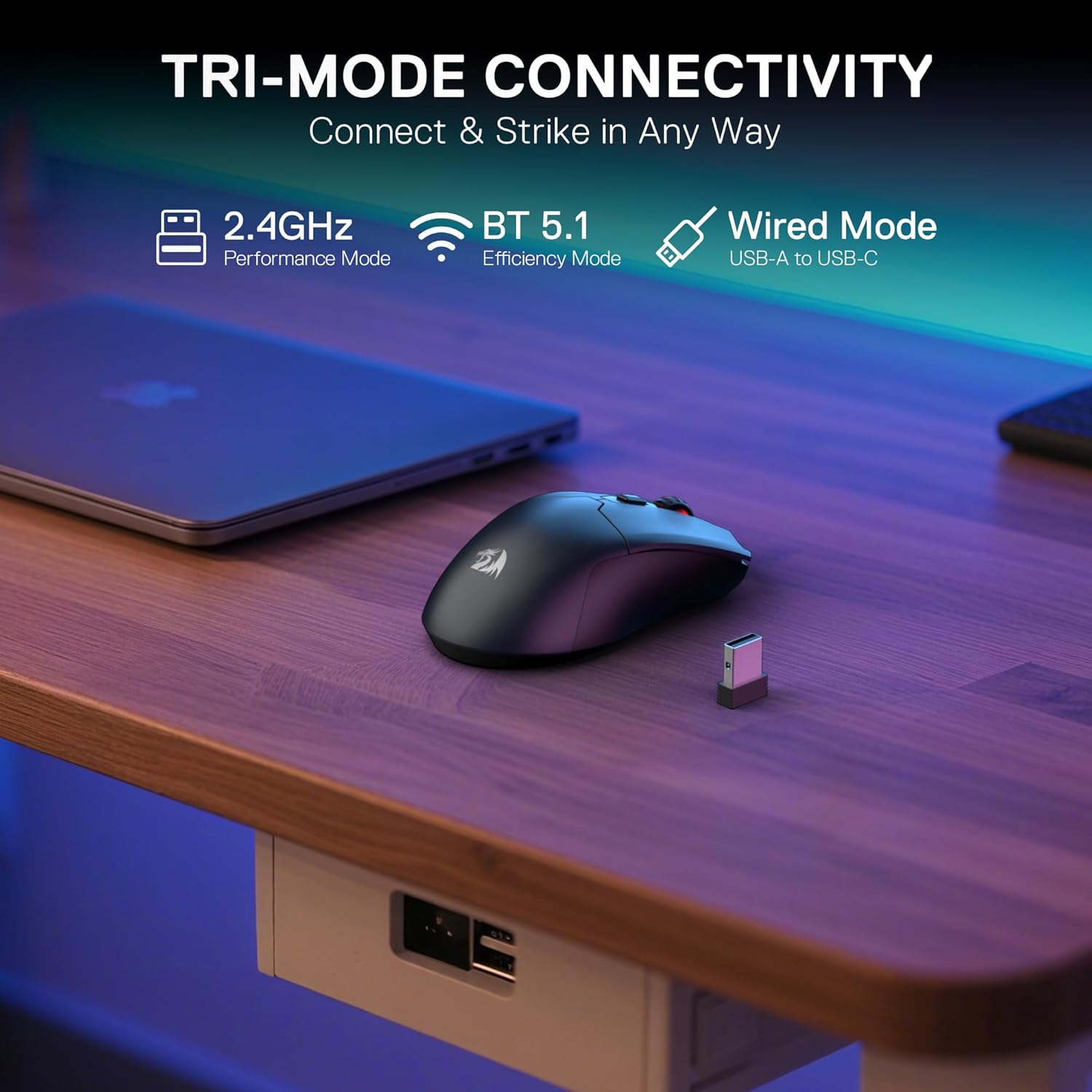
Image: Illustration of the mouse's tri-mode connectivity options: 2.4GHz, Bluetooth, and Wired via USB-C.
2.4GHz Wireless Connection
- Locate the 2.4GHz USB receiver. It is typically stored in a compartment on the underside of the mouse.
- Plug the USB receiver into an available USB port on your computer.
- Turn on the mouse using the switch on the bottom. Select the 2.4G mode.
- The mouse should automatically connect. If not, press the pairing button on the underside of the mouse.
Bluetooth Connection
- Turn on the mouse using the switch on the bottom. Select the BT mode.
- On your computer or device, go to Bluetooth settings and search for new devices.
- Select "Redragon M995 LIT" from the list of available devices to pair.
Wired Connection
- Connect the USB-C end of the charging cable to the mouse.
- Connect the USB-A end of the charging cable to an available USB port on your computer.
- The mouse will function as a wired mouse and charge simultaneously.
Software Installation
To unlock the full customization potential of your M995 LIT mouse, including DPI settings, macro programming, and lighting effects, download the Redragon Pro driver software from the official Redragon website. Follow the on-screen instructions for installation.
Operating Instructions
DPI Adjustment
The mouse features 5 on-board DPI levels (400/800/1600/2400/4000) which can be cycled through using the dedicated DPI button, usually located behind the scroll wheel. These levels are indicated by different LED colors.

Image: Visual representation of the 5 adjustable DPI levels and their corresponding LED colors.
For advanced customization, including setting DPI up to 10000 and defining custom DPI steps, use the Redragon Pro driver software.

Image: Screenshot of the Redragon Pro driver software interface, showing DPI settings and customization options.
Programmable Buttons
The M995 LIT mouse is equipped with 6 programmable buttons. These buttons can be assigned custom functions, macros, or keybinds using the Redragon Pro driver software.

Image: Diagram highlighting the 6 customizable buttons on the Redragon M995 LIT mouse.
To program buttons:
- Open the Redragon Pro driver software.
- Navigate to the "Key Settings" or "Button Settings" section.
- Select the button you wish to customize.
- Choose a predefined function or create a new macro.
- Save your changes to apply them to the mouse.
Battery Management
The mouse features a built-in 400mAh battery. To conserve power, the mouse will automatically enter sleep mode if not used for 3 minutes. Move the mouse or click any button to wake it up.

Image: Visual of the mouse highlighting its 400mAh battery capacity and estimated 44 hours of usage in BT mode.
Maintenance
Cleaning
- Regularly clean the mouse surface with a soft, dry cloth.
- Use a cotton swab lightly dampened with isopropyl alcohol to clean the optical sensor and mouse feet.
- Avoid using harsh chemicals or abrasive materials, as these can damage the mouse.
Battery Care
- Charge the mouse using the provided USB-C cable.
- Avoid fully discharging the battery frequently to prolong its lifespan.
- Store the mouse in a cool, dry place when not in use for extended periods.
Troubleshooting
Mouse Not Responding
- Check Power: Ensure the mouse is turned on and has sufficient battery charge.
- Wired Connection: If using wireless, try connecting the mouse directly with the USB-C cable to rule out wireless interference or battery issues.
- USB Port: Try plugging the USB receiver or cable into a different USB port on your computer.
Wireless Connectivity Issues
- 2.4GHz Pairing: Ensure the mouse is in 2.4G mode and the USB receiver is properly connected. Press the pairing button on the mouse if necessary.
- Bluetooth Pairing: Ensure the mouse is in BT mode and your device's Bluetooth is enabled. Re-pair the mouse if it's not connecting.
- Interference: Move the mouse closer to the receiver/device and away from other wireless devices (e.g., Wi-Fi routers, other wireless peripherals) that might cause interference.
DPI or Button Customization Not Working
- Software Installation: Verify that the Redragon Pro driver software is correctly installed.
- Software Updates: Check for any available software or firmware updates for your mouse.
- Apply Settings: Ensure you have clicked "Apply" or "Save" within the software after making changes.
Specifications
| Feature | Detail |
|---|---|
| Model | M995 LIT |
| Connectivity Technology | BT, 2.4G, USB-C |
| Movement Detection Technology | Optical (SG8925 sensor) |
| Max DPI | 10000 (Adjustable) |
| Programmable Buttons | 6 |
| Polling Rate | Up to 1000Hz |
| Battery Capacity | 400mAh |
| Item Weight | 7 ounces |
| Dimensions | 6.18 x 3.46 x 1.93 inches |
| Special Feature | Lightweight, Auto-sleep mode |
Warranty and Support
Redragon products typically come with a manufacturer's warranty. Please refer to the warranty card included with your product or visit the official Redragon website for detailed warranty information and terms.
For technical support, troubleshooting assistance, or any product-related inquiries, please contact Redragon customer service through their official website: www.redragonzone.com


