
JIKEFUN CZ20
JIKEFUN CZ20 Drone with Camera User Manual
Model: CZ20
1. Introduction
This manual provides essential instructions for the safe operation, setup, and maintenance of your JIKEFUN CZ20 Drone. Please read this manual thoroughly before operating the drone to ensure proper function and to prevent damage or injury. Keep this manual for future reference.

Image 1: JIKEFUN CZ20 Drone with included accessories, showcasing the drone, remote control, batteries, and carrying case.
2. Package Contents
Verify that all items listed below are included in your package:
- CZ20 Drone x 1
- Remote Control with Screen x 1
- Intelligent Flight Battery x 3
- Spare Propellers (4A4B) x 1 set
- USB Charging Cable x 1
- Screwdriver x 1
- User Manual x 1
- Wi-Fi Manual x 1
- 8GB Memory Card x 1
- Card Reader x 1
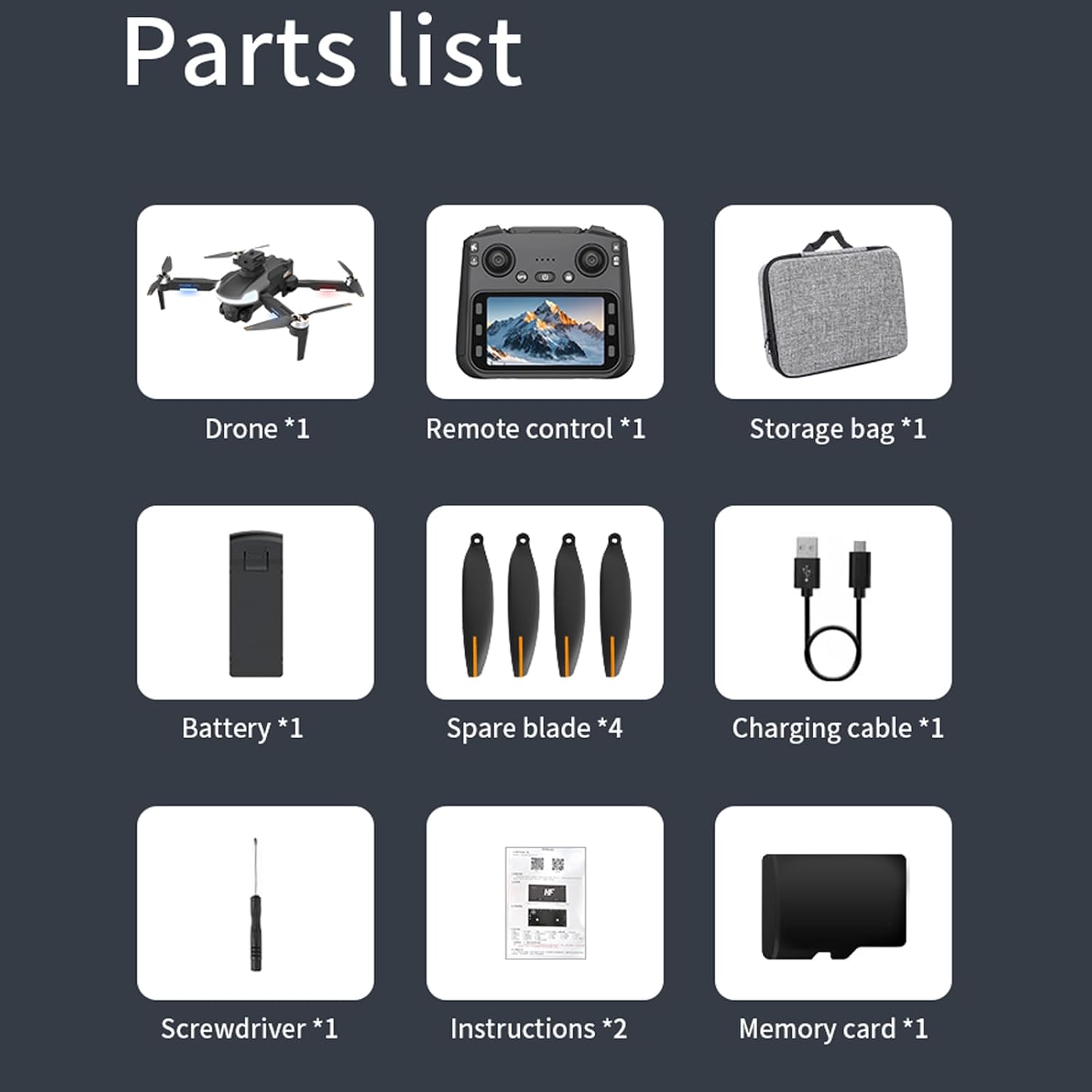
Image 2: A detailed view of all components included in the JIKEFUN CZ20 Drone package, including the drone, remote, batteries, and tools.
3. Safety Guidelines
To ensure safe operation and prevent damage, please observe the following:
- Age Restriction: This product is not intended for users under 16 years old.
- Battery Safety: Always fully charge batteries before use. Low power can lead to loss of control.
- Flight Environment: Fly in open areas, away from people, animals, buildings, and obstacles. Avoid flying in strong winds or adverse weather conditions.
- Line of Sight: Maintain visual line of sight with the drone at all times.
- Propeller Safety: Keep hands and face away from rotating propellers.
- Privacy: Respect the privacy of others when using the camera.
4. Setup
4.1 Battery Charging
Ensure both the drone's flight battery and the remote control are fully charged before use. A red indicator light signifies charging, and it turns off when charging is complete.
- Connect one end of the USB charging cable to the drone battery's charging port.
- Connect the other end of the USB cable to a power supply (e.g., USB wall adapter).
- Repeat the process for the remote control, connecting the USB cable to its charging port.
Video 1: This video demonstrates the charging process for both the drone battery and the remote control. (Note: This video is a general drone operation tutorial and may not specifically feature the CZ20 model, but the charging steps are applicable.)
4.2 Pre-Flight Preparation
- Insert SD Card: Insert the provided 8GB memory card into the designated slot on the remote control.
- Deploy Drone Arms: Gently unfold the drone's arms until they lock into position.
- Install Drone Battery: Insert the charged flight battery into the drone's battery compartment until it clicks securely.
- Power On Drone: Press and hold the power button on the drone until the indicator lights illuminate.
- Power On Remote Control: Slide the power switch on the remote control to the 'ON' position.
4.3 Calibration
Perform calibration before each flight for optimal stability and control.
- Gyro Calibration: With the drone and remote powered on and connected, press the gyro calibration button on the remote. The drone's front arm lights will become steady, and the rear arm lights will blink, indicating successful calibration.
- Geomagnetic Calibration: Press and hold the geomagnetic calibration button on the remote. The drone's lights will flash yellow to green. Pick up the drone and rotate it clockwise horizontally until the remote emits a 'drop' sound. Then, turn the drone clockwise vertically until another 'drop' sound is heard. Place the drone back on a level surface.
4.4 GPS Signal Search
For outdoor flight, ensure a strong GPS signal. The drone's yellow lights will turn blue upon successful GPS signal acquisition. Search for more than 8 stars to fly.

Image 3: The CZ20 Drone with its remote control, highlighting the GPS automatic homing feature.
5. Operating Instructions

Image 4: A detailed diagram of the remote control, indicating the function of each button and joystick.
5.1 Basic Flight Controls
- Take-off: Press the one-key take-off button to unlock the motors, then push the left rocker up to take off.
- Rise/Descend: Push the left rocker up to rise, down to descend.
- Rotation: Push the left rocker left for left rotation, right for right rotation.
- Advance/Recoil: Push the right rocker up to advance, down to recoil.
- Left/Right Fly: Push the right rocker left for left-hand fly, right for right-hand fly.
5.2 Remote Control Screen Functions
The remote control features an integrated screen for enhanced control and viewing.
- Open Screen: Press and hold the screen open button (bottom left) to activate the screen.
- Photo/Video: Press the photo button (top right) to take a picture. Press the record button (bottom right) to start/stop video recording.
- Menu Navigation: Press the menu button (bottom left) to enter the menu. Use the up/down buttons to navigate and the OK button to select.
- Screen Brightness: In the menu, select the brightness adjustment function and use the up/down buttons to adjust.
- Format SD Card: In the menu, select the format function to format the SD card.
5.3 Speed Adjustment
The drone has multiple speed gears:
- Low Speed: Default setting.
- Medium Speed: Press the speed switch button once (remote emits two 'drop' sounds).
- High Speed: Press the speed switch button twice (remote emits three 'drop' sounds).
5.4 Camera Power Control
- Power Down Camera: Press the camera power down button.
- Power Up Camera: Press the camera power up button.
5.5 Obstacle Avoidance Mode
To activate the obstacle avoidance mode, press and hold the speed switch button.

Image 5: The CZ20 Drone showcasing its 360-degree omnidirectional obstacle avoidance capability.
5.6 Automatic Return Mode
Long press the return button on the remote control to activate the automatic return mode. The drone will automatically return to its take-off point.
5.7 Indoor Flight Preparation
For indoor flight, where GPS signals may be weak or unavailable:
- Turn off GPS: Press the GPS button on the remote control to disable GPS mode.
- Calibrate Gyroscope: Press the gyro calibration button to calibrate the gyroscope for stable indoor flight using optical flow positioning.
5.8 APP Installation and Connection
To use the drone with the mobile application:
- Download APP: Scan the QR code in the manual or search for the designated APP (e.g., "LW Pro") in your device's app store. Download and install it.
- Turn on Wi-Fi: Enable Wi-Fi on your smartphone.
- Connect to Drone Signal: Search for the drone's Wi-Fi signal (e.g., "WIFI-GPS-5BA23E") and connect to it.
- Open Drone APP: After successful Wi-Fi connection, open the drone APP. (Note: The remote control screen cannot be connected at this time).
- Mount Phone: Open the phone stand on the remote control and securely clip your smartphone into place. You can now view the screen through the APP.
6. Maintenance
6.1 Blade Replacement
If a blade is damaged, replace it promptly to maintain flight performance and safety.
- Remove Old Blade: Use the provided screwdriver to carefully remove the screw securing the damaged blade.
- Note Blade Type: Observe the distinction between 'A' and 'B' blades. Ensure you install the correct type.
- Install New Blade: Place the corresponding new blade onto the motor shaft and secure it with a screw using the screwdriver.
7. Specifications
| Feature | Specification |
|---|---|
| Brand | JIKEFUN |
| Model Number | CZ20 |
| Special Features | 360 Degree Flip, Foldable, Long Battery Life, Portable, Rechargeable, Optical Flow, GPS, Obstacle Avoidance |
| Color | Gray |
| Connectivity Technology | Wi-Fi |
| Item Weight | 189 Grams (6.7 ounces) |
| Material | Plastic |
| Battery Cell Composition | Lithium Polymer |
| Batteries Included | Yes (3 Nonstandard Battery batteries required) |
| Product Dimensions | 11.02"L x 10.24"W x 3.15"H |
| Camera Resolution | 720P HD |
| Flight Time | Up to 23 minutes per battery (69 minutes total with 3 batteries) |

Image 6: A visual representation of the drone's key parameters and dimensions.
8. Troubleshooting
- Drone not powering on: Ensure the battery is fully charged and correctly inserted. Press and hold the power button for a few seconds.
- Remote control not connecting: Ensure both the drone and remote are powered on. Perform gyro calibration. Check battery levels.
- Unstable flight: Perform gyro and geomagnetic calibration. Ensure propellers are correctly installed and undamaged. Fly in calm conditions.
- No GPS signal: Ensure you are in an open outdoor area with a clear view of the sky. Wait for the drone to acquire enough satellites (more than 8 stars).
- APP connection issues: Ensure Wi-Fi is enabled on your phone and connected to the drone's Wi-Fi network. Close and reopen the APP.
- Obstacle avoidance not working: Ensure the obstacle avoidance mode is activated by pressing and holding the speed switch button.
9. Warranty and Support
For warranty information, technical support, or service inquiries, please refer to the contact information provided with your purchase or visit the official JIKEFUN website. Keep your proof of purchase for warranty claims.
Ask a question about this manual
Ask about setup, troubleshooting, compatibility, parts, safety, or missing instructions. Manuals+ will review the question and use this page’s manual context to help answer it.