
1. Introduction
Thank you for choosing the Hexgears X1 Pro Wireless Mechanical Keyboard. This manual provides detailed instructions for setting up, operating, and maintaining your keyboard to ensure optimal performance and longevity. The X1 Pro features a compact 68-key layout, tri-mode connectivity (Bluetooth 5.0, 2.4GHz wireless, USB-C wired), hot-swappable mechanical switches, and customizable white backlighting.
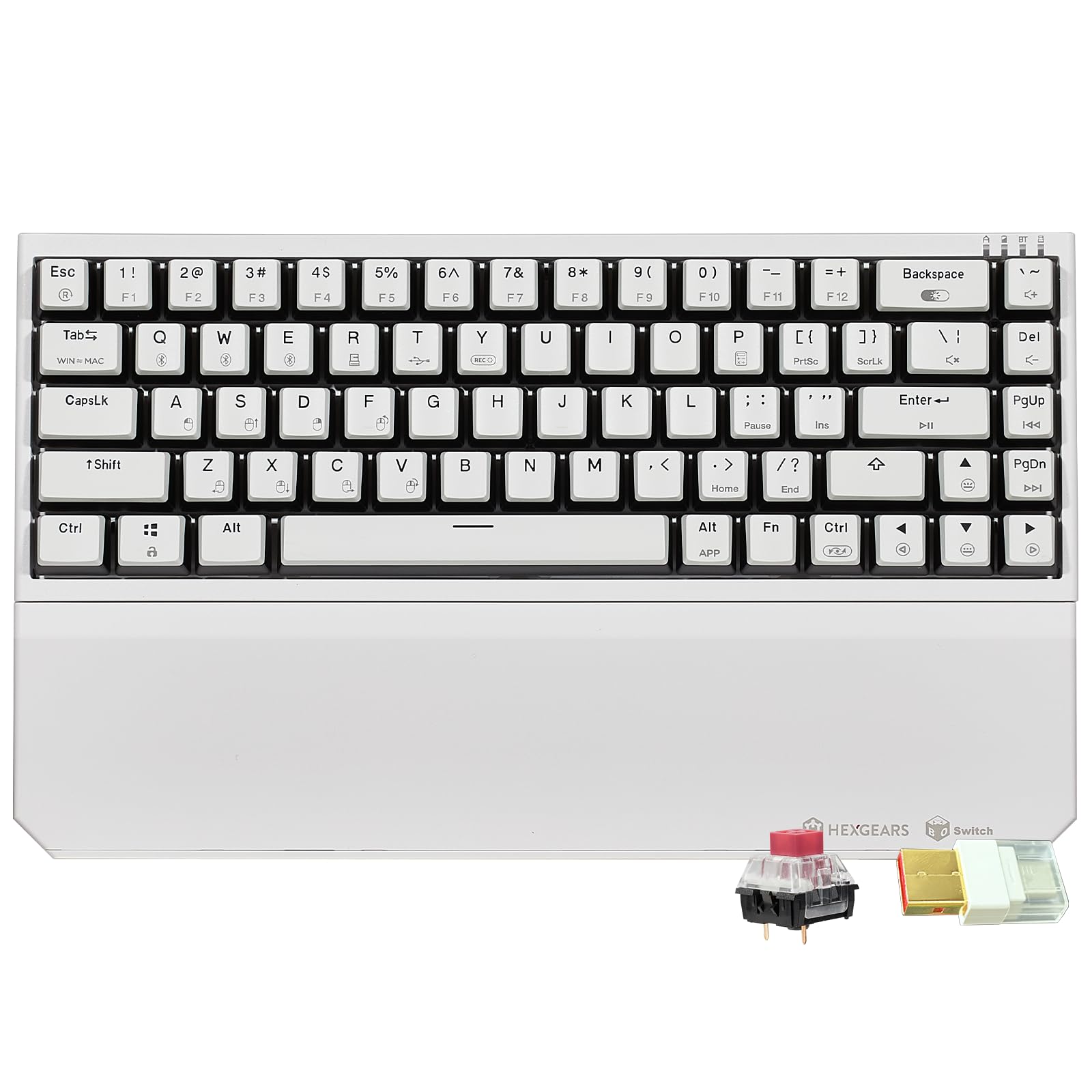
Image 1.1: The Hexgears X1 Pro Wireless Mechanical Keyboard, showcasing its compact design and included wrist rest.
2. Package Contents
Please verify that all items listed below are included in your package:
- Hexgears X1 Pro Wireless Mechanical Keyboard
- Magnetic Detachable Wrist Rest
- USB-C to USB-A Cable (Braided)
- 2.4GHz Wireless Receiver (USB-A dongle)
- Keycap Puller
- Shaft Puller (Switch Puller)
- User Manual (this document)
- Storage Bag

Image 2.1: All components included in the Hexgears X1 Pro keyboard package, including the keyboard, wrist rest, cables, and tools.
3. Setup
3.1 Attaching the Wrist Rest
The Hexgears X1 Pro comes with a magnetic detachable wrist rest for enhanced ergonomic comfort. Simply align the wrist rest with the front edge of the keyboard; the magnets will secure it in place. To remove, gently pull it away from the keyboard.

Image 3.1: The magnetic wrist rest being attached to the Hexgears X1 Pro keyboard, highlighting the ease of connection.
3.2 Connecting the Keyboard (Tri-Mode)
The X1 Pro supports three connectivity modes: Bluetooth 5.0, 2.4GHz wireless, and USB-C wired.
3.2.1 2.4GHz Wireless Mode
- Locate the 2.4GHz wireless receiver (USB-A dongle) in the package.
- Plug the receiver into an available USB-A port on your computer.
- Turn on the keyboard using the switch located on the back.
- The keyboard should automatically connect. If not, press Fn + R to activate 2.4GHz pairing mode.

Image 3.2: Diagram illustrating the 2.4GHz wireless connection setup for the Hexgears X1 Pro keyboard.
3.2.2 Bluetooth 5.0 Mode
- Turn on the keyboard.
- Press Fn + Q, Fn + W, or Fn + E to select one of three Bluetooth channels. The indicator light will flash, indicating pairing mode.
- On your device (PC, laptop, tablet, phone), search for Bluetooth devices and select "Hexgears X1 Pro".
- Once connected, the indicator light will stop flashing.
3.2.3 USB-C Wired Mode
- Connect the provided USB-C cable to the keyboard's USB-C port.
- Connect the other end (USB-A) to an available USB port on your computer.
- The keyboard will automatically switch to wired mode. Press Fn + T to ensure wired mode is active.
3.3 Hot-Swappable Switches
The X1 Pro features universal hot-swappable sockets, supporting both 3-pin and 5-pin mechanical switches. This allows for easy customization of your typing experience without soldering.
- To remove a keycap, use the provided keycap puller. Gently pull upwards until the keycap detaches.
- To remove a switch, use the provided shaft puller. Align the prongs with the clips on the top and bottom of the switch, press firmly, and pull upwards.
- To install a new switch, align its pins with the holes on the PCB and press down firmly until it clicks into place. Ensure pins are straight to avoid bending.
- Place the desired keycap onto the new switch stem and press down.

Image 3.3: A switch being removed from the Hexgears X1 Pro keyboard using a switch puller, demonstrating the hot-swappable feature.

Image 3.4: Various Kailh Box switch types (Sky Blue, Rose Red, Quicksand Gold) available for customization.
4. Operating Instructions
4.1 Backlighting Control
The X1 Pro features pure white backlighting with multiple dynamic lighting modes. The premium double-shot PBT pudding keycaps enhance the white glow for a vibrant effect.
- Press Fn + \ | to cycle through different backlighting modes.
- Press Fn + ↑ ↓ to adjust backlight brightness.
- Press Fn + ← → to adjust backlight speed (for dynamic modes).

Image 4.1: The Hexgears X1 Pro keyboard showcasing its pure white backlighting and double-shot PBT pudding keycaps.
4.2 Special Functions
- Programmable Macros: The keyboard supports programmable macros for custom commands. Refer to the official Hexgears software (if available) for advanced macro customization.
- NKRO Anti-Ghosting: Full-key N-Key Rollover (NKRO) anti-ghosting technology ensures every key press is registered, even during simultaneous inputs.
- WIN Key Lock: Press Fn + Win to lock the Windows key, preventing accidental presses during gaming.
4.3 Battery Management
The X1 Pro is equipped with a rechargeable lithium-ion battery. Battery life is approximately 60-90 hours depending on usage and backlighting settings.
- Connect the USB-C cable to charge the keyboard. The indicator light will show charging status.
- The keyboard can be used in wired mode while charging.
Video 4.2: An official Hexgears video demonstrating the unboxing, setup, and various features of the X1 Pro Wireless Gaming Keyboard, including its tri-mode connectivity and backlighting.
5. Maintenance
Regular maintenance helps prolong the life and performance of your keyboard.
- Cleaning Keycaps: Use the provided keycap puller to remove keycaps. Clean them with a soft, damp cloth and mild soap. Ensure they are completely dry before reattaching.
- Cleaning the Keyboard Base: Use a soft brush or compressed air to remove dust and debris from between the switches. Wipe the keyboard surface with a microfiber cloth.
- Switch Care: Avoid spilling liquids on the keyboard. If a switch feels inconsistent, it can be replaced using the shaft puller as described in the Setup section.
6. Troubleshooting
6.1 Connectivity Issues
- 2.4GHz Wireless: Ensure the USB receiver is securely plugged in and the keyboard is in 2.4GHz mode (Fn + R). Try plugging the receiver into a different USB port.
- Bluetooth: Ensure Bluetooth is enabled on your device. Re-enter pairing mode on the keyboard (Fn + Q/W/E) and re-scan for devices. Forget the device on your computer and try pairing again.
- Wired: Ensure the USB-C cable is securely connected to both the keyboard and the computer. Try a different USB port or cable.
6.2 Backlighting Not Working
- Check if the backlighting is turned off or set to minimum brightness (Fn + ↑ to increase brightness).
- Ensure the keyboard battery has sufficient charge if operating wirelessly.
6.3 Keys Not Responding
- Try reconnecting the keyboard (switch modes or replug cable).
- If only specific keys are affected, consider replacing the switch for that key (refer to Section 3.3).
- Ensure the WIN key lock is not accidentally activated (Fn + Win).
7. Specifications
| Brand | Hexgears |
| Model | X1 Pro |
| Connectivity Technology | Bluetooth 5.0, 2.4GHz Wireless, USB-C Wired |
| Keyboard Layout | 68 Keys (Compact) |
| Switch Type | Hot-Swappable Mechanical (3/5-pin support, Kailh Box switches) |
| Keycaps | Double-Shot PBT Pudding Keycaps |
| Backlighting | Pure White Backlit with Dynamic Modes |
| Special Features | Ergonomic, Portable, Magnetic Wrist Rest, NKRO Anti-Ghosting, WIN Key Lock |
| Battery | 1 Lithium Ion battery (included) |
| Item Weight | 2.72 pounds |
| Package Dimensions | 14.21 x 6.42 x 2.6 inches |
| Compatible Devices | Laptop, MAC, PC, Tablet, Xbox |
8. Warranty & Support
Hexgears products are designed for durability and performance. For warranty information, please refer to the documentation included with your purchase or visit the official Hexgears website. For technical support, troubleshooting assistance, or any inquiries, please contact Hexgears customer service through their official channels.
You can often find support resources, FAQs, and contact information on the manufacturer's website: www.hexgears.com


