1. Introduction
This manual provides comprehensive instructions for the installation, operation, and maintenance of your KERUI 16-Channel 5MP Hybrid 5-in-1 Digital Video Recorder (DVR). This DVR supports various camera types including AHD, TVI, CVI, CVBS, IP, and XVI, offering a versatile solution for your security monitoring needs. Please read this manual carefully before using the product to ensure proper setup and functionality.
2. Product Overview
The KERUI 16-Channel DVR is designed for high-definition surveillance, supporting 5MP resolution for clear and detailed image capture. It features advanced functionalities such as human detection, 24/7 recording, and remote access.
Key Features:
- 5MP High Definition: Captures clear and detailed images with 5-megapixel resolution.
- Super Compatibility: Supports AHD, TVI, CVI, CVBS, IP, and XVI camera types, allowing connection of up to 16 cameras.
- Smart Alarm: Equipped with motion detection and human detection, sending instant notifications and email alerts to your mobile device.
- Quick Playback Search: Features a pre-installed 2TB hard drive for continuous 24/7 recording and easy review of footage.
- Advanced H.265+ Video Compression: Optimizes storage space and bandwidth by up to 50% compared to H.264.
- Remote Access: Monitor your property anytime, anywhere via a mobile application.
Product Components and Connections:

Image 1: Front and rear view of the KERUI 16-channel DVR, showing control buttons, video input/output ports, and a 2TB hard drive. This image illustrates the physical layout of the device and its included storage.

Image 2: Diagram illustrating the hybrid 5-in-1 compatibility of the DVR, supporting CVBS, CVI, TVI, AHD, and XVI camera types, along with various input/output connections like audio, network, HDMI, VGA, USB, and power. This diagram helps visualize how different camera types and peripherals connect to the DVR.
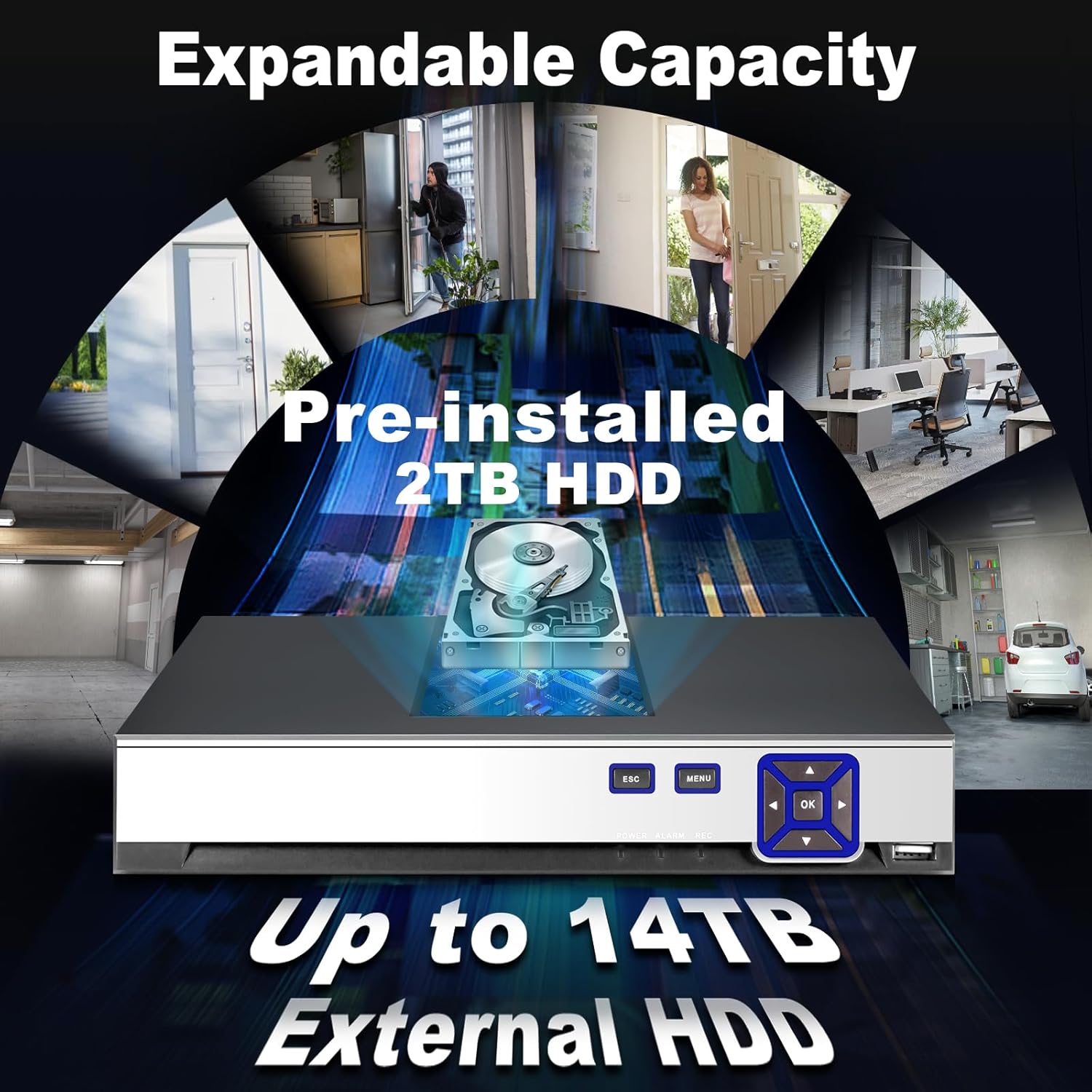
Image 3: Image highlighting the expandable storage capacity of the DVR, featuring a pre-installed 2TB HDD and support for up to 14TB external HDD, with various scenarios of property monitoring. This image demonstrates the DVR's capability for extensive video storage.

Image 4: Comparison graphic demonstrating the efficiency of H.265+ video compression over H.264, showing up to 50% storage savings and faster downloads for H.265+. This visual explains the benefits of the advanced compression technology used in the DVR.
3. Setup
Follow these steps to set up your KERUI DVR system:
- Unpack and Inspect: Carefully unpack all components. Verify that all items listed in the packing list are present and undamaged.
- Connect Cameras: Connect your AHD, TVI, CVI, CVBS, IP, or XVI cameras to the corresponding BNC video input ports (V1-V16) on the rear panel of the DVR. Ensure secure connections.
- Connect Monitor: Connect a monitor to the DVR using either the HDMI or VGA output port.
- Connect Mouse: Plug the USB mouse into one of the USB ports on the DVR for navigation.
- Connect Network (Optional): For remote viewing and network features, connect an Ethernet cable from your router to the LAN port on the DVR.
- Connect Power: Connect the provided power adapter to the DVR's DC 12V power input and then plug it into a power outlet. The DVR will power on automatically.
- Initial Configuration: Upon first boot, follow the on-screen wizard to set up basic parameters such as language, date/time, network settings, and password.
4. Operating Instructions
This section covers basic operation of your DVR.
Live View:
After successful setup, the DVR will display live video feeds from connected cameras on your monitor. You can switch between single-camera view and multi-camera grid view using the on-screen controls or the DVR's front panel buttons.
Recording:

Image 5: Visual representation of the 24/7 non-stop recording capability, showing a user monitoring multiple camera feeds on a screen, emphasizing continuous security. This image highlights the DVR's ability to record continuously for maximum security.
- Continuous Recording: The DVR is configured for 24/7 continuous recording by default, utilizing the pre-installed 2TB HDD.
- Motion-Activated Recording: You can configure specific channels to record only when motion is detected. Access the recording schedule settings in the main menu.
Playback:

Image 6: Sequence of images demonstrating the advanced smart playback function, allowing users to quickly review recorded footage of events, such as a person approaching a door. This image illustrates the ease of reviewing specific events.
- Navigate to the 'Playback' section from the main menu.
- Select the desired date and camera channel.
- Use the timeline to locate and play back recorded events. The smart playback feature allows for quick navigation to events.
Smart Alarm and Human Detection:

Image 7: Illustration of the AI motion and human detection feature, showing detected human figures outlined in green, with app push notifications and email alerts for security events. This image demonstrates how the DVR identifies and alerts users to human activity.
- Access 'Alarm Settings' in the main menu.
- Configure motion detection zones and sensitivity for each camera.
- Enable human detection for specific channels to reduce false alarms.
- Set up email alerts and push notifications to your mobile app for immediate alerts.
Remote Access:

Image 8: Graphic depicting free and easy remote access to the DVR system via a mobile application (available on App Store and Google Play), showing multiple users monitoring their property from various devices. This image illustrates the convenience of monitoring your security system remotely.
- Download the official KERUI mobile application from the App Store (iOS) or Google Play (Android).
- Register an account and add your DVR device using its unique ID or QR code.
- Once connected, you can view live feeds, play back recordings, and receive alerts from anywhere with an internet connection.
5. Maintenance
Regular maintenance ensures optimal performance and longevity of your DVR system.
- Cleanliness: Keep the DVR unit clean and free from dust. Use a soft, dry cloth for cleaning. Do not use liquid cleaners.
- Ventilation: Ensure the DVR is placed in a well-ventilated area to prevent overheating. Do not block ventilation openings.
- Firmware Updates: Periodically check the manufacturer's website for firmware updates. Updating firmware can improve performance and add new features.
- Hard Drive Health: Monitor the health of the hard drive through the DVR's system settings. Replace the HDD if any issues are detected to prevent data loss.
- Password Security: Regularly change your DVR and app passwords to maintain security.
6. Troubleshooting
This section addresses common issues you might encounter.
| Problem | Possible Cause | Solution |
|---|---|---|
| No video display on monitor | Loose cable connection, incorrect input source on monitor, DVR not powered on. | Check HDMI/VGA cable connections. Ensure monitor is set to correct input. Verify DVR power. |
| No camera image | Camera not powered, video cable loose, camera incompatible, incorrect video format. | Check camera power supply. Secure video cable connections. Verify camera compatibility and video format settings in DVR. |
| Cannot access DVR remotely | Network cable disconnected, incorrect network settings, firewall issues, app not configured. | Ensure DVR is connected to the network. Check network settings (IP address, gateway). Verify router/firewall settings. Reconfigure mobile app. |
| Motion detection not working or too sensitive | Detection zone not set, sensitivity too low/high, schedule not configured. | Adjust motion detection zones and sensitivity in settings. Verify alarm schedule. Ensure human detection is enabled if desired. |
| No recording | HDD full or faulty, recording schedule incorrect, camera not connected. | Check HDD status and capacity. Verify recording schedule. Ensure cameras are properly connected and functioning. |
7. Specifications
| Feature | Specification |
|---|---|
| Brand | KERUI |
| Model Number | 89419555-0419-4cdb-8c1d-f13bbf71a839 |
| Number of Channels | 16 |
| Video Resolution Support | 16 x 5MN@12fps, 16 x 4MN@15fps, 16 x 1080p@15fps (XVI) |
| Camera Compatibility | AHD/TVI/CVI/CVBS/IP/XVI (6-in-1 Hybrid) |
| Pre-installed Storage | 2 TB HDD |
| Expandable Storage | Up to 14 TB External HDD |
| Video Compression | H.265+ |
| Compatible Devices | Camera |
| Package Dimensions | 35.1 x 28.4 x 7.9 cm |
| Package Weight | 1.92 kg |
| Accessories Included | 1 DVR, 1 2TB HDD |
8. Warranty and Support
For warranty information and technical support, please refer to the documentation included with your purchase or contact KERUI customer service directly. Contact details are typically available on the manufacturer's official website or through your point of purchase.
If you encounter any quality issues or installation connection problems with your KERUI security DVR system, please do not hesitate to contact us at any time.


