
1. Introduction
Thank you for choosing the AOBOCAM W06 Mini 4K UHD WiFi Indoor Security Camera. This compact and versatile camera is designed to provide reliable indoor surveillance with advanced features such as 4K Ultra HD video, automatic night vision, instant motion detection alerts, and flexible storage options. This manual will guide you through the setup, operation, and maintenance of your device to ensure optimal performance and security.
2. Product Overview
2.1 Key Features
- Real-time Monitoring via App: Connect the mini WiFi camera to your home network for live viewing from anywhere using the dedicated app.
- 4K Ultra HD Video & Automatic Night Vision: Capture clear details day and night with 4K resolution and automatic night vision up to 5 meters in complete darkness.
- Instant Motion Detection Alerts: High-sensitivity motion sensor detects activity and sends push notifications to your smartphone, allowing real-time event viewing.
- Continuous Recording with Dual Storage: Securely save videos to the cloud (optional service) or directly to a microSD card (not included). Loop recording overwrites older files automatically.
- Quick Setup: Bluetooth pairing with the app for intuitive and fast Wi-Fi configuration. Clear instructions and video tutorials are provided for a stress-free setup.
2.2 Package Contents
Please check the package to ensure all items are present:
- AOBOCAM W06 Mini Camera
- Adjustable Mount/Stand
- USB Charging Cable
- User Manual (this document)
2.3 Camera Components
Familiarize yourself with the camera's parts:

Figure 1: Front view of the AOBOCAM W06 Mini Camera, showing the lens and IR lights.
- Lens: Captures 4K UHD video.
- IR Lights: Provide illumination for night vision.
- Microphone: Records audio.
- Speaker: For two-way audio (if supported, not explicitly mentioned but common).
- MicroSD Card Slot: For local storage (card not included).
- USB Port: For power and charging.
- Reset Button: To reset the camera to factory settings.
3. Setup
3.1 Charging the Camera
Before first use, fully charge the camera using the provided USB cable and a standard 5V/1A USB power adapter (not included). The charging indicator light will show the charging status.
3.2 Inserting a MicroSD Card (Optional)
For local video storage, insert a compatible microSD card (up to 128GB, Class 10 or higher, not included) into the microSD card slot. Ensure the camera is powered off before inserting or removing the card.
3.3 App Download and Installation
Download the dedicated AOBOCAM app from your smartphone's app store (iOS App Store or Google Play Store). Search for "AOBOCAM" or scan the QR code provided in the quick start guide (if available).
3.4 Connecting to Wi-Fi
- Power on the camera.
- Open the AOBOCAM app and create an account or log in.
- Follow the in-app instructions to add a new device. The app will guide you through Bluetooth pairing for quick Wi-Fi configuration.
- Select your 2.4GHz Wi-Fi network and enter the password. (Note: 5GHz Wi-Fi is not supported).
- Once connected, the camera's indicator light will change, and you will see the camera online in the app.

Figure 2: Illustration of the camera's three connection modes: Wi-Fi, mobile hotspot, and no Wi-Fi (local recording).
3.5 Installation and Placement
The AOBOCAM W06 is designed for flexible placement. Use the included adjustable mount to position the camera on flat surfaces, shelves, or even magnetically attach it to metallic surfaces.
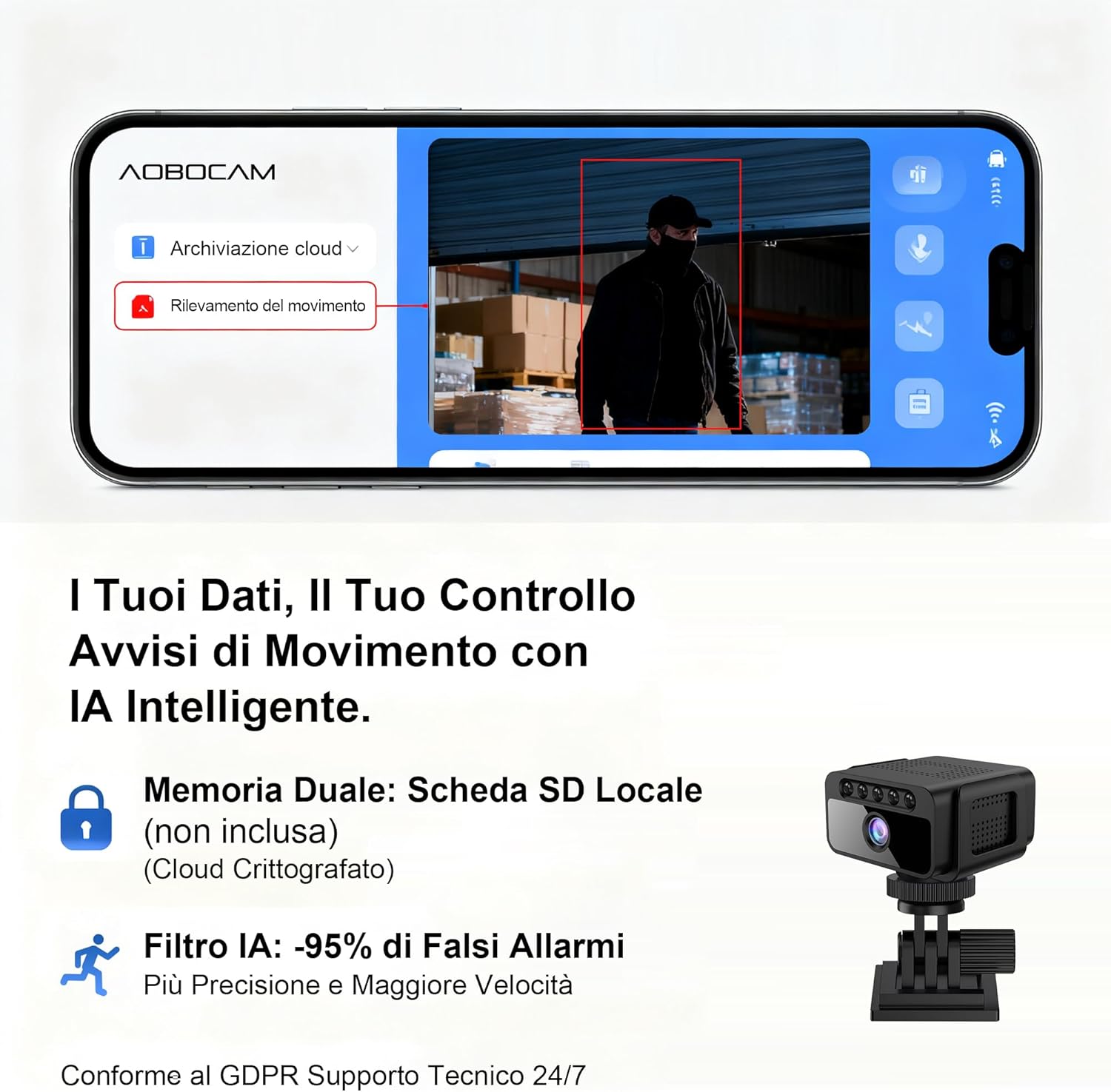
Figure 3: The compact size of the AOBOCAM W06 camera shown next to a mouse and phone, with examples of discreet placement on a desk, door frame, and shelf.

Figure 4: The AOBOCAM W06 camera mounted on a wall, demonstrating its versatile installation options.
Video: Installation and Placement Options
This video demonstrates the various ways to install and position your AOBOCAM W06 camera, highlighting its flexible mounting options and compact design.
Video 1: AOBOCAM W06 Mini Camera installation and usage preview.
4. Operating Instructions
4.1 Live View and Remote Monitoring
Once the camera is connected to your Wi-Fi network, open the AOBOCAM app on your smartphone. Select your camera from the device list to access the live video feed. You can monitor your space in real-time from anywhere.

Figure 5: The AOBOCAM app interface showing live view and motion detection alerts.
4.2 Motion Detection and Alerts
The camera features a sensitive motion sensor. When motion is detected, the camera will automatically start recording and send an instant push notification to your smartphone.
- Enable/Disable Motion Detection: In the app settings, you can turn motion detection on or off.
- Adjust Sensitivity: Customize the motion detection sensitivity to reduce false alarms.
- Activity Zones: Set specific areas within the camera's view for motion detection.
4.3 Night Vision
The AOBOCAM W06 is equipped with automatic night vision, providing clear video footage even in complete darkness up to 5 meters. The camera automatically switches to night vision mode when ambient light is low.

Figure 6: Comparison of standard camera night vision versus AOBOCAM W06's clear 4K night vision in low light conditions.
4.4 Video Recording and Playback
- Continuous Recording: If a microSD card is inserted or cloud storage is active, the camera will record continuously. Older footage will be overwritten by new recordings when the storage is full (loop recording).
- Event Recording: Recordings triggered by motion detection are saved separately.
- Playback: Access recorded videos through the app's "Cloud Playback" or "TF Card" sections. You can review footage by date and time.
5. Maintenance
- Cleaning: Gently wipe the camera lens and body with a soft, dry cloth. Avoid using harsh chemicals or abrasive materials.
- Firmware Updates: Periodically check the app for available firmware updates. Keeping your camera's firmware up-to-date ensures optimal performance and security features.
- Battery Care: For optimal battery life, avoid exposing the camera to extreme temperatures. If storing for extended periods, charge the battery to about 50%.
- MicroSD Card Management: Regularly back up important footage from your microSD card. Format the microSD card periodically through the app to maintain its performance.
6. Troubleshooting
| Problem | Solution |
|---|---|
| Camera fails to connect to Wi-Fi. |
|
| No motion detection alerts. |
|
| Video footage is blurry or unclear. |
|
| MicroSD card not recording. |
|
7. Specifications
| Feature | Detail |
|---|---|
| Brand | AOBOCAM |
| Model Name | W06 |
| Recommended Uses | Home Monitoring, Indoor Surveillance |
| Connectivity Technology | 2.4Ghz Wi-Fi, Hotspot, Wireless |
| Special Features | Portable, HD Resolution (4K UHD), Motion Sensor, Night Vision |
| Video Resolution | 4K Ultra HD |
| Night Vision Range | Up to 5 meters |
| Battery Life | Approximately 5 hours (stated in product title, assuming continuous use) |
| Storage Options | MicroSD Card (up to 128GB, not included), Cloud Storage (optional service) |
8. Warranty and Support
For warranty information and technical support, please refer to the contact details provided with your product packaging or visit the official AOBOCAM website.
