
Introduction
The Kreo Surge XB is a versatile wireless gaming controller designed for a seamless gaming experience across multiple platforms. It features Hall Effect joysticks and triggers for enhanced precision and durability, tri-mode connectivity, programmable macro buttons, and dynamic rumble feedback.
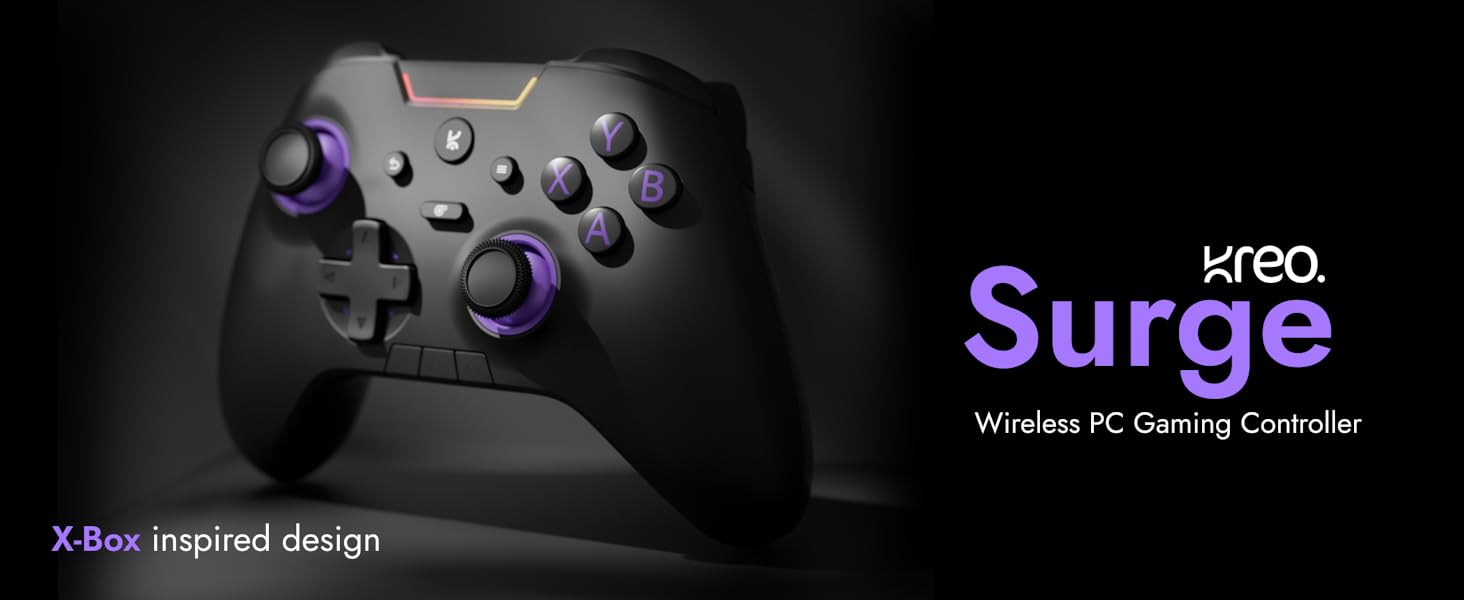
Image: The Kreo Surge XB controller, showcasing its Xbox-inspired design and wireless capabilities.
Setup
Package Contents
- Kreo Surge XB Wireless Gaming Controller
- 2.4GHz Wireless Dongle
- USB-C Charging Cable
- User Manual
Charging the Controller
Before initial use, fully charge the controller. Connect the supplied USB-C cable to the controller's USB-C port and the other end to a compatible USB power source (e.g., PC, wall adapter). The controller's 800mAh battery provides up to 25 hours of gameplay on a single charge.
Connecting to Devices (Tri-Mode Connectivity)
The Kreo Surge XB supports three connection modes: 2.4GHz wireless, Bluetooth, and USB-C wired. Choose the appropriate mode for your device.

Image: Visual representation of the controller's tri-mode connectivity: Bluetooth, 2.4GHz, and USB-C.
2.4GHz Wireless Mode (PC, Android)
- Insert the 2.4GHz wireless dongle into an available USB port on your PC or Android device.
- Power on the Kreo Surge XB controller. It should automatically connect to the dongle.
- The controller's indicator light will confirm a successful connection.
Bluetooth Mode (PC, Android, Nintendo Switch)
- Ensure Bluetooth is enabled on your device.
- Put the controller into Bluetooth pairing mode (refer to controller's specific button combination for pairing, usually holding a dedicated Bluetooth button or a combination of buttons).
- On your device, search for new Bluetooth devices and select "Kreo Surge XB" from the list.
- The controller's indicator light will confirm a successful connection.
USB-C Wired Mode (PC, Android, Nintendo Switch)
- Connect the USB-C cable to the controller's USB-C port.
- Connect the other end of the USB-C cable to an available USB port on your PC, Android device, or Nintendo Switch dock.
- The controller will be recognized as a wired input device.
Operating Instructions
Controller Layout
The Kreo Surge XB features a standard gaming controller layout including two analog joysticks, a D-pad, action buttons (A, B, X, Y), shoulder buttons (LB, RB), and triggers (LT, RT). Additionally, it includes dedicated function buttons and rear programmable macro buttons.
Hall Effect Joysticks and Triggers
The controller utilizes magnetic Hall Effect sensors for both joysticks and triggers. This technology provides ultra-smooth, frictionless control, effectively eliminating stick drift and enhancing the durability and lifespan of these components.

Image: Detailed view highlighting the Hall Effect Joysticks and Triggers, illustrating their magnetic sensor technology.
Polling Rate
Experience ultra-low latency with the Kreo Surge XB. It offers up to a 1000Hz polling rate via 2.4GHz wireless and USB-C wired connections, and 300Hz on Bluetooth, ensuring rapid response times for competitive gaming.

Image: The controller with a visual effect indicating its ultra-fast 1000Hz polling rate.
Rear Programmable Macro Buttons
The controller features rear macro buttons that can be programmed to execute complex button combinations or sequences with a single press. Refer to the controller's software or specific button combination instructions for programming these macros.
Dynamic Asymmetric Rumble
The Kreo Surge XB incorporates asymmetric rumble motors that provide immersive haptic feedback. These rumble effects are adjustable to 4 different levels, allowing you to customize the intensity of vibrations for various in-game events.
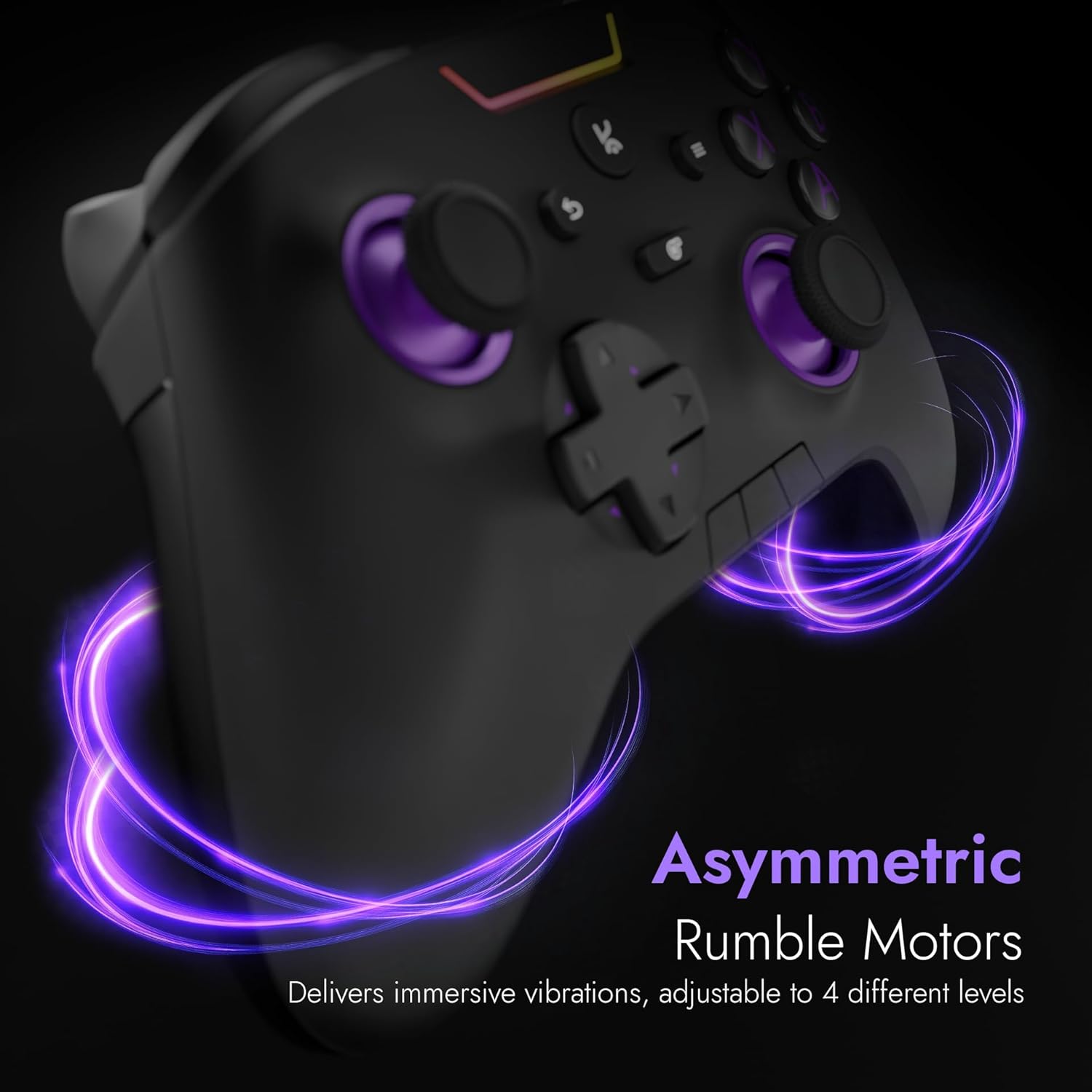
Image: The controller with visual effects illustrating the dynamic asymmetric rumble motors.
Turbo Mode with Speed Options
Activate Turbo Mode to enable rapid-fire functionality on any button. The controller offers 3 adjustable speed levels for Turbo Mode, providing a strategic advantage in fast-paced games. Consult the controller's specific instructions for activating and adjusting Turbo Mode.
RGB Lighting
The controller features integrated RGB lighting. Specific controls for adjusting or turning off the RGB lighting can be found in the controller's accompanying software or through dedicated button combinations.
Dedicated Device Control (Fn Button)
The controller includes an 'Fn' (Function) button, which, when pressed in combination with other buttons, allows for dedicated device control and quick adjustments to controller settings.
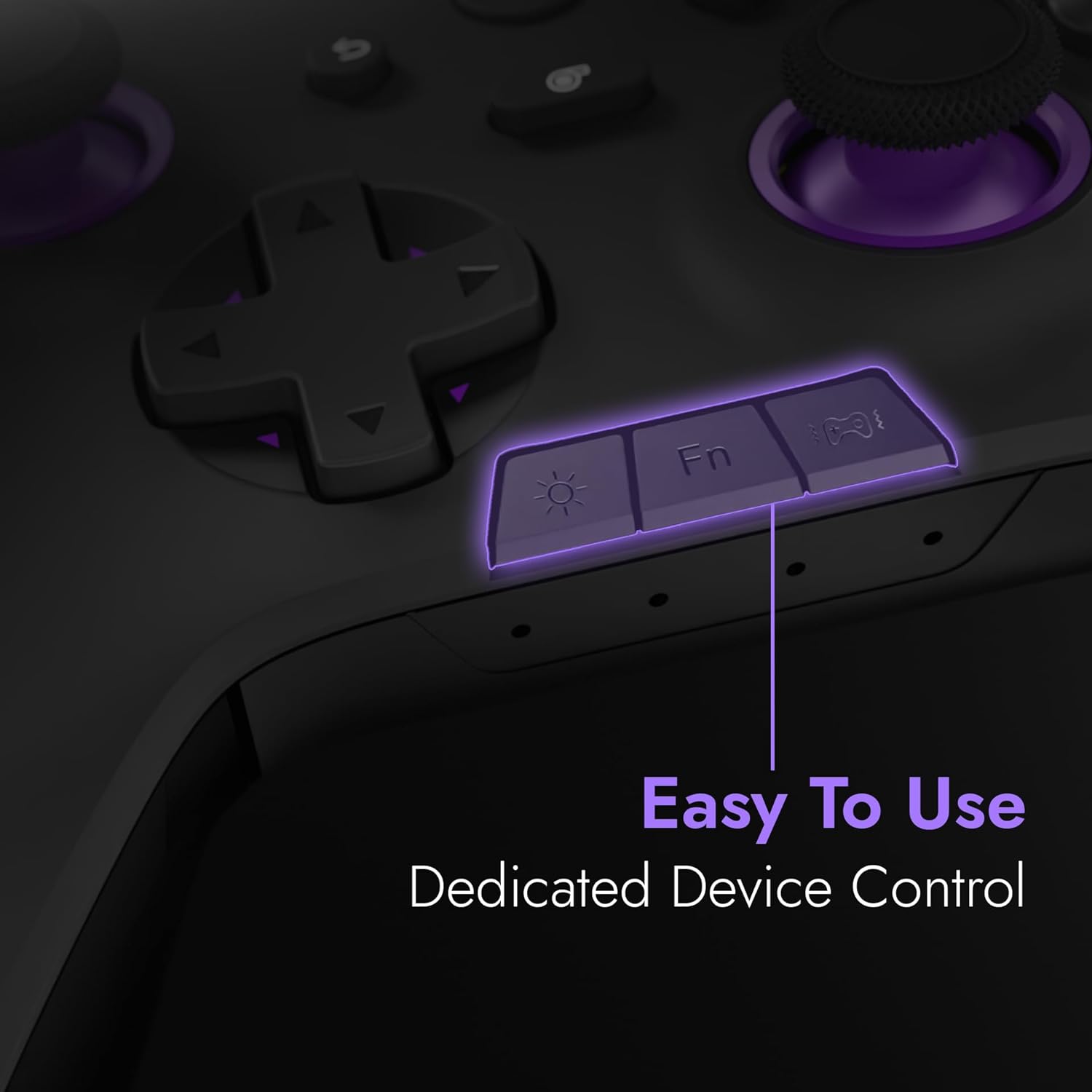
Image: A close-up view of the controller's dedicated device control buttons, including the 'Fn' button.
Maintenance
Cleaning
To clean the controller, use a soft, dry cloth. For stubborn dirt, slightly dampen the cloth with water. Avoid using harsh chemicals or abrasive materials, as these can damage the controller's finish.
Storage
Store the controller in a cool, dry place away from direct sunlight and extreme temperatures. The controller features a dedicated storage compartment for the 2.4GHz wireless dongle to prevent loss.

Image: The controller's underside revealing the dedicated storage slot for the 2.4GHz wireless dongle.
Battery Care
To prolong battery life, avoid fully discharging the controller frequently. Charge the controller regularly, even if not in use for extended periods. Do not expose the battery to high temperatures.
Troubleshooting
Connectivity Issues
- Controller not connecting via 2.4GHz: Ensure the dongle is securely inserted and the controller is powered on. Try re-pairing by pressing the pairing button on the controller and dongle (if available).
- Controller not connecting via Bluetooth: Ensure Bluetooth is enabled on your device and the controller is in pairing mode. Remove previous pairings from your device's Bluetooth list and try connecting again.
- Intermittent connection: Move closer to your device, ensure no strong interference sources (e.g., Wi-Fi routers, other wireless devices) are nearby.
Input Lag or Unresponsiveness
- Ensure the controller is fully charged. Low battery can affect performance.
- If using wireless, try connecting via USB-C cable to rule out wireless interference.
- Restart the controller and the connected device.
Buttons or Joysticks Not Responding
- Check for any physical obstructions or debris around the buttons or joysticks.
- Perform a factory reset on the controller if available (refer to specific instructions for your model).
- Ensure the controller's firmware is up to date.
Charging Problems
- Ensure the USB-C cable is not damaged and is securely connected to both the controller and the power source.
- Try a different USB-C cable or power adapter.
- Ensure the charging port on the controller is clean and free of debris.
Specifications
| Product Dimensions | 15.5 x 10 x 6.5 cm |
| Item Weight | 230 g |
| Item Model Number | GCSRGXBTMBK |
| Connectivity | Bluetooth, 2.4GHz Wireless, USB-C Wired |
| Polling Rate | Up to 1000Hz (2.4GHz/USB-C), 300Hz (Bluetooth) |
| Battery Life | Up to 25 hours (800mAh battery) |
| Joysticks & Triggers | Hall Effect Sensors |
| Rumble Feedback | Dynamic Asymmetric (4 adjustable levels) |
| Special Features | Rear Programmable Macro Buttons, Turbo Mode (3 speeds), RGB Lighting, Dedicated Dongle Storage |
Warranty and Support
Kreo products are manufactured with quality and reliability in mind. For warranty information, please refer to the warranty card included with your product or visit the official Kreo website.
For any product or service-related queries, please contact Kreo customer support:
- Phone: +91 9611507877
- Email: help@kreo-tech.com
Our support team is available from Monday to Saturday, 10:00 AM to 6:00 PM.

Image: Kreo customer support details, including phone and email, with a visual of a support representative.
