
THOMSON 1001W (10.1-inch WiFi)
THOMSON 10.1-inch WiFi Digital Picture Frame User Manual
Model: 1001W
1. Introduction
Thank you for choosing the THOMSON 10.1-inch WiFi Digital Picture Frame. This device allows you to easily share and display your cherished photos and videos with family and friends from anywhere in the world. This manual provides detailed instructions to help you set up, operate, and maintain your digital picture frame.
Package Contents:
- THOMSON 10.1-inch WiFi Digital Picture Frame
- Power Adapter
- Detachable Stand
- User Manual
2. Product Overview
Familiarize yourself with the components of your digital picture frame.
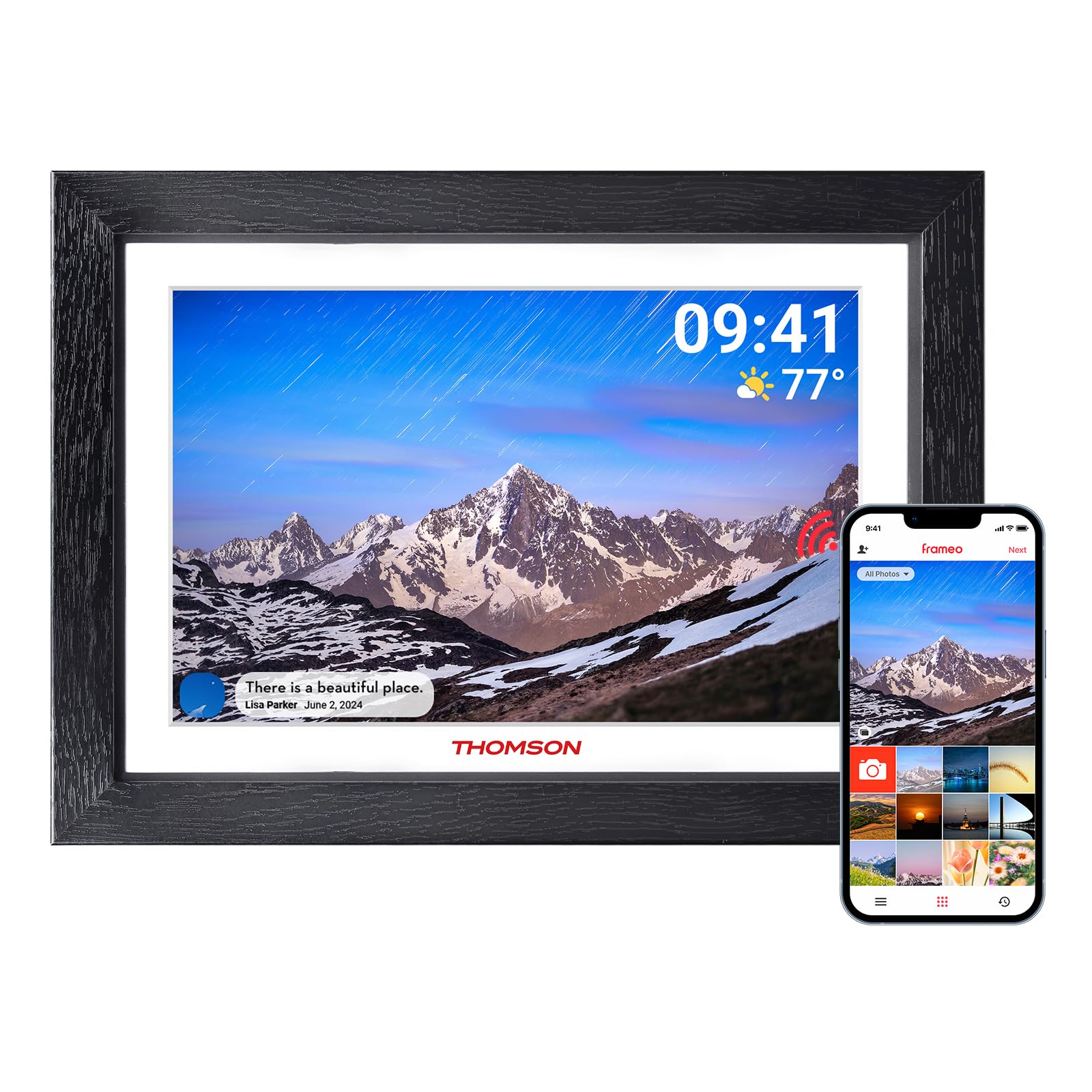
Figure 2.1: Front view of the digital picture frame.

Figure 2.2: Rear view with wall mount and stand attachment points.
Key Components:
- 10.1-inch HD IPS Touch Screen: For clear display and intuitive navigation.
- Power Port: Connects to the power adapter.
- SD Card Slot: For expanding storage (supports up to 128GB, SD card not included).
- USB Port: For data transfer (e.g., from a USB flash drive).
- Power Button: To turn the frame on/off or put it into sleep mode.
- Wall Hanging Hole: Allows for wall mounting in both landscape and portrait orientations.
- Detachable Stand: For tabletop placement.
3. Initial Setup
3.1 Powering On
- Attach the detachable stand to the back of the frame if you intend to place it on a surface.
- Connect the power adapter to the frame's power port and then plug it into a wall outlet.
- The frame will automatically power on. If not, press and hold the power button on the back of the frame.
3.2 Connecting to Wi-Fi
Upon first startup, the frame will guide you through the initial setup wizard.
- Select your preferred language.
- Choose your time zone.
- The frame will scan for available Wi-Fi networks. Select your network from the list.
- Enter your Wi-Fi password and tap "Connect".
- Once connected, the frame will display a unique device code. Make a note of this code.
3.3 Downloading and Pairing the App
To share photos and videos, you need to download the companion app.

Figure 3.1: App download and pairing process.
- Download the "Frameo" app from the App Store (iOS) or Google Play Store (Android) on your smartphone or tablet.
- Open the Frameo app and create an account.
- In the app, select "Add Frame" and enter the unique device code displayed on your digital picture frame.
- Once paired, you can start sending photos and videos to your frame.
4. Operating Your Digital Picture Frame
4.1 Sending Photos and Videos via App
The Frameo app allows you to send photos and short videos (up to 15 seconds) directly to your frame from anywhere with an internet connection.

Figure 4.1: Sharing photos and videos from a smartphone to the frame.
- Open the Frameo app on your smartphone.
- Select the photos or videos you wish to send.
- Choose your THOMSON frame as the recipient.
- Add a caption if desired and tap "Send". The content will appear on your frame shortly.
4.2 Using an SD Card or USB Drive
You can also display media directly from an SD card or USB flash drive.
- Insert an SD card (up to 128GB) into the SD card slot or a USB flash drive into the USB port.
- The frame will detect the storage device. You can then import photos/videos to the frame's internal memory or view them directly.
4.3 Slideshow Settings
Customize how your photos and videos are displayed.
- Display Order: Choose between chronological, reverse chronological, or shuffle.
- Photo Interval: Set the duration each photo is displayed.
- Transition Effects: Select various visual transitions between photos.
- Volume: Adjust the volume for videos.
- Brightness: Adjust screen brightness.
4.4 Auto-Rotate Function
The frame automatically detects its orientation (landscape or portrait) and adjusts the display accordingly. This feature works whether the frame is on its stand or wall-mounted.
Figure 4.2: Auto-rotate and wall-mount capabilities.
5. Key Features

Figure 5.1: Overview of frame features.
- HD IPS Touch Screen: Enjoy vibrant images and videos with a 1280x800 resolution and a wide 180° viewing angle. The touch interface provides easy navigation.
- Wi-Fi Connectivity: Seamlessly connect to your home Wi-Fi network for instant photo and video sharing.
- Generous Storage: The frame comes with 32GB of built-in memory, capable of storing thousands of photos. Expand storage further with an SD card (up to 128GB).
- Frameo App Sharing: Share moments privately and securely with family and friends from anywhere using the dedicated Frameo app.
- Auto-Rotate: Photos and videos automatically adjust to the frame's orientation, whether placed horizontally or vertically.
- Sleep Mode: Conserve energy by setting the frame to automatically turn off during specified hours.
- "React" Feature: Send emoticons back to loved ones in real-time to show your appreciation for the photos they share.
6. Maintenance
6.1 Cleaning the Screen
- Always power off the frame and unplug it before cleaning.
- Use a soft, lint-free cloth, such as a microfiber cloth, to gently wipe the screen.
- For stubborn smudges, lightly dampen the cloth with water or a screen-cleaning solution specifically designed for electronics. Do not spray liquid directly onto the screen.
- Avoid using abrasive cleaners, alcohol, or ammonia-based solutions, as these can damage the screen.
6.2 Software Updates
The frame may receive periodic software updates to improve performance and add new features. Ensure your frame is connected to Wi-Fi to receive these updates. You will typically be notified on the frame when an update is available.
7. Troubleshooting
| Problem | Possible Cause | Solution |
|---|---|---|
| Frame does not turn on. | No power or power adapter issue. | Ensure the power adapter is securely connected to both the frame and a working power outlet. Try a different outlet. |
| Cannot connect to Wi-Fi. | Incorrect password, out of range, or network issue. | Double-check the Wi-Fi password. Move the frame closer to the router. Restart your router and the frame. Ensure your Wi-Fi network is 2.4GHz compatible. |
| Photos/Videos not appearing on frame. | Frame not connected to internet, app not paired, or incorrect recipient. | Verify the frame is connected to Wi-Fi. Ensure the app is correctly paired with the frame. Confirm you are sending to the correct frame ID in the app. Check if the frame's internal storage or SD card is full. |
| Touch screen is unresponsive. | Temporary software glitch. | Restart the frame by unplugging it and plugging it back in after a few seconds. Ensure the screen is clean and free of debris. |
| Frame is stuck on a logo or screen. | Software error. | Perform a hard reset by unplugging the power adapter, waiting 10 seconds, and plugging it back in. If the issue persists, contact customer support. |
8. Specifications
| Feature | Detail |
|---|---|
| Brand | THOMSON |
| Model Number | 1001W |
| Screen Size | 10.11 Inches |
| Resolution | 1280 x 800 (HD IPS) |
| Connectivity Technology | Wi-Fi (2.4GHz) |
| Memory Storage Capacity | 32 GB (Internal) |
| External Storage | SD Card (max. 128 GB, not included) |
| Control Method | Touch Screen, App |
| Power Source | Corded Electric |
| Aspect Ratio | 16:10 |
| Frame Material | Wood |
| Item Weight | 680 Grams |
| Item Dimensions (L x W) | 16" x 10" |
9. Warranty and Support
9.1 Warranty Information
The THOMSON 10.1-inch WiFi Digital Picture Frame comes with a 24-month warranty from the date of purchase. This warranty covers manufacturing defects and ensures the product functions as intended under normal use.
9.2 Technical Support
THOMSON provides lifetime technical support for this product. If you encounter any issues or have questions not covered in this manual, please refer to the contact information provided with your product packaging or visit the official THOMSON support website for assistance.
Ask a question about this manual
Ask about setup, troubleshooting, compatibility, parts, safety, or missing instructions. Manuals+ will review the question and use this page’s manual context to help answer it.