
1. Introduction
This manual provides detailed instructions for the setup, operation, maintenance, and troubleshooting of your GMKtec M3 Ultra Mini PC. Please read this manual thoroughly before using the product to ensure optimal performance and longevity.
The GMKtec M3 Ultra is a compact and powerful mini PC designed for various applications, including office work, home entertainment, and light gaming. It features an Intel Core i7-12700H processor, Intel Iris Xe Graphics, 16GB DDR4 RAM, and a 1TB SSD.
2. Package Contents
Verify that all items listed below are included in your package. If any items are missing or damaged, please contact customer support.
- 1 x GMKtec Nucbox M3 Ultra Intel Core i7-12700H Mini PC Computer
- 1 x Power Adapter
- 1 x VESA Mount with Screws
- 1 x HDMI Cable
- 1 x User Manual

3. Product Overview
3.1 Front Panel

3.2 Rear Panel

3.3 Internal Components

4. Setup
4.1 Connecting Peripherals
- Connect your monitor(s) to the HDMI ports and/or the Type-C (DP1.4/DATA) port on the rear panel.
- Connect your keyboard and mouse to the available USB ports (front or rear).
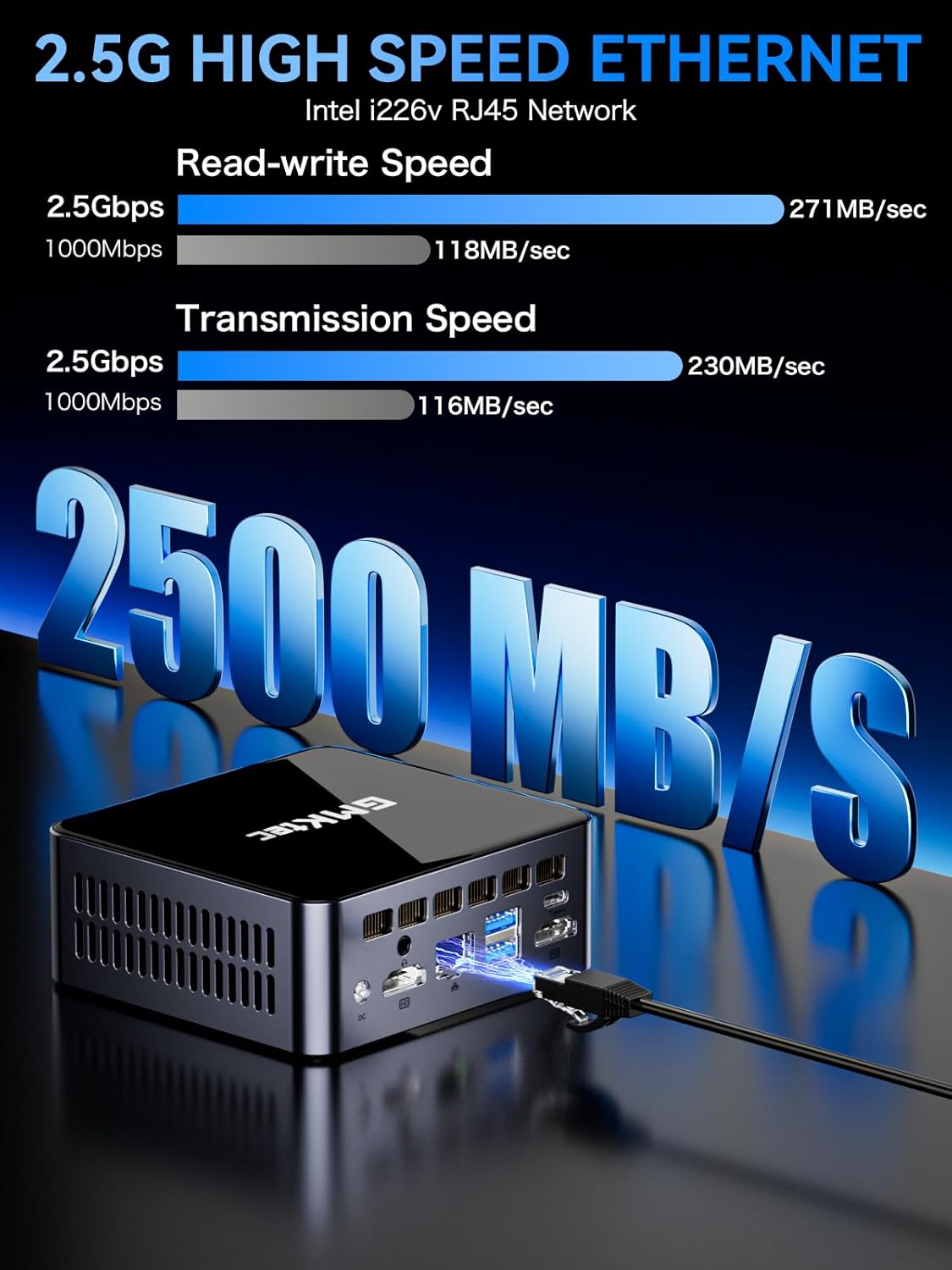
- For wired internet, connect an Ethernet cable to the 2.5G LAN port. For wireless, ensure Wi-Fi is enabled during initial setup.
- Connect the power adapter to the DC IN port on the rear panel, then plug it into a power outlet.
4.2 Initial Power On
Press the power button on the front panel to turn on the Mini PC. The system will boot into Windows 11 Pro. Follow the on-screen instructions to complete the initial setup, including language selection, network configuration, and user account creation.
5. Operating Instructions
5.1 Power On/Off
- Power On: Press the green power button on the front panel.
- Shut Down: Click the Start button in Windows, then select Power > Shut down.
- Restart: Click the Start button in Windows, then select Power > Restart.
- Sleep: Click the Start button in Windows, then select Power > Sleep.
5.2 Display Configuration
The M3 Ultra supports up to three 4K displays simultaneously via its dual HDMI ports and one Type-C (DP1.4/DATA) port. To configure multiple displays in Windows:
- Right-click on the desktop and select "Display settings".
- Under "Multiple displays", you can detect, identify, and arrange your displays.
- Choose how your displays are projected (e.g., Extend these displays, Duplicate these displays).
5.3 Network Connectivity
- Wi-Fi: The Mini PC supports Wi-Fi 6 for faster wireless speeds. Connect to your preferred Wi-Fi network through Windows network settings.
- Ethernet: Utilize the 2.5G Ethernet port for a stable and high-speed wired network connection.
- Bluetooth: Bluetooth 5.2 is integrated for connecting wireless peripherals such as keyboards, mice, and headphones.
6. Maintenance
6.1 Cleaning
- Ensure the device is powered off and unplugged before cleaning.
- Use a soft, dry cloth to wipe the exterior of the Mini PC.
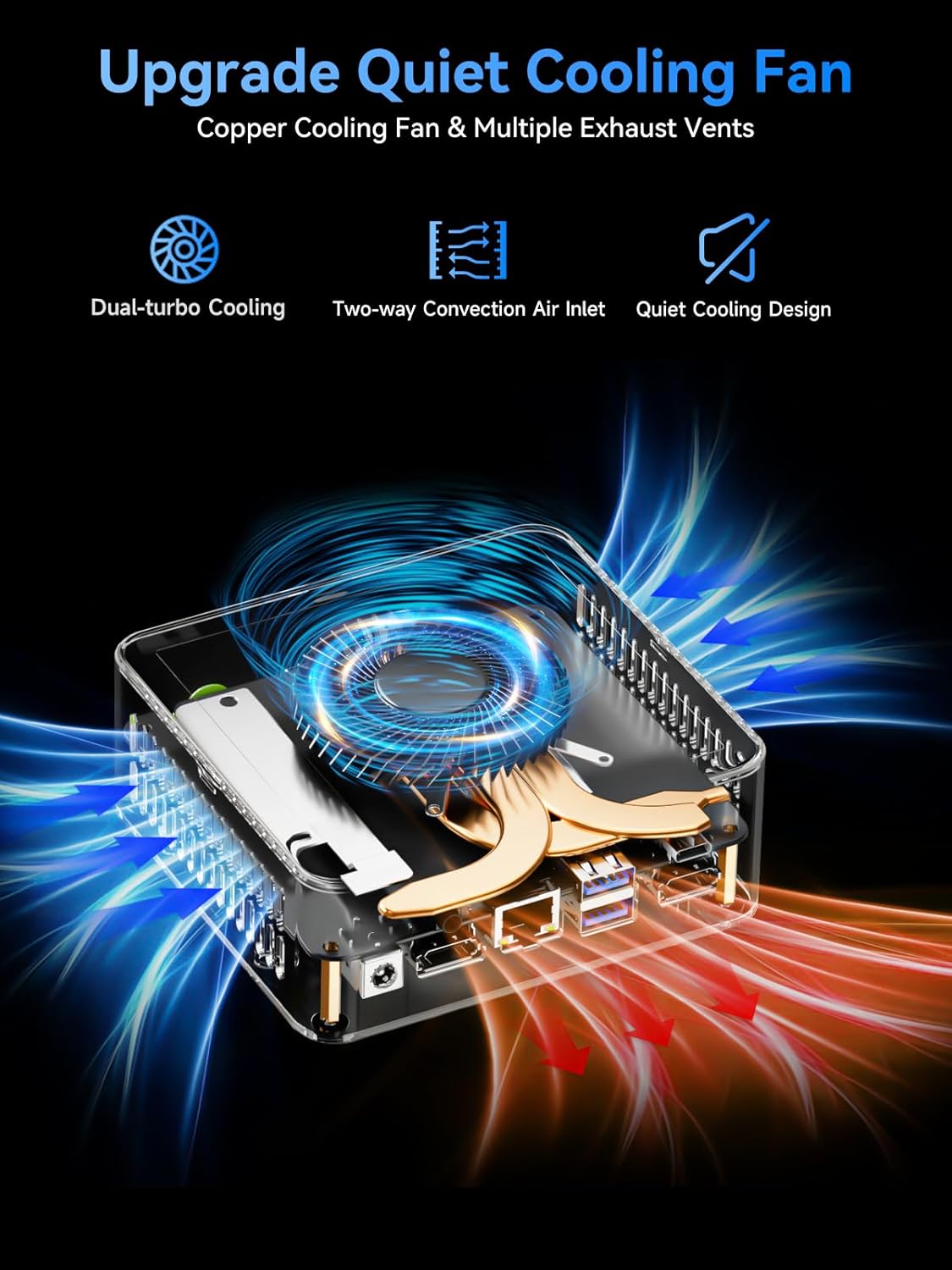
- For dust accumulation in vents, use compressed air. Do not insert objects into the vents.
6.2 Storage and RAM Upgrades
The M3 Ultra is designed for easy upgrades of RAM and SSD. It supports memory expansion up to 64GB DDR4 and storage expansion up to 4TB for the M.2 PCIe 2280 SSD, with an additional M.2 SATA/PCIEX4 2242 drive slot also supporting up to 4TB.
- Power off the device and disconnect all cables.
- Carefully open the bottom cover of the Mini PC.
- Locate the RAM slots or M.2 SSD slots.
- Install or replace components according to their respective installation guides.
- Securely close the bottom cover.
7. Troubleshooting
- No Power:
- Ensure the power adapter is securely connected to the Mini PC and a working power outlet.
- Verify the power outlet is functional by plugging in another device.
- No Display:
- Check all HDMI and/or Type-C cable connections between the Mini PC and the monitor(s).
- Ensure the monitor is powered on and set to the correct input source.
- Try connecting to a different monitor or using a different cable to rule out external issues.
- No Internet Connection:
- For Wi-Fi, check if the Wi-Fi adapter is enabled in Windows settings and if you are connected to the correct network.
- For Ethernet, ensure the cable is properly connected and your router/modem is working.
- Restart your router/modem and the Mini PC.
- Slow Performance:
- Close unnecessary applications running in the background.
- Check for available Windows updates and install them.
- Ensure there is sufficient free space on your SSD.
- Consider upgrading RAM or SSD if performance issues persist during demanding tasks.
8. Specifications
| Feature | Detail |
|---|---|
| Brand | GMKtec |
| Model | M3 Ultra |
| Processor | Intel Core i7-12700H (14 Cores, 20 Threads, up to 4.7 GHz) |
| Graphics | Intel Iris Xe Graphics (up to 1.40 GHz) |
| RAM | 16GB DDR4 (expandable up to 64GB) |
| Storage | 1TB M.2 PCIe 2280 SSD (expandable up to 4TB) + M.2 SATA/PCIEX4 2242 slot (expandable up to 4TB) |
| Display Output | Dual HDMI (4K@60Hz) + 1x Type-C (DP1.4/DATA) for Triple 4K Display |
| Networking | 2.5G Ethernet (Intel I226-V), Wi-Fi 6, Bluetooth 5.2 |
| Operating System | Windows 11 Pro (Compatible with Ubuntu and Linux) |
| Ports | USB 3.2 (Gen2) x2 (front), USB 3.2 x1 (rear), USB 2.0 x1 (rear), 3.5mm Audio Jack, DC IN |
| Dimensions | 6.46 x 6.3 x 4.65 inches |
| Weight | 3.27 pounds |
9. Warranty & Support
GMKtec offers a 1-year limited warranty for each Mini PC, effective from the date of purchase. This warranty covers defects due to design and workmanship.
9.1 Customer Support
For any inquiries or technical assistance, please contact GMKtec's professional after-sales team:
- Email: support@gmktec.com (24/7 Customer Support)
- Amazon Support: Log in to your Amazon account, navigate to "Your Orders", and select "Ask Product Question" for assistance.


