
1. Introduction
Welcome to the user manual for your new SUMTAB K708 Kids Tablet. This guide provides essential information for setting up, operating, maintaining, and troubleshooting your device. Please read it thoroughly to ensure optimal performance and a safe user experience for your child.
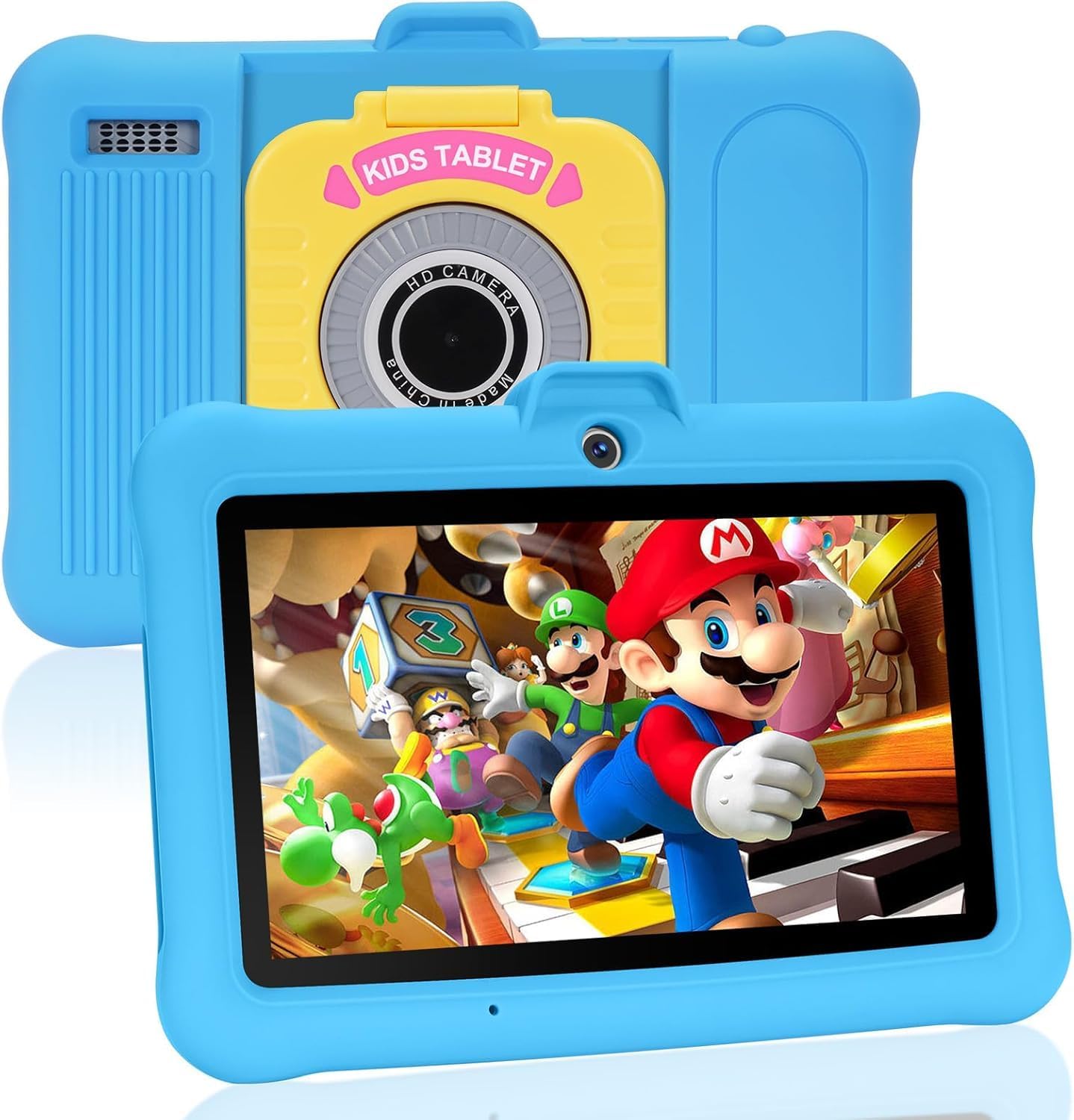
Image 1.1: The SUMTAB K708 Kids Tablet, featuring its blue shockproof case and a vibrant display.
2. Product Overview
The SUMTAB K708 is a 7-inch Android tablet designed for children aged 2-14. It comes with a durable shockproof case and features a range of educational and entertainment options, including Google Kids Space and parental control functionalities via Google Family Link.
Key Features:
- Google Kids Space: Access to curated apps, games, books, and videos for learning and creativity.
- Parental Controls: Manage screen time, app usage, and content filters remotely using Google Family Link.
- Performance: Equipped with the latest Android system, 8GB RAM (3+5GB), and 64GB ROM, expandable up to 128GB.
- Durable Design: Shockproof protective case with anti-drop corners and a 180° rotating hand carry/stable stand.
- Display: 7-inch screen with 1280 x 800 pixel resolution and eye protection features.
- Connectivity: 2.4G Wi-Fi and Bluetooth.
- Battery: 3000mAh battery for extended use.

Image 2.1: Overview of the tablet's core technical specifications and certifications.
3. What's in the Box
Upon opening your SUMTAB K708 Kids Tablet package, you should find the following items:
- SUMTAB K708 Kids Tablet (with pre-installed shockproof case)
- Charger
- User Manual (this document)
If any items are missing or damaged, please contact customer support immediately.
4. Setup
4.1 Charging the Tablet
- Connect the charger to the tablet's charging port.
- Plug the charger into a power outlet.
- Allow the tablet to charge fully before first use. The battery indicator on the screen will show charging status.
4.2 Initial Power On and Wi-Fi Connection
- Press and hold the power button (usually located on the side) until the screen lights up.
- Follow the on-screen prompts to select your language and region.
- Connect to a Wi-Fi network by selecting your network name and entering the password.
4.3 Setting Up Google Kids Space
Google Kids Space offers a safe and engaging environment for children. To set it up:
- During initial setup or from the app drawer, tap the "Kids Space" icon.
- Follow the on-screen instructions to create a Google account for your child or sign in with an existing one.
- Customize content preferences and set up parental controls through Google Family Link.

Image 4.1: The Google Kids Space environment, showcasing a selection of available applications.
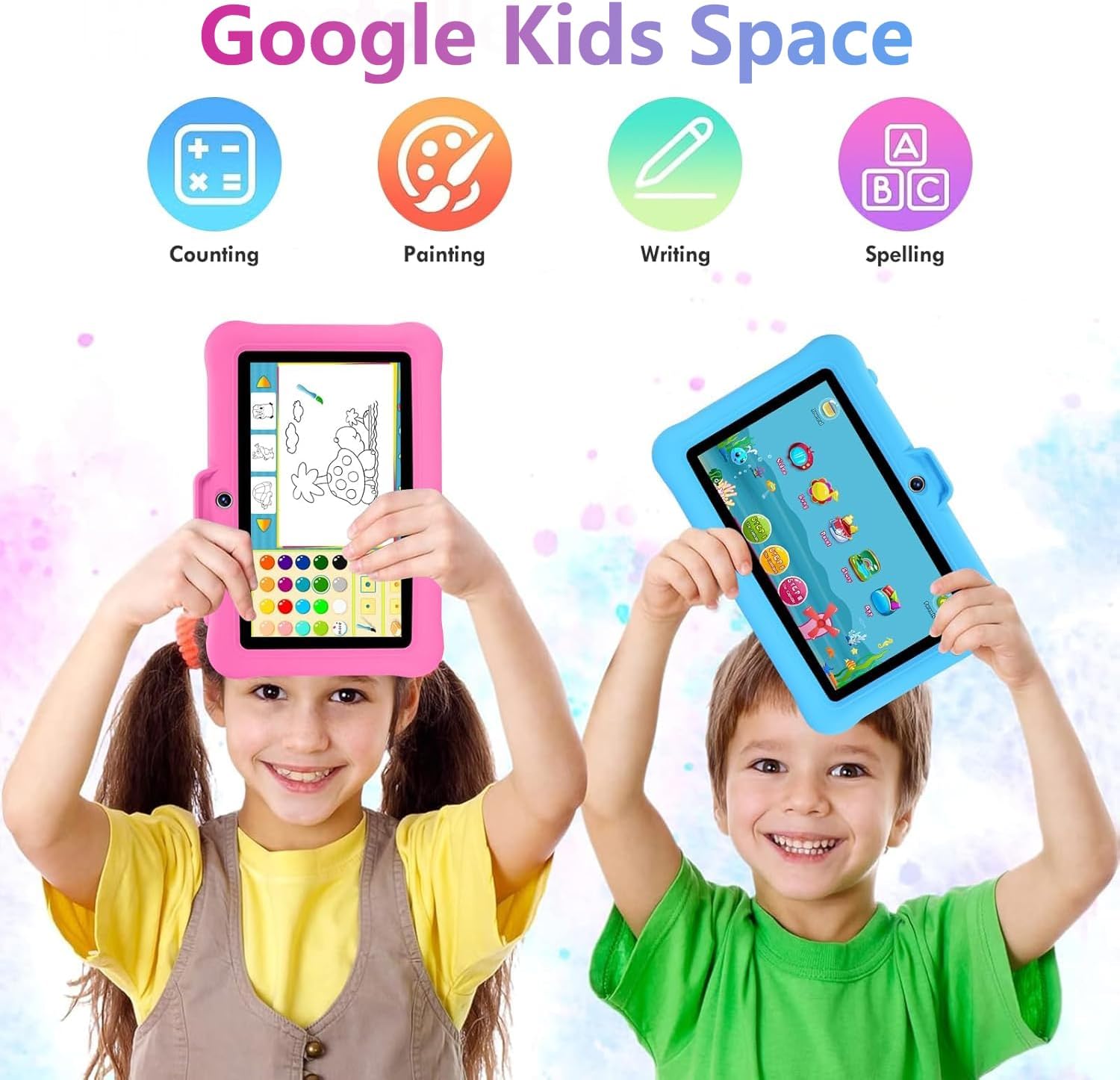
Image 4.2: Children engaging with the tablet's educational content, such as counting and writing exercises.
4.4 Setting Up Google Family Link for Parental Control
Google Family Link allows you to manage your child's digital experience from your own device.
- Download the Google Family Link app on your smartphone or tablet.
- Follow the instructions in the Family Link app to link your child's Google account on the SUMTAB tablet.
- From your device, you can now set screen time limits, approve or block apps, manage content filters, and track device location.

Image 4.3: Illustrates the parental control interface and features available through Google Family Link.
5. Operating Instructions
5.1 Navigating the Interface
- Home Screen: Swipe left or right to access different app pages.
- App Drawer: Swipe up from the bottom of the screen to view all installed applications.
- Notifications/Quick Settings: Swipe down from the top of the screen to access notifications and quick settings like Wi-Fi, Bluetooth, and brightness.
5.2 Using Pre-installed Apps and Google Play Store
The tablet comes with various educational games and apps pre-installed. You can find these in the Kids Space environment or the main app drawer. To download more applications:
- Ensure the tablet is connected to Wi-Fi.
- Open the "Google Play Store" app.
- Search for desired apps. Parental approval may be required for downloads if Family Link is configured.
5.3 Adjusting Volume and Brightness
- Volume: Use the physical volume buttons on the side of the tablet.
- Brightness: Swipe down from the top of the screen to access quick settings and adjust the brightness slider.
5.4 Using the Camera
The tablet features front and rear cameras. To use them:
- Tap the "Camera" app icon.
- Switch between front and rear cameras using the on-screen icon.
- Tap the shutter button to take photos or record videos.
5.5 Utilizing the Protective Case and Stand
The included shockproof case provides protection and functionality.
- The case is designed with anti-drop corners to absorb impacts.
- The integrated stand can be rotated 180 degrees to provide various viewing angles for activities like drawing, watching videos, or reading.

Image 5.1: Details of the protective case, including its adjustable stand and anti-drop design.
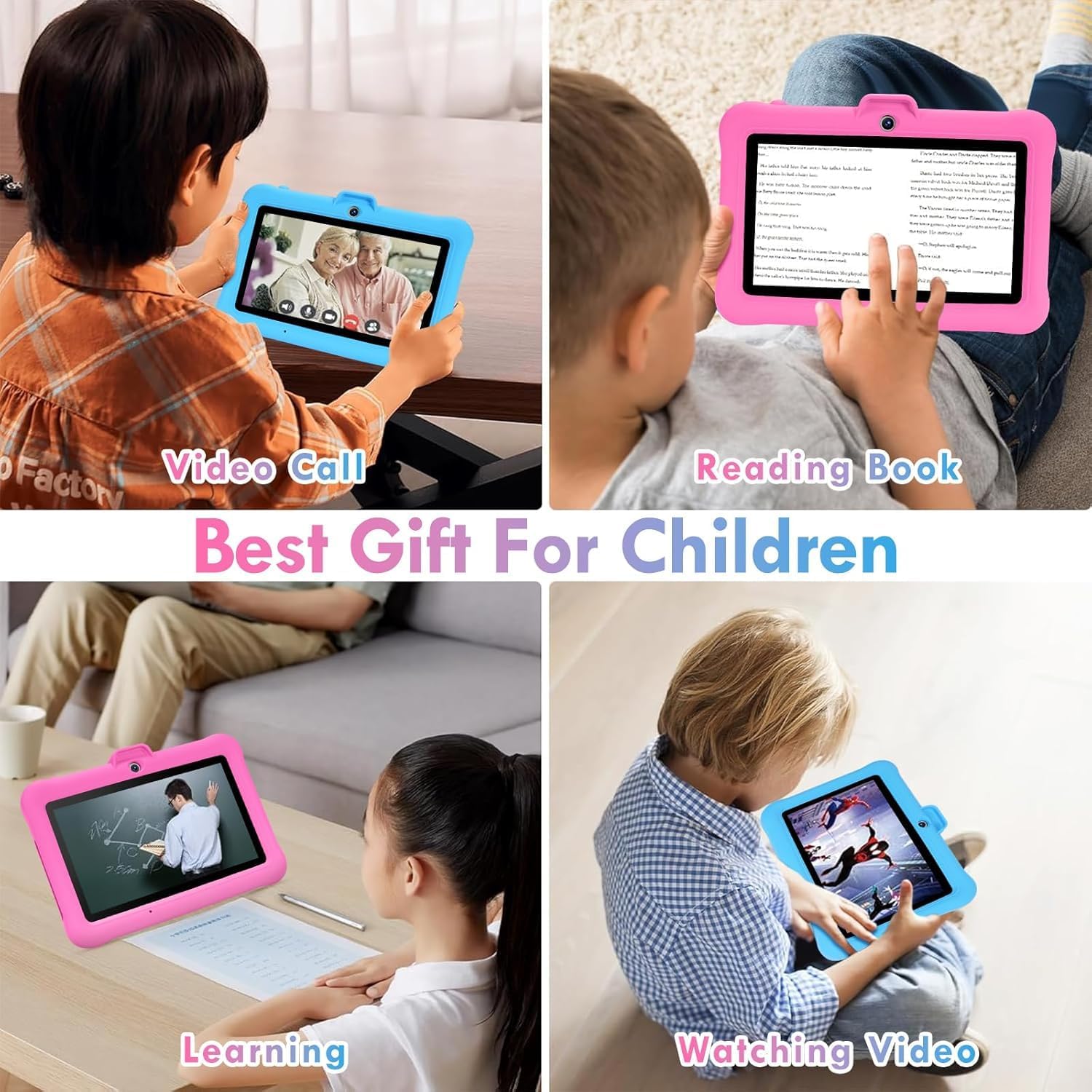
Image 5.2: Examples of how the tablet can be used for various educational and entertainment purposes.
6. Maintenance
- Cleaning: Use a soft, lint-free cloth to clean the screen and tablet body. Avoid harsh chemicals.
- Battery Care: To prolong battery life, avoid fully discharging the tablet frequently. Charge it regularly and avoid extreme temperatures.
- Software Updates: Ensure the tablet's software is up-to-date for optimal performance and security. Go to Settings > System > System update to check for updates.
- Storage Management: Regularly clear unnecessary files and apps to maintain performance. The tablet supports up to 128GB expandable storage via a memory card (contact SUMTAB for a complimentary 64GB card).
7. Troubleshooting
| Problem | Possible Solution |
|---|---|
| Tablet does not turn on. | Ensure the tablet is charged. Connect to the charger and wait a few minutes before attempting to power on again. |
| Screen is unresponsive. | Perform a soft reset by holding the power button for 10-15 seconds until the tablet restarts. |
| Cannot connect to Wi-Fi. | Check if Wi-Fi is enabled in settings. Verify the Wi-Fi password. Restart your router and the tablet. |
| Apps are running slowly. | Close unused apps. Clear cache for frequently used apps (Settings > Apps > [App Name] > Storage > Clear cache). Consider expanding storage with a memory card. |
| Parental controls not working. | Ensure Google Family Link is correctly set up and linked to your child's account. Check settings within the Family Link app on your device. |
8. Specifications
| Feature | Detail |
|---|---|
| Brand | SUMTAB |
| Model Name | K708 |
| Operating System | Android |
| Screen Size | 7 Inches |
| Screen Resolution | 1280 x 800 pixels |
| Processor | 1.6 GHz |
| RAM | 8 GB (3+5GB) |
| Flash Memory Size (ROM) | 64 GB (Expandable up to 128GB) |
| Wireless Type | 802.11b, 802.11g, 802.11n (2.4G Wi-Fi) |
| Average Battery Life | 5 Hours (3000mAh) |
| Item Weight | 1.52 pounds |
| Product Dimensions | 7 x 4.5 x 0.1 inches |
| Color | Blue |
9. Warranty and Support
All SUMTAB Kids tablets include a 2-year worry-free guarantee. If the product breaks due to manufacturing defects, it will be replaced for free.
For any issues or inquiries, please contact SUMTAB customer support. They aim to respond within 24 hours to provide a satisfactory solution.
Contact Information: Please refer to the contact details provided on the product packaging or the official SUMTAB website for the most up-to-date support information.


