
1. Introduction
The FUERAN HDMI EDID Emulator Adapter is designed to maintain stable display settings and prevent issues like resolution drops, desktop rearrangement, and sync loss in various video setups. This device ensures uninterrupted visuals and a consistent workflow, especially in multi-monitor, AV, or professional environments.
Key Features:
- Bi-directional EDID Transmission: Supports both male and female HDMI sources for seamless EDID communication.
- Plug & Play Simplicity: No drivers, software, or external power required. Hot-swappable and ultra-low power consumption.
- Fixed EDID Lock & Virtual Monitor: Maintains desired resolution and display settings even during power cycles, shutdowns, or device swaps. Functions as a "dummy plug" for headless servers or remote desktops.
- Prevents Desktop Rearrangement: Preserves current desktop arrangement and resolution in multi-monitor setups, even if cables are loose or screens are unplugged.
- Wide Compatibility: Works with KVM selectors, AV receivers, extenders, video splitters, and various operating systems.
- Stable Output: Eliminates resolution resets, flickers, or signal loss, ensuring consistent system synchronization.
2. Product Overview
The FUERAN HDMI EDID Emulator Adapter is a compact device designed to stabilize HDMI display signals. It features a male HDMI connector on one end and a female HDMI port on the other, allowing it to be inserted inline with an existing HDMI cable.

Image: The FUERAN HDMI EDID Emulator Adapter, highlighting its compact design and key features like stable HD display, multi-device support, and smooth visual experience. The default resolution is 1920x1080@60Hz HDR.
What's in the Box:
- 1 x FUERAN HDMI EDID Emulator Adapter (Model: 1920X1080@60Hz HDR)
3. Setup
The FUERAN HDMI EDID Emulator Adapter is designed for simple plug-and-play installation, requiring no drivers, software, or external power. Follow these steps to set up your emulator:
- Identify Connection Point: Determine where the emulator will be inserted. This is typically between your source device (e.g., computer, KVM switch) and your display device (e.g., monitor, TV).
- Insert Emulator: Plug the male end of the emulator into the HDMI output port of your source device or KVM switch.
- Connect HDMI Cable: Connect your existing HDMI cable into the female port of the emulator.
- Connect to Display: Ensure the other end of your HDMI cable is connected to your display device.
- Power On Devices: Power on your source device and display. The system will automatically detect the emulator and adjust display settings.
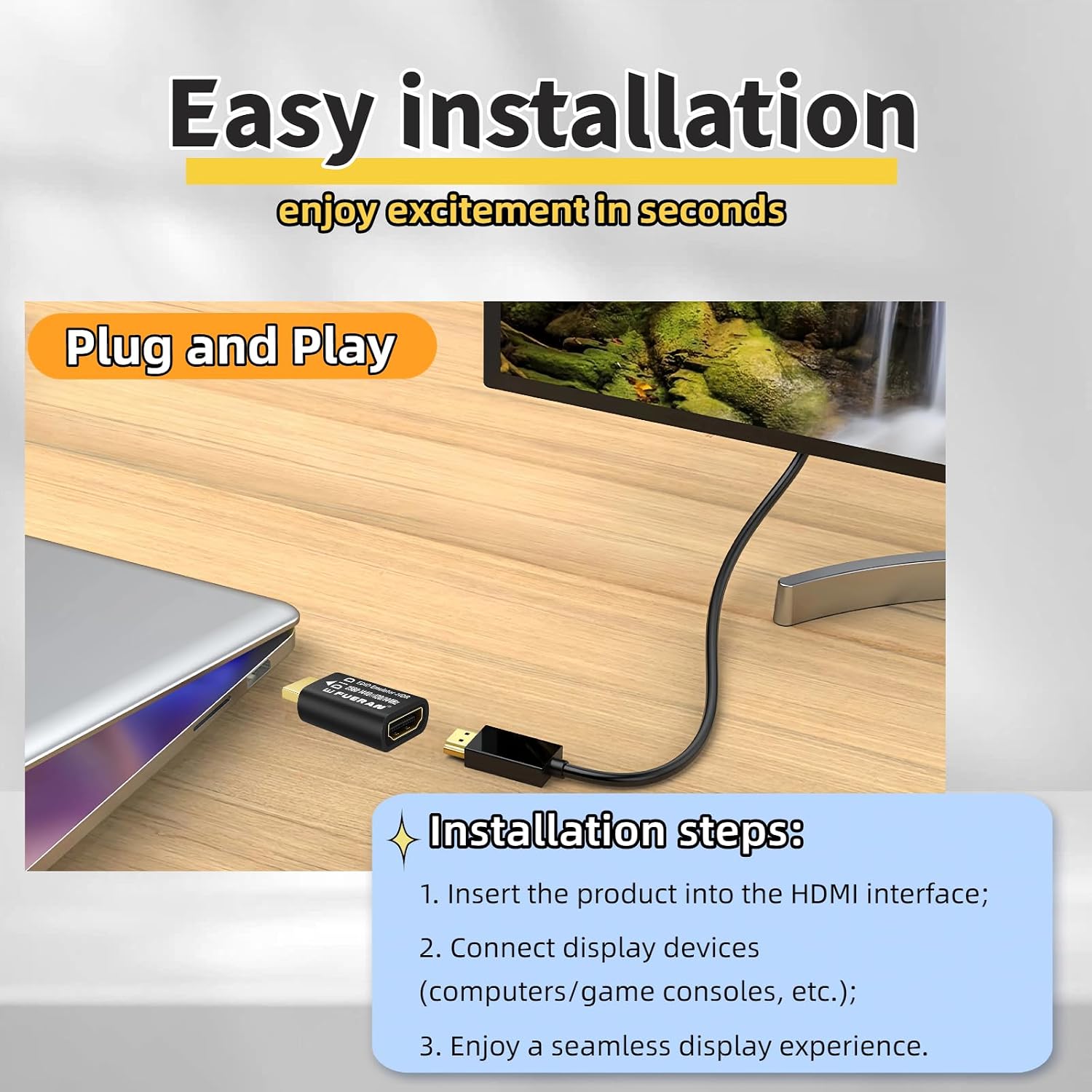
Image: A visual guide showing the simple plug-and-play installation process of the HDMI EDID Emulator. The steps are: 1. Insert the product into the HDMI interface; 2. Connect display devices (computers/game consoles, etc.); 3. Enjoy a seamless display experience.
The emulator is hot-swappable, allowing you to connect or disconnect it without needing to power down your devices, though it's always recommended to ensure stable connections before critical operations.
4. Operating Instructions
Once installed, the FUERAN HDMI EDID Emulator Adapter operates automatically to maintain your desired display settings.
Maintaining Display Stability:
- The emulator ensures that your system always detects an active display, even if the physical monitor is turned off, disconnected, or during power cycles. This prevents operating systems like Windows and macOS from rearranging your desktop icons or resetting resolutions.
- In multi-monitor or KVM setups, the emulator locks in the EDID (Extended Display Identification Data) to prevent signal loss or resolution changes when switching inputs or when a display is temporarily unavailable.

Image: Illustrates the smooth and ultra-clear display capabilities provided by the emulator, supporting 1920x1080 resolution at 60Hz refresh rate with HDR technology for enhanced brightness and contrast.
Virtual Monitor Functionality:
- The emulator can function as a "virtual monitor" or "headless plug" for servers, remote desktop environments, or when operating a laptop with the lid closed. It ensures that the graphics card remains active and renders a display, allowing for remote access with full resolution.
Supported Resolutions (Examples):
The emulator supports a wide range of resolutions, with the default being 1920x1080@60Hz (HDR). Other supported resolutions include:
- 1920 x 1080@60Hz (Default Resolution)
- 1680 x 1050@60Hz
- 1600 x 1200@60Hz
- 1600 x 1024@60Hz
- 1600 x 900@60Hz
- 1440 x 1080@60Hz
- 1440 x 900@60Hz
- 1366 x 768@60Hz
- 1360 x 768@60Hz
- 1280 x 1024@60Hz
- 1280 x 960@60Hz
- 1280 x 800@60Hz
- 1280 x 768@60/75Hz
- 1280 x 720@60/75Hz
- 1176 x 664@60/75Hz
- 1152 x 864@60/75Hz
- 1024 x 768@60/75Hz
- 800 x 600@60/75Hz

Image: Depicts the emulator's compatibility across various scenarios, including gaming, movie watching, and office use, ensuring stable and clear display for all applications.
5. Compatibility
The FUERAN HDMI EDID Emulator Adapter offers broad compatibility with a variety of devices and operating systems.
Compatible Devices:
- Desktop PCs and laptops (Mac and Windows)
- KVM switches
- HDMI splitters and extenders
- LCD monitors, 4K/2K/1080P TVs, projectors
- Mac Mini, MacBook, iMac (including Thunderbolt/USB-C to HDMI adapters)
- Raspberry Pi, Intel NUC, Jetson Nano, and other development boards
- Capture cards, surveillance equipment, digital signage systems
- Remote desktops, headless servers, industrial computers
Operating System Support:
- Windows
- macOS
- Linux
- And other operating systems that support HDMI output.
The emulator handles a wide range of pixel formats including YCbCr 4:4:4, 4:2:2, 4:2:0, and RGB, with 2.1 channel audio support.

Image: Showcases the emulator's excellent performance and strong compatibility with various devices and systems, including Windows desktops and laptops. Its compact size makes it easy to carry for business trips or travel.
6. Troubleshooting
This section addresses common issues you might encounter with the HDMI EDID Emulator Adapter.
Common Issues and Solutions:
- Desktop Rearrangement or Resolution Reset:
Symptom: When a monitor is turned off, disconnected, or after a system reboot, desktop icons rearrange or the resolution changes.
Solution: Ensure the emulator is correctly installed inline with your HDMI connection. The emulator's primary function is to prevent this by maintaining a constant EDID signal to your graphics card.
- No Signal or Black Screen:
Symptom: The display shows "No Signal" or remains black after connecting the emulator.
Solution:
- Verify all HDMI cables are securely connected to both the emulator and your devices.
- Ensure your source device and display are powered on.
- Test the HDMI connection without the emulator to confirm the cables and devices are working correctly.
- Try a different HDMI port on your display or source device.
- Incorrect Resolution or Refresh Rate:
Symptom: The display is not showing the expected resolution or refresh rate.
Solution:
- Check your operating system's display settings to ensure the desired resolution is selected. The emulator provides the EDID data, but the OS still needs to apply it.
- Confirm that your display device supports the desired resolution and refresh rate.
- HDCP Content Playback Issues:
Important Note: This HDMI EDID Emulator Adapter does not support HDCP (High-bandwidth Digital Content Protection). If you are experiencing issues playing protected content (e.g., Blu-ray movies, streaming services), this is expected behavior as the emulator is designed for EDID management, not HDCP pass-through.
7. Specifications
| Feature | Detail |
|---|---|
| Model Number | 1920X1080@60Hz(HDR) |
| Brand | FUERAN |
| Supported Resolution | Up to 1920x1080@60Hz (HDR) and various lower resolutions (see Operating Instructions) |
| Connector Type | HDMI Male to HDMI Female (Plug In) |
| Color | Black |
| Item Dimensions (L x W x H) | 1 x 1 x 1 inches |
| Item Weight | 1 Grams |
| Current Rating | 0.1 Amps |
| Power Plug Type | No Plug (Bus-powered) |
| HDCP Support | Not Supported |
8. Warranty and Support
Warranty Information:
The FUERAN HDMI EDID Emulator Adapter comes with a 12-month warranty from the date of purchase. This warranty covers manufacturing defects and ensures the product performs as described under normal use. Please retain your proof of purchase for warranty claims.
Technical Support:
For any technical assistance, questions, or troubleshooting not covered in this manual, professional technical support is available 24 hours a day. Please contact FUERAN customer service through the retailer's platform or the official FUERAN website for prompt assistance.