
1. Product Overview
The DPVR G1 Smart Glasses integrate advanced technology into a wearable form factor, offering features such as an 8MP camera, AI assistant capabilities, real-time translation, and Bluetooth connectivity. This manual provides detailed instructions for optimal use and maintenance.

Image: DPVR G1 Smart Glasses alongside a smartphone displaying the companion application interface.
Package Contents
Verify that all items are present in the package:
- DPVR G1 Smart Glasses
- Cleaning Cloth
- Charging Cable
- User Manual (this document)
- Packaging Box

Image: The DPVR G1 Smart Glasses and included accessories, such as the charging cable and cleaning cloth, laid out on a surface.
2. Setup
2.1 Initial Charging
Before first use, fully charge your DPVR G1 Smart Glasses. Connect the included charging cable to the glasses and a compatible USB power source. A full charge takes approximately 90 minutes.
2.2 App Installation and Pairing
The DPVR G1 Smart Glasses function optimally when paired with your smartphone via the companion application. Download the "HeyCyan" app from Google Play or the App Store, or scan the QR code provided in the manual.
- Download the "HeyCyan" app from your device's app store.
- Ensure Bluetooth is enabled on your smartphone.
- Power on the DPVR G1 Smart Glasses by pressing and holding the Upper Button for 2 seconds.
- Open the "HeyCyan" app and follow the on-screen instructions to pair your glasses.

Image: A smartphone screen showing the HeyCyan application interface, with a QR code for easy download and setup.
For more information on the app, visit: HeyCyan App Information
3. Operating Instructions
3.1 Controls and Gestures
The DPVR G1 Smart Glasses feature intuitive controls via touch areas and physical buttons.

Image: A detailed diagram illustrating the touch-sensitive areas and physical buttons on the DPVR G1 Smart Glasses, along with their corresponding functions.
Upper Button Functions:
- Power On/Off: Press and hold for 2 seconds to turn on; press and hold for 5 seconds to turn off.
- Reset to factory settings: Press and hold for 10 seconds.
- Take a photo: Single click.
- Record video: Double-click to start recording; single-click to stop.
- Answer a call: During an incoming call, single-click to answer; press and hold for 2 seconds to reject; during a call, single-click to end.
Touch Area Functions:
- Play/pause music: Double-click the touch area.
- Adjust volume: Swipe forward to increase volume, swipe backward to decrease volume.
- Skip to next track: Triple-click the touch area.
- Wake up phone voice assistant: Long press to activate/exit.
Lower Button Functions:
- Wake up AI voice assistant: Single-click to wake up/exit.
- AI quick image recognition: Double-click.
- Recording: Long press to start; click to stop while recording.
3.2 Camera Operation
The 8MP HD camera captures detailed first-person videos and photos. Built-in stabilization helps reduce shake for smoother footage.
- Taking Photos: Single-click the Upper Button. The visible recording light will flash once.
- Recording Videos: Double-click the Upper Button to start. Single-click to stop. The visible recording light will stay on during video recording.
- Audio Recording: Long press the Lower Button to start. Click to stop. The visible recording light will blink during audio recording.
- Flexible Recording Length: Adjust video clip duration (15s, 30s, 60s, 3min, 9min, 12min) and audio recording duration (30min, 60min, 120min) via the HeyCyan app under 'My Glasses' -> 'Recording Settings'.

Image: A user wearing DPVR G1 Smart Glasses, capturing a scene at the beach, demonstrating hands-free photography.
Image: An illustration showing the visible LED indicators on the glasses for photo (flash once), audio (blink), and video (stay on) recording modes.
3.3 AI Assistant and Translation
The integrated AI assistant provides features such as real-time translation, voice interaction, photo recognition, and note-taking.
- Voice Commands: Wake up the AI assistant with a single click of the Lower Button or by long-pressing the touch area for your phone's assistant.
- Real-Time Translation: Open "AI Translate" in the HeyCyan app, choose "Conversation Translation" or "Simultaneous Interpretation" for cross-language communication.
- Photo Recognition: Double-click the Lower Button to identify objects or landmarks in your view.
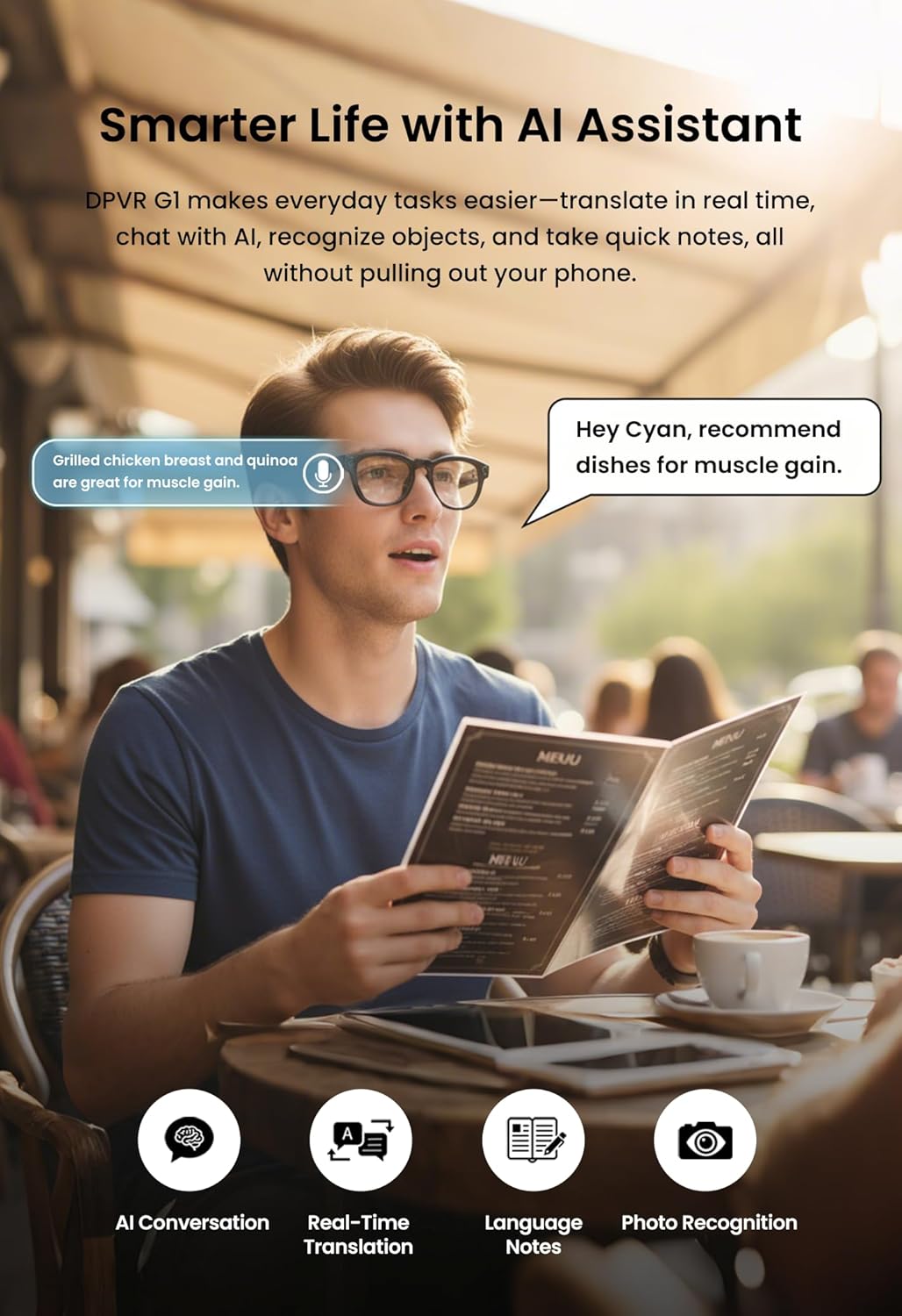
Image: A user interacting with the AI assistant feature of the DPVR G1 Smart Glasses, receiving information hands-free.

Image: Two individuals communicating with the aid of DPVR G1 Smart Glasses, demonstrating real-time translation capabilities in an urban setting.

Image: A woman using the DPVR G1 Smart Glasses to identify a landmark, receiving information about the Sydney Opera House.
3.4 Audio and Calls
The glasses feature open-ear audio for music playback and clear calls, ensuring you remain aware of your surroundings.
- Music Playback: Double-click the touch area to play/pause. Swipe to adjust volume, triple-click to skip tracks.
- Phone Calls: Answer incoming calls with a single click of the Upper Button. Reject calls by pressing and holding for 2 seconds. End calls with a single click.
- Bluetooth Connectivity: Bluetooth 5.3 provides a stable connection with a 10-meter range.
Image: A woman wearing DPVR G1 Smart Glasses while exercising, demonstrating the music and call features.
3.5 Embedded Videos (Seller Content)
DPVR G1: AI, Camera, and Voice Features
Video: An overview of the DPVR G1 Smart Glasses highlighting AI, camera, and voice functionalities.
DPVR G1: Your AI Assistant
Video: Demonstrates the AI assistant features of the G1 Smart Glasses.
DPVR G1: Smart AI Glasses Overview
Video: A general introduction to the DPVR G1 Smart AI Glasses and their capabilities.
DPVR G1: AI Translation and Note-Taking
Video: Showcasing the real-time translation and note-taking features of the G1 Smart Glasses.
DPVR G1: World Translation and Understanding
Video: Illustrates how the G1 Smart Glasses translate and help users understand their surroundings.
DPVR G1: AI Glasses for Productivity
Video: Highlights the productivity benefits of the DPVR G1 AI Glasses.
DPVR G1 Smart Glasses with Camera and Bluetooth Features
Video: A comprehensive look at the camera and Bluetooth features of the DPVR G1 Smart Glasses.
DPVR G1: Your Personal AI Butler
Video: Showcasing the DPVR G1 as a personal AI assistant for daily tasks.
4. Maintenance
4.1 Cleaning
Use the provided cleaning cloth to gently wipe the lenses and frame. Avoid using abrasive materials or harsh chemicals, as these can damage the lenses and electronic components.
4.2 Lens Care
The G1 Smart Glasses feature photochromic lenses that adjust to sunlight. These lenses are detachable, allowing for replacement with prescription lenses by a qualified optical professional.
4.3 General Safety and Handling
- Use only the included charging cable.
- Avoid wet conditions and keep the glasses away from water.
- Handle the glasses with care to prevent damage to the frame or internal components.
- Store in a cool, dry place when not in use.
5. Troubleshooting
If you encounter issues with your DPVR G1 Smart Glasses, refer to the following common solutions:
- Connectivity Issues: Ensure Bluetooth is enabled on your phone and the glasses are within range (10 meters). Restart both devices and attempt to re-pair via the HeyCyan app.
- App Functionality: Ensure the HeyCyan app is updated to the latest version. Check your phone's internet connection for AI features and translation.
- Battery Life: If battery life is shorter than expected, ensure the glasses are fully charged using the provided cable. Excessive use of camera or AI features may consume more power.
- No Audio: Check the volume settings on both the glasses (swipe touch area) and your connected smartphone. Ensure the glasses are properly paired.
- Camera Not Recording: Verify sufficient storage (32GB internal). Ensure the visible recording light indicates active recording.
- Device Unresponsive: Attempt a factory reset by pressing and holding the Upper Button for 10 seconds. Note that this will erase settings.
For persistent issues, contact DPVR customer support.
6. Specifications
Detailed technical specifications for the DPVR G1 Smart Glasses:

Image: A technical drawing illustrating the key dimensions of the DPVR G1 Smart Glasses, including lens width, lens height, nose bridge width, frame width, and temple length.
| Feature | Detail |
|---|---|
| Model Number | G1 |
| Dimensions (Package) | 6.69 x 3.15 x 2.32 inches |
| Item Weight | 7 ounces |
| Memory Storage Capacity | 32GB (4GB) built-in storage + 64MB DDR buffer |
| Operating System Compatibility | Android 9.0 and above, iOS 10.0 and above |
| Special Features | Voice Control, AI Assistant, Real-Time Translation, 8MP Camera, Photochromic Lenses |
| Battery Capacity | 290 Milliamp Hours |
| Charging Time | Approximately 90 minutes |
| Battery Life (Approximate) | 8 hours talk time, 12 hours music playback, 5 days standby |
| Connectivity Technology | Bluetooth 5.3 |
| Wireless Communication Standard | Bluetooth |
| GPS | No GPS |
| Shape | Rectangular |

Image: The DPVR G1 Smart Glasses with an overlay emphasizing its 32GB built-in storage and 64MB DDR buffer for smooth capture.

Image: A user wearing DPVR G1 Smart Glasses on an airplane, with icons indicating battery life for music, calls, and standby time.
7. Warranty and Support
The DPVR G1 Smart Glasses come with a standard manufacturer's warranty. Please refer to the warranty card included in your package for specific terms and conditions.
For technical support, troubleshooting assistance, or warranty claims, please contact DPVR Official customer service through their official website or the contact information provided in your product documentation.