
BETMI Wireless Controller for PS-5
BETMI Wireless Controller Instruction Manual
Model: Wireless Controller for PS-5
Introduction
This manual provides detailed instructions for the setup, operation, maintenance, and troubleshooting of your BETMI Wireless Controller. This controller is compatible with PS-5/Pro/Slim, PC (Windows 8/10/11), Android, and iOS devices, offering versatile gaming experiences.
Setup and Connection
Multi-Platform Compatibility
The BETMI Wireless Controller supports multiple platforms including PS-5/Pro/Slim, PC (Windows 8/10/11), Android, and iOS devices. It offers both Bluetooth 5.3 wireless and wired connection modes.

Image: The BETMI Wireless Controller highlighting its Bluetooth connectivity feature.

Image: The BETMI Wireless Controller illustrating compatibility with PS5, PS5 Pro, PS5 Slim, PC, Android/iOS, and Steam Deck.
Connecting to PS5 (Wired Mode)
- Use the provided USB-C data cable to connect the controller to your PS5 console.
- The connection is successful when the controller's indicator light glows steadily blue.
Video: Instructions on how to connect the BETMI Wireless Controller to a PS5 console via wired mode. The video demonstrates plugging in the USB-C cable and observing the controller's indicator light.
Connecting to PS5 (Bluetooth Mode)
- Initial Connection (Wired First): If the controller has not been connected to the current PS5 console before, or if it was connected to another host, first connect it to the PS5 using the USB-C cable. The console will automatically recognize and pair the controller.
- Wireless Connection: After the initial wired connection (or if already paired), unplug the USB cable. Press the "HOME" button on the controller. When the controller is properly connected to the PS5, the controller light will stay blue.
Video: Instructions on how to connect the BETMI Wireless Controller to a PS5 console via Bluetooth mode. The video shows the process of initial wired connection for pairing, then disconnecting the cable and pressing the HOME button for wireless connection.
Connecting to PC (Bluetooth Mode)
- When the controller is off, hold the "Share" button, then press the "Home" button simultaneously (Share + Home). Hold for 3 seconds to enter pairing state. The LED channel light will flash blue.
- On your PC (Windows 8/10/11), turn on Bluetooth and search for devices. Find and click "DualSense Wireless Controller" in the device list and pair. Once pairing is successful, the corresponding LED indicator will remain on.
Video: Instructions on how to connect the BETMI Wireless Controller to a PC via Bluetooth mode. The video demonstrates activating pairing mode on the controller and selecting it from the PC's Bluetooth device list.
Connecting to PC (Wired Mode)
- When the controller is turned off, connect it to the computer via a USB cable.
- The controller defaults to PS5 "DualSense Wireless Controller" mode, with the LED indicator showing blue, supporting headphone audio and voice functions.
- To switch to X-INPUT (PC360) mode, press and hold the (Share + Options) combination key for 3 seconds. The LED indicator will show green.
- Note: Switching to X-INPUT (PC360) mode is not supported on Mac computers.
Video: Instructions on how to connect the BETMI Wireless Controller to a PC via wired mode. The video demonstrates connecting the controller with a USB cable and switching between modes.
Connecting to Android/iOS (Bluetooth Mode)
- When the controller is off, hold the "Share" button, then press the "Home" button simultaneously (Share + Home). Hold for 3 seconds to enter pairing state. The LED channel light will flash blue.
- On your Android or iOS device, turn on Bluetooth and search for the Bluetooth name "DualSense Wireless Controller". Tap to connect the controller. Once connected, the controller's indicator light will stay solid blue.
- If the controller pairing times out and cannot connect to the device, the controller will turn off and enter a sleep mode for about 60 seconds.
Video: Instructions on how to connect the BETMI Wireless Controller to an Android or iOS device via Bluetooth mode. The video demonstrates activating pairing mode on the controller and selecting it from the mobile device's Bluetooth device list.
Operating Instructions
Key Features
- Hall Effect Joysticks: Provide precise and responsive feedback with a durable lifespan of up to 5 million cycles, ensuring accurate movement and preventing drift.
- Linear Triggers: Sensitive triggers ensure a seamless gaming experience for actions like shooting or acceleration.
- 6-Axis Motion Sensing: The built-in gyroscope allows for in-game actions such as controlling character direction, attacking, and dodging with slight hand movements or shaking.
- LED Channel Light Bar: A multi-color LED light bar indicates player identity and provides important in-game notifications, such as low battery warnings.
- Turbo Function: Allows switching between different combo modes for rapid-fire actions.
- Dual Vibration Motors: Embedded in the side handles to enhance immersion and realism through haptic feedback.
- Built-in 3.5mm TRRS Audio Jack & Speaker: Connect a headset for immersive sound and clear communication. The built-in speaker provides higher-fidelity game sound in supported games. A microphone function requires an external headset.
- Multi-function Touchpad: Detects precise swipes, taps, and presses for in-game gestures, menu navigation, or context-specific actions like zooming. Haptic feedback enhances tactile responsiveness.
- Share Function: Dedicated button for sharing exciting moments.
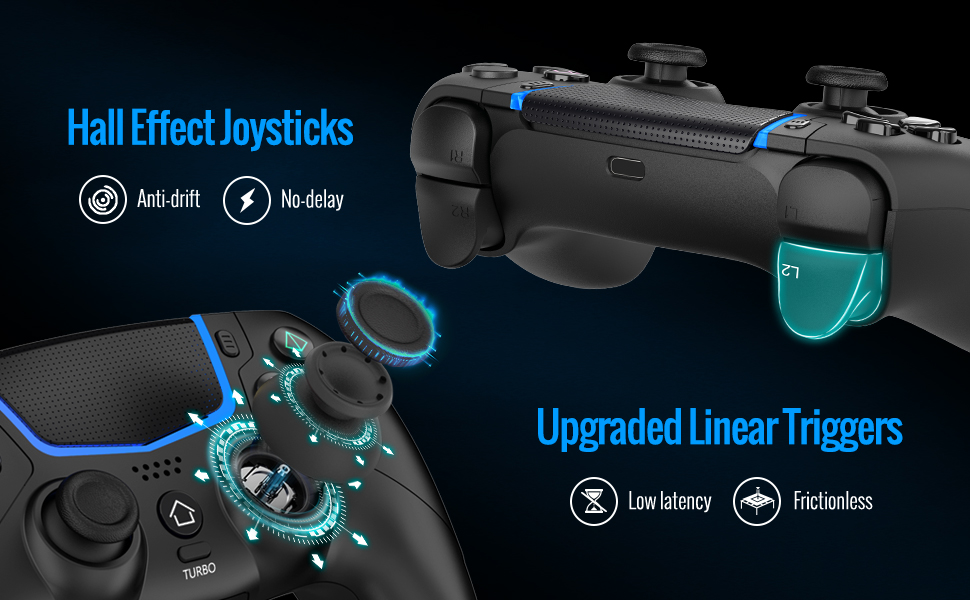
Image: Close-up of the BETMI Wireless Controller's Hall Effect Joysticks, emphasizing precision and durability.

Image: The BETMI Wireless Controller illustrating the 6-Axis Gyro Sensor and Turbo function.
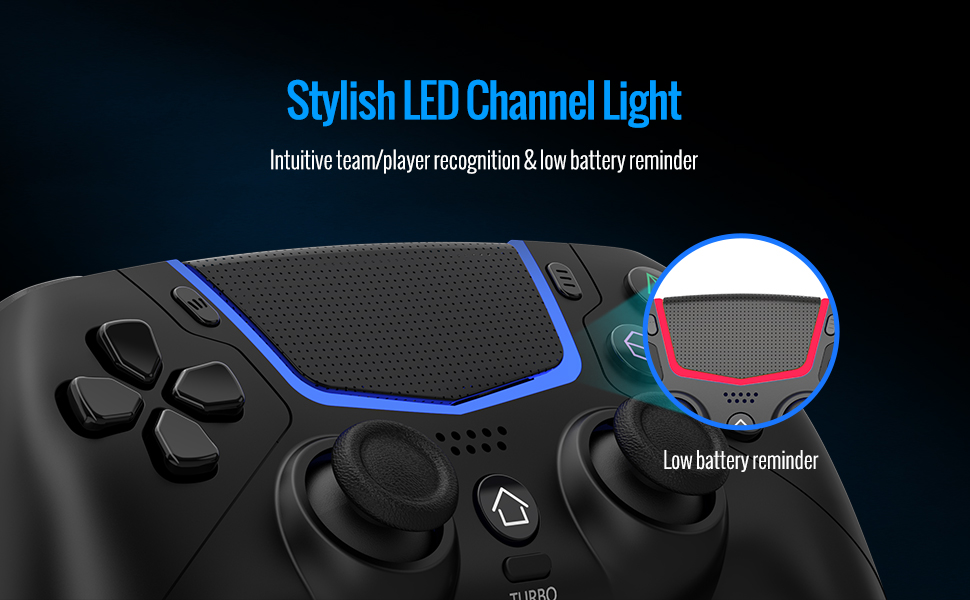
Image: The BETMI Wireless Controller's LED Channel Light bar, indicating player status and low battery.
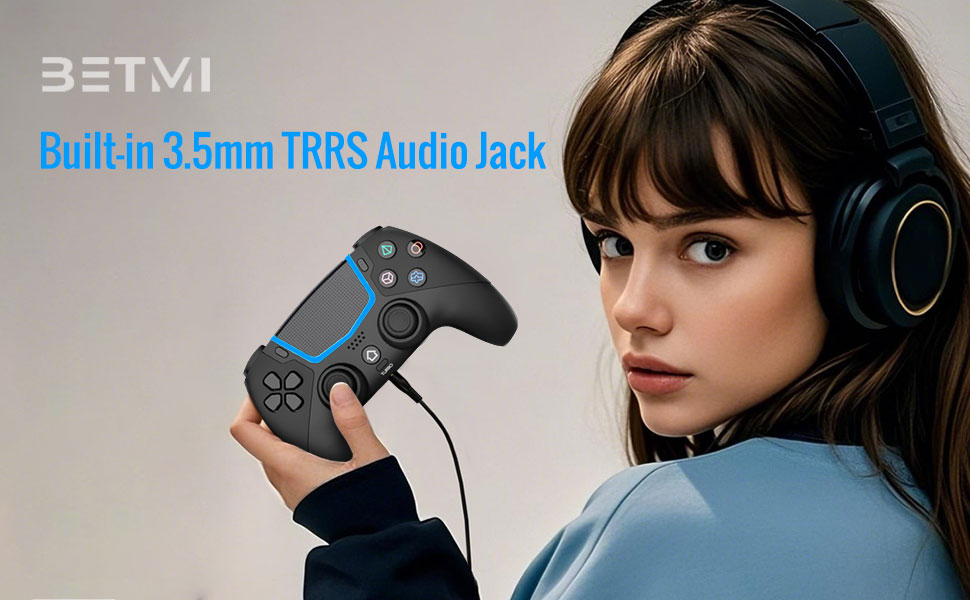
Image: The BETMI Wireless Controller featuring its built-in 3.5mm TRRS audio jack and speaker.
Maintenance and Charging
Battery Life and Charging
The BETMI controller is equipped with an 800mAh battery, offering up to 8 hours of playtime on a single charge. It supports USB-C charging and is compatible with original charging stations.
- Battery Capacity: 800mAh
- Charging Time: Approximately 2-3 hours
- Playtime: Up to 8 hours
- Charging Method: USB-C cable or original charging station.

Image: Illustration of the BETMI Wireless Controller being charged, highlighting its large capacity battery and charging specifications.
General Care
- Keep the controller dry and away from extreme temperatures.
- Clean with a soft, dry cloth. Avoid harsh chemicals.
- Store in a safe place to prevent physical damage.
Troubleshooting
| Problem | Possible Cause | Solution |
|---|---|---|
| Controller does not connect wirelessly. | Not in pairing mode, out of range, or battery low. |
|
| Controller not recognized by PC in wired mode. | Incorrect mode (PS5 vs. X-INPUT), driver issue. |
|
| Audio jack not working or poor quality. | Headset not fully inserted, faulty headset, or software settings. |
|
| Controller turns off after 60 seconds. | Pairing timeout. | Re-enter pairing mode and attempt connection within the timeout period. |
Specifications
| Feature | Detail |
|---|---|
| Model Number | Wireless Controller for PS-5 |
| Connectivity | Bluetooth 5.3, Wired (USB-C) |
| Compatibility | PS-5/Pro/Slim, PC (Windows 8/10/11), Android, iOS |
| Joysticks | Hall Effect Joysticks (5 million cycle lifespan) |
| Motion Sensing | 6-Axis Gyroscope |
| Vibration | Dual Vibration Motors |
| Audio | Built-in 3.5mm TRRS Audio Jack, Built-in Speaker (no microphone) |
| Battery Capacity | 800mAh Lithium Ion |
| Playtime | Up to 8 hours |
| Dimensions | 6.1 x 4.13 x 2.17 inches |
| Weight | 7.8 ounces |
| Manufacturer | BETMI |
Warranty and Support
For warranty information, technical support, or further assistance, please refer to the documentation included with your product packaging or visit the official BETMI website. Contact information for customer service can typically be found on the product packaging or the manufacturer's support page.
Ask a question about this manual
Ask about setup, troubleshooting, compatibility, parts, safety, or missing instructions. Manuals+ will review the question and use this page’s manual context to help answer it.