
1. Introduction
The OTTOCAST Play2Video Ultra is a versatile adapter designed to enhance your in-car entertainment and connectivity. It converts your vehicle's existing wired CarPlay system into a wireless Android 12 interface, allowing access to popular streaming applications and wireless CarPlay/Android Auto functionality. This manual provides comprehensive instructions for setup, operation, and troubleshooting to ensure optimal use of your device.

Image 1.1: The OTTOCAST Play2Video Ultra device.
2. Package Contents
Upon opening your OTTOCAST Play2Video Ultra package, you should find the following items:
- 1x OTTOCAST Play2Video Ultra Device
- 1x USB-A to USB-C Adapter
- 1x USB Power Cable (Y-Cable)
- 1x User Manual
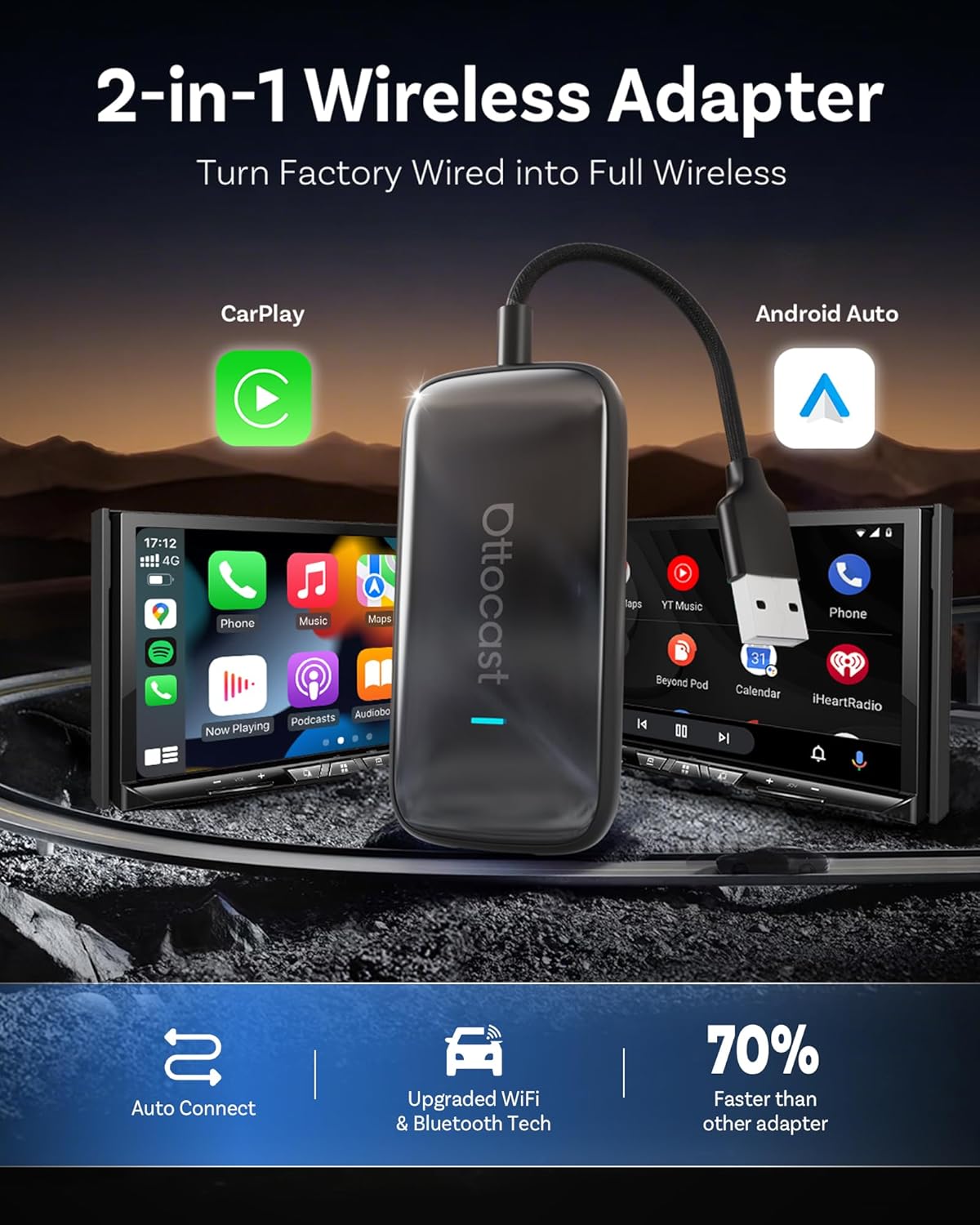
Image 2.1: Contents of the OTTOCAST Play2Video Ultra package.
3. Compatibility
The OTTOCAST Play2Video Ultra is compatible with vehicles that originally support wired CarPlay. Please ensure your vehicle meets the following requirements:
- Your vehicle must have factory-installed wired CarPlay.
- Your iPhone must be running iOS 10 or later.
- Your Android phone must be running Android 11 or later.
- Note: This product is not compatible with BMW or Tesla vehicles.
If you are unsure whether your car supports wired CarPlay, please contact your car dealer for assistance or use the OTTOCAST Compatibility Checker.
4. Setup
Follow these steps to set up your OTTOCAST Play2Video Ultra:
- Plug In the Device: Connect the OTTOCAST Play2Video Ultra to your car's USB port that supports wired CarPlay. Use the provided USB-A to USB-C adapter if your car has a USB-C port. The device will automatically power on.
- Connect to Wi-Fi/Hotspot: On your car's display, navigate to the device's interface. Connect the device to a Wi-Fi network or your phone's mobile hotspot to enable streaming features.
- Pair via Bluetooth: On your smartphone, enable Bluetooth and search for the device (e.g., "Play2Video-Ultra-XXXX"). Pair your phone with the device. This establishes the wireless CarPlay or Android Auto connection.

Image 4.1: Plugging the device into the car's USB port.

Image 4.2: Connecting to Wi-Fi for internet access.

Image 4.3: Bluetooth pairing for wireless CarPlay.
The device is designed for quick auto-connection, typically within 10-15 seconds after initial setup.
Setup Video Guide
Video 4.1: This video demonstrates the setup process for the OTTOCAST Play2Video Ultra, showing how to connect the device and establish wireless CarPlay.
5. Operating Instructions
5.1 Navigating the Android Interface
The Play2Video Ultra features a user-friendly Android 12 interface. You can easily switch between applications and CarPlay/Android Auto with a tap on the screen. The interface is designed for quick response and intuitive navigation.

Image 5.1: The user-friendly Android 12 system built for convenience.
5.2 Using Car Controls
The device integrates seamlessly with your vehicle's original controls, including:
- Steering wheel buttons
- Siri/Voice commands
- Control knobs
This allows you to manage music, calls, and other functions without diverting your attention from the road.

Image 5.2: The device works with your car's original controls.
6. Media Streaming
The OTTOCAST Play2Video Ultra comes pre-installed with several popular streaming applications, transforming your car's display into an entertainment hub.
6.1 Pre-installed Applications
Enjoy direct access to:
- Netflix
- YouTube
- Spotify
- IPTV
- Amazon Prime Video

Image 6.1: All your favorite apps already loaded.
6.2 App Hub and Offline Playback
The integrated App Hub allows you to download and update additional applications. For entertainment in areas without network coverage, the device supports offline playback of videos from a 128 GB USB drive.

Image 6.2: Massive storage for smooth streaming performance and App Hub customization.

Image 6.3: Support for offline playback, perfect for road trips and no-signal zones.
Media Streaming Video
Video 6.1: This video highlights the entertainment features of the OTTOCAST Ultra, showcasing streaming capabilities on your car's display.
7. Connectivity
The Play2Video Ultra features advanced connectivity options:
- Dual Wi-Fi 6 Technology: Ensures stable and uninterrupted online access for streaming and browsing, even while CarPlay or Android Auto are active.
- Bluetooth: Facilitates seamless pairing with your smartphone for wireless CarPlay and Android Auto, as well as hands-free calling and music playback.
- Auto-Connect: Once initially set up, the device automatically connects to your phone and car system each time you start your vehicle.
8. Features
- Android 12 System: Provides a familiar, fast, and responsive user experience.
- Durable Metal Body: Compact and sturdy design with a metal shell for efficient heat dissipation, ensuring longevity even in varying temperatures.
- Compact Design: 50% smaller than many alternatives, allowing for discreet placement without messy wires.
- Massive Storage: Equipped with 4GB RAM and 32GB internal storage for smooth operation and app performance.

Image 8.1: The device is designed to operate across a wide temperature range.

Image 8.2: The compact and refined design of the device.
9. Troubleshooting
If you encounter issues with your OTTOCAST Play2Video Ultra, consider the following common solutions:
- Compatibility Issues: Ensure your vehicle has factory-wired CarPlay and is not a BMW or Tesla. Verify your phone's OS version (iOS 10+ or Android 11+). Some users have reported compatibility challenges with specific car models (e.g., Mazda CX-70, Nissan Murano).
- Freezing/Slow Response: Ensure a stable internet connection via Wi-Fi or mobile hotspot. Performance can vary based on the car's screen quality and network stability.
- Connection Problems: Double-check that the device is securely plugged into the correct USB port. Ensure Bluetooth and Wi-Fi are enabled on your phone and correctly paired.
- Streaming Live Content: Some users have reported issues with live streaming (e.g., live sports) crashing. Ensure a strong, consistent internet connection.
- Insufficient Power: If the device does not receive enough power, use the provided Y-connector power cable to draw power from an additional USB port.
For persistent issues, refer to the user manual or contact OTTOCAST support.
10. Specifications
| Feature | Specification |
|---|---|
| Product Dimensions | 3.7 x 0.9 x 2.8 inches |
| Item Weight | 6.4 ounces |
| Item Model Number | CA515-T |
| Compatible Devices | Smartphone |
| Connector Type | USB 2.0 |
| Color | Black |
| Manufacturer | OTTOCAST |
| Operating Temperature | -20°C to 70°C |
| Internal Storage | 4GB RAM + 32GB ROM |
11. Warranty & Support
For any inquiries, technical assistance, or warranty information, please contact OTTOCAST support:
- Email: Support@ottocast.com
- Availability: 7x24 Hours Online
For product compatibility verification, please visit the OTTOCAST Compatibility Checker.


