Introduction
Thank you for choosing the YFK Smart Fingerprint Door Lock. This manual provides detailed instructions for the installation, operation, and maintenance of your new smart lock. Please read this manual thoroughly before installation and use to ensure proper function and security.
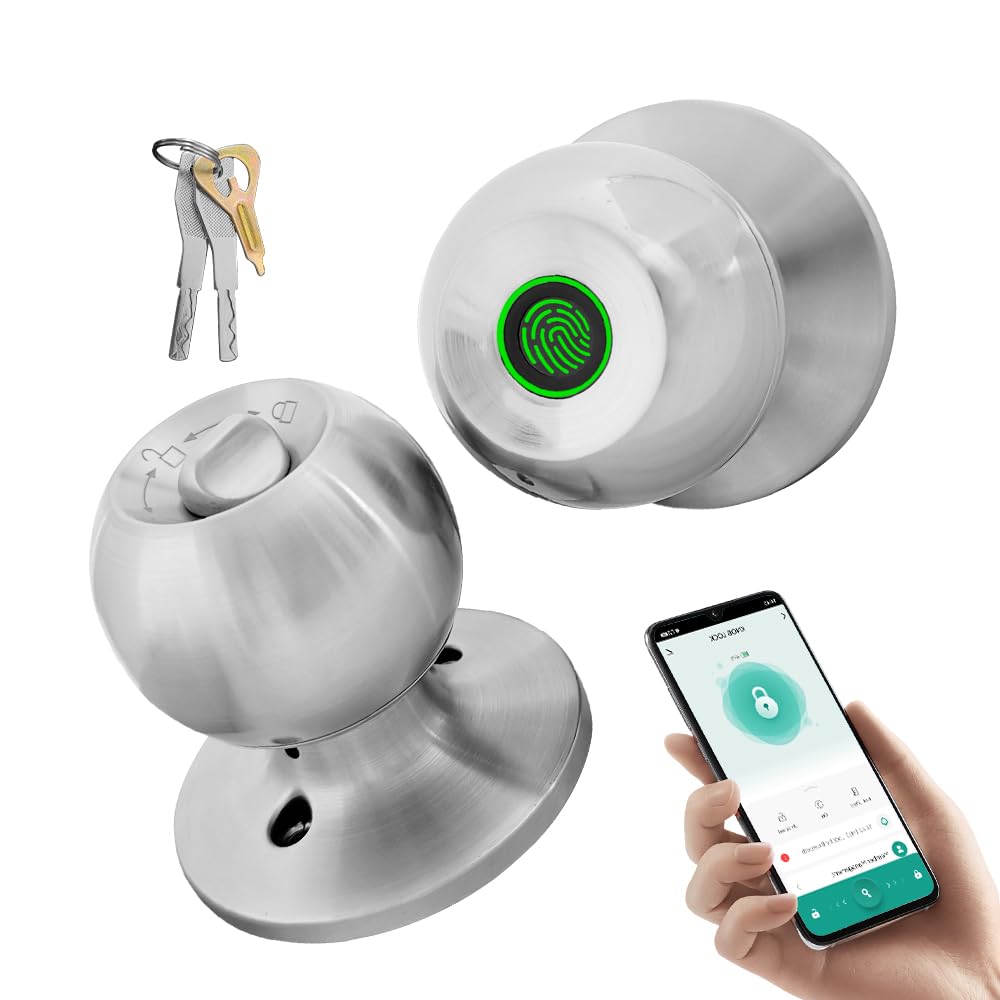
Image: The YFK Smart Fingerprint Door Lock in silver, showcasing its sleek design.
Key Features:
- Fingerprint Access: Unlock your door in approximately 1.5 seconds with advanced biometric technology. Stores up to 20 unique fingerprints.
- Multiple Unlocking Modes: Choose from fingerprint, mechanical key, or app access.
- Smart App Control: Manage your lock remotely via the Tuya Smart App, including Bluetooth unlocking, user management, and access history.
- Durable Construction: Made from premium aluminum alloy and stainless steel for long-lasting performance.
- Rechargeable Battery: Built-in Li-On rechargeable battery with an estimated life of 8-12 months, charged via a Type-C port.
- Universal Compatibility: Compatible with wooden, steel, copper, and composite doors (35–55mm thick) and features an adjustable 60–70mm latch.
- Low Battery Alarm: Provides warning when battery power is low.
Package Contents
Before beginning installation, please verify that all components are present and undamaged.
- YFK Smart Fingerprint Door Lock Unit
- Installation Hardware
- 2 Mechanical Keys
- User Manual
Setup and Installation
This section guides you through the physical installation of the YFK Smart Fingerprint Door Lock.
Door Compatibility:
- Door Thickness: 35mm to 55mm (1.38 inches to 2.17 inches)
- Latch: Adjustable 60mm to 70mm (2.36 inches to 2.76 inches)
- Door Types: Wooden, steel, copper, and composite doors.
General Installation Steps:
- Prepare the Door: Ensure your door meets the compatibility requirements. If replacing an existing lock, remove it.
- Install the Latch: Insert the latch into the door edge and secure it with screws. Adjust the backset if necessary.
- Install the Exterior Assembly: Place the exterior lock assembly (with fingerprint sensor) onto the door, aligning it with the latch.
- Install the Interior Assembly: Connect the interior lock assembly to the exterior assembly, ensuring the spindle and wires are correctly routed. Secure with mounting screws.
- Test Operation: After installation, test the mechanical key and ensure the knob turns smoothly.
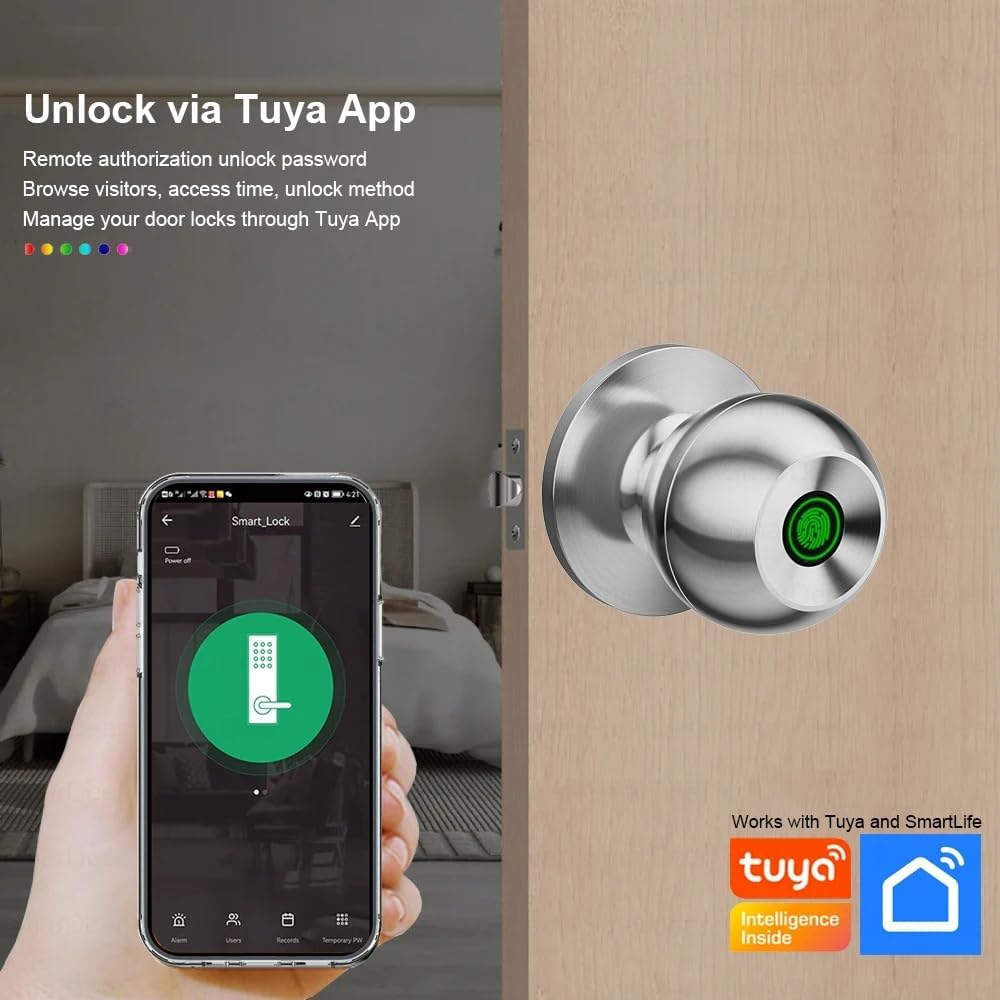
Image: The YFK Smart Fingerprint Door Lock shown installed on a wooden door, demonstrating its appearance after setup.
Operating Instructions
Learn how to use the various unlocking methods and smart features of your YFK Smart Fingerprint Door Lock.
1. Fingerprint Access:
- Enroll Fingerprints:
- Download and install the Tuya Smart App (see 'Smart App Control' section).
- Follow the in-app instructions to add new fingerprints. You can store up to 20 unique fingerprints.
- Ensure your finger covers the entire sensor for accurate registration.
- Unlock with Fingerprint:
- Place your registered finger firmly on the fingerprint sensor.
- The lock will unlock in approximately 1.5 seconds if the fingerprint is recognized.
2. Mechanical Key Access:
- In case of emergency or battery depletion, use one of the two provided mechanical keys.
- Insert the key into the keyhole located on the exterior assembly and turn to unlock.

Image: A detailed view of the YFK Smart Door Lock's exterior, highlighting the mechanical keyhole and the Type-C charging port.
3. Smart App Control (Tuya Smart App):
The Tuya Smart App allows for remote management and enhanced control over your lock.
- Download and Install: Search for "Tuya Smart" in your mobile app store (iOS or Android) and install the application.
- Pair the Lock:
- Enable Bluetooth on your smartphone.
- Open the Tuya Smart App and follow the on-screen instructions to add a new device.
- Ensure your phone is within Bluetooth range of the lock during pairing.
- App Functions:
- Bluetooth Unlocking: Unlock the door directly from the app when within Bluetooth range.
- User Fingerprint Management: Add, edit, or delete registered fingerprints.
- Unlock Record Log: View a history of all lock and unlock events.
- Temporary Access: Grant temporary access to guests or service providers.
- Low Battery Warning: Receive notifications when the lock's battery is low.

Image: A smartphone screen showing the Tuya Smart App interface, demonstrating remote control capabilities for the smart lock.

Image: An infographic illustrating the various functions available through the Tuya App, such as APP Unlock, User Fingerprint Management, and Lock Unlocking Record Log.
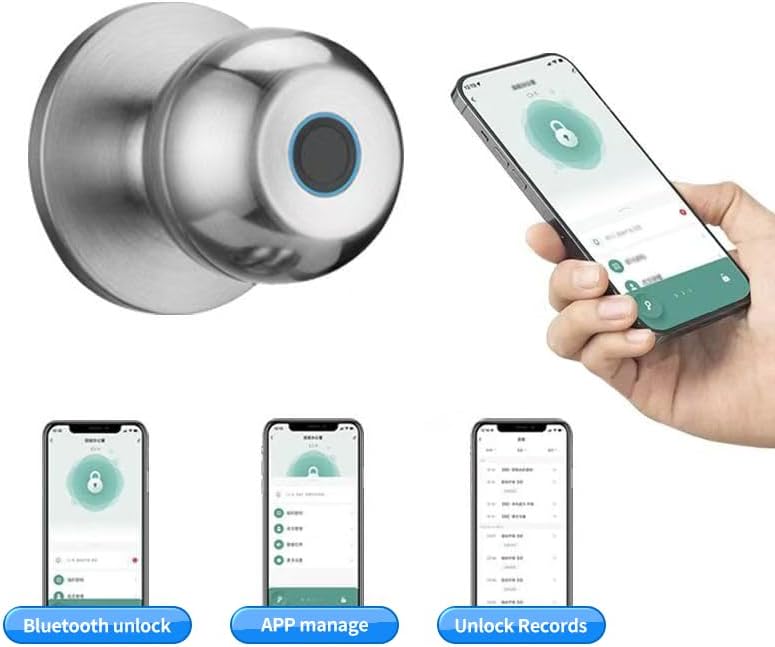
Image: Multiple smartphone screenshots demonstrating the Tuya App's features, including Bluetooth unlocking, app-based management, and viewing unlock records.
4. Multiple Unlocking Modes:
The lock supports various operational modes to suit different needs:
- Standard Mode: Requires fingerprint, key, or app unlock for each entry.
- Normally Open Mode: Keeps the door unlocked for continuous access (e.g., during parties or business hours). This mode can typically be activated via the app or a specific sequence on the lock.
- Reverse Lock Mode: (If applicable, specific details not provided, but generally implies a mode for enhanced security or specific access control). Refer to the Tuya App for advanced settings.
Maintenance
Battery Management:
- The YFK Smart Fingerprint Door Lock is equipped with a built-in Li-On rechargeable battery.
- Expected battery life is 8-12 months, depending on usage frequency.
- Charging: Use a standard Type-C USB cable to charge the lock. The charging port is located on the exterior assembly.
- Low Battery Warning: The lock will provide an audible or visual alert when the battery level is low. Charge the lock promptly to avoid being locked out.

Image: An illustration highlighting the Li-On rechargeable battery and the Type-C charging port of the YFK Smart Door Lock.
General Care:
- Clean the lock's exterior with a soft, dry cloth. Avoid abrasive cleaners or solvents.
- Keep the fingerprint sensor clean and free of dirt or moisture for optimal performance.
- Do not expose the lock to extreme temperatures or direct water spray.
Troubleshooting
This section addresses common issues you might encounter with your YFK Smart Fingerprint Door Lock.
- Fingerprint Not Recognized:
- Ensure your finger is clean and dry.
- Place your finger firmly and completely on the sensor.
- Try re-registering your fingerprint through the Tuya Smart App.
- Ensure the sensor is clean.
- Lock Not Responding:
- Check the battery level. Recharge the lock if the battery is low.
- Use the mechanical key for emergency access.
- App Connectivity Issues:
- Ensure Bluetooth is enabled on your smartphone.
- Make sure your phone is within close proximity to the lock.
- Restart the Tuya Smart App or your phone.
- Try re-pairing the lock with the app.
- Lock Mechanism Sticking:
- Ensure the installation screws are not overtightened.
- Check for any obstructions in the door frame or strike plate.
If you continue to experience issues, please refer to the manufacturer's support resources.
Specifications
| Brand | YFK |
| Model Number | B0FL7M8WDC |
| Material | Aluminum, Stainless Steel (Metal) |
| Color | Silver |
| Product Dimensions | 3.35"L x 2.64"W |
| Door Thickness Compatibility | 35mm - 55mm |
| Adjustable Latch | 60mm - 70mm |
| Lock Type | Combination Lock (Fingerprint, Key, App) |
| Special Features | Auto-Lock, Fingerprint, Lightweight, Lockable, Rustproof |
| Battery Type | Built-in Li-On Rechargeable Battery |
| Charging Port | Type-C |
| Indoor/Outdoor Usage | Indoor |
| Hand Orientation | Ambidextrous |
Warranty and Support
For warranty information, technical support, or further assistance, please refer to the official YFK website or contact their customer service directly. Details are typically provided with your purchase documentation or on the product packaging.
Manufacturer: door knob (as per product specifications, please refer to YFK for official support)


