
1. Introduction
This manual provides detailed instructions for the setup, operation, and maintenance of your EDJO Ergonomic Wireless Keyboard and Mouse Combo. Please read this manual thoroughly before use to ensure optimal performance and longevity of your device.
2. Package Contents
- 1 x EDJO Ergonomic Wireless Keyboard
- 1 x EDJO Wireless Mouse
- 1 x USB Receiver (stored inside the mouse battery compartment)
- 1 x User Manual
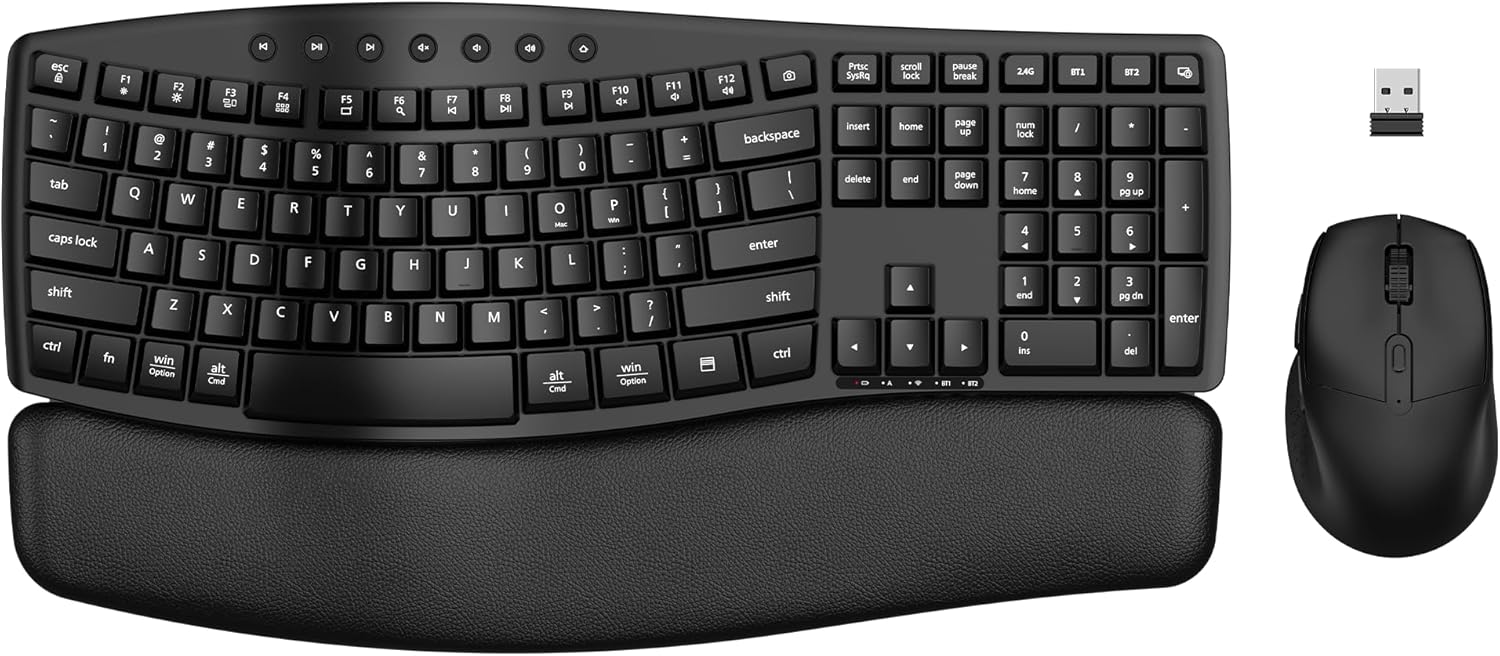
Image 2.1: Overview of the EDJO Ergonomic Wireless Keyboard and Mouse Combo, including the USB receiver.
3. Setup Instructions
3.1 Battery Installation
The keyboard requires two AAA batteries, and the mouse requires one AA battery (batteries are not included).
- Locate the battery compartment on the underside of the keyboard and mouse.
- Open the battery covers.
- Insert the batteries, ensuring correct polarity (+/-).
- Close the battery covers securely.
3.2 USB Receiver Location
The USB receiver for 2.4G wireless connection is conveniently stored inside the mouse battery compartment. Remove it before use.

Image 3.1: Detailed view of the wireless mouse, highlighting the USB receiver storage compartment.
3.3 Connecting Your Devices
The combo supports both 2.4G wireless (via USB receiver) and Bluetooth dual-mode connections.
3.3.1 2.4G Wireless Connection
- Insert the USB receiver into an available USB port on your computer.
- Turn on the keyboard and mouse using their respective ON/OFF switches.
- For the keyboard, press the 2.4G key (located at the top right) to switch to 2.4G mode.
- The devices should connect automatically.
3.3.2 Bluetooth Connection (BT1 / BT2)
The keyboard and mouse can connect to two different Bluetooth devices (BT1 and BT2).
- Turn on the keyboard and mouse.
- For Keyboard: Press and hold either the BT1 or BT2 key for 5 seconds until the indicator light flashes, indicating pairing mode.
- For Mouse: Press the button on the underside of the mouse to cycle through connection channels (2.4G, BT1, BT2). Select either BT1 or BT2. The indicator light will flash when in pairing mode.
- On your device (computer, laptop, tablet), open Bluetooth settings and search for new devices.
- Select the detected keyboard and mouse from the list to complete pairing.

Image 3.2: Diagram illustrating 2.4G and Bluetooth dual-mode connection options for the keyboard and mouse.
3.4 System Switching (Windows / Mac OS)
The keyboard supports dual-system layouts for Windows and Mac OS. To switch between systems:
- Press and hold Fn + O for Mac OS.
- Press and hold Fn + P for Windows.

Image 3.3: Keyboard layout showing keys for switching between Windows and Mac OS modes.
4. Operating Instructions
4.1 Ergonomic Design Features
The keyboard features a wave key design and an integrated wrist rest with a soft foam layer to enhance typing comfort and reduce wrist strain during extended use.

Image 4.1: The ergonomic wave design of the keyboard with integrated wrist rest.

Image 4.2: Exploded view of the wrist rest, showing its soft leather, memory foam, and hard support base layers.
4.2 Keyboard Multimedia Hotkeys
The keyboard includes 12 multimedia keys and 7 independent shortcut buttons for quick access to various functions:
- Multimedia Keys (F1-F12): Control media playback, volume, and other system functions.
- Independent Shortcuts: Dedicated buttons for functions like previous track, play/pause, next track, mute, volume down, volume up, and browser.
4.3 Mouse Functions
- 3-Level DPI Adjustment: Cycle through 1000, 1600, and 2400 DPI settings by pressing the DPI button on top of the mouse to adjust cursor speed.
- Forward/Backward Buttons: Located on the side of the mouse for easy navigation in web browsers and file explorers.
- Silent Clicks: Both the keyboard and mouse are designed for silent operation to minimize disturbance.
5. Maintenance
5.1 Smart Power-Saving Mode
To conserve battery life, both the keyboard and mouse feature an intelligent power-saving chip. They will automatically enter sleep mode after 30 minutes of inactivity. To reactivate, simply press any key on the keyboard or move/click the mouse.

Image 5.1: Illustration of the smart power-saving feature for both keyboard and mouse.
5.2 Battery Replacement
Replace batteries when performance degrades or devices become unresponsive. Refer to Section 3.1 for battery installation instructions.
5.3 Cleaning
To clean your keyboard and mouse, use a soft, dry cloth. For stubborn dirt, a slightly damp cloth with mild soap can be used, ensuring no liquid enters the device. Avoid harsh chemicals or abrasive materials.
6. Troubleshooting
- Device not connecting:
- Ensure batteries are correctly installed and charged.
- Verify the ON/OFF switch is in the 'ON' position.
- For 2.4G connection, ensure the USB receiver is securely plugged into a working USB port.
- For Bluetooth connection, ensure Bluetooth is enabled on your device and re-attempt the pairing process (Section 3.3.2).
- Try connecting to a different USB port or device to rule out port/device issues.
- Lagging or unresponsive mouse/keyboard:
- Replace batteries with fresh ones.
- Ensure the devices are within the 10-meter operating range of your computer.
- Minimize interference from other wireless devices (e.g., Wi-Fi routers, other wireless peripherals).
- Keyboard layout incorrect (e.g., @ key types ", etc.):
- Ensure the keyboard is set to the correct operating system mode (Windows or Mac OS) using Fn+O/P (Section 3.4).
- Check your computer's regional and language settings to ensure the correct keyboard layout is selected.
7. Specifications
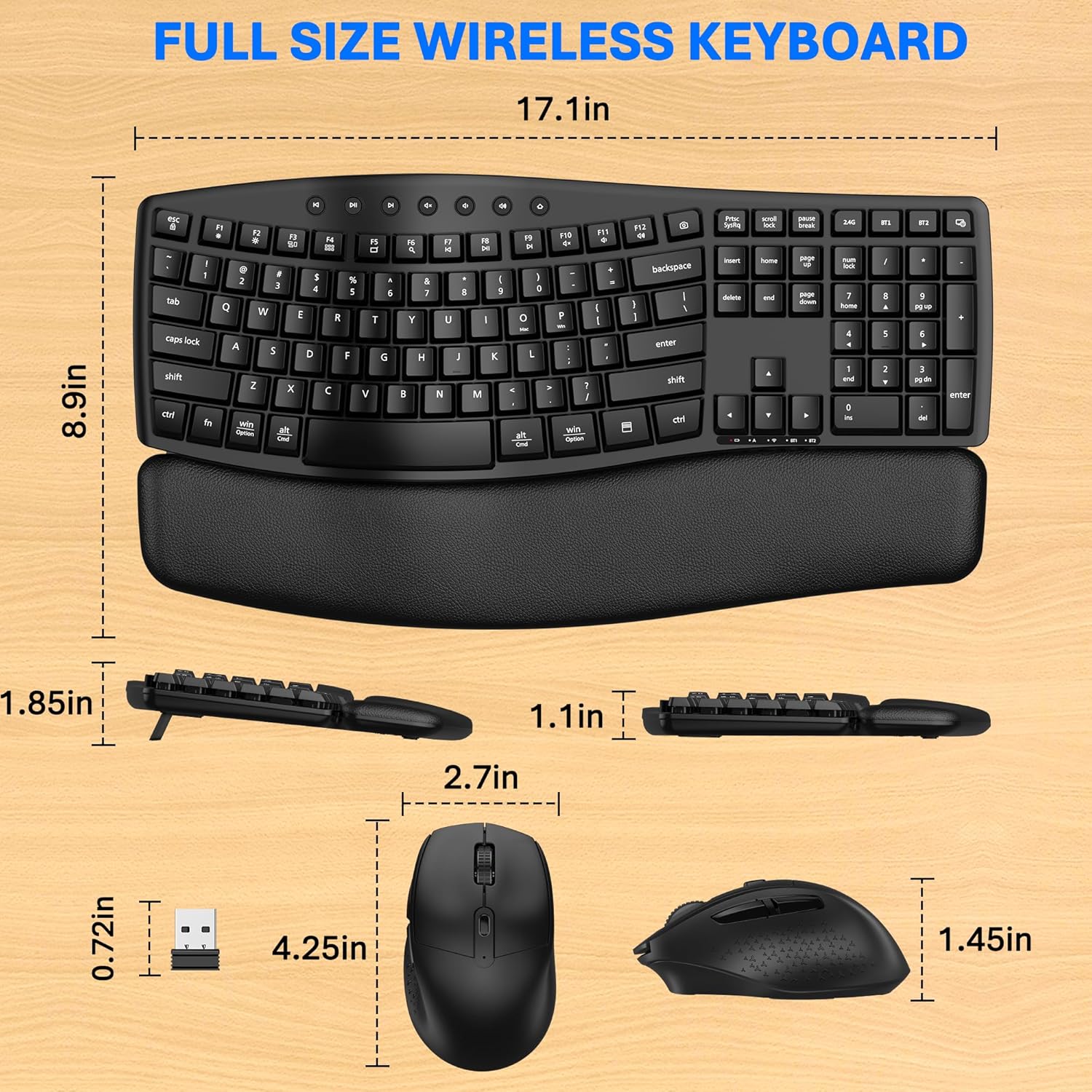
Image 7.1: Dimensions of the EDJO Ergonomic Wireless Keyboard and Mouse.
| Feature | Detail |
|---|---|
| Brand | EDJO |
| Model | Ergonomic Wireless Keyboard Mouse Combo |
| Connectivity Technology | Bluetooth, 2.4G USB |
| Keyboard Dimensions | 17.1 x 8.9 inches (approximate) |
| Mouse Dimensions | 4.25 x 2.7 x 1.45 inches (approximate) |
| Item Weight | 2.46 pounds (combo) |
| Special Features | Ergonomic Design, Wrist Rest, Silent Typing, Multimedia Hotkeys, Dual-System Layout |
| Mouse DPI Levels | 1000 / 1600 / 2400 |
| Compatible Devices | Laptop, Desktop PC, Tablets (Windows 7 and above, Mac OS, Chrome OS) |
| Keyboard Battery | 2 x AAA (not included) |
| Mouse Battery | 1 x AA (not included) |
8. Warranty and Support
8.1 Warranty Information
This EDJO product comes with a 12-month warranty from the date of purchase. This warranty covers manufacturing defects and ensures the product functions as intended under normal use. Please retain your proof of purchase for warranty claims.
8.2 Customer Support
For technical assistance, warranty claims, or any questions regarding your EDJO Ergonomic Wireless Keyboard and Mouse Combo, please contact our customer support team. You can typically find contact information (such as an after-sales email address) on the product packaging or through the retailer where you purchased the item.