
Ortur R1
Ortur R1 Portable Laser Engraver and Cutter User Manual
Model: R1
1. Introduction
The Ortur R1 is a 5000mW portable laser engraver and cutter designed for various materials such as wood, leather, glass, and cloth. It features a foldable design for easy setup and portability, and can be controlled via a dedicated mobile application. This manual provides essential information for safe and effective use of your Ortur R1 device.

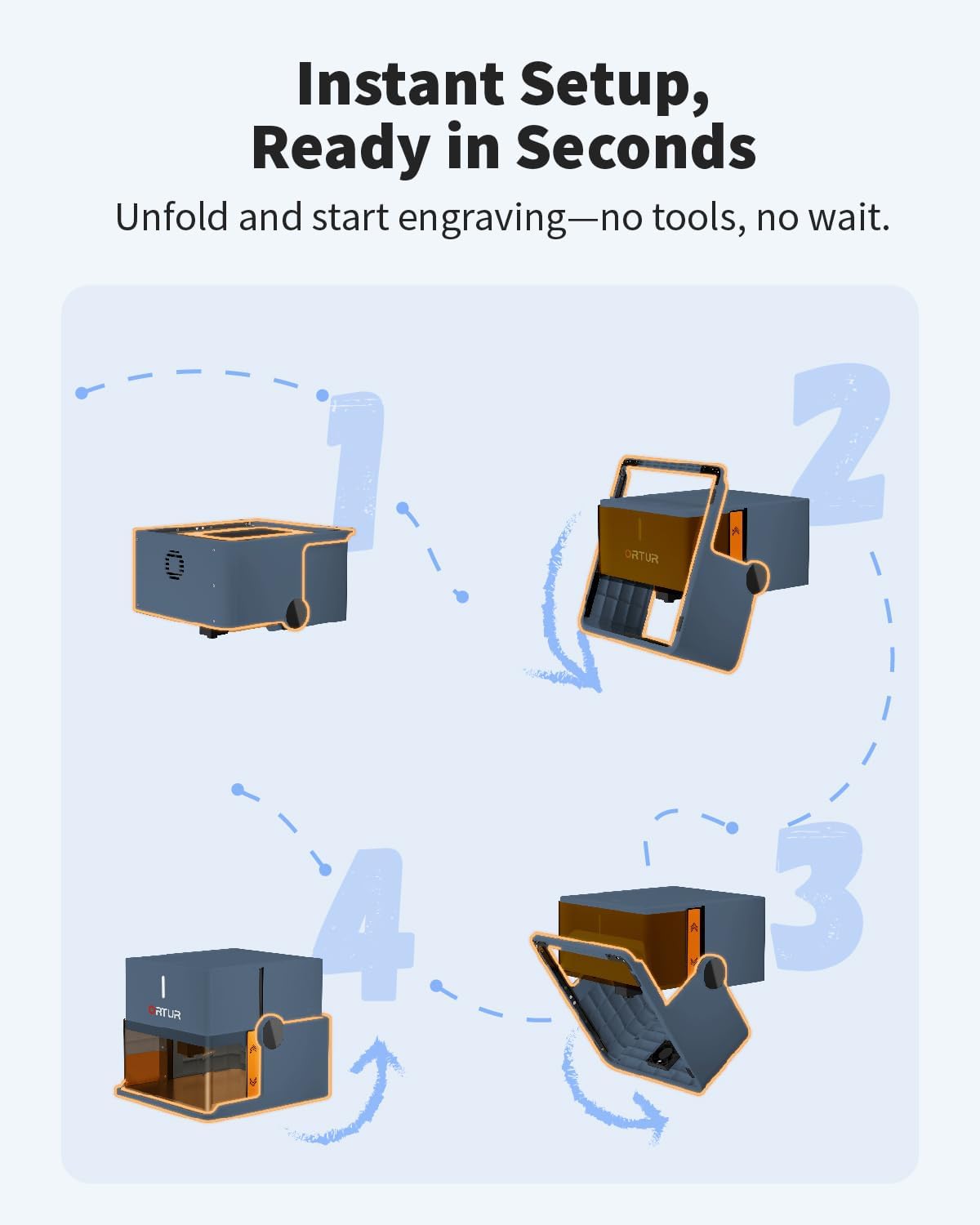
The Ortur R1 is designed for convenience, featuring a foldable structure that requires no complex installation. It includes an aluminum alloy base plate to protect surfaces during operation.
2. Safety Information
The Ortur R1 laser engraver is classified as a Class 1 laser product, ensuring reliable protection against laser hazards under normal operating conditions. However, it is crucial to follow all safety guidelines to prevent accidents.
2.1 Comprehensive Safety Protections
- Watchdog Function: Monitors the device for abnormal operation.
- Auto Shutdown: Automatically powers off under certain conditions.
- Exposure Limits: Designed to operate within safe laser exposure limits.
- Tilt Detection: Automatically stops operation if the device is tilted beyond a safe angle.
- Lid-Stop: Engraving stops if the protective lid is opened during operation.
- USB Lock: The machine requires a USB connection to start, preventing unintended use, especially by children.


Always supervise children when the device is in use and ensure they understand safety protocols.
3. Package Contents
The Ortur R1 comes in a compact, foldable design. Please verify that all components are present upon unboxing.
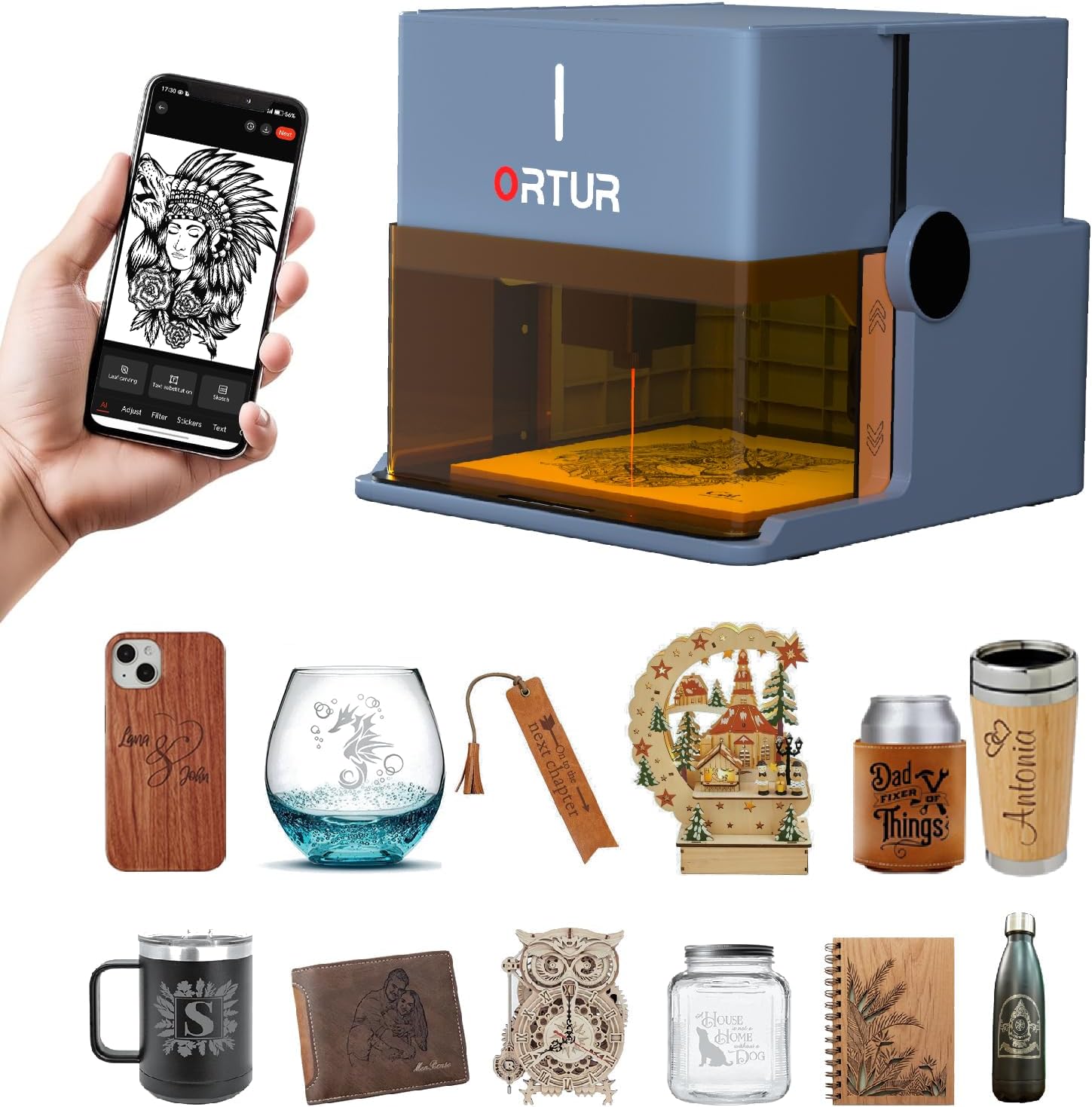
For a detailed unboxing guide, refer to the video below.
Video 1: R1 Complete Machine Unboxing Tutorial. This video demonstrates the unboxing process and initial setup of the Ortur R1 laser engraver.
4. Setup
4.1 Unfolding and Initial Placement
The Ortur R1 features a "Click and Go" foldable design, meaning it requires no complex assembly. Simply unfold the device, and it is ready for use. Place the engraver on a stable, flat surface. The integrated aluminum alloy base plate protects your desktop.

Video 2: Just "Click" and "Go" - Ortur R1 Foldable Laser Engraver. This short video demonstrates the quick unfolding and readiness of the Ortur R1.
4.2 Power and USB Connection
Connect the provided USB data cable and power cable to the designated ports on the device. Ensure a secure connection before powering on.
Video 3: Ortur R1 App Connection Tutorial (Preview). This short video demonstrates connecting the USB and power cables to the Ortur R1.
4.3 App Installation and Connection
Download the official Ortur application to your mobile device. The app allows for remote control and file transfer.
- Ensure your Ortur R1 is powered on.
- Open the Ortur app on your smartphone.
- Follow the in-app instructions to scan for and connect to your device.
Video 4: Ortur R1 App Connection Tutorial. This video provides a step-by-step guide on connecting the Ortur R1 to its mobile application.
5. Operating Instructions
5.1 Engraving Area and Material Placement
The Ortur R1 supports an engraving area of 100x100mm. Place your material (e.g., wood, leather, glass, cloth) flat on the base plate within this area.
Video 5: Ortur R1 Triangular Strip Use Tutorial. This video demonstrates how to place material and define the engraving area.
5.2 App Control and Design Features
The Ortur app provides various features for designing and initiating engravings:
- AI Algorithms: Automatically optimize images for engraving.
- Hand-Drawn Engraving: Sketch directly on your phone screen and engrave the design.
- Puzzle Mode: Customize designs with a modular approach.
- QR Code Engraving: Generate and engrave QR codes from text, photos, or videos.
- Quick Custom Text Engraving: Instant input with over 19 fonts and multi-language support.


Video 6: More Languages - From Ideal to Engrave. This video demonstrates the app's capability to engrave text in various languages.
5.3 Online and Offline Modes
The Ortur R1 supports both online and offline operation. You can control the device remotely and transfer files with ease using the app. Offline engraving allows you to engrave pre-loaded designs without a continuous connection to your mobile device.

Video 7: Ortur R1 Achieves Offline Engraving. This video demonstrates the process of performing an engraving in offline mode.
5.4 Engraving and Cutting Process
The 5W laser module provides high efficiency for both engraving and cutting. It can cleanly cut 3mm basswood board in a single pass. The enclosed design with a high-definition transparent cover allows for safe observation without the need for additional goggles.
- Accuracy: Up to 0.05mm.
- Laser Spot: 0.025*0.11mm for fine engraving.
- Laser Speed: Up to 5000mm/min.
6. Maintenance
To ensure the longevity and optimal performance of your Ortur R1 laser engraver, regular maintenance is recommended.
- Cleaning the Lens: Periodically clean the laser lens with a soft, lint-free cloth and lens cleaning solution to maintain engraving precision.
- Dust Removal: Use compressed air or a soft brush to remove dust and debris from the engraving area and ventilation ports.
- Storage: When not in use, fold the engraver into its compact form and store it in a dry, dust-free environment.
- Cable Inspection: Regularly check power and USB cables for any signs of wear or damage.
7. Troubleshooting
If you encounter issues with your Ortur R1, refer to the following common troubleshooting steps.
| Problem | Possible Cause | Solution |
|---|---|---|
| Device not powering on | Power cable not connected; USB cable not connected (due to USB lock safety feature) | Ensure both power and USB cables are securely connected. |
| App cannot connect to device | Bluetooth/Wi-Fi issues; device not in pairing mode; app outdated | Restart the device and app. Check your phone's wireless settings. Ensure the app is updated to the latest version. |
| Engraving is faint or incomplete | Incorrect material settings; dirty laser lens; material too far from laser | Adjust laser power/speed settings in the app. Clean the laser lens. Ensure material is properly placed. |
| Device stops unexpectedly | Safety feature triggered (e.g., lid open, tilt detected) | Check if the lid is closed and the device is on a stable surface. Refer to safety section. |
If the problem persists, please contact Ortur customer support.
8. Specifications
| Feature | Detail |
|---|---|
| Model Number | R1 |
| Laser Power | 5000mW (5W) |
| Engraving Area | 100 x 100 mm |
| Accuracy | Up to 0.05mm |
| Laser Spot Size | 0.025 x 0.11 mm |
| Laser Speed | Up to 5000mm/min |
| Product Dimensions | 12.4 x 11.38 x 7.28 inches |
| Item Weight | 6.84 pounds |
| Laser Class | Class 1 |
| Connectivity | APP Control (Online/Offline modes) |
| Supported Materials | Wood, Leather, Glass, Cloth, etc. |
9. Warranty and Support
Ortur provides comprehensive customer service for the R1 laser engraver.
- Warranty: 365-day warranty from the date of product receipt.
- Technical Support: 24/7 service and lifetime technical support.
- Contact: For any issues or inquiries, please contact Ortur directly through the Amazon platform or visit the official Ortur store.
Related documentsR1


Ask a question about this manual
Ask about setup, troubleshooting, compatibility, parts, safety, or missing instructions. Manuals+ will review the question and use this page’s manual context to help answer it.