
1. Product Overview
The REOLINK TrackMix PoE is a 4K dual-lens PTZ (Pan-Tilt-Zoom) security camera system designed for outdoor surveillance. It features advanced functionalities such as auto-tracking, smart detection, and flexible storage options, all powered via Power over Ethernet (PoE).
Key Features:
- Dual View: Simultaneously view wide-angle and close-up details on one screen using its 2.8mm wide-angle lens and 8mm telephoto lens.
- 6X Hybrid Zoom: The telephoto lens automatically zooms in on detected targets for detailed views.
- 355° Pan & 90° Tilt: The camera can rotate horizontally and vertically to follow subjects.
- Auto Tracking: Automatically tracks people, vehicles, and pets within its detection zone.
- Smart Detection: Differentiates between people, vehicles, and pets to reduce false alarms.
- 24/7 Recording: Continuous recording to a microSD card or Reolink NVR.
- AI Video Search: Quickly locate specific events in recorded footage without subscription fees.
- PoE Convenience: Simplified installation with power and data transmission over a single Ethernet cable.
- Instant Alerts: Triggers spotlights and sirens upon suspicious motion detection, sending push/email notifications.
2. Setup and Installation
2.1 What's in the Box
Before you begin, ensure you have all components:
- REOLINK TrackMix PoE Camera
- Mounting Plate
- Mounting Template
- Screws and Wall Anchors
- Waterproof Lid for Ethernet Connector
- Quick Start Guide
Note: A PoE switch or Reolink NVR (for power and network connection) and an Ethernet cable are required but not included. A DC 12V power adapter is also not included if not using PoE.
2.2 Initial Setup (Power On & App Configuration)
- Connect the Camera: Connect the camera to a PoE switch using an Ethernet cable. Then, connect the PoE switch to your router's LAN port with another Ethernet cable.
- Download Reolink App: Scan the QR code in the Quick Start Guide or search for 'Reolink' in your app store to download the latest version of the Reolink App.
- Add Camera to App:
- Automatic Detection: Ensure your phone is connected to the same network as the camera. In the Reolink App settings, enable 'Add Devices Automatically'. The camera should appear in the device list. Tap it to initialize.
- Manual Addition: Tap the '+' button in the app, then choose 'Input UID/IP' to enter the camera's UID (found on the camera label) or IP address. Alternatively, tap 'LAN' to find devices within your local network.
- Initialize Camera: Follow the on-screen prompts to create a device password and name your camera.
Video: How to Initially Set up And Install Reolink Trackmix PoE. This video demonstrates the steps for initial setup and physical installation of the camera.
2.3 Physical Installation
The camera can be mounted on a wall or ceiling. Ensure the mounting location provides a clear field of view and is within range of your network connection.

Image: Stable PoE Connection. This diagram illustrates how to connect the camera using a PoE switch to your router for both power and data.
- Prepare Mounting Location: Use the provided mounting template to mark drill holes on the wall or ceiling.
- Drill Holes: Drill holes at the marked positions. Insert wall anchors if installing on masonry.
- Attach Mounting Base: Secure the camera's mounting base to the wall or ceiling using the screws.
- Adjust Camera Direction: After mounting, use the Reolink App or Client software to pan and tilt the camera to achieve the desired viewing angle.
- Waterproof the Connection: Install the waterproof lid over the Ethernet cable connector to prevent water intrusion and ensure long-lasting performance.

Image: Detailed view of the camera's components and ports, including the reset button, microSD card slot, and cable connections.
2.4 Important Notes for Camera Placement:
- Avoid pointing the camera directly at sunlight, mirrors, or glass windows to prevent image quality issues.
- Ensure the camera is mounted securely to prevent accidental falls.
3. Operating the Camera
3.1 Live View and Dual View
Access the live feed through the Reolink App or Client software. The dual-lens design allows you to see both a wide-angle overview and a zoomed-in detail simultaneously on one screen.

Image: Dual Lens for Immersive Visual Experience. This image demonstrates the simultaneous wide-angle and zoomed-in views provided by the dual-lens system.
3.2 Auto Tracking and Pan-Tilt-Zoom (PTZ)
The camera features 355° pan and 90° tilt capabilities. When motion is detected, the camera can automatically track the subject. You can also manually control the pan and tilt via the app.

Image: 355° Auto Zoom Tracking, Fast Positioning. This image illustrates the camera's ability to automatically track moving subjects across a wide area.
Tracking Modes:
The TrackMix PoE offers three tracking modes:
- Digital Tracking: The camera tracks targets only within the range of the wide-angle lens. If the target moves out of this range, tracking stops. Recommended for smaller monitoring areas (up to 100° field of view, ~10m distance).
- Digital Tracking First: The camera first tracks and zooms digitally. When the target approaches the edge of the wide-angle lens's field of view, the camera starts to pan and tilt to keep the target in frame. Suitable for larger areas (>100° field of view, ~10m distance).
- PT Tracking First: The camera tracks and zooms as normal. When the target is about to reach the edge of the telephoto lens's field of view, the camera pans and tilts to maintain tracking. Also suitable for larger areas (>100° field of view, ~10-15m distance).
Video: Introducing Three Tracking Modes. This video explains and demonstrates the different auto-tracking modes available on the camera.
3.3 Smart Detection and Alerts
The camera's AI can distinguish between people, vehicles, and pets, minimizing irrelevant alerts. Upon detection, the camera can trigger its built-in spotlights and siren, and send instant push notifications or email alerts to your device.

Image: Harsh Warning for the Unwelcome. This image shows the camera's smart detection capabilities triggering spotlights and sending alerts.
3.4 Night Vision
The camera provides full-color night vision with 4K clarity, utilizing its spotlights. It also supports infrared night vision for discreet monitoring in low-light conditions.

Image: Full-Color Night Vision with 4K Clarity. This image compares the visual output of the camera with spotlights on versus infrared night vision.
3.5 Recording and Storage
Recordings can be stored locally on a microSD card (up to 512GB, sold separately), a Reolink NVR, or uploaded to an FTP server. No subscription fees are required for these storage options.

Image: Flexible Recording Options. This image displays the various recording and storage methods available for the camera.
3.6 AI Video Search
The Reolink App allows you to search through recorded videos using AI. You can filter by detection modes (people, vehicles, pets) and control the timeline to quickly locate specific events without manually scrubbing through footage.
3.7 Smart Home Integration
The camera is compatible with Home Assistant, allowing for integration into your existing smart home ecosystem.
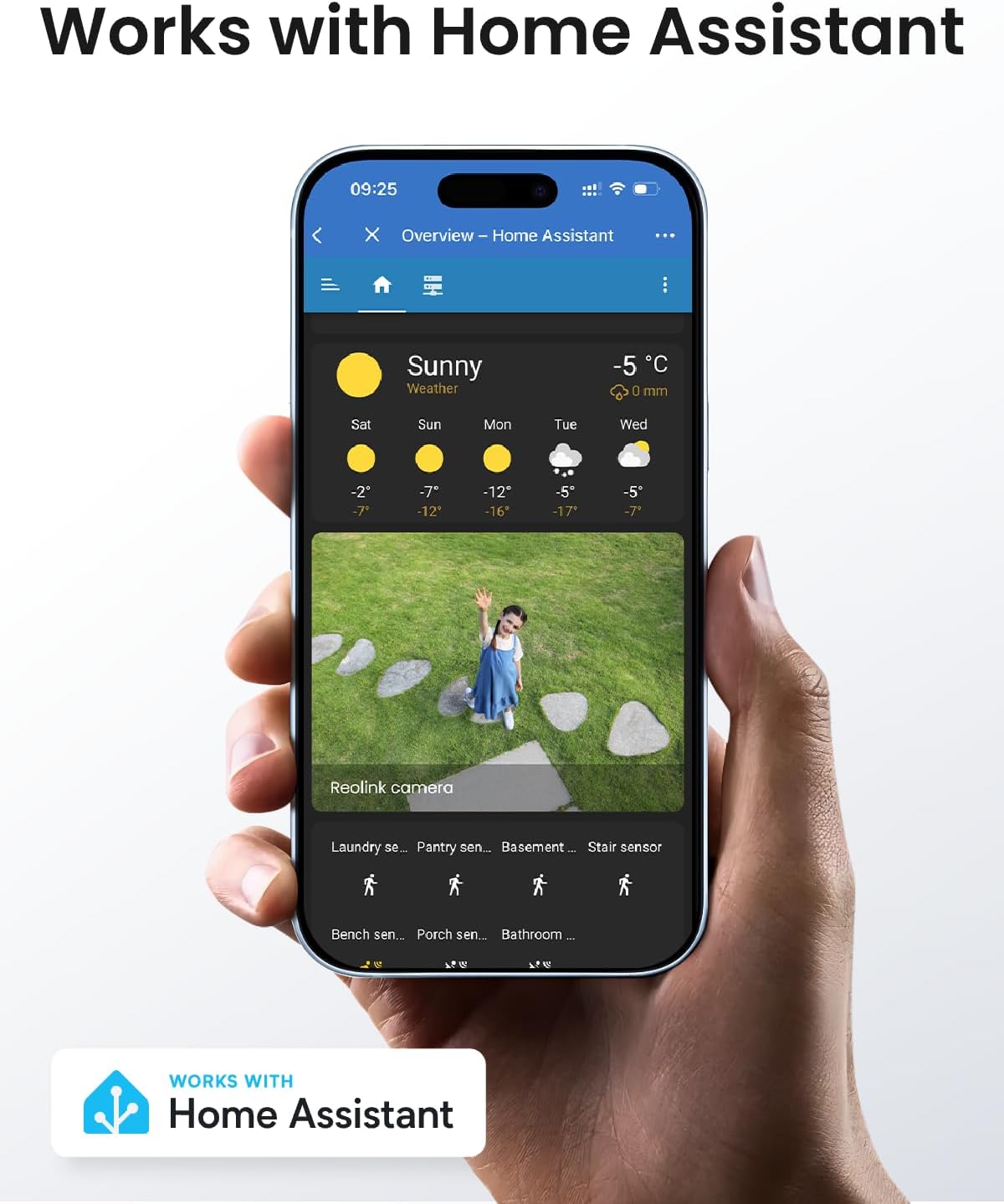
Image: Works with Home Assistant. This image shows the camera's integration with the Home Assistant platform.
Video: REOLINK PoE Security PTZ Camera, TrackMix PoE Grey. This video provides a general overview of the camera's features and capabilities.
4. Maintenance
- Cleaning: Regularly clean the camera lens and housing with a soft, damp cloth to ensure clear image quality. Avoid abrasive cleaners.
- Firmware Updates: Check the Reolink App or website periodically for firmware updates to ensure optimal performance and access to new features.
- Cable Inspection: Periodically inspect all cables for any signs of wear or damage, especially the Ethernet cable, to maintain a stable connection.
5. Troubleshooting
- No Power/Connection: Ensure the Ethernet cable is securely connected to both the camera and the PoE switch/NVR. Verify the PoE switch/NVR is powered on and functioning correctly.
- Lagging Live View: This can be caused by network congestion or insufficient bandwidth. Ensure your network is stable and has adequate bandwidth for 4K streaming. Reduce video quality settings in the app if necessary.
- False Alarms: Adjust the sensitivity of motion detection and configure detection zones in the Reolink App to minimize triggers from irrelevant movements (e.g., swaying trees).
- NVR Compatibility: If using with a Reolink NVR, ensure your NVR's hardware version (H3MB18, N2MB02, or N3MB01) is compatible and has the latest firmware update to correctly display dual-lens UI.
- Image Quality Issues: Check the lens for dirt or obstructions. Ensure the camera is not pointed directly at strong light sources or reflective surfaces.
6. Specifications
| Feature | Detail |
|---|---|
| Recommended Uses | Outdoor Security |
| Brand | REOLINK |
| Model Name | Reolink TrackMix PoE |
| Connectivity Technology | Ethernet, Wired |
| Special Feature | Night Vision |
| Indoor/Outdoor Usage | Outdoor |
| Compatible Devices | Reolink NVR |
| Controller Type | Reolink NVR |
| Mount Type | Ceiling Mount |
| Color | Grey |
| Connectivity Protocol | Ethernet |
| Power Source | Corded Electric |
| Batteries Required | No |
| Video Capture Format | MP4 |
| Video Capture Resolution | 4K |
| Item Dimensions | 8.15 x 8.07 x 7.48 inches |
| Item Weight | 1.61 Kilograms |
7. Warranty and Support
7.1 Warranty Information
The REOLINK TrackMix PoE camera typically comes with a 2-year limited warranty. Please refer to your purchase documentation or the official Reolink website for specific warranty terms and conditions.
7.2 Customer Support
For technical assistance, troubleshooting, or product inquiries, please visit the official Reolink support website or contact their customer service through the Reolink App.
Reolink Website: reolink.com


