
Product Overview
The OiLiehu Android 15 Car Radio is an advanced multimedia system designed for specific vehicle models. It features a 10.1-inch high-definition incell touch screen with a resolution of 1280x720, powered by the latest Android 15 operating system and a 4-core processor. With 4GB of RAM and 128GB of ROM, it offers a smooth user experience and ample storage for applications and media.
Key functionalities include wireless Apple CarPlay and Android Auto, Mirror Link for both iOS and Android devices, integrated GPS navigation with real-time traffic updates (via WiFi) and offline map support, Bluetooth for hands-free calls and music streaming, FM/RDS radio, customizable EQ settings, and support for original steering wheel controls. A waterproof AHD backup camera with a 170-degree wide angle is also included for enhanced parking safety.
This unit is designed for plug-and-play installation, with the frame and necessary cables included. Please ensure compatibility with your vehicle's year and model before installation.
1. Setup and Installation
1.1 Pre-Installation Check
Before beginning installation, verify that the car radio is compatible with your vehicle model (Renault Trafic 2, Opel Vivaro A, Nissan Primastar, years 2006-2014). The package includes a custom frame and cables for a direct fit. Ensure all components listed in the 'What's in the Box' section are present.
1.2 Physical Installation
The unit is designed for plug-and-play installation. No cutting is typically required. However, routing USB cables may require minor drilling. Refer to the provided installation tool for assistance.

Image: Comparison of the dashboard before and after installing the OiLiehu car radio, showing the integrated 10.1-inch screen.
1.3 Wiring Connections
Connect the power cables, USB cables, RCA input/output, GPS antenna, radio antenna, and reversing camera input as indicated in the wiring diagram. Ensure all connections are secure.

Image: Detailed wiring diagram illustrating the various connection points for the car radio components.
1.4 Canbus Configuration
If your vehicle uses a Canbus system, ensure the Canbus box is connected. After connecting, you must set the protocol correctly for steering wheel controls to function. Navigate to Settings > Factory Setting. Enter the password 1234, then go to CAN Settings and select Simple-Renault/Opel/Nissan for your car.

Image: Visual guide for connecting the Canbus and configuring steering wheel controls.
1.5 Backup Camera Installation
Connect the AHD backup camera. The camera automatically activates when reverse gear is engaged, displaying the rear view on the screen. The camera is waterproof and offers a 170-degree wide-angle view.
- Connect the red wire to the positive pole of the car's reversing light.
- Connect the black wire to GND (ground).
- Connect the power cable (pink wire labeled 'Reverse / Parking Sensor Control / Back in') to the car radio.

Image: Illustration of backup camera wiring and its functionality.
2. Operating Instructions
2.1 Android 15 System Interface
The car radio runs on Android 15, providing a familiar smartphone-like interface. You can download and install most Android applications from the app store. The 10.1-inch incell screen offers a bright and responsive touch experience.

Image: Visual representation of the Incell screen technology, highlighting its clarity and responsiveness.
2.2 Wireless Apple CarPlay & Android Auto
Connect your iPhone or Android smartphone wirelessly via Bluetooth and WiFi to access Apple CarPlay or Android Auto. This allows you to use supported phone applications (messages, music, navigation) directly on the car radio screen. Voice commands (Siri or Google Assistant) can be used for hands-free control, enhancing driving safety.
2.3 Mirror Link Function
Mirror Link allows you to display your smartphone's screen content directly on the car radio. This feature supports both iOS and Android devices and can be connected via WiFi or USB cable. For Android devices, ensure specific developer options permissions are enabled before connecting.
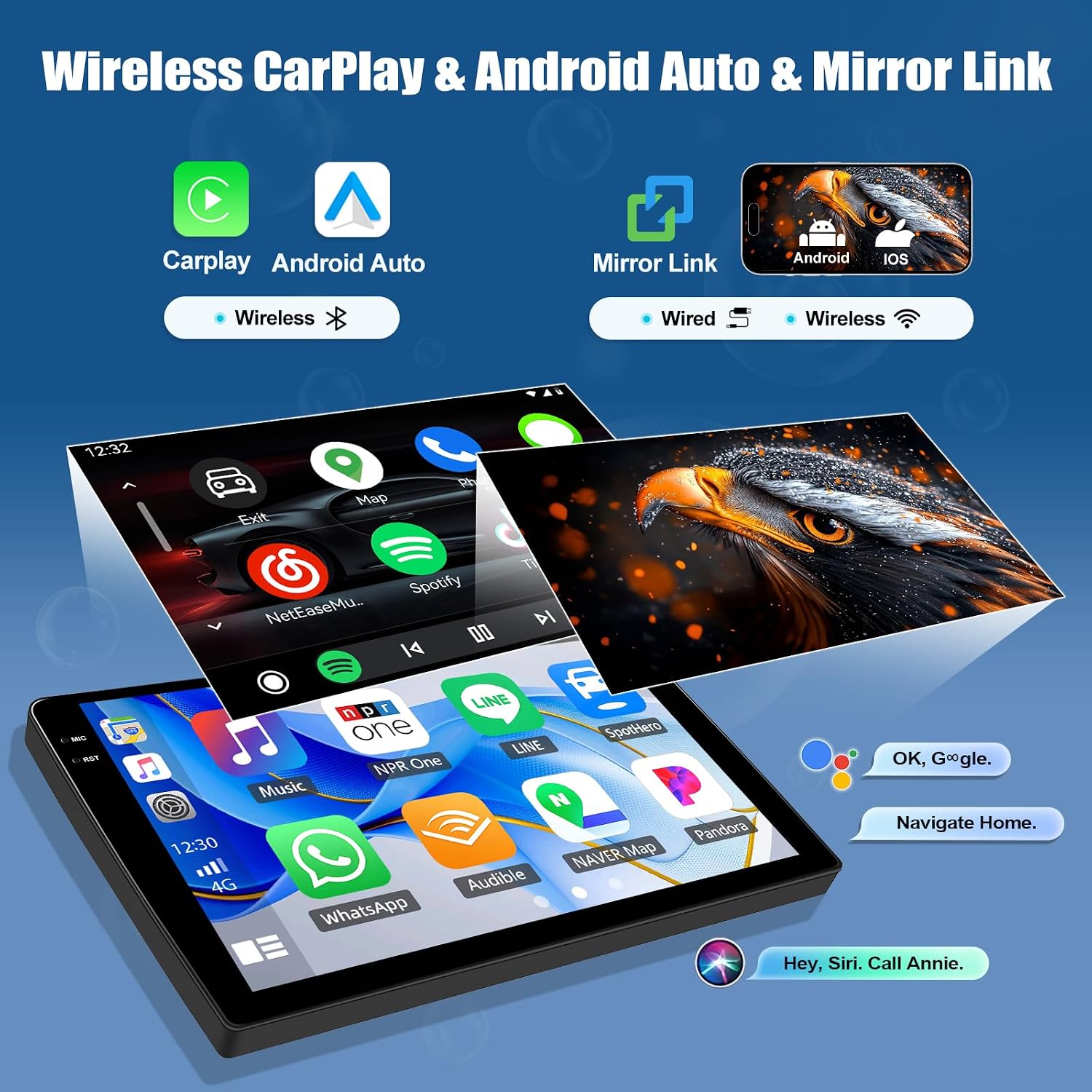
Image: Display of the car radio interface with CarPlay, Android Auto, and Mirror Link functionalities.
2.4 GPS Navigation & WiFi/Hotspot
The car radio comes with Google Maps pre-installed. Connect to WiFi to view real-time traffic conditions. You can also download map data for offline navigation. The WiFi/Hotspot feature allows you to access online music services like Spotify, watch YouTube, and download other applications. The integrated split-screen function enables simultaneous use of two applications, such as navigation and music.

Image: Car radio screen showing GPS navigation and various app icons for online connectivity.
2.5 Bluetooth Function
The integrated Bluetooth system and microphone support hands-free calling and Bluetooth music streaming. Your phonebook can be automatically loaded for easy access to contacts.
2.6 FM/RDS Radio
Enjoy high-quality FM/RDS radio with automatic channel search. The frequency range is 87.5-108 FM, and you can preset up to 18 of your favorite channels.

Image: Car radio display showing Bluetooth connectivity and FM/RDS radio interface.
2.7 EQ Setting
Customize your audio experience with the adjustable equalization settings. You can fine-tune the frequency and use the multi-band equalizer to achieve your preferred sound profile, from strong bass to clear treble.
2.8 Steering Wheel Control (SWC)
Utilize your car's original steering wheel buttons to control the car radio. This allows for quick and convenient function changes, such as adjusting volume, changing tracks, or answering calls, without taking your hands off the wheel.

Image: Car radio interface showing audio equalizer settings and steering wheel control configuration.
3. Maintenance
To ensure optimal performance and longevity of your OiLiehu car radio, follow these maintenance guidelines:
- Screen Cleaning: Use a soft, lint-free cloth slightly dampened with water or a screen cleaner specifically designed for electronic displays. Avoid harsh chemicals or abrasive materials.
- General Cleaning: Keep the unit free from dust and debris. Use a dry, soft cloth to wipe down the exterior.
- Software Updates: Periodically check for available software updates to ensure you have the latest features and performance improvements. Follow the on-screen instructions for any updates.
- Avoid Extreme Temperatures: Do not expose the unit to extreme heat or cold for extended periods, as this can affect its electronic components.
4. Troubleshooting
If you encounter issues with your car radio, refer to the following common troubleshooting steps:
- Unit Does Not Power On:
- Check all power connections to ensure they are securely fastened.
- Verify the vehicle's fuse related to the car radio.
- Steering Wheel Controls Not Working:
- Ensure the Canbus box is correctly connected.
- Re-check the Canbus protocol settings: Settings > Factory Setting > Password: 1234 > CAN Settings > Simple-Renault/Opel/Nissan.
- If the issue persists, try the steering wheel learning function again.
- Poor Radio Reception:
- Ensure the radio antenna is properly connected.
- Check if your vehicle's antenna is functioning correctly. External factors like location can also affect reception.
- Touch Screen Unresponsive:
- Restart the car radio.
- If the problem continues, a factory reset might be necessary (note: this will erase all user data and settings).
- Mirror Link Connection Issues:
- For Android, ensure developer options and necessary permissions are enabled on your phone.
- Verify both devices are connected to the same WiFi network or that the USB cable is functioning.
For further assistance, please contact OiLiehu customer support.
5. Specifications
| Feature | Detail |
|---|---|
| Brand | OiLiehu |
| Model Number | B0FL6B8TH9 |
| Operating System | Android 15 |
| Processor | 4-Core |
| RAM | 4GB |
| ROM | 128GB |
| Screen Size | 10.1 inches |
| Screen Resolution | 1280x720 |
| Screen Type | Incell Touch Screen |
| Connectivity Technology | Auxiliary, Bluetooth, USB, Wi-Fi |
| Special Features | Wireless Apple CarPlay, Android Auto, Mirror Link, Online/Offline Maps, USB Input, EQ-Audio, Steering Wheel Control, FM & RDS Radio, UI Themes, 1080P HD Video Playback, Split Screen, WiFi/Hotspot, GPS Navigation, Bluetooth |
| Compatible Devices | Renault Trafic 2, Opel Vivaro A, Nissan Primastar (2006-2014), Mobile Phones |
| Connector Type | RCA, Auxiliary, USB |
| Audio Output Mode | Stereo |
| Surround Sound Channel Configuration | 4.0 |
| Video Encoding | MKV, MP4, AVI |
| Output Power | 45 Watts |
| Wattage | 12 Watts |
| Number of Channels | 32 |
| Internet Application | YouTube |
| Control Method | Touch |
| Digital Media Format | AVI, WAV, WMA |
6. What's in the Box
The package includes the following items:
- 1 x Android 15 Car Radio for Renault Trafic 2/Opel Vivaro/Nissan Primastar 2006-2014
- 4 x Power Cables
- 1 x Original USB Cable
- 1 x Canbus
- 1 x Antenna Adapter
- 1 x Radio Antenna
- 1 x Installation Tool
- 1 x GPS Antenna
- 1 x Rear Camera Input Cable
- 1 x RCA Cable
- 2 x USB Cables
- 1 x AHD Backup Camera
- 1 x Microphone
- 1 x User Manual

Image: Visual representation of the package contents and product dimensions.
7. Warranty and Support
7.1 Warranty Information
The OiLiehu Android 15 Car Radio comes with a two-year warranty. We are committed to providing high-quality products. If you encounter any quality issues, we will replace the product for you.
Our products are packaged in new, sealed packaging before leaving the factory. If the packaging is damaged or the seal is broken upon receipt, please inform us immediately and seek assistance.
7.2 Customer Support
Online assistance and a user manual are available. We provide online customer service 16 hours a day, 7 days a week (excluding weekends). If you have any questions regarding product usage or require technical support, please do not hesitate to contact us.
Contact Email: TechsupportUK19UP@126.com
