
1. Product Overview
The iCarSEPTON 9-inch Android Car Radio is an advanced multimedia system designed to upgrade your vehicle's infotainment experience. It features a responsive touch screen, wireless CarPlay and Android Auto support, built-in GPS navigation, and 5G WiFi connectivity. This unit enhances driving safety and convenience by integrating various functions such as hands-free calling, music streaming, and rearview camera support.
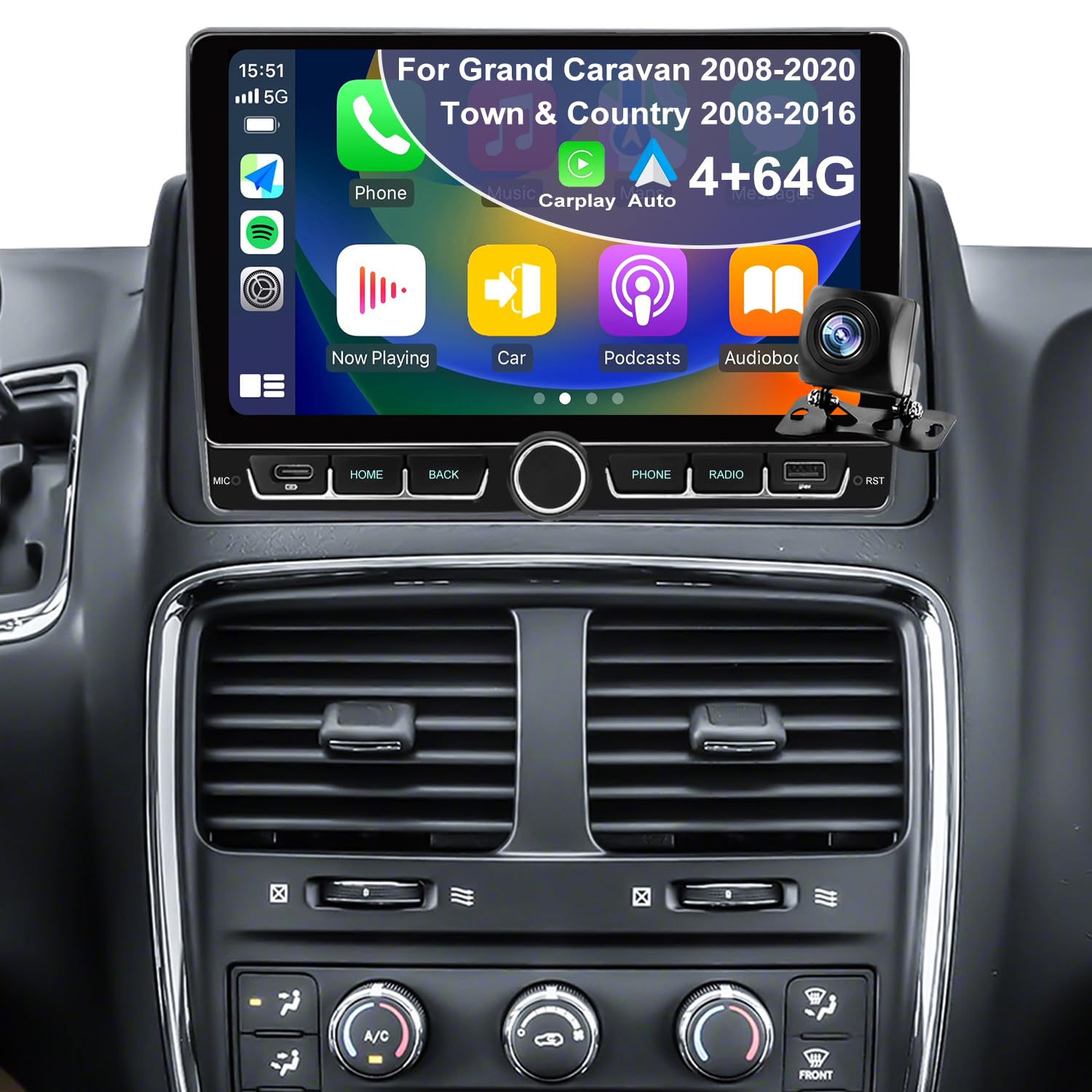
Image: The iCarSEPTON 9-inch Android Car Radio main interface after installation.
2. Package Contents
Verify that all items are present in the package before beginning installation:
- Car Radio Unit
- Backup Camera
- Harness Cable
- Canbus Box
- Instructions and Installation Guide
- RCA Cable
- GPS Antenna
- USB Cable (x1)
- Radio Adapter
- Reverse Cable

Image: All components included in the iCarSEPTON car radio package.
3. Setup and Installation
This car audio receiver is compatible with Dodge Grand Caravan (2008-2020) and Chrysler Town & Country (2008-2016). The installation is designed for a plug-and-play experience, requiring no wire cutting.
3.1 Vehicle Fitment
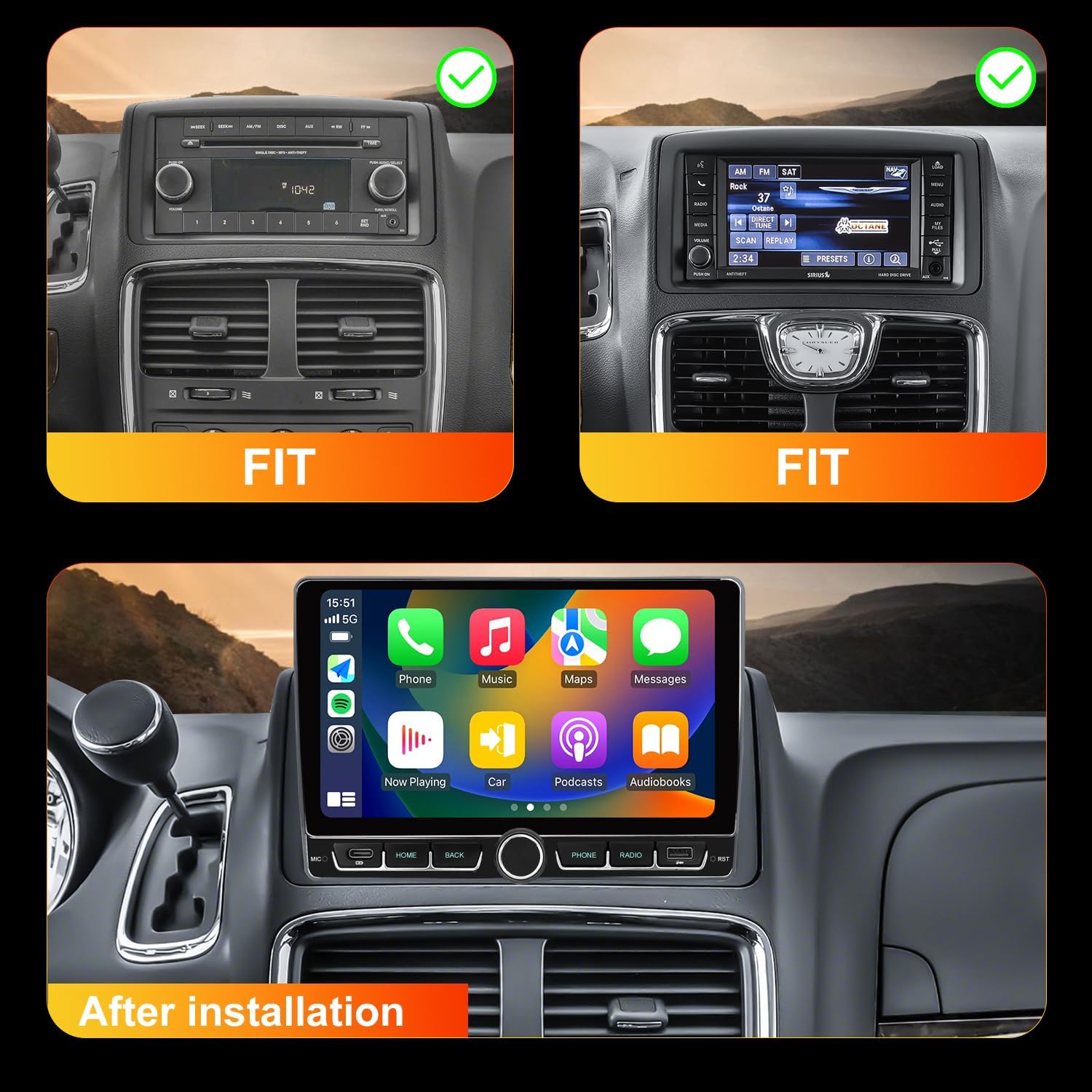
Image: Visual confirmation of the iCarSEPTON unit fitting into compatible vehicle dashboards.
3.2 Wiring and Connections
Ensure all necessary cables are connected securely. The system is designed for direct plug-in without modification to existing vehicle wiring.
Video: This video demonstrates the initial setup, including how to insert the camera cable to enhance Wi-Fi and Bluetooth signals, regardless of whether a camera is installed.
4. Operating Instructions
4.1 Bluetooth Connection
To connect your phone via Bluetooth:
- On the car radio, navigate to the Bluetooth settings and select 'Search'.
- On your phone, search for Bluetooth devices and select "BC8-Android".
- Enter the PIN (usually 0000) if prompted.
You may need to turn Bluetooth on and off several times on your phone or clear the car radio's Bluetooth settings to facilitate discovery.
Video: Demonstrates how to connect your phone to the car radio via Bluetooth.
4.2 Wireless CarPlay & Android Auto
After connecting to Bluetooth, the system will automatically connect to CarPlay or Android Auto. Ensure the CarPlay function is enabled in your iPhone settings (General > CarPlay > Zlink > Open/Close CarPlay).

Image: Wireless CarPlay and Android Auto interfaces on the car radio display.
Video: Instructions on how to connect to CarPlay after Bluetooth pairing.
Video: Instructions on how to connect to Android Auto after Bluetooth pairing. If connection issues occur, download the Android Auto app on your phone.
4.3 Disconnecting CarPlay / Android Auto
To disconnect CarPlay or Android Auto:
- Clear background applications on the car radio.
- Find the Zlink application and turn off the automatic CarPlay/Android Auto background connection in its settings.
Video: Demonstrates how to disconnect CarPlay by clearing background apps and disabling automatic connection in Zlink settings.
Video: Demonstrates how to disconnect Android Auto by clearing background apps and disabling automatic connection in Zlink settings.
4.4 Using Bluetooth and Wi-Fi Simultaneously
To use Bluetooth and Wi-Fi at the same time, ensure you turn off the automatic CarPlay/Android Auto connection and do not click Zlink.
Video: Shows how to enable both Bluetooth and Wi-Fi by disabling the automatic CarPlay connection.
4.5 GPS Navigation & 5G WiFi
The car stereo includes built-in GPS and supports both online and offline navigation apps from Google Play. Connect to 5G WiFi to easily install or delete apps, similar to a smartphone.

Image: Wi-Fi connectivity for app access and GPS navigation display.
4.6 Split Screen Functionality
Utilize the split-screen feature to run two applications simultaneously, such as navigation and music playback.
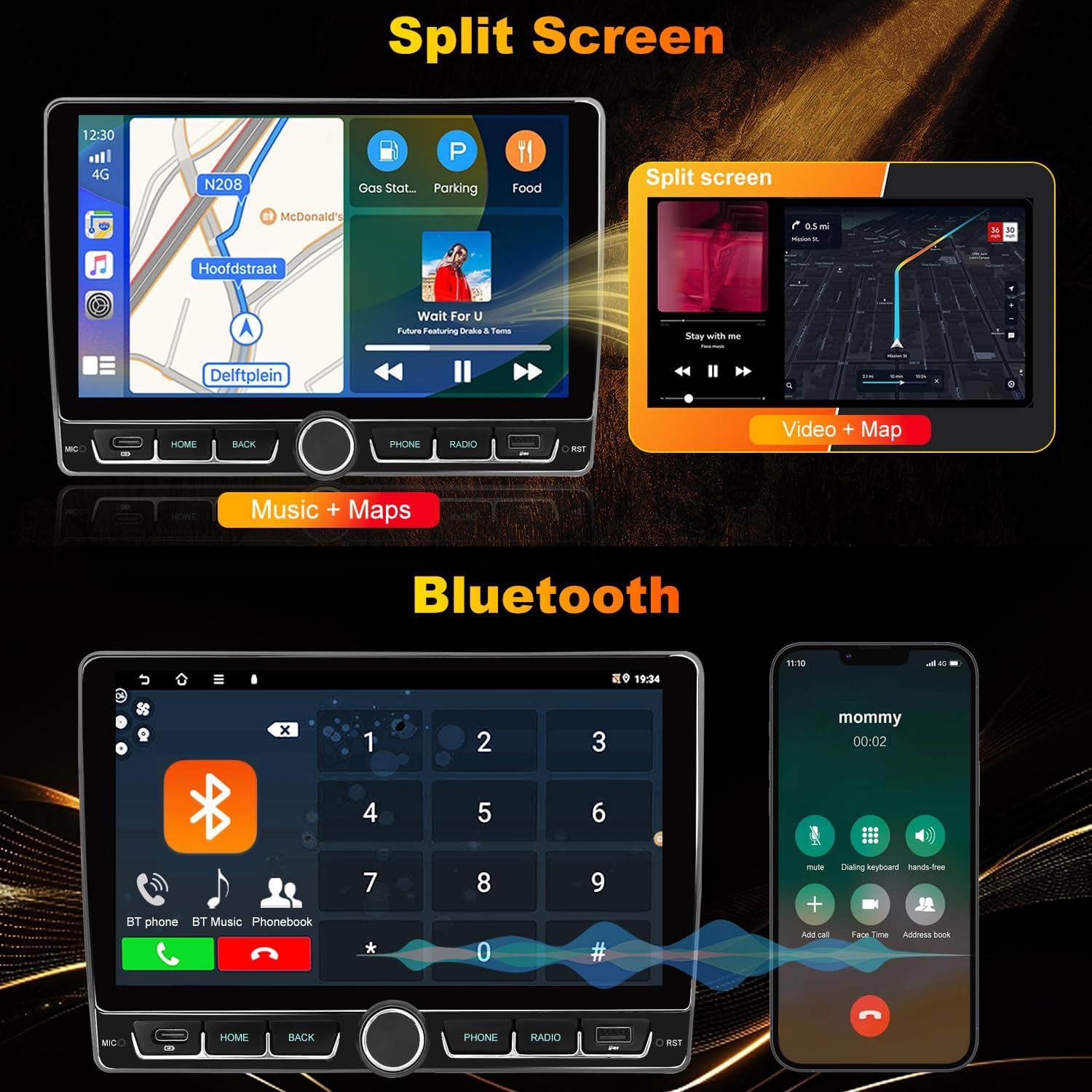
Image: Split-screen functionality displaying music and maps concurrently.
4.7 Rear View Camera & Steering Wheel Control
The system supports a rearview camera for safer parking and reversing. It also allows for easy control of audio and calls through the steering wheel.

Image: Rearview camera display and steering wheel control learning interface.
4.8 System and Settings
Access various system settings, including Canbus configuration, UI style, and touch study for calibration.
Video: Demonstrates navigating through system settings, including Canbus settings and touch screen calibration.
4.9 UI Style Selection
Customize the user interface by selecting from various UI styles to match your preference.
Video: Shows how to change the UI style of the car radio interface.
4.10 Steering Wheel Control Learning
Configure your steering wheel buttons to control the car radio functions. Follow the on-screen instructions for 'Steering Learn'.
Video: Guide on setting up and learning steering wheel controls for the car radio.
4.11 FM Radio
The FM/RDS radio ensures clear broadcast listening and communication. It offers 18 preset FM stations with manual, semi-automatic, and automatic channel scanning.
Video: Demonstrates the FM radio interface and tuning options.
4.12 EQ/DSP Settings
Adjust audio settings using the built-in Equalizer (EQ) and Digital Sound Processor (DSP) to optimize sound quality.
Video: Shows how to access and adjust the Equalizer (EQ) and Digital Sound Processor (DSP) settings.
5. Troubleshooting
If you encounter any issues, please refer to the following general troubleshooting steps:
- No Power: Check all power connections and ensure the vehicle's ignition is on. Verify fuses.
- No Sound: Check speaker connections, volume levels, and audio source selection. Ensure EQ/DSP settings are not muting output.
- Bluetooth/CarPlay/Android Auto Connection Issues: Ensure Bluetooth is enabled on both devices. Try forgetting the device on both ends and re-pairing. For Android Auto, ensure the app is installed on your phone. Disable automatic CarPlay/Android Auto connection if using Wi-Fi simultaneously.
- GPS Signal Loss: Ensure the GPS antenna is properly installed and has a clear view of the sky.
- Touch Screen Unresponsive: Perform a 'Touch Study' calibration in the system settings. If the issue persists, a factory reset might be necessary.
- System Freezes/Lags: Close unnecessary background applications. Consider a system update or factory reset if the problem is persistent.
For further assistance, please contact customer service.
6. Specifications
| Feature | Detail |
|---|---|
| Item Weight | 2.87 pounds |
| Package Dimensions | 11.42 x 7.28 x 3.94 inches |
| Display Size | 9 Inches |
| Operating System | Android 13 |
| RAM | 4GB |
| ROM | 64GB |
| Connectivity Technology | Bluetooth 4.0, USB, Wi-Fi (5G) |
| Special Features | 9 Inch Touch Screen, Split Screen Function, Backup Camera Support, Steering Wheel Controls, Voice Control, FM/RDS Radio, GPS Navigation, Wireless/Wired CarPlay & Android Auto |
| Map Type | North America |
| Audio Output Mode | Stereo |
| Mounting Type | Dashboard Mount |
| Vehicle Service Type | Minivan |
7. Warranty and Support
The product comes with a 12-month warranty.
For technical support or any questions regarding your iCarSEPTON car radio, please do not hesitate to reach out to our customer service team. We are committed to providing prompt assistance.