
1. Introduction
This manual provides essential information for the safe and efficient use of your Motorola Razr 50 (2024) XT2453-3 smartphone. Please read it thoroughly before operating your device to ensure optimal performance and longevity.
The Motorola Razr 50 (2024) XT2453-3 is a foldable smartphone designed for modern mobile communication. It features a flexible pOLED main display and an interactive external screen, offering versatile functionality. Key features include:
- Immersive visuals with a smooth 144Hz refresh rate and vibrant color on a flexible foldable screen.
- Ample storage (256GB) and memory (8GB) for efficient multitasking and media storage.
- A compact, pocket-friendly flip form factor.
- Advanced AI camera features for high-quality photos and 4K videos.
- An external 3.6-inch screen for quick access to notifications, music, selfies, and replies without opening the phone.
2. Device Overview
Familiarize yourself with the physical components of your Motorola Razr 50 (2024) XT2453-3.
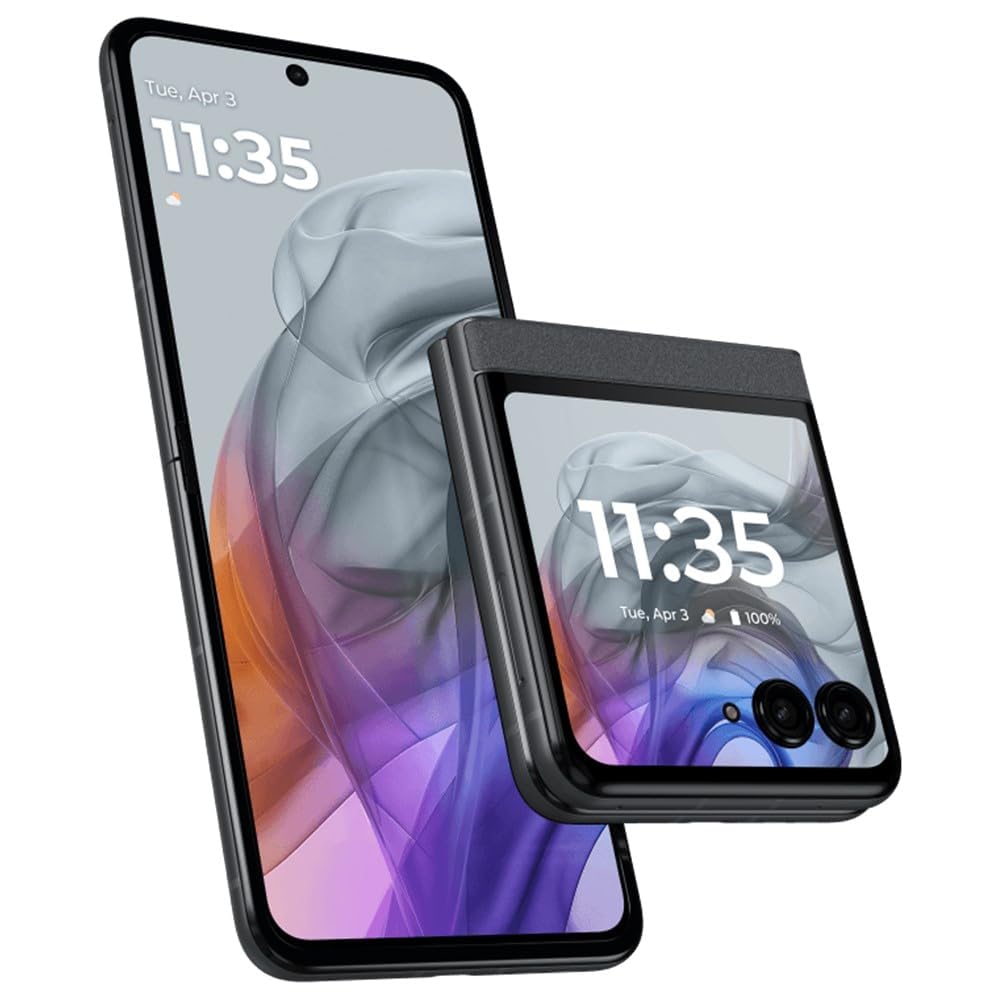
Figure 2.1: Motorola Razr 50 (2024) XT2453-3 in folded position. This image shows the Motorola Razr 50 (2024) XT2453-3 in its folded state, highlighting its compact design and the external display.
Key Components:
- Main Display: 6.9-inch pOLED foldable screen.
- External Display: 3.6-inch interactive screen for quick access.
- Power Button/Fingerprint Sensor: Located on the side for power control and biometric authentication.
- Volume Buttons: Adjust audio levels.
- USB Type-C Port: For charging and data transfer.
- Camera Module: Rear cameras for photography and video recording.
- SIM Card Tray: Supports Dual SIM (Nano SIM).
3. Setup
3.1. Inserting the SIM Card
- Ensure the device is powered off.
- Locate the SIM card tray on the side of the phone.
- Insert the SIM ejector tool into the small hole next to the tray and push gently until the tray pops out.
- Place your Nano SIM card(s) into the tray with the gold contacts facing down.
- Carefully push the tray back into the phone until it clicks into place.
3.2. Initial Power On and Setup
- Press and hold the Power button until the Motorola logo appears.
- Follow the on-screen prompts to select your language, connect to a Wi-Fi network, and set up your Google account.
- You will be guided through setting up a screen lock (PIN, pattern, password) and Face Unlock.
3.3. Charging the Device
Connect the provided USB Type-C cable to the phone's charging port and the other end to the power adapter. Plug the power adapter into a wall outlet. The device supports fast charging. It is recommended to fully charge the device before first use.
4. Operating Your Device
4.1. Main Display Usage (Unfolded)
- Navigation: Use gestures (swipe up for home, swipe from sides for back, swipe up and hold for recent apps) or the traditional navigation bar.
- Notifications: Swipe down from the top of the screen to access notifications and quick settings.
- App Drawer: Swipe up from the bottom of the home screen to view all installed applications.
4.2. External Display Usage (Folded)
The 3.6-inch external display provides quick access to essential functions without unfolding the phone.
- Notifications: View incoming calls, messages, and app alerts.
- Quick Replies: Respond to messages directly from the external screen.
- Widgets: Customize the external display with widgets for weather, music control, calendar, and more.
- Selfies: Use the main cameras for high-quality selfies, viewing yourself on the external display.
4.3. Camera Features
Your Razr 50 is equipped with advanced cameras capable of capturing sharp photos and 4K videos. Open the Camera app to access various modes:
- Photo Mode: Standard photography.
- Portrait Mode: Creates a depth-of-field effect.
- Video Mode: Record videos up to 4K resolution.
- Pro Mode: Manual control over camera settings.
- AI Features: Scene optimization and other intelligent enhancements.
4.4. Connectivity
- Wi-Fi: Connect to wireless networks for internet access. Go to Settings > Network & internet > Wi-Fi.
- Bluetooth: Pair with wireless headphones, speakers, and other devices. Go to Settings > Connected devices > Connection preferences > Bluetooth.
- 5G Cellular Data: Access high-speed mobile internet (requires a 5G-enabled SIM and plan).
4.5. Security Features
- Face Unlock: Unlock your phone using facial recognition. Set up in Settings > Security & privacy > Device unlock > Face & Fingerprint Unlock.
- Fingerprint Sensor: Use your fingerprint for secure unlocking and app authentication. Set up in Settings > Security & privacy > Device unlock > Face & Fingerprint Unlock.
- Screen Lock: PIN, pattern, or password for basic security.
5. Maintenance
5.1. Cleaning Your Device
Use a soft, lint-free cloth to gently wipe the screen and body of the phone. Avoid using harsh chemicals or abrasive materials. Do not spray cleaners directly onto the device.
5.2. Software Updates
Regularly check for and install software updates to ensure your device has the latest features, security patches, and performance improvements. Go to Settings > System > System updates.
5.3. Battery Care
- Avoid extreme temperatures, as they can degrade battery life.
- Use only Motorola-approved chargers and cables.
- For optimal battery longevity, try to keep the charge level between 20% and 80%.
5.4. Storage Management
To free up storage space, regularly delete unnecessary files, uninstall unused apps, and clear app caches. Go to Settings > Storage to manage your device's storage.
6. Troubleshooting
This section addresses common issues you might encounter with your device.
6.1. Device Not Powering On
- Ensure the battery is charged. Connect the device to a charger for at least 15 minutes.
- Perform a force restart: Press and hold the Power button for about 10-15 seconds until the device vibrates and restarts.
6.2. Apps Crashing or Freezing
- Close and reopen the app.
- Clear the app's cache: Go to Settings > Apps > See all apps > [App Name] > Storage & cache > Clear cache.
- Update the app from the Google Play Store.
- If the issue persists, uninstall and reinstall the app.
6.3. Connectivity Issues (Wi-Fi/Bluetooth/Cellular)
- Toggle Wi-Fi/Bluetooth/Cellular data off and on.
- Restart your device.
- For Wi-Fi, restart your router.
- For cellular, ensure your SIM card is properly inserted and your plan is active.
- Reset network settings: Go to Settings > System > Reset options > Reset Wi-Fi, mobile & Bluetooth.
6.4. Factory Reset
If you experience persistent issues, a factory reset can resolve many software-related problems. Warning: This will erase all data on your phone. Back up important data before proceeding.
- Go to Settings > System > Reset options > Erase all data (factory reset).
- Follow the on-screen instructions to confirm the reset.
7. Specifications
Key technical specifications for the Motorola Razr 50 (2024) XT2453-3:
| Feature | Specification |
|---|---|
| Brand | Motorola |
| Model Name | Razr 50 (2024) XT2453-3 |
| Operating System | Android 14 |
| RAM Memory | 8 GB |
| Storage Capacity | 256 GB |
| CPU Model | Mediatek Dimensity 9400 |
| CPU Speed | 2.2 GHz |
| Main Screen Size | 6.9 Inches |
| External Screen Size | 3.6 Inches |
| Display Resolution | 3840 x 2160 (Main Display) |
| Refresh Rate | 144 Hz |
| Battery Capacity | 4200 mAh |
| Cellular Technology | 5G |
| Connector Type | USB Type C |
| SIM Card Slot | Dual SIM (Nano) |
| Water Resistance Level | Not Water Resistant |
| Additional Features | Face Unlock |
8. Warranty and Support
8.1. Warranty Information
This product is eligible for return or exchange within 30 days of delivery. For detailed warranty terms and conditions, please refer to the official Motorola warranty documentation provided with your purchase or visit the Motorola support website.
8.2. Customer Support
For further assistance, technical support, or to view frequently asked questions, please visit the official Motorola support website or contact their customer service. You can typically find support contact information on the Motorola website: www.motorola.com/support


