
1. Introduction
The Cherry KW 550 MX LP is a 96% mechanical low-profile keyboard designed for multi-device wireless connectivity. It features durable PBT keycaps and Cherry MX LP 2.0 Ivory switches, offering a smooth and direct typing experience. This manual provides essential information for setting up, operating, maintaining, and troubleshooting your keyboard.
Video: Cherry KW 550 MX LP Mechanical Keyboard Overview. This video provides a visual overview of the Cherry KW 550 MX LP mechanical keyboard, demonstrating its slim design, low-profile MX 2.0 Ivory switches, PBT keycaps, and multi-device wireless capabilities. It shows the keyboard in use, highlighting its ergonomic features and backlighting.
2. Setup
2.1 Package Contents
- Cherry KW 550 MX LP Keyboard
- USB-A to USB-C Charging Cable
2.2 Initial Charging
Before first use, connect the keyboard to a USB power source using the provided USB-A to USB-C cable. The RGB LED under the CHERRY key indicates the battery status during charging. The keyboard can be used while charging.

Image: Rechargeable Lithium Battery. This image focuses on the keyboard's rechargeable lithium battery, which allows for continued operation while charging. It also shows the sturdy, fold-out feet for height adjustment and the included USB-A to USB-C charging cable.
2.3 Connecting to Devices
The Cherry KW 550 MX LP supports wireless multi-device connectivity for up to 4 devices via Bluetooth or a wired USB-C connection.
- Bluetooth Connection: The keyboard has 3 Bluetooth channels. To pair, select a channel (F1, F2, or F3) by pressing the FN key simultaneously with the desired F-key. The corresponding LED will blink, indicating pairing mode. Search for the keyboard on your device's Bluetooth settings and connect.
- Wired Connection: Connect the keyboard directly to your computer using the supplied USB-A to USB-C cable. The keyboard will automatically switch to wired mode.

Image: Mechanical Multi-Device Keyboard in 96% Layout. This image illustrates the compact 96% layout of the Cherry KW 550 MX LP keyboard, highlighting its dimensions (14.80 inches length, 4.92 inches width, 0.98 inches height) and weight (1.58 lbs). It also shows icons for Bluetooth and wired USB connectivity, indicating its multi-device capability for up to 4 devices.
2.4 Adjusting Keyboard Height
The keyboard features sturdy, fold-out feet on the underside to adjust the typing angle for improved ergonomics.
3. Operation
3.1 Typing Experience with MX LP 2.0 Ivory Switches
The keyboard is equipped with Cherry MX Low Profile 2.0 Ivory switches. These switches provide a smooth and direct typing feel with linear switching characteristics, meaning there is no tactile bump or audible click. They are designed for durability with over 100 million actuations per key.

Image: Original Cherry MX Low Profile 2.0 Switches. This image provides a close-up view of the Cherry MX Low Profile 2.0 Ivory switches, emphasizing their linear switching characteristics without a click. It highlights the smooth typing feel and optimized acoustics, along with the "Made in Germany" origin.
3.2 Backlighting and Status LEDs
The keyboard features 10-stage dimmable white illumination. Use the designated function keys (often combined with the FN key) to adjust the brightness. Additionally, red status LEDs are present for CAPS LOCK, NUM LOCK, WIN key, and F1 to F4 keys, providing visual feedback on their activation status.

Image: Elegant White Lighting. This image showcases the keyboard's 10-stage dimmable white backlighting, allowing for a customized setup. It also points out the additional red status LEDs for CAPS LOCK, NUM LOCK, WIN, and F1 to F4 keys, which indicate activated functions.
3.3 PBT Keycaps and Advanced Features
The keyboard is fitted with high-end PBT keycaps, known for their durability and abrasion resistance. It also incorporates N-Key rollover, ensuring all key presses are registered simultaneously, and anti-ghosting technology to prevent unintended inputs during fast typing.
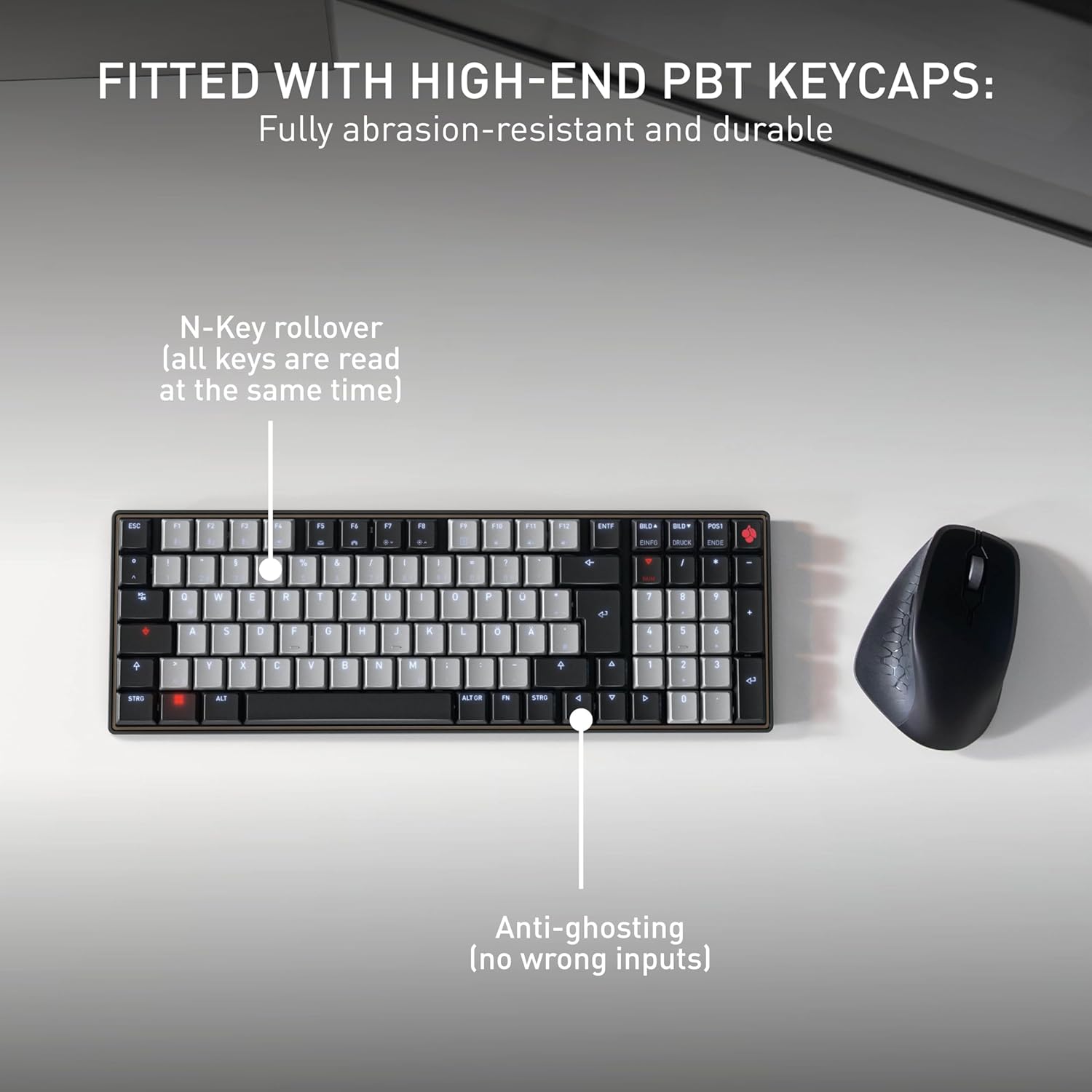
Image: Fitted with High-End PBT Keycaps. This image displays the keyboard's durable, abrasion-resistant PBT keycaps. It also illustrates key features like N-Key rollover, ensuring all keys are registered simultaneously, and anti-ghosting technology to prevent incorrect inputs during rapid typing.
4. Maintenance
4.1 Cleaning the Keyboard
- Disconnect the keyboard from all devices before cleaning.
- Use a soft, lint-free cloth slightly dampened with water or a mild cleaning solution to wipe the keycaps and surface.
- Avoid using harsh chemicals, abrasive cleaners, or spraying liquids directly onto the keyboard.
- For debris between keys, use compressed air.
4.2 Battery Care
- To maximize battery life, avoid fully discharging the keyboard frequently.
- Recharge the battery when the low battery indicator appears.
- Store the keyboard in a cool, dry place if not used for extended periods.
5. Troubleshooting
5.1 Keyboard Not Responding
- Check Battery: Ensure the keyboard is charged. Connect it via USB-C cable to see if it powers on.
- Wired Connection: If using wirelessly, try connecting directly with the USB-C cable to rule out Bluetooth issues.
- Bluetooth Re-pairing: If using Bluetooth, delete the keyboard from your device's Bluetooth list and attempt to re-pair it. Ensure the correct Bluetooth channel (F1, F2, or F3) is selected on the keyboard.
- Restart Device: Restart the connected computer or device.
5.2 Backlighting Issues
- Brightness Adjustment: Ensure the backlighting is not set to the lowest brightness level. Adjust using the designated function keys.
- Power Saving: The backlighting may turn off after a period of inactivity to conserve battery. Press any key to reactivate.
5.3 Keys Not Registering or Double Typing
- Clean Keys: Check for any debris under the affected keycaps.
- Firmware Update: Check the official Cherry website for any available firmware updates for your keyboard model.
6. Specifications
| Feature | Detail |
|---|---|
| Brand | Cherry |
| Model Name | Cherry MX KW 550 LP |
| Model Number | G8A-25510HOAUS-2 |
| Connectivity Technology | Bluetooth |
| Keyboard Description | Compact Mechanical |
| Switch Type | Linear (Cherry MX Low Profile 2.0 Ivory) |
| Number of Keys | 99 |
| Keyboard Layout | QWERTY |
| Special Features | Multi-Connection, PBT Keycaps, Slim Mechanical |
| Material | Metal |
| Power Source | Battery Powered |
| Included Components | USB Cable |
| UPC | 840183609207 |
7. Warranty & Support
7.1 Warranty Information
The Cherry KW 550 MX LP keyboard comes with a 2-Year Warranty from the date of purchase. This warranty covers manufacturing defects and malfunctions under normal use. Please retain your proof of purchase for warranty claims.
7.2 Customer Support
For technical assistance, troubleshooting, or warranty inquiries, please visit the official Cherry website or contact their customer support. You can find contact details and further resources at www.cherry.de/en/support.


