
1. Introduction
This manual provides essential information for setting up, operating, maintaining, and troubleshooting your MSI PRO DP180 Business Tower Desktop. Please read this manual thoroughly before using the product to ensure proper functionality and longevity.

Image 1.1: MSI PRO DP180 Business Tower Desktop with included accessories.
2. Setup Guide
Follow these steps to set up your MSI PRO DP180 desktop computer.
2.1 Unpacking and Placement
- Carefully remove the desktop, keyboard, mouse, and power cable from the packaging.
- Place the desktop on a stable, flat surface with adequate ventilation. Ensure no vents are obstructed.
2.2 Connecting Peripherals
Refer to the diagram below for port identification and connect your peripherals.
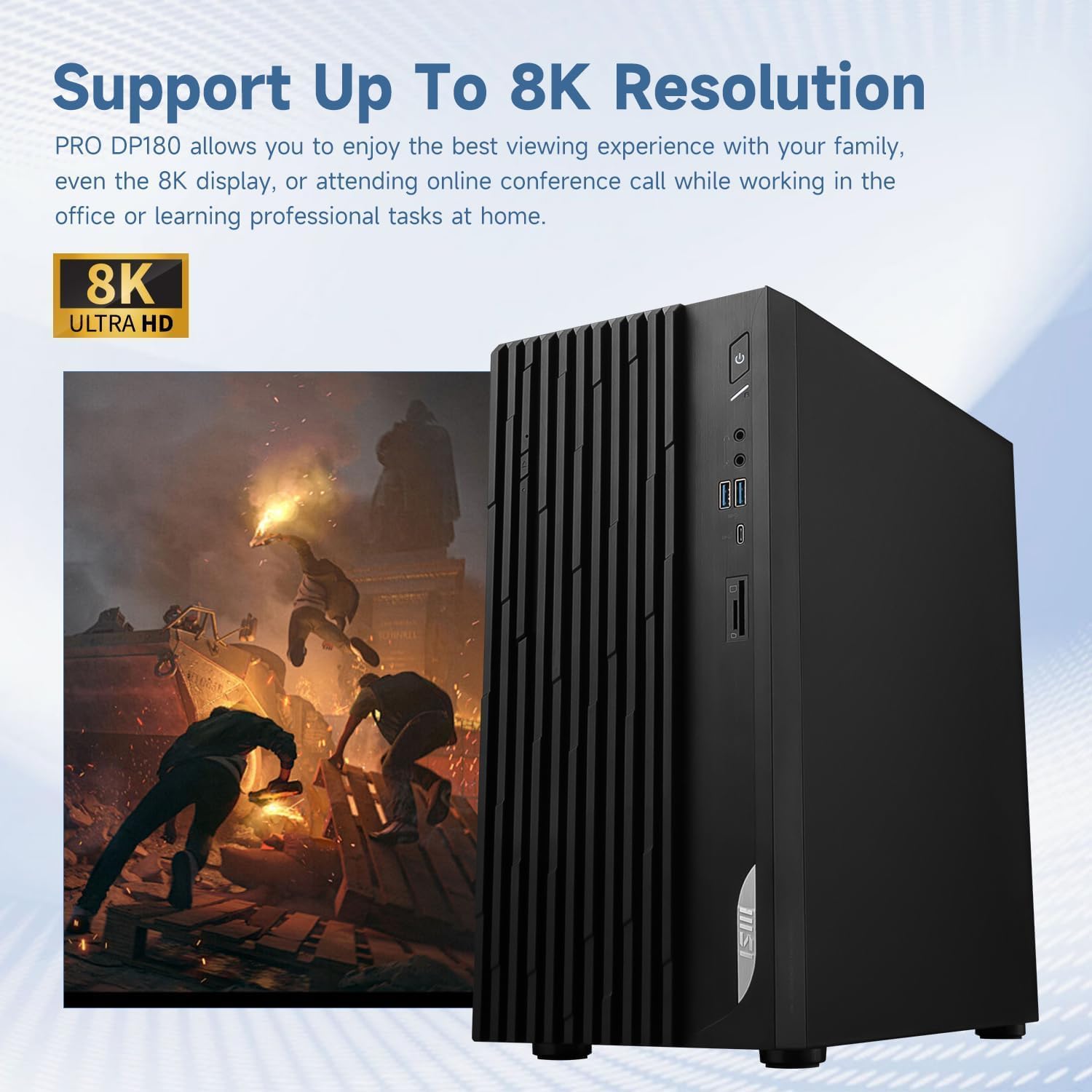
Image 2.1: Front and Rear I/O Ports of the MSI PRO DP180.
- Power: Connect the power cable to the power supply port (labeled 14 in Image 2.1, rear view) and then to a power outlet.
- Display: Connect your monitor(s) to the HDMI (6) or DisplayPort (7) on the rear. The system supports multiple displays.
- Keyboard and Mouse: Connect the wired keyboard and mouse to any available USB Type-A ports (e.g., 2, 3, 8, 9, 10).
- Network: For a wired connection, connect an Ethernet cable to one of the RJ-45 LAN ports (9, 10). For wireless, the system supports Wi-Fi 6E.
- Audio: Connect headphones or speakers to the headphone-out port (1) on the front or the audio jacks (11) on the rear.
2.3 Initial Power On
- Press the power button located on the front of the desktop.
- Follow the on-screen instructions to complete the Windows 11 Pro initial setup. This may include setting up your user account, network connection, and privacy settings.
3. Operating Instructions
3.1 System Performance
Your MSI PRO DP180 is equipped with an Intel Core i7-13700 processor, 64GB DDR4 RAM, and a 2TB PCIe NVMe M.2 SSD, providing robust performance for business applications and multitasking.

Image 3.1: Key specifications and features of the MSI PRO DP180.
3.2 Connectivity
- Wi-Fi 6E: The integrated Wi-Fi 6E module offers enhanced transmission security and improved signal stability, supporting speeds up to 2.4Gbps for connecting multiple devices simultaneously.
- Dual LAN: The system supports 2.5Gbps and 1Gbps Ethernet LAN for high-bandwidth and low-latency network connections. Dual LAN also provides enhanced network security.
- USB Ports: Utilize the various USB Type-A and Type-C ports for connecting external devices, including USB 3.2 Gen 2 Type-C for fast data transfers.
- SD Card Reader: The built-in card reader supports both standard SD and Micro-SD cards for convenient file transfers.
- COM Port: The COM port allows connection to various POS (Point of Sale) devices such as barcode scanners and receipt printers.

Image 3.2: Wi-Fi 6E connectivity features.

Image 3.3: USB 3.2 Gen 2 Type-C port for high-speed data transfer.
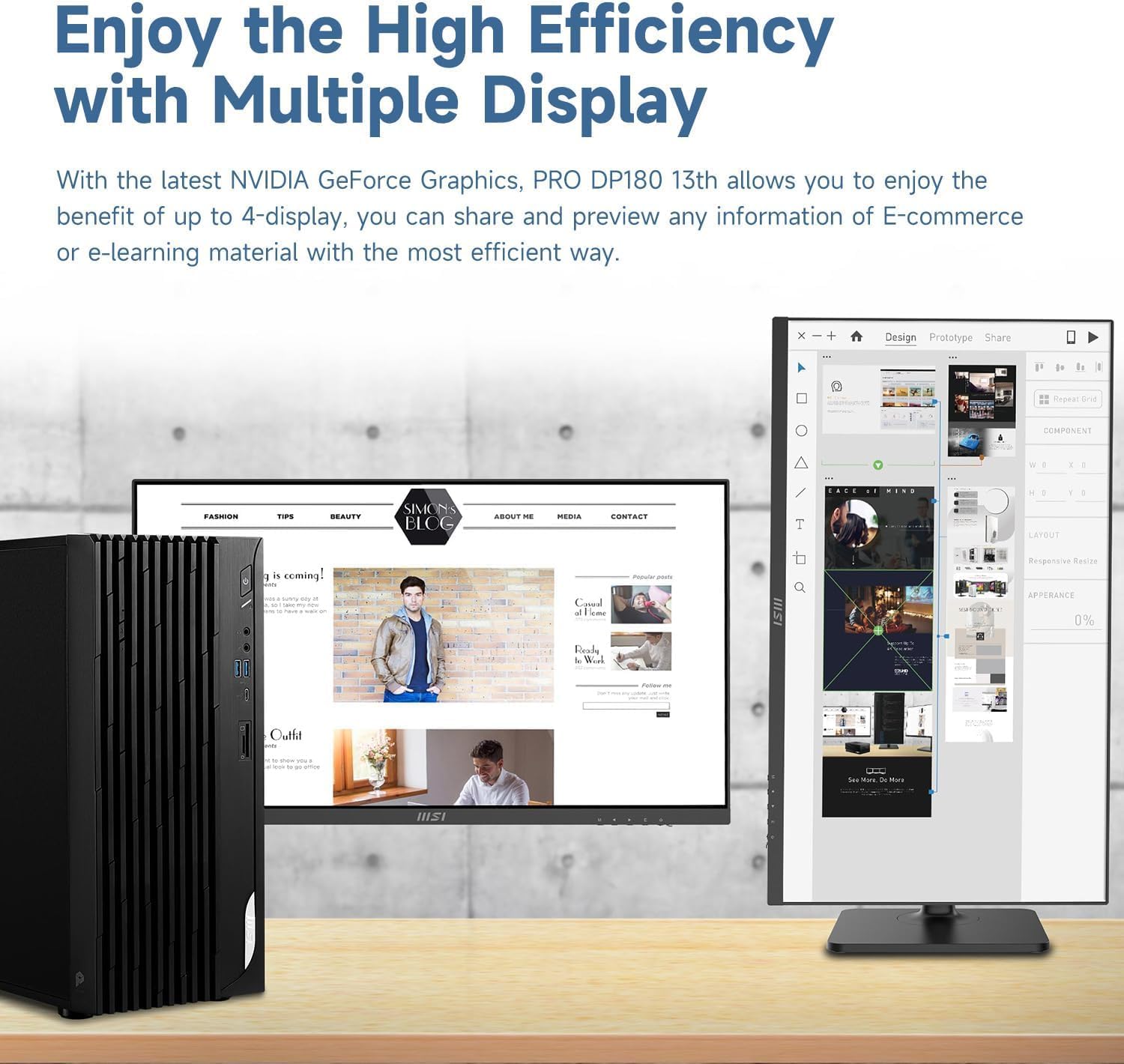
Image 3.4: Built-in SD Card Reader.

Image 3.5: COM Port for specialized device connectivity.
3.3 Display Configuration
The PRO DP180 supports multiple displays, allowing for an extended workspace and efficient multitasking. It also supports up to 8K resolution for high-quality visual experiences.
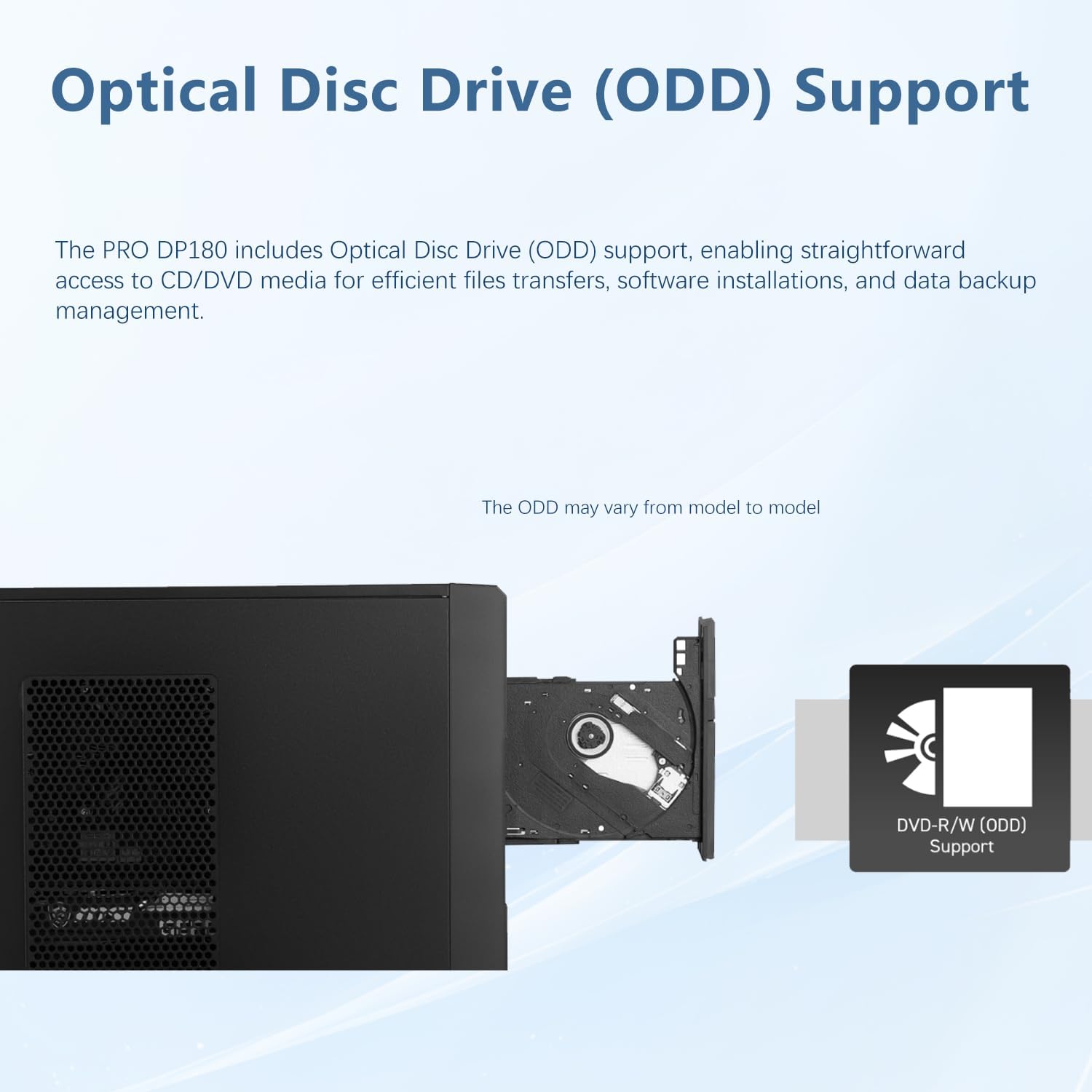
Image 3.6: Multi-display setup for enhanced productivity.

Image 3.7: Support for up to 8K resolution.
3.4 Optical Disc Drive (ODD)
The PRO DP180 includes support for an Optical Disc Drive (ODD), enabling access to CD/DVD media for file transfers, software installations, and data backup. Note that the ODD may vary by model or be an optional component.

Image 3.8: Optical Disc Drive (ODD) support.
4. Maintenance
Regular maintenance helps ensure the optimal performance and longevity of your desktop.
- Cleaning: Periodically clean the exterior of the desktop with a soft, dry cloth. Use compressed air to clear dust from vents and ports to prevent overheating.
- Software Updates: Keep your Windows 11 Pro operating system and drivers updated to the latest versions for security and performance improvements.
- Data Backup: Regularly back up important data to an external drive or cloud storage to prevent data loss.
- Security: The PRO DP180 features Hardware TPM Module Support for enhanced security, allowing storage of sensitive data and passwords with encryption keys.
- Physical Security: The desktop includes a Padlock and Kensington Lock dual design to protect the unit from theft.

Image 4.1: Hardware TPM Module Support for data security.

Image 4.2: Physical security features: Padlock and Kensington Lock.
5. Troubleshooting
This section addresses common issues you might encounter with your MSI PRO DP180 desktop.
5.1 No Power
- Ensure the power cable is securely connected to both the desktop and a working power outlet.
- Verify the power outlet is functional by plugging in another device.
5.2 No Display
- Check that the monitor is powered on and the video cable (HDMI or DisplayPort) is securely connected to both the desktop and the monitor.
- Try connecting the monitor to a different video port on the desktop, if available.
- Test the monitor with another computer or device to confirm it is working correctly.
5.3 Network Connectivity Issues
- Wired Connection: Ensure the Ethernet cable is properly connected to the LAN port on the desktop and your router/modem. Check the router/modem status.
- Wireless Connection: Verify that Wi-Fi is enabled in Windows settings. Check if your Wi-Fi network is visible and you are entering the correct password. Restart your router/modem.
5.4 System Slowdown
- Close unnecessary applications running in the background.
- Check for and install any pending Windows updates or driver updates.
- Run a system scan for malware or viruses.
6. Specifications
| Feature | Detail |
|---|---|
| Brand | msi |
| Model Name | DP180 |
| Processor | Intel Core i7-13700 (16 Cores, 24 Threads, up to 5.2GHz) |
| RAM | 64 GB DDR4 (3200 MHz) |
| Storage | 2 TB PCIe NVMe M.2 SSD |
| Graphics | Intel UHD Graphics (Integrated) |
| Operating System | Windows 11 Pro |
| Wireless Connectivity | Wi-Fi 6E (802.11ax), Bluetooth |
| Wired Connectivity | 2 x RJ-45 (2.5G LAN, 1G LAN) |
| Front I/O Ports | 1x Headphone-out, 1x Mic-in, 2x USB 3.2 Gen 1 Type A, 1x USB 3.2 Gen 2 Type C, 1x Card Reader (SD & Micro SD) |
| Rear I/O Ports | 1x HDMI (2.1), 1x DisplayPort (1.4), 1x D-Sub (VGA), 2x USB 2.0 Type A, 1x PS/2, 2x USB 3.2 Gen 1 Type A, 1x 2.5G LAN, 1x 1G LAN, 3x Audio Jacks, 1x COM Port |
| Dimensions (LxWxH) | 14.53 x 14.53 x 6.61 inches |
| Weight | 20 pounds |
| Included Components | MSI PRO Desktop, Wired Keyboard, Wired Mouse |
7. Warranty and Support
Your MSI PRO DP180 desktop comes with the following warranty coverage:
- A 1-year warranty on the upgraded RAM and SSD is provided by PCOnline US.
- All other components retain the original 1-year manufacturer's warranty from MSI.
For technical support or warranty claims, please contact the respective service provider.