1. Introduction
This manual provides detailed instructions for the installation, setup, and operation of your iCarSEPTON 9-inch Android Car Radio. This unit is specifically designed for Toyota Tacoma models from 2016 to 2023, offering an enhanced in-car entertainment and navigation experience. Please read this manual thoroughly before use to ensure proper functionality and safety.
2. Product Overview
2.1 Key Features
- 9-inch HD Touch Screen Display
- Android 13 Operating System with Octa-Core CPU, 2GB RAM, 32GB ROM
- Wireless Apple CarPlay & Android Auto Support
- Built-in GPS Navigation (online and offline maps)
- 5G WiFi6 Connectivity
- Bluetooth 4.0 for hands-free calling and music streaming
- FM/RDS Radio with 18 preset stations
- Rear View Camera Input
- Steering Wheel Control (SWC) Compatibility
- Split Screen Functionality
- EQ/DSP Audio Processing
2.2 Package Contents
Verify that all items are present in your package:
- iCarSEPTON 9-inch Android Car Radio Unit
- Backup Camera (AHD)
- Power Cables (x2)
- RCA Cable
- USB Cable (x1)
- Canbus Box
- GPS Antenna
- Reverse Cable
- USB Adapters (x2)
- Installation Guide

Image: All components included in the iCarSEPTON car radio package, such as the main unit, cables, GPS antenna, and backup camera.
3. Installation
The iCarSEPTON car radio is designed for a plug-and-play installation in compatible Toyota Tacoma models (2016-2023). No cutting of original vehicle wires is required. Ensure the vehicle's power is off before beginning installation.
3.1 Compatibility Check
Confirm your Toyota Tacoma dashboard matches one of the compatible configurations shown below. This unit is suitable for 3rd generation Toyota Tacoma models from 2016 to 2023.

Image: Various Toyota Tacoma dashboard configurations from 2016-2023, indicating compatibility with the iCarSEPTON car radio.
3.2 Wiring Connections
- Connect the main power harness to the vehicle's wiring.
- Connect the GPS antenna and route it for optimal signal reception.
- Connect the included backup camera cable. This cable also helps enhance Wi-Fi and Bluetooth signals, even if a camera is not installed.
- Connect the Canbus box to integrate with vehicle features like steering wheel controls.
- Connect any additional USB cables or RCA cables as needed for external devices.

Image: The iCarSEPTON car radio seamlessly integrated into a Toyota Tacoma dashboard, showcasing its large display.
4. Setup
4.1 Bluetooth Connection
To connect your phone via Bluetooth:
- On the car radio, navigate to the Bluetooth settings.
- On your phone, enable Bluetooth and search for available devices. The car radio's Bluetooth name is typically "BC8-Android".
- Select the car radio from your phone's Bluetooth list and enter the default PIN (usually 0000).
- Confirm the pairing on both devices.
Video: Demonstrates how to connect a phone to the iCarSEPTON car radio via Bluetooth for Android Auto functionality.
4.2 Wireless Apple CarPlay & Android Auto
After connecting your phone via Bluetooth, the unit will automatically attempt to connect to Apple CarPlay or Android Auto. Ensure the respective functions are enabled on your phone.
- For Apple CarPlay: Ensure CarPlay is enabled in your iPhone's settings (General > CarPlay).
- For Android Auto: If connection issues occur, download the Android Auto app on your phone.
Note: When CarPlay or Android Auto is active, Wi-Fi functionality on the head unit may be temporarily suspended as the connection often uses Wi-Fi Direct.

Image: The car radio display showing the interfaces for Wireless Apple CarPlay and Android Auto, mirroring phone content.
Video: Demonstrates how to connect a phone to the iCarSEPTON car radio via Bluetooth for Apple CarPlay functionality.
4.3 Steering Wheel Control Learning
To configure your vehicle's steering wheel controls:
- Connect the steering wheel control cable to the unit.
- Access the "SW Learning" or "Steering Wheel Learning" option in the system settings.
- Follow the on-screen prompts to assign functions to each steering wheel button.

Image: The car radio display showing the interface for learning and configuring steering wheel controls, alongside a visual of a steering wheel.
4.4 Canbus Settings
The Canbus box ensures proper communication between the car radio and your vehicle's systems. Access Canbus settings in the system menu to verify correct vehicle type and year are selected for optimal integration.
Video: Overview of the iCarSEPTON Android Car Radio for Toyota Tacoma, demonstrating various settings including Canbus configuration and UI styles.
4.5 UI Settings
Customize the user interface (UI) style to your preference through the UI Style settings menu. This allows you to change the layout and appearance of the main screen and app icons.
5. Operation
5.1 GPS Navigation
The unit features a built-in GPS module supporting both online and offline navigation applications. You can download preferred navigation apps from the Google Play Store. Ensure the GPS antenna is properly installed for accurate positioning.

Image: The car radio display showing GPS navigation in action and icons representing Wi-Fi connectivity for app downloads and streaming.
5.2 FM Radio
Access the FM Radio application to listen to local broadcasts. The unit supports FM/RDS radio and allows for manual, semi-automatic, and automatic channel scanning. You can save up to 18 preset FM stations.
5.3 Media Playback
Play music and videos from various sources, including Bluetooth streaming from your phone, USB devices, or installed apps. The unit supports a wide range of audio and video formats.
5.4 Split Screen Function
Utilize the split-screen feature to run two applications simultaneously, such as navigation and music playback. This enhances multitasking capabilities while driving.
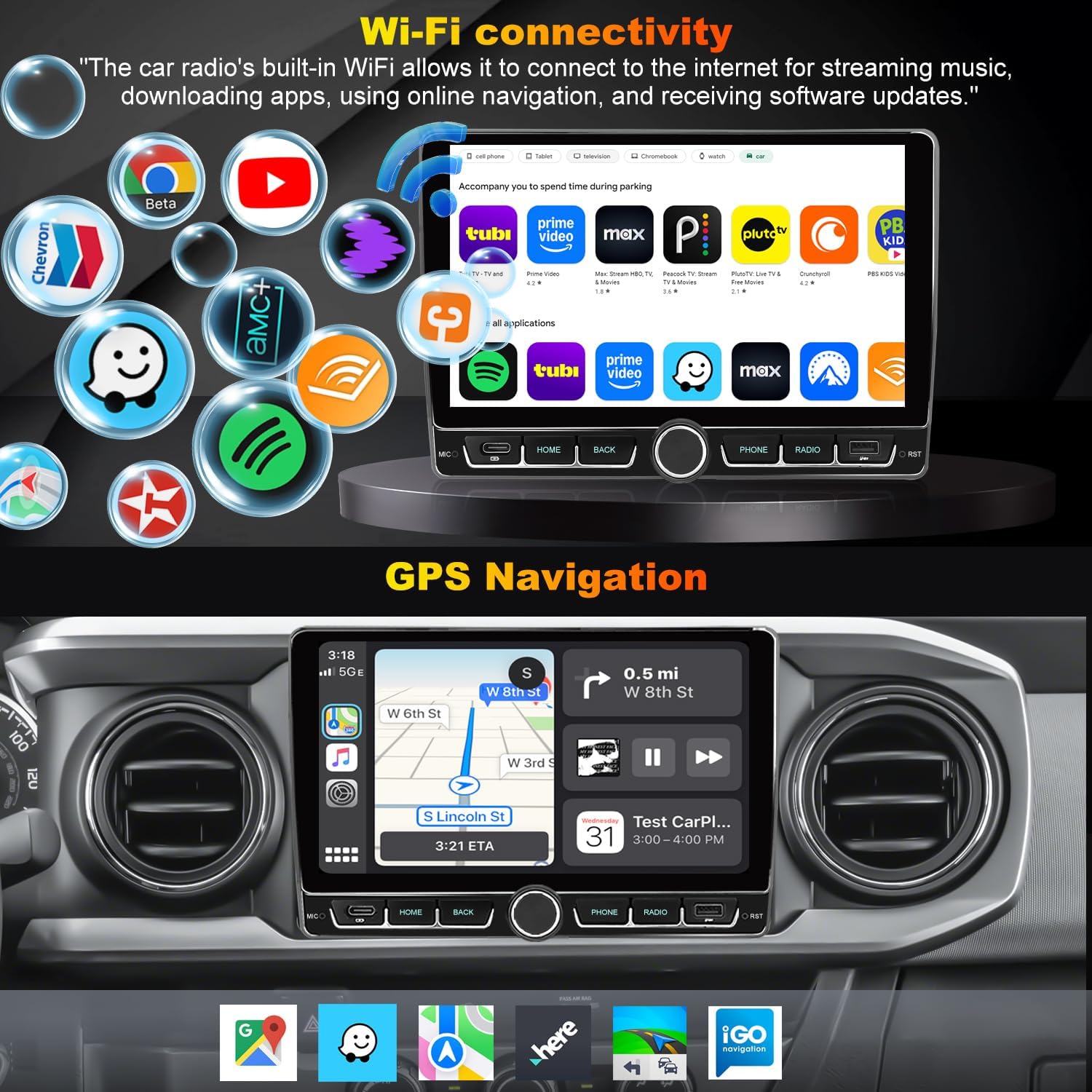
Image: The car radio display demonstrating the split-screen feature, showing navigation and music simultaneously, along with the Bluetooth calling interface.
5.5 Rear View Camera
When the vehicle is shifted into reverse, the display will automatically switch to the rear view camera feed, providing a clear image for safer parking and reversing maneuvers.
5.6 EQ/DSP Audio Settings
Adjust audio output using the built-in Equalizer (EQ) and Digital Sound Processor (DSP) settings. This allows for fine-tuning of bass, treble, and other audio parameters to achieve your preferred sound quality.
6. Troubleshooting
If you encounter issues with your iCarSEPTON car radio, refer to the following common solutions:
- No Power: Check all power connections and fuses. Ensure the vehicle's ignition is on.
- Bluetooth Connection Issues: Try turning Bluetooth off and on several times on both the car radio and your phone. Clear the car radio's Bluetooth history and re-pair. Ensure the correct PIN (0000) is used.
- CarPlay/Android Auto Not Connecting: Verify Bluetooth is connected first. Ensure the CarPlay/Android Auto function is enabled in the unit's settings (General > CarPlay > Zlink > Open/Close CarPlay). Close any background apps on the head unit.
- Poor Radio Signal: Check the antenna connection. Ensure the antenna is not obstructed.
- Steering Wheel Controls Not Working: Ensure the Canbus box is correctly connected and configured in the system settings. Perform the "SW Learning" procedure again.
- Unit Freezes or Responds Slowly: Restart the unit. If the issue persists, perform a factory reset (note: this will erase all user data and settings).
- No Sound: Check speaker connections and volume levels. Verify audio output settings in the EQ/DSP menu.
For persistent issues, please contact customer support.
7. Specifications
| Feature | Detail |
|---|---|
| Item Weight | 5.15 pounds |
| Package Dimensions | 23.43 x 9.88 x 6.18 inches |
| Display Size | 9 Inches |
| Operating System | Android 13 |
| RAM | 2GB |
| ROM | 32GB |
| Connectivity Technology | Bluetooth, USB, Wi-Fi (5G WiFi6) |
| Special Features | Touch Screen, Split Screen, Backup Camera, Steering Wheel Controls, Voice Control, GPS Navigation, Wireless/Wired CarPlay & Android Auto |
| Map Type | North America |
| Audio Output Mode | Stereo |
| Mounting Type | Dashboard Mount |
8. Warranty & Support
8.1 Warranty Information
This iCarSEPTON car radio comes with a 12-month warranty from the date of purchase. This warranty covers manufacturing defects and malfunctions under normal use. It does not cover damage caused by improper installation, misuse, accidents, or unauthorized modifications.
8.2 Technical Support
For any technical assistance, installation questions, or troubleshooting not covered in this manual, please contact iCarSEPTON customer service. Our technical support team is available to help you with your 3rd Gen Toyota Tacoma accessories and will respond as soon as possible.