
1. Introduction
This manual provides detailed instructions for setting up, operating, maintaining, and troubleshooting your AWOW AK10 Pro Mini PC. Please read this manual thoroughly before using the device to ensure proper functionality and to maximize your user experience.
2. What's in the Box
Upon opening the package, verify that all items listed below are present and in good condition:
- AWOW AK10 Pro Mini PC
- Power Adapter
- HDMI Cable
- Screws for internal drive installation
- User Manual (this document)
3. Product Overview
The AWOW AK10 Pro is a compact and efficient mini PC designed for various applications, including home, office, and educational use. It features an Intel N100 processor, 8GB RAM, and a 256GB PCIe 3.0 SSD, supporting 4K display output and multiple connectivity options.
3.1 Key Features
- Processor: Intel N100 Quad-Core (up to 3.4GHz)
- Memory: 8GB DDR4 RAM (3200MHz)
- Storage: 256GB PCIe 3.0 SSD (expandable up to 4TB with M.2 SSD + 2.5" SATA drive)
- Graphics: Intel UHD Graphics with 4K@60Hz dual display support (HDMI 2.0, DisplayPort 1.4)
- Connectivity: Dual-band 802.11ac WiFi (2.4GHz/5GHz), Bluetooth 5.2, Gigabit Ethernet
- Ports: USB 3.2 x2, USB 2.0 x2, HDMI, DisplayPort, RJ45 Gigabit Ethernet, 2-in-1 Audio Jack, DC 12V Power Input, CMOS CLR button
3.2 Component Identification
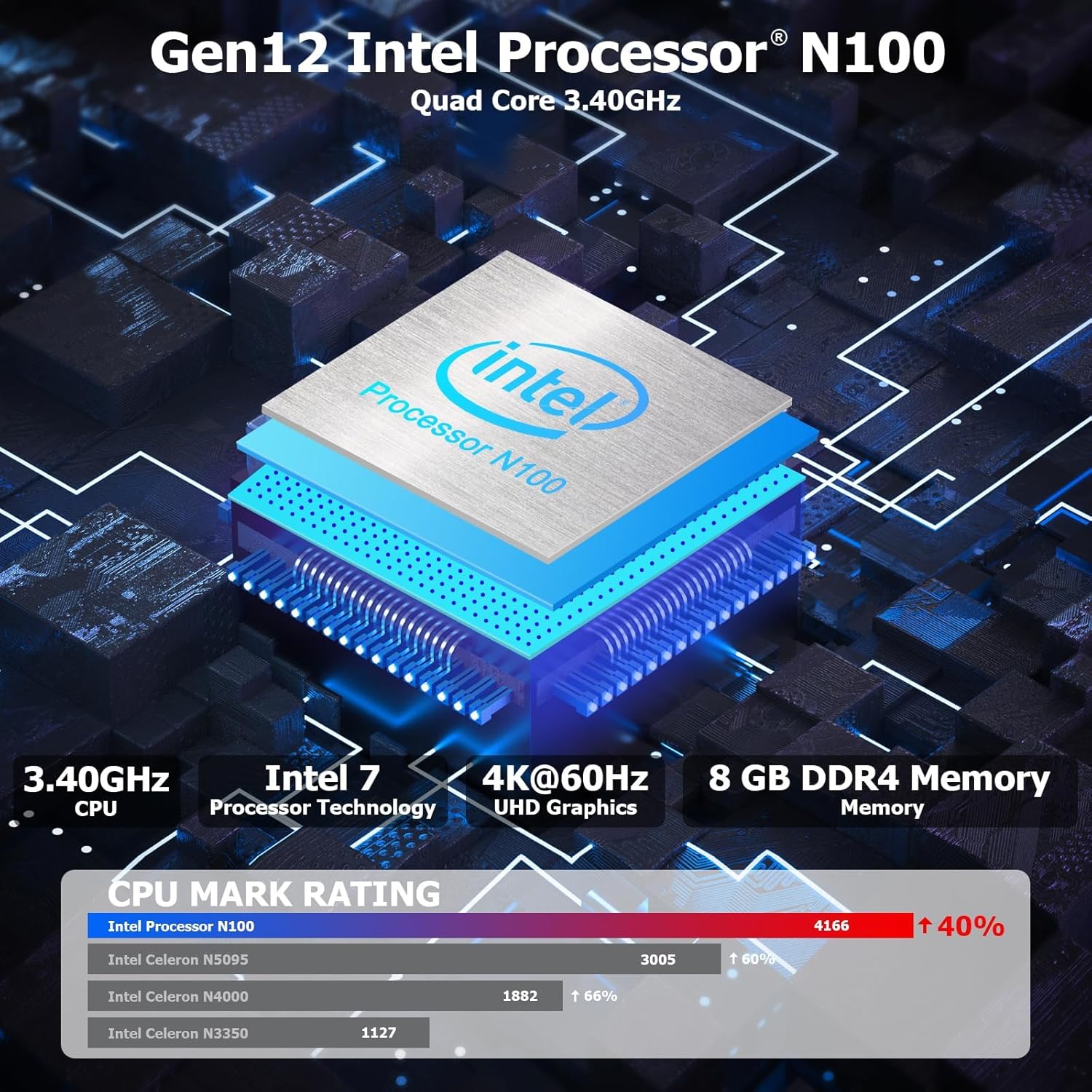
Figure 3.1: Internal view highlighting the Intel N100 processor, 4K@60Hz capability, and 8GB DDR4 memory, along with a CPU Mark Rating comparison.
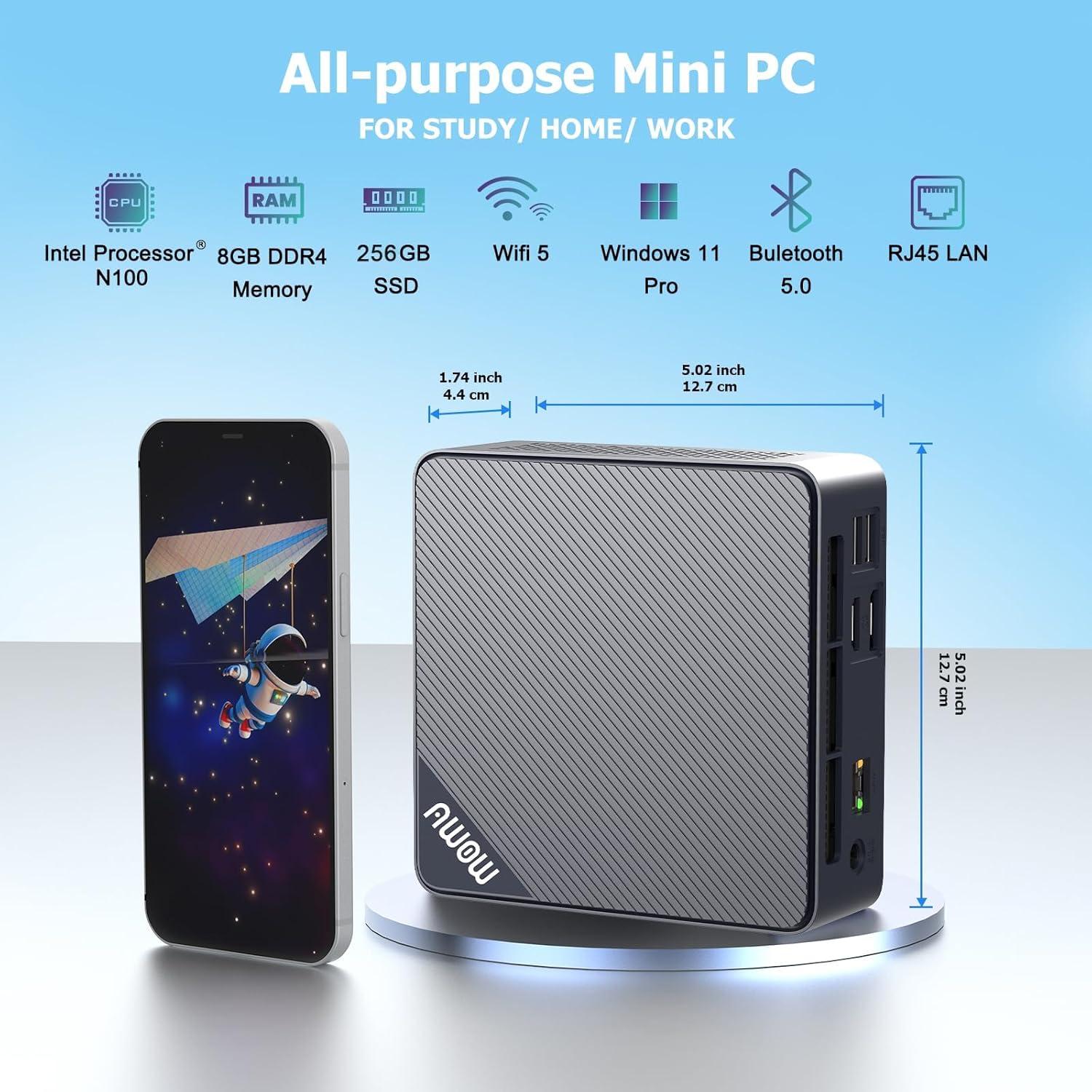
Figure 3.2: Front and side view of the AWOW Mini PC, illustrating its compact dimensions (4.9 x 4.9 x 1.7 inches) and key features like Intel N100 CPU, 8GB DDR4, 256GB SSD, WiFi 5, and Bluetooth 5.0.

Figure 3.3: Detailed diagram of the AWOW Mini PC's ports, including USB 3.2 x2, 2-in-1 Audio, Power Button, CMOS CLR, DC 12V, RJ45, HDMI, DisplayPort, and USB 2.0 x2.
4. Setup Instructions
Follow these steps to set up your AWOW AK10 Pro Mini PC:
- Connect to Power: Insert the DC 12V power adapter into the power input port on the mini PC, then plug the adapter into a power outlet.
- Connect to Display: Connect your monitor(s) to the mini PC using either the HDMI 2.0 port or the DisplayPort 1.4. For dual display setup, use both ports.
- Connect Peripherals: Plug in your USB keyboard and mouse into the available USB 2.0 or USB 3.2 ports.
- Network Connection (Optional): For a wired internet connection, connect an Ethernet cable from your router or modem to the RJ45 Gigabit Ethernet port. For wireless, ensure your WiFi network is available.
- Power On: Press the power button located on the front of the mini PC. The power indicator light will illuminate.
- Initial Setup: Follow the on-screen instructions to complete the operating system setup (e.g., Windows 11 initial configuration).
5. Operating Instructions
5.1 Basic Operation
- Power On/Off: Press the power button to turn on the device. To shut down, use the operating system's shutdown function. A short press on the power button can also put the PC to sleep.
- Restart: Use the operating system's restart function.
- BIOS Access: To enter the BIOS settings, press the DEL key repeatedly during startup. To select a boot device, press F7 during startup.
5.2 Dual Display Setup
The AWOW AK10 Pro supports dual 4K@60Hz displays via its HDMI 2.0 and DisplayPort 1.4 outputs. After connecting both monitors, you can configure display settings within your operating system (e.g., Windows Display Settings) to extend or duplicate your desktop.

Figure 5.1: Example of a dual monitor setup, demonstrating extended desktop functionality for increased productivity.
5.3 Storage Expansion
The mini PC's storage can be expanded. It supports an additional 2.5-inch SATA SSD/HDD (up to 2TB) and an M.2 SSD (up to 2TB). To install an additional drive:
- Ensure the mini PC is powered off and disconnected from the power source.
- Carefully open the chassis. Refer to the product's official support resources or contact AWOW service for detailed instructions on opening the case to avoid damage.
- Install the 2.5-inch SATA drive or M.2 SSD into the designated slot. Use the provided screws for secure installation.
- Close the chassis and reconnect power. The new drive may need to be initialized and formatted within the operating system's Disk Management utility before use.
6. Maintenance
- Cleaning: Regularly clean the exterior of the mini PC with a soft, dry cloth. Use compressed air to clear dust from ventilation grilles to ensure proper airflow and prevent overheating. Do not use liquid cleaners directly on the device.
- Software Updates: Keep your operating system and drivers updated to ensure optimal performance and security.
- Storage Management: Periodically check your storage usage and remove unnecessary files to maintain system speed.
- Environmental Conditions: Operate the mini PC in a well-ventilated area, away from direct sunlight, heat sources, and excessive moisture.
7. Troubleshooting
If you encounter issues with your AWOW AK10 Pro Mini PC, refer to the following common problems and solutions:
- No Power / System Does Not Boot:
- Ensure the power adapter is securely connected to both the mini PC and a working power outlet.
- Verify the power outlet is functional by plugging in another device.
- If the issue persists, try pressing the CMOS CLR button (if available and accessible) to reset BIOS settings.
- No Display on Monitor:
- Check that the HDMI or DisplayPort cable is securely connected to both the mini PC and the monitor.
- Ensure the monitor is powered on and set to the correct input source (HDMI/DP).
- Test with a different cable or monitor if possible.
- Noisy Fan:
- Ensure the mini PC is placed in a well-ventilated area and that the air vents are not obstructed.
- Clean any dust accumulation from the vents using compressed air.
- If the fan noise is excessive or constant, it may indicate a hardware issue. Contact AWOW support.
- External Drives Not Recognized:
- Ensure the external drive is properly connected and powered (if required).
- Check Disk Management in your operating system to see if the drive is detected but needs initialization or formatting.
- Try connecting the drive to a different USB port or another computer to rule out drive issues.
8. Specifications
| Feature | Detail |
|---|---|
| Model | AK10 Pro |
| Processor | Intel N100 (Quad-Core, up to 3.4 GHz) |
| Graphics Coprocessor | Intel UHD Graphics |
| RAM | 8 GB LPDDR4 (3200MHz) |
| Storage | 256 GB PCIe 3.0 SSD |
| Expandable Storage | Up to 2TB M.2 SSD + Up to 2TB 2.5" SATA Drive |
| Max Screen Resolution | 4K (3840 x 2160) |
| Video Output | HDMI 2.0, DisplayPort 1.4 (Dual Display Support) |
| Wireless Connectivity | 802.11ac WiFi (2.4GHz/5GHz), Bluetooth 5.2 |
| Wired Connectivity | Gigabit Ethernet (RJ45) |
| USB Ports | 2x USB 3.2, 2x USB 2.0 |
| Audio Ports | 2-in-1 Audio Jack |
| Operating System | OS (Typically Windows 11 Pro pre-installed) |
| Dimensions (LxWxH) | 4.9 x 4.9 x 1.7 inches (12.5 x 12.5 x 4.3 cm) |
| Item Weight | 1.74 pounds (0.79 kg) |
9. Warranty and Support
AWOW is committed to providing excellent customer service and technical support for your product.
- After-Sales Service: AWOW offers comprehensive after-sales service.
- Technical Support: 24/7 technical support is available from experienced computer experts to assist with any technical issues.
- Local Customer Service: Local customer service is available during business hours (9:00 am to 5:00 pm EST).
- OEM Customization: Pre-sales services for OEM customization are also available.
- For support, please refer to the contact information provided with your purchase or visit the official AWOW website.


