
Introduction
This manual provides essential instructions for the safe and efficient use of your Smart Ink Board GX175N-V4 Plus Interactive Display. This 75-inch 4K UHD interactive display features an embedded operating system with Google Mobile Services (GMS), designed for enhanced collaboration and learning environments. Please read this manual thoroughly before operating the device and retain it for future reference.
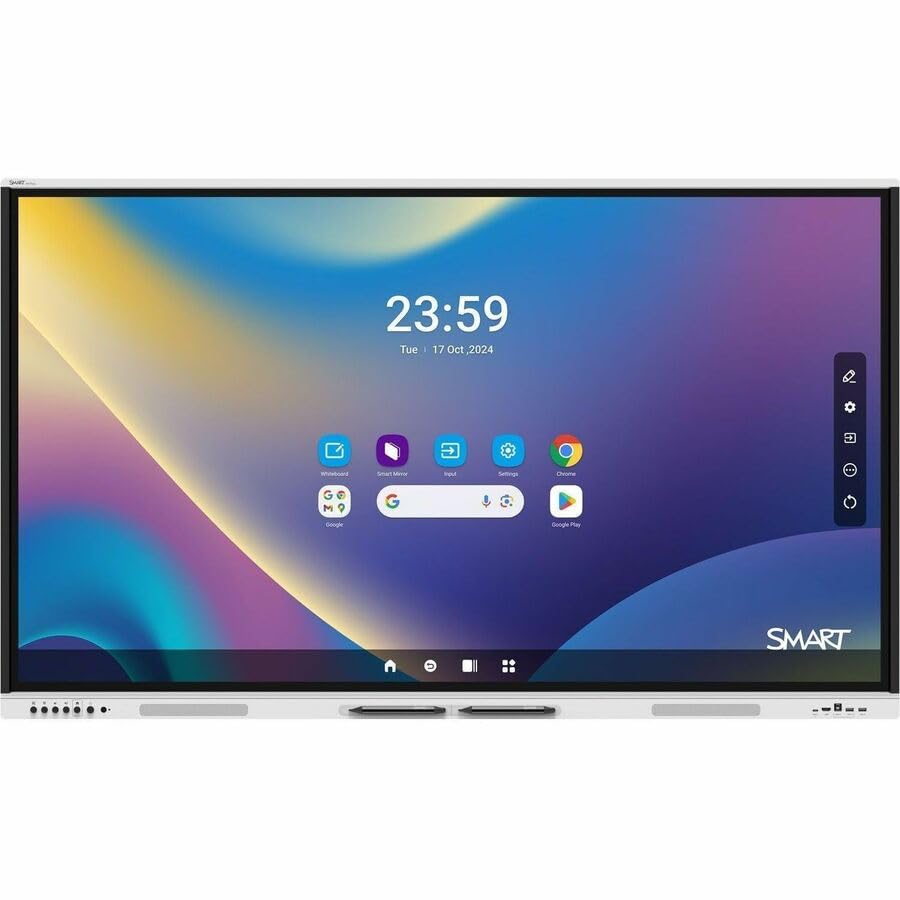
Image: The Smart Ink Board GX175N-V4 Plus Interactive Display, showcasing its large screen and sleek design.
What's in the Box
Carefully unpack the box and ensure all items are present. If any items are missing or damaged, contact customer support immediately.
- Board GX175N-V4 Plus Interactive Display with Embedded OS (GMS)
- 1 x Power Cable
- 1 x USB 2.0 A to B cable (5m)
- 1 x USB 3.2 Gen 1 Type-C cable
- 2 x Pen
- 2 x External dual-band Wi-Fi (2.4 and 5 GHz) and Bluetooth® (2.4 GHz) antennas
- 1 x Remote control
- 2 x AAA Batteries
- 1 x Illustrated installation instructions
- 1 x Important information document
Setup
1. Unpacking and Placement
Due to the size and weight of the display, it is recommended that at least two people handle the unpacking and placement. Place the display on a stable, flat surface or mount it securely using a compatible VESA mount (not included). Ensure adequate ventilation around the display.
2. Connecting Power
- Connect the provided power cable to the AC IN port on the display.
- Plug the other end of the power cable into a grounded electrical outlet (120 Volts).
3. Connecting Peripherals
The display offers various connectivity options:
- HDMI: Connect external devices like laptops or media players using HDMI cables. The display has 4 HDMI ports.
- USB: Use the USB 2.0 A to B cable to connect a computer for touch functionality. Additional USB 2.0 (3 ports) and USB 3.0 (1 port) ports are available for other peripherals.
- DisplayPort: Connect compatible devices via DisplayPort.
- Ethernet: For wired network connectivity, connect an Ethernet cable to the LAN port.
- Wi-Fi & Bluetooth: Attach the two external antennas to the designated ports for wireless connectivity.
- USB-C: Use the USB 3.2 Gen 1 Type-C cable for single-cable connectivity (video, audio, touch, and power delivery) with compatible devices.
4. First Power On
Press the power button located on the display or the remote control. The display will boot up, and you will see the Smart Ink embedded OS interface. Follow any on-screen prompts for initial setup, including network configuration and language selection.
Operating Instructions
Basic Operation
- Power On/Off: Press the power button on the display or remote.
- Source Selection: Use the input button on the remote or the on-screen menu to switch between HDMI, DisplayPort, USB-C, or the embedded OS.
- Volume Control: Adjust audio output using the volume buttons on the remote.
Touchscreen Functionality
The display supports multi-user touch interaction. Use your fingers or the provided pens for writing, drawing, and navigating. The embedded OS provides a suite of interactive tools.
- Writing/Drawing: Use the pens for precise input. The display recognizes different pen tips for varying line thickness.
- Erasing: Use the back of your hand or a larger object to erase content on the screen.
- Gestures: Standard multi-touch gestures (pinch-to-zoom, two-finger scroll) are supported.
Embedded OS and Applications
The Smart Ink Board GX175N-V4 Plus runs on an embedded OS with GMS, providing access to a range of educational and productivity applications. Explore the app store for additional tools. The display also integrates with SMART Ink for enhanced annotation capabilities across Windows and Mac OS when connected to an external computer.
Maintenance
Cleaning the Display
- Always power off and unplug the display before cleaning.
- Use a soft, lint-free cloth slightly dampened with water or a non-abrasive screen cleaner.
- Do not spray cleaning solution directly onto the screen.
- Avoid using harsh chemicals, alcohol, or abrasive materials, as these can damage the screen surface.
Software Updates
Regularly check for and install software updates to ensure optimal performance and security. Updates can typically be found in the system settings menu of the embedded OS.
Troubleshooting
If you encounter issues with your Smart Ink Board, refer to the following common problems and solutions:
| Problem | Possible Cause | Solution |
|---|---|---|
| No power | Power cable not connected; power outlet issue | Ensure power cable is securely connected to both the display and a working electrical outlet. Test the outlet with another device. |
| No display/blank screen | Incorrect input source selected; external device not powered on or connected | Verify the correct input source is selected. Check that external devices are powered on and cables are securely connected. |
| Touchscreen unresponsive | USB touch cable not connected; software glitch | Ensure the USB A to B cable is connected between the display and the computer (if using an external source). Restart the display. |
| Wi-Fi/Bluetooth connectivity issues | Antennas not attached; network configuration error | Confirm both Wi-Fi/Bluetooth antennas are securely attached. Check network settings in the embedded OS. |
If the problem persists after trying these solutions, please contact Smart Ink customer support.
Specifications
| Feature | Detail |
|---|---|
| Brand | Smart Ink |
| Model Number | GX175N-V4 |
| Screen Size | 75 Inches |
| Resolution | 4K UHD (3840 x 2160 Pixels) |
| Aspect Ratio | 16:9 |
| Refresh Rate | 60 Hz |
| Contrast Ratio | 2500:1 |
| Brightness | 1370.4 cd/m² |
| Display Type | LCD |
| Response Time | 8 Milliseconds |
| Item Dimensions (D x W x H) | 3.9"D x 67.3"W x 40.2"H |
| Item Weight | 92.59 Pounds |
| Voltage | 120 Volts |
| Connectivity Technology | Bluetooth, DisplayPort, Ethernet, HDMI, USB, VGA, Wi-Fi |
| Hardware Connectivity | DisplayPort, Ethernet, HDMI (4 ports), Serial Interface, USB (4 total: 3x USB 2.0, 1x USB 3.0) |
| Additional Features | Built-In Speakers, Touchscreen |
Warranty Information
The Smart Ink Board GX175N-V4 Plus Interactive Display comes with a 3-year manufacturer's warranty. This warranty covers defects in materials and workmanship under normal use. For full details regarding warranty terms, conditions, and claim procedures, please refer to the official documentation included with your product or visit the Smart Technologies, Inc. official website.
Customer Support
For technical assistance, troubleshooting beyond this manual, or warranty claims, please contact Smart Ink customer support. Have your product model number (GX175N-V4) and serial number ready when contacting support.
Manufacturer: SMART Technologies, Inc
Please visit the official Smart Ink website for contact information and additional resources.


