
1. Product Overview
The ArcticPro AD24EF4Y is a 24-inch Full HD (1920x1080p) gaming monitor designed for high-performance visual experiences. It features a 240Hz refresh rate, 1ms MPRT response time, and Adaptive Sync technology to provide smooth and tear-free visuals. The VA panel offers wide viewing angles and a broad color gamut, covering 120% sRGB and 85% NTSC. Eye care features such as Low Blue Light and Flicker-Free technology are integrated for user comfort during extended use. The monitor also includes HDMI and DisplayPort connectivity options.
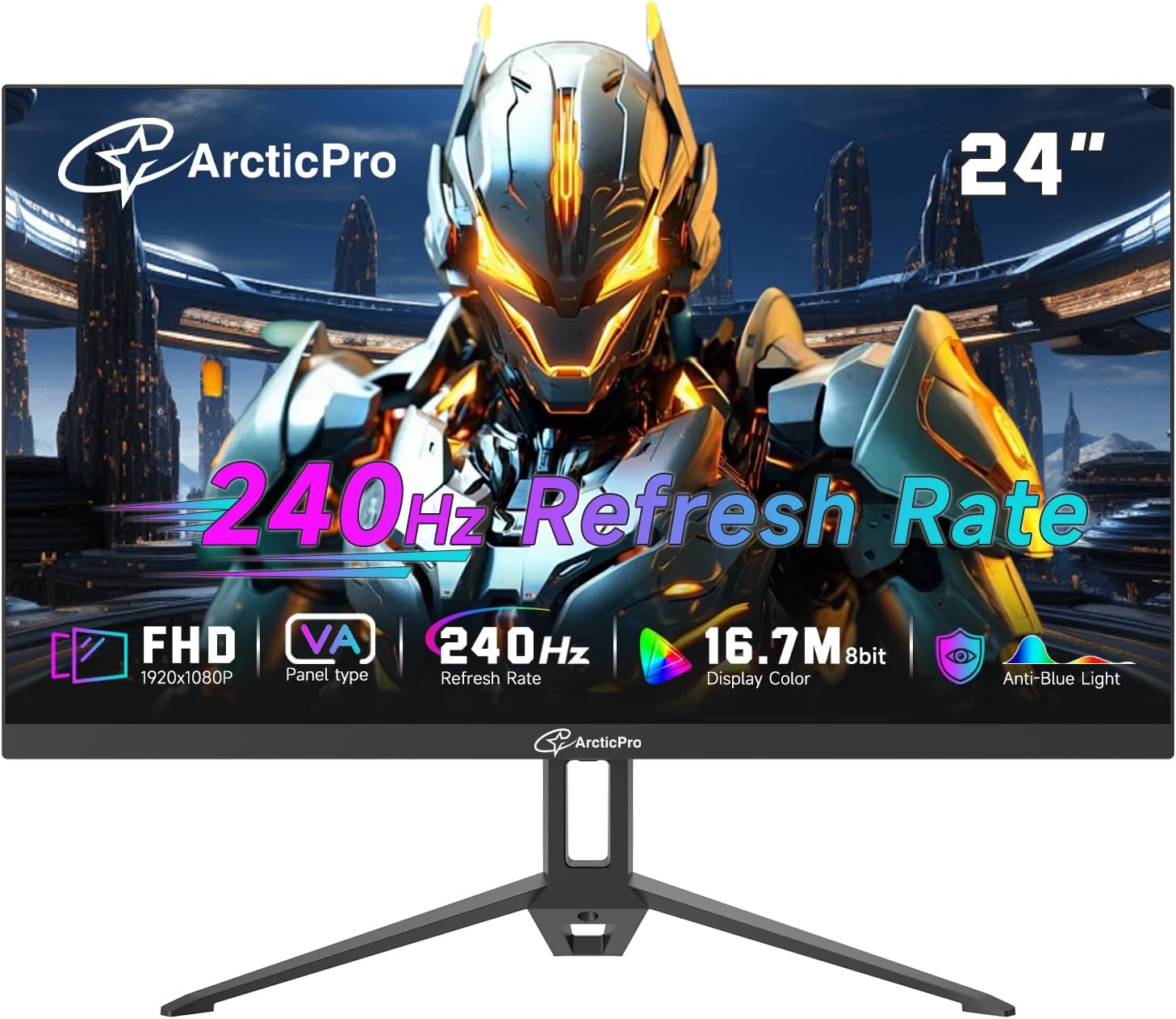
Image: Front view of the ArcticPro 24-inch Gaming Monitor, highlighting its slim bezels and stand.
2. Setup Instructions
2.1 Unpacking
- Carefully open the packaging and remove the monitor and all accessories.
- Ensure all components listed in the packing list are present and undamaged.
2.2 Stand Assembly
- Place the monitor face down on a soft, clean surface to prevent scratches.
- Attach the stand neck to the monitor panel, ensuring it clicks securely into place or is fastened with screws as indicated in the quick start guide.
- Connect the base to the stand neck and tighten any screws to secure the assembly.
2.3 VESA Mount Installation (Optional)
The monitor supports VESA wall mounting with a 100x100mm pattern. If using a VESA mount, remove the stand (if already attached) and follow the instructions provided with your VESA mounting kit.
2.4 Connecting to a Device
Connect the monitor to your computer or other video source using the appropriate cables (HDMI or DisplayPort). Ensure the cables are securely connected to both the monitor and the source device.

Image: Illustration of the monitor's HDMI and DisplayPort connections, showing compatibility with various devices like PCs, gaming consoles, and laptops.
2.5 Power Connection
Connect the power adapter to the monitor's DC input port, then plug the power cable into a power outlet.
3. Operating Instructions
3.1 Power On/Off
Press the power button, usually located on the back or bottom of the monitor, to turn the monitor on or off. The power indicator light will illuminate when the monitor is active.
3.2 On-Screen Display (OSD) Menu
The OSD menu allows you to adjust various monitor settings. Use the navigation buttons (joystick or individual buttons) on the monitor to access and navigate the OSD menu. Common settings include brightness, contrast, color temperature, input source, and gaming features.
3.3 Key Features
- Full HD Resolution: The monitor features a 1920x1080p Full HD resolution, delivering clear and detailed visuals.
- 240Hz Refresh Rate & 1ms Response Time: A 240Hz refresh rate and 1ms MPRT response time contribute to smooth motion and reduced blurring, particularly beneficial for fast-paced content.
- Adaptive Sync: Adaptive Sync technology synchronizes the monitor's refresh rate with the graphics card's frame rate, which helps reduce screen tearing and stuttering for smoother motion.
- Low Blue Light & Flicker-Free: Low Blue Light technology is included for visual comfort, reducing eye strain during prolonged use. Flicker-Free technology minimizes screen flickering.
- Wide Viewing Angles & Color Gamut: The VA panel offers 178° horizontal and vertical viewing angles and a wide color gamut, covering 120% sRGB and 85% NTSC for accurate color reproduction.
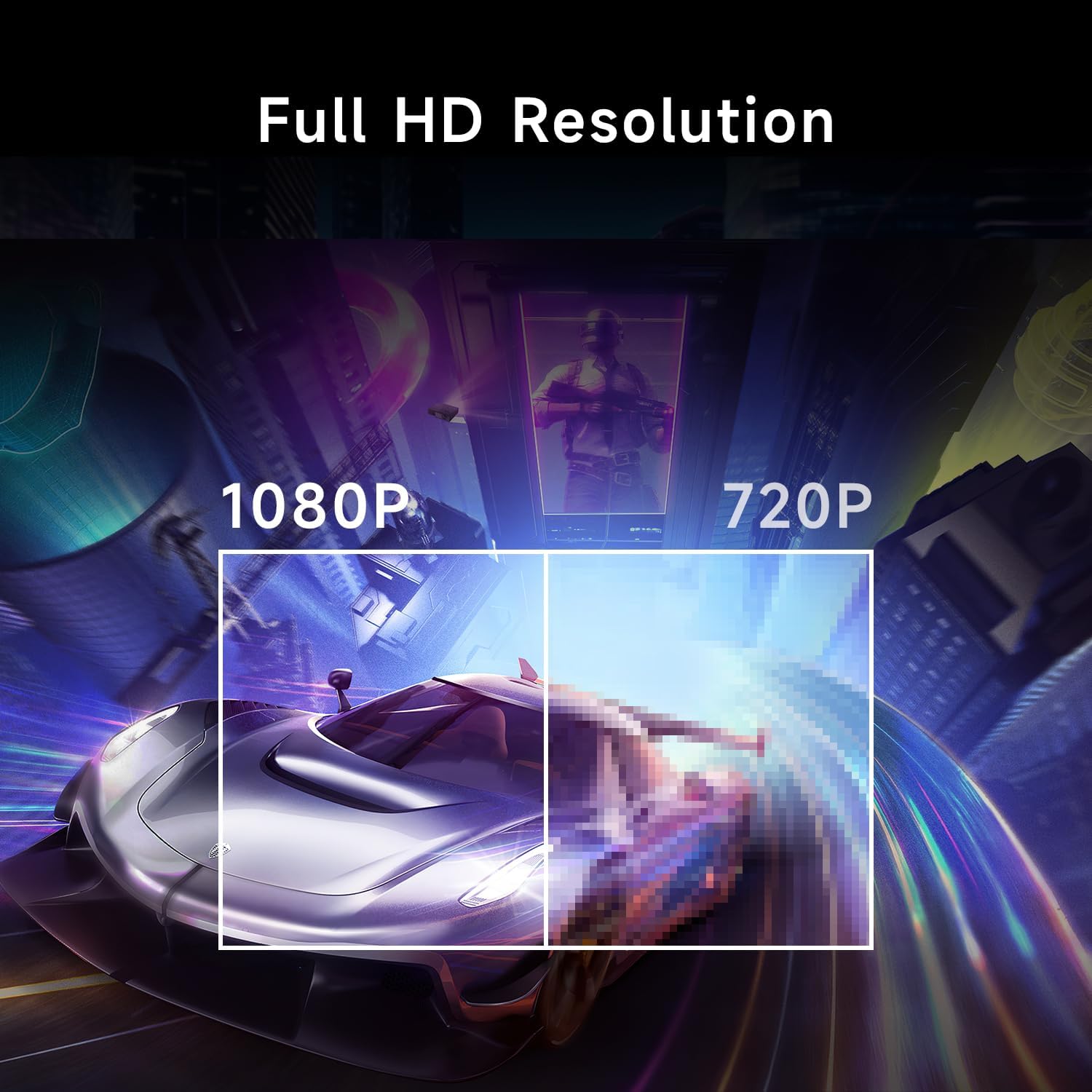
Image: Visual comparison demonstrating the clarity of 1080p Full HD resolution versus 720p.
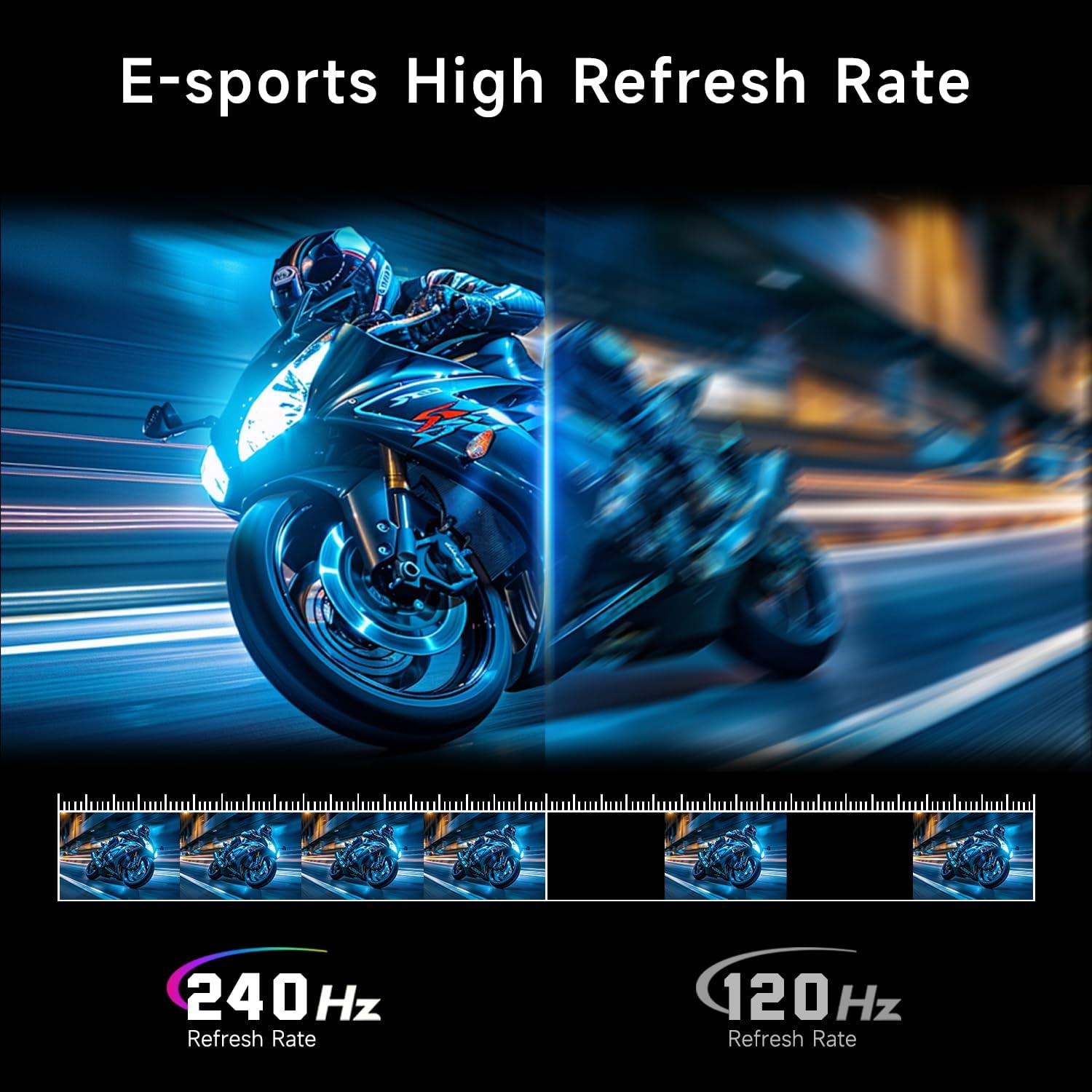
Image: Comparison showing the difference in motion smoothness between a 240Hz and 120Hz refresh rate.
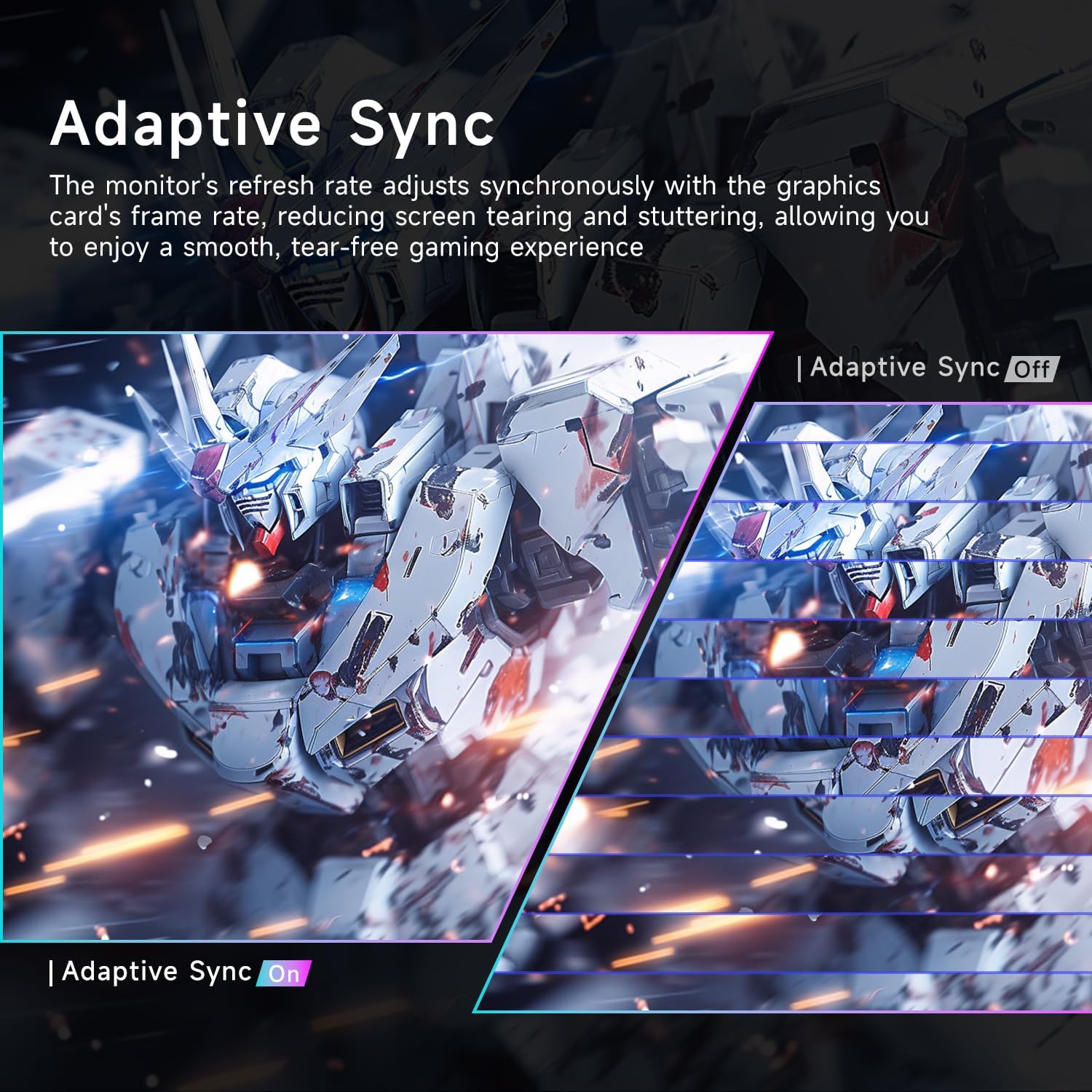
Image: Visual representation of Adaptive Sync technology, showing how it eliminates screen tearing when enabled.
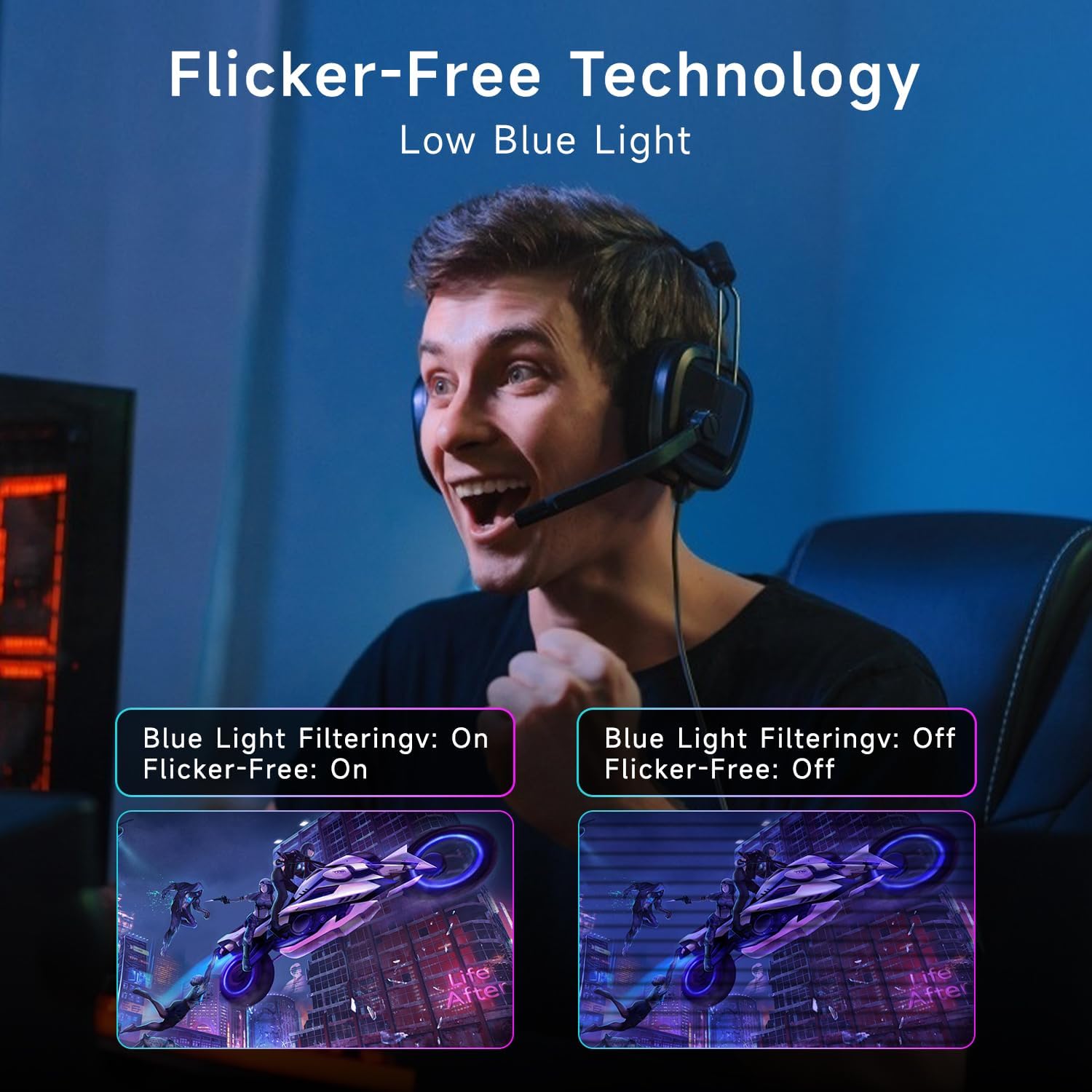
Image: Depiction of Flicker-Free technology and Blue Light Filtering, illustrating their effect on visual comfort.
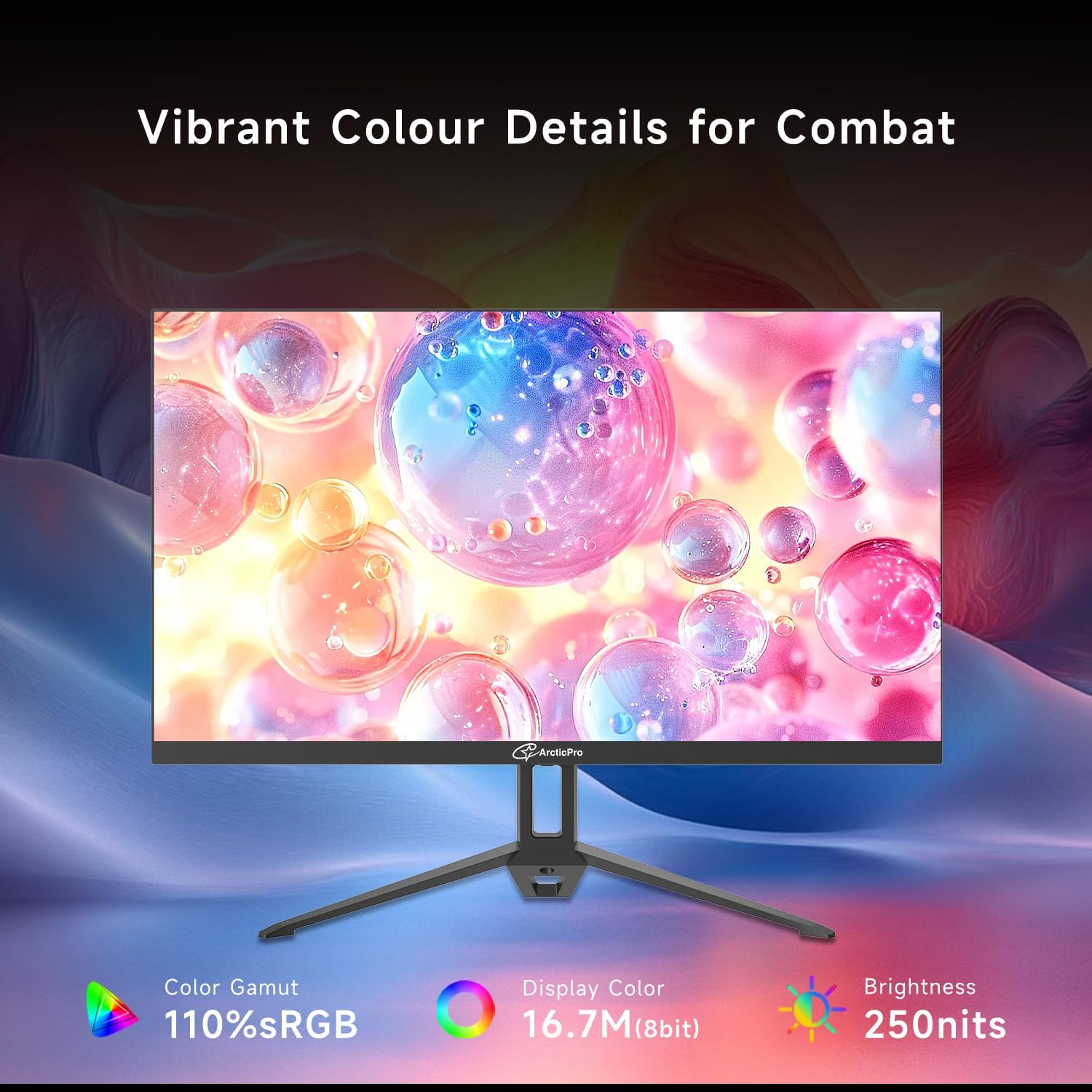
Image: Illustration of the monitor's 178-degree wide viewing angle, showing consistent image quality from various perspectives.
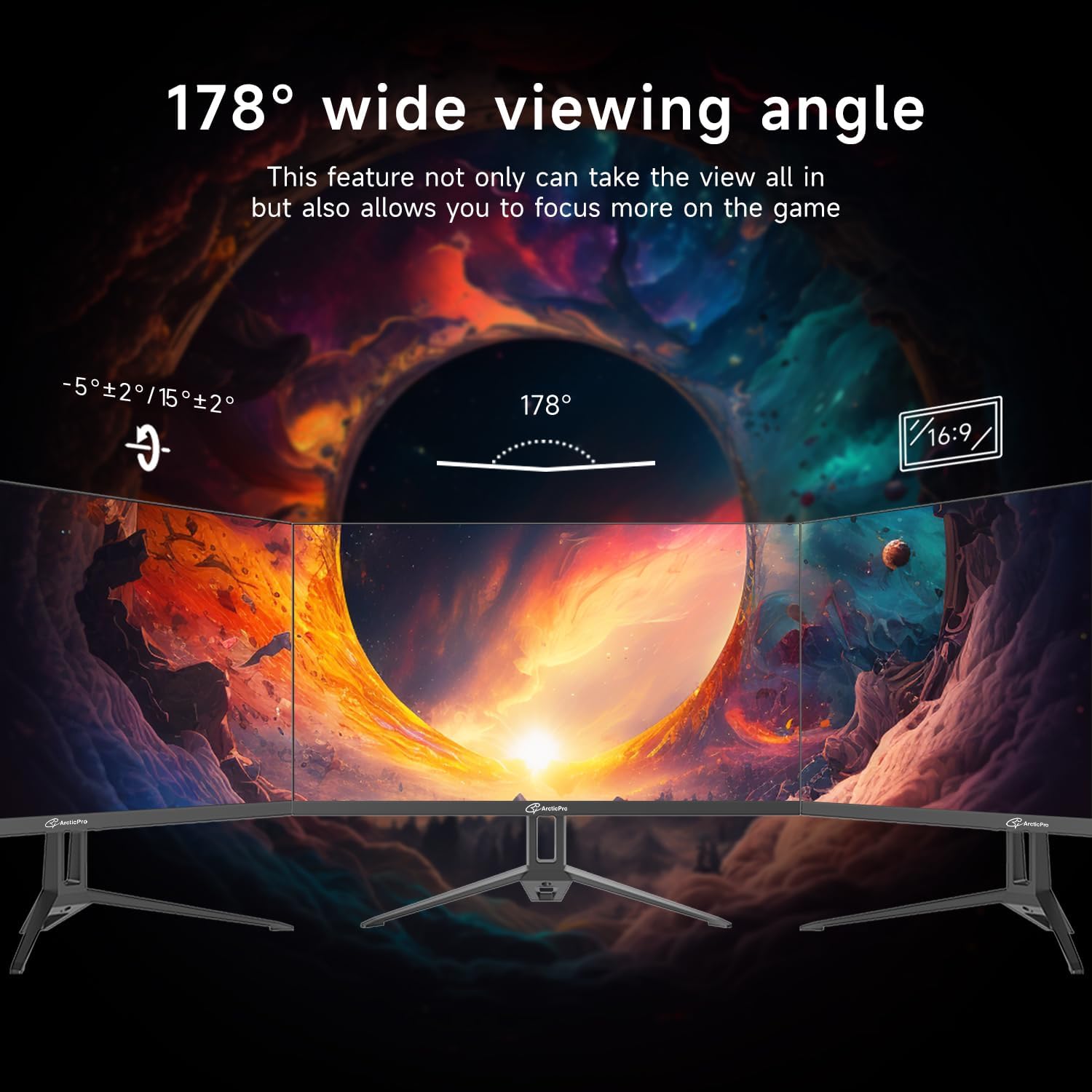
Image: Display of vibrant color details, indicating 110% sRGB color gamut, 16.7M (8-bit) display color, and 250 nits brightness.
4. Maintenance
4.1 Cleaning the Screen
- Turn off the monitor and unplug the power cable.
- Gently wipe the screen with a soft, lint-free cloth. For stubborn marks, lightly dampen the cloth with water or a screen-cleaning solution (do not spray directly onto the screen).
- Avoid using abrasive cleaners, alcohol, or ammonia-based solutions.
4.2 Cleaning the Casing
Wipe the monitor casing with a soft, dry cloth. If necessary, use a mild, non-abrasive cleaner applied to the cloth, not directly to the monitor.
5. Troubleshooting
If you encounter issues with your ArcticPro monitor, refer to the following common problems and solutions:
- No Power:
- Ensure the power cable is securely connected to both the monitor and the power outlet.
- Verify the power outlet is functioning correctly.
- No Signal:
- Check that the video cable (HDMI/DisplayPort) is firmly connected to both the monitor and the source device.
- Ensure the correct input source is selected in the monitor's OSD menu.
- Test with a different video cable or source device if possible.
- Display Issues (e.g., flickering, distorted image):
- Adjust the resolution and refresh rate settings on your computer to match the monitor's specifications.
- Ensure your graphics card drivers are up to date.
- Disable Adaptive Sync temporarily to see if the issue persists.
- No Sound (if applicable):
- Check the audio output settings on your computer.
- Adjust the volume settings on the monitor's OSD menu.
- Ensure external speakers or headphones are properly connected if not using built-in audio.
If the problem persists after attempting these solutions, please contact customer support.
6. Specifications
| Feature | Specification |
|---|---|
| Brand | ArcticPro |
| Model Number | AD24EF4Y |
| Screen Size | 24 Inches |
| Resolution | 1920 x 1080 Pixels (FHD 1080p) |
| Refresh Rate | 240Hz |
| Response Time | 1ms MPRT |
| Panel Type | VA |
| Aspect Ratio | 16:9 |
| Contrast Ratio | 3000:1 |
| Color Gamut | 120% sRGB, 85% NTSC |
| Viewing Angles | 178° (Horizontal & Vertical) |
| Tilt Angles | -5° to +15° |
| VESA Mount Pattern | 100x100mm |
| Product Dimensions | 1.63 x 21.23 x 12.61 inches |
| Item Weight | 8.23 pounds |
| Screen Surface Description | Matte |
7. Warranty and Support
For warranty information and technical support, please refer to the documentation included with your product or visit the official ArcticPro website. Keep your purchase receipt for warranty claims.