
1. Introduction
Thank you for choosing the FANGOR 10.1-inch Wi-Fi Digital Photo Frame. This manual provides detailed instructions for setting up, operating, and maintaining your device. Please read this manual thoroughly before use to ensure proper functionality and to maximize your enjoyment of the product. This digital photo frame is designed to display your cherished photos and videos with ease, offering a vibrant viewing experience and convenient sharing options.
2. Product Overview
2.1 Package Contents
- FANGOR 10.1-inch Wi-Fi Digital Photo Frame
- Power Adapter
- User Manual
- Wall-mounting screws (x3)
2.2 Key Features
- 10.1-inch IPS Touch Panel: 1280x800 high resolution, 16:9 widescreen ratio, and 178° wide viewing angle for clear and vibrant images.
- 32GB Internal Memory: Stores approximately 16,000 photos or up to 2,000 two-minute videos.
- Diverse Transfer Methods: Supports MicroSD cards (up to 32GB, sold separately), direct USB memory connection, PC transfer, and web synchronization.
- Wi-Fi Remote Transfer & Multi-User Sharing: Use the free 'Uhale' app (Android/iOS) to easily send photos and videos from your smartphone or PC. Multiple users can connect simultaneously.
- Automatic Screen Rotation: Photos are displayed correctly in landscape or portrait orientation without manual adjustment.
- Multi-functional: Includes weather forecast, clock display, slideshow playback, and sleep mode.
- Stylish Design: White frame with a unique fingerprint texture, suitable for various home and office environments.
- Easy Operation: Intuitive touch screen interface, user-friendly for all ages.
3. Setup
3.1 Unboxing and Initial Placement
Carefully remove all components from the packaging. Place the photo frame on a stable, flat surface or mount it on a wall using the provided screws and mounting holes. Ensure adequate ventilation around the device.

Image: The FANGOR 10.1-inch Wi-Fi Digital Photo Frame, shown in white, ready for setup.
3.2 Power Connection
Connect the power adapter to the DC IN port on the back of the photo frame, then plug the adapter into a power outlet. The device will automatically power on.
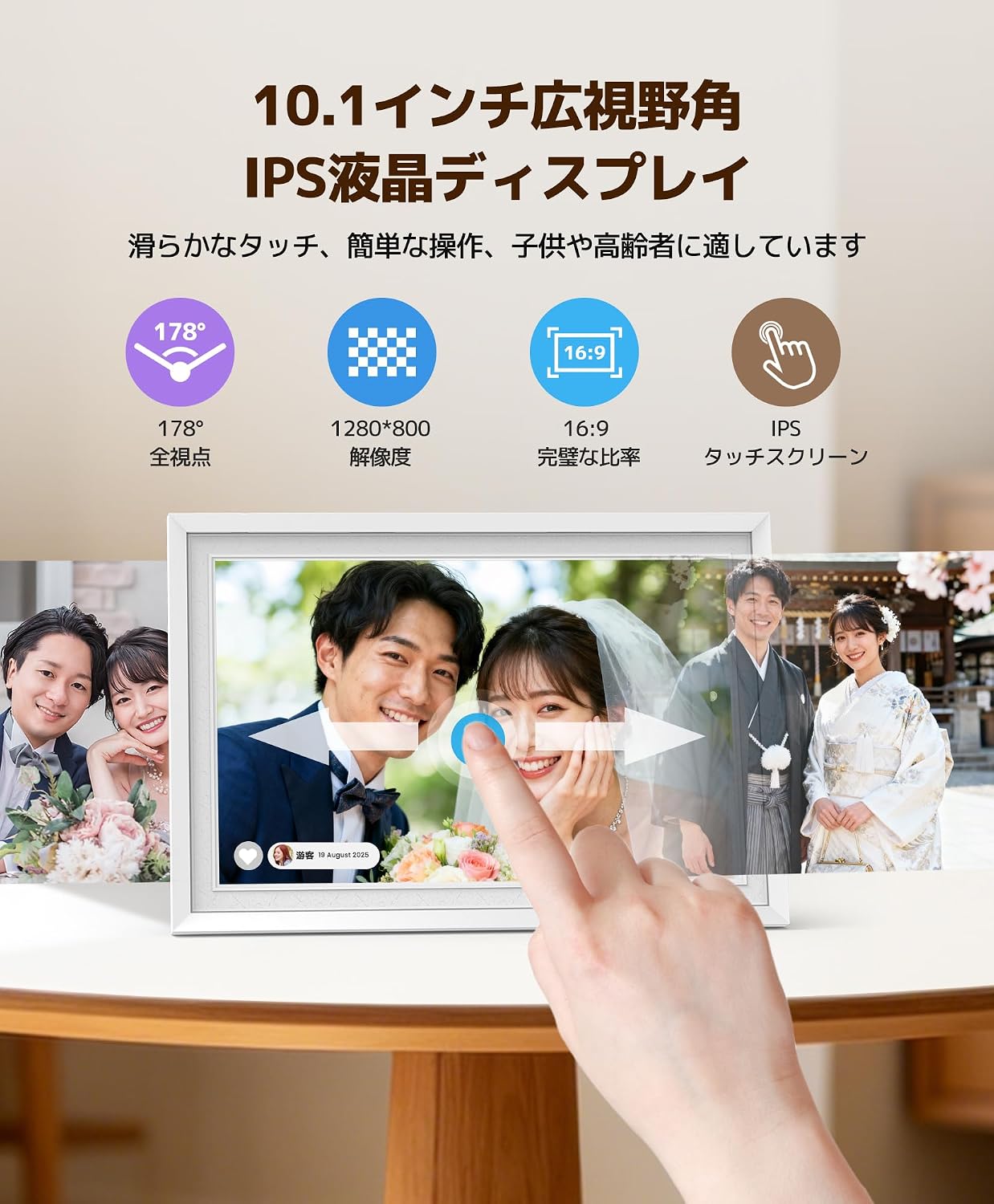
Image: Rear view of the digital photo frame, showing the power input and other ports.
3.3 Initial Setup and Wi-Fi Connection
- Upon first power-on, follow the on-screen prompts to select your preferred language and time zone.
- Connect the device to your Wi-Fi network by selecting your network name and entering the password. A stable Wi-Fi connection is essential for app-based transfers and features like weather forecasts.
3.4 App Download and Pairing
Download the free 'Uhale' app from the App Store (iOS) or Google Play Store (Android) on your smartphone. Follow the in-app instructions to pair your smartphone with the digital photo frame. This enables remote photo/video transfer and multi-user sharing.

Image: Diagram illustrating Wi-Fi remote transfer using the Uhale app on a smartphone to the digital photo frame.
4. Operating Instructions
4.1 Basic Touch Screen Operation
The photo frame features an intuitive touch screen. Tap to select options, swipe to navigate through photos, and pinch to zoom (if supported by the software version). Brightness and volume can be adjusted directly via screen touch controls.

Image: A hand interacting with the touch screen of the digital photo frame, showing a family photo.
4.2 Uploading Photos and Videos
- Via Uhale App: Open the 'Uhale' app on your smartphone, select the photos/videos you wish to transfer (up to 100 photos at once from smartphone, up to 500 from PC via web system), and send them to the frame.
- Via SD Card: Insert a MicroSD card (up to 32GB, not included) into the designated slot. The frame will automatically detect and display content from the card.
- Via USB Drive: Connect a USB memory stick to the USB port. The frame will recognize the drive for content display.

Image: The back of the digital photo frame showing an SD card and USB drive inserted into their respective slots, demonstrating offline transfer options.
4.3 Automatic Screen Rotation
The photo frame automatically adjusts the orientation of your photos and videos based on how the frame is positioned (landscape or portrait). No manual adjustment of the display settings is required.

Image: A person holding the digital photo frame, showing how it automatically rotates the image when the frame's orientation changes from landscape to portrait.
4.4 Slideshow Settings
Access the settings menu to customize your slideshow experience. You can adjust transition effects, display duration for each photo, and playback order.
4.5 Multi-User Sharing
The 'Uhale' app allows multiple users to connect to the same photo frame. This feature enables family and friends, regardless of their location, to share photos and videos directly to your frame, fostering a shared experience of memories.
4.6 Additional Functions
- Weather Forecast: Display local weather information (requires Wi-Fi connection).
- Clock Display: Use the frame as a digital clock.
- Sleep Mode: Set a timer for the screen to automatically turn on/off, saving energy and providing convenience.

Image: The digital photo frame displaying a clock in sleep mode, with an illustration of a person sleeping and waking up, indicating timed on/off functionality.
5. Maintenance
5.1 Cleaning
To clean the screen, gently wipe it with a soft, lint-free cloth. For stubborn smudges, slightly dampen the cloth with water or a screen-cleaning solution. Avoid using harsh chemicals or abrasive materials. Clean the frame with a dry, soft cloth.
5.2 Storage
When not in use for extended periods, store the photo frame in a cool, dry place, away from direct sunlight and extreme temperatures. Disconnect the power adapter.
6. Troubleshooting
If you encounter any issues with your FANGOR Digital Photo Frame, please refer to the following common problems and solutions:
| Problem | Possible Cause | Solution |
|---|---|---|
| Frame does not power on. | Power adapter not connected or faulty. | Ensure the power adapter is securely connected to the frame and a working power outlet. Try a different outlet. |
| Cannot connect to Wi-Fi. | Incorrect password, weak signal, or router issue. | Double-check the Wi-Fi password. Move the frame closer to the router. Restart your router. Ensure the Wi-Fi network is 2.4GHz (5GHz networks may not be supported). |
| Photos/videos not displaying. | Unsupported file format, corrupted files, or no content loaded. | Ensure files are in supported formats (e.g., JPEG for photos, MP4 for videos). Re-transfer files. Check if the SD card/USB drive is properly inserted and formatted correctly (FAT32 or exFAT). |
| Screen is unresponsive or frozen. | Temporary software glitch. | Restart the device by disconnecting and reconnecting the power. If the issue persists, perform a factory reset (refer to settings menu). |
| Image size/aspect ratio issues. | Original image resolution or aspect ratio mismatch. | The frame automatically adjusts, but some images may appear cropped or stretched if their original aspect ratio is significantly different from 16:9. Consider resizing images before uploading for optimal display. |
If the problem persists after trying these solutions, please contact FANGOR customer support for further assistance.
7. Specifications
| Feature | Detail |
|---|---|
| Brand | FANGOR |
| Model Number | 114KZ |
| Color | White |
| Screen Size | 10.1 inches |
| Display Type | IPS Touch Screen |
| Resolution | 1280 x 800 |
| Aspect Ratio | 16:9 |
| Internal Memory | 32 GB |
| External Memory Support | MicroSD card (up to 32GB), USB memory |
| Connectivity Technology | Wi-Fi |
| Control Method | Touch |
| Power Source | Power Corded |
| Frame Material | Plastic |
| Product Dimensions (L x W) | 29 cm x 20 cm (approx. 11.4 x 7.9 inches) |
| Country of Origin | China |
8. Warranty and Support
8.1 Warranty Information
This FANGOR Digital Photo Frame comes with a one-year warranty from the date of purchase. The warranty covers manufacturing defects and malfunctions under normal use. Please retain your proof of purchase for warranty claims.
8.2 Customer Support
For technical assistance, troubleshooting, or warranty inquiries, please contact FANGOR customer support. Refer to the contact information provided with your product packaging or visit the official FANGOR website for support details.