
NEWFAST NF-RE523
NEWFAST 1200Mbps Dual-Band WiFi Repeater NF-RE523 User Manual
1. Introduction
This manual provides comprehensive instructions for the setup, operation, and maintenance of your NEWFAST 1200Mbps Dual-Band WiFi Repeater, model NF-RE523. This device is designed to extend the coverage of your existing wireless network, eliminating Wi-Fi dead zones and improving signal strength throughout your home or office. It supports both 2.4 GHz and 5 GHz wireless bands, offering flexible connectivity options for various devices.
2. Package Contents
Please verify that all items are present in your package. If any item is missing or damaged, please contact customer support.
- NEWFAST 1200Mbps Dual-Band WiFi Repeater (NF-RE523)
- Ethernet Cable
- Quick Installation Guide
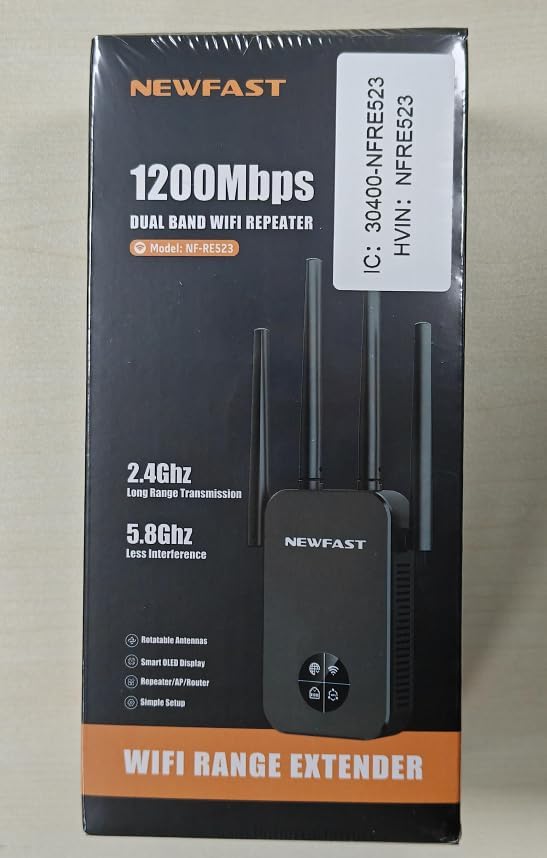
Image 2.1: The retail packaging for the NEWFAST NF-RE523 WiFi Repeater, showing the product name, model, and key features.
3. Product Overview
The NEWFAST NF-RE523 WiFi Repeater features a compact design with four external antennas for enhanced signal coverage. It includes indicator lights for status monitoring and a power plug for direct wall outlet connection.
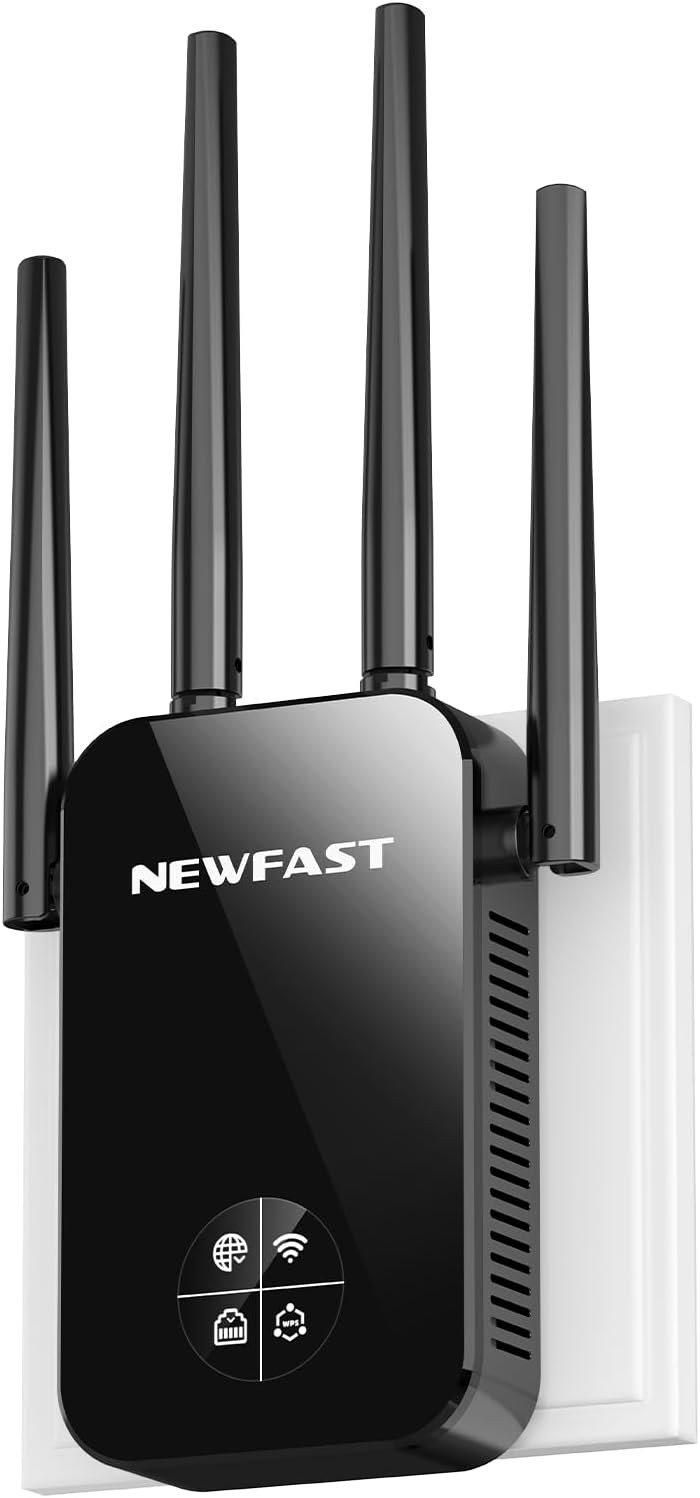
Image 3.1: Front view of the NEWFAST NF-RE523 WiFi Repeater, displaying the brand logo and indicator icons.
3.1 LED Indicators
- Power/System LED: Indicates power status and system activity.
- WLAN LED: Indicates wireless network activity.
- LAN LED: Indicates Ethernet port activity.
- Signal Strength LED: Indicates the strength of the signal received from the main router.
3.2 Ports and Buttons

Image 3.2: Back view of the NEWFAST NF-RE523 WiFi Repeater, showing the power plug, ventilation, and product label with model and network details.
- Power Plug: For connecting the device to a standard electrical outlet.
- LAN/WAN Port: An Ethernet port that can function as either a Local Area Network (LAN) port for wired connections or a Wide Area Network (WAN) port for connecting to a modem in Access Point mode.
- WPS/Reset Button: Press briefly for WPS (Wi-Fi Protected Setup) to quickly connect to a compatible router. Press and hold for approximately 10 seconds to perform a factory reset.
4. Setup Instructions
The NEWFAST NF-RE523 can operate in two primary modes: Repeater Mode (to extend an existing Wi-Fi network) and Access Point (AP) Mode (to create a new Wi-Fi hotspot from a wired connection).
4.1 Powering On
- Plug the repeater into an electrical outlet near your main router.
- Wait for the Power/System LED to stabilize, indicating the device is ready.
4.2 Repeater Mode Setup
Repeater mode extends the coverage of your existing wireless network.
Method 1: WPS (Wi-Fi Protected Setup)
This is the simplest method if your main router supports WPS.
- Plug the repeater into an electrical outlet.
- Press the WPS button on your main router.
- Within two minutes, press the WPS/Reset button on the NEWFAST repeater.
- The repeater's WLAN LED will flash and then become solid, indicating a successful connection.
- Relocate the repeater to a suitable location between your router and the Wi-Fi dead zone. Ensure the Signal Strength LED indicates a good connection.
Method 2: Web Browser Setup
This method provides more control over settings.
- Plug the repeater into an electrical outlet.
- Connect your computer or mobile device to the repeater's default Wi-Fi network (e.g., "NEWFAST_XXXX" or similar, usually found on the device label or quick guide). No password is required for the initial connection.
- Open a web browser and enter the default IP address: 192.168.10.1.
- Log in using the default password: admin.
- Follow the on-screen wizard to select "Repeater Mode."
- Scan for available Wi-Fi networks and select your main router's network.
- Enter your main router's Wi-Fi password. You can choose to keep the same SSID (network name) or create a new one for the extended network.
- Confirm settings and wait for the repeater to restart.
- Once restarted, relocate the repeater to an optimal position.
4.3 Access Point (AP) Mode Setup
AP mode converts a wired internet connection into a wireless network.
- Plug the repeater into an electrical outlet.
- Connect an Ethernet cable from your modem or router's LAN port to the repeater's LAN/WAN port.
- Connect your computer or mobile device to the repeater's default Wi-Fi network.
- Open a web browser and enter the default IP address: 192.168.10.1.
- Log in using the default password: admin.
- Follow the on-screen wizard to select "AP Mode."
- Configure the new Wi-Fi network name (SSID) and password.
- Confirm settings and wait for the repeater to restart.
5. Operation
5.1 Connecting Devices
After successful setup, your extended or new Wi-Fi network will be available. Connect your wireless devices (smartphones, tablets, laptops, smart home devices) to this network using the configured SSID and password.
5.2 Dual-Band Functionality
The NF-RE523 supports both 2.4 GHz and 5 GHz bands. The 2.4 GHz band offers wider coverage and better penetration through walls, suitable for general browsing and devices further away. The 5 GHz band provides faster speeds and lower latency, ideal for streaming HD video and online gaming, especially for devices closer to the repeater.

Image 5.1: Illustration of the dual-band capability, showing typical speeds for 2.4 GHz (300Mbps) and 5.8 GHz (867Mbps) connections.
6. Maintenance
6.1 Firmware Update
Periodically check the NEWFAST official website for firmware updates. Firmware updates can improve performance, add new features, and fix bugs. Refer to the website's instructions for the update process.
6.2 Factory Reset
If the device is not functioning correctly or you forget the login password, you can perform a factory reset. With the device powered on, press and hold the WPS/Reset button for approximately 10 seconds until the LEDs flash. The device will restart with default settings.
7. Troubleshooting
- No Power: Ensure the repeater is securely plugged into a working electrical outlet. Check if the Power/System LED is on.
- Cannot Access Web Management Page:
- Ensure your device is connected to the repeater's Wi-Fi network or via an Ethernet cable.
- Verify that you are using the correct IP address (192.168.10.1) and password (admin).
- Try clearing your browser's cache or using a different browser.
- Perform a factory reset if necessary.
- Poor Signal Strength or Slow Speed:
- Relocate the repeater to a position where it receives a strong signal from your main router (check the Signal Strength LED). It should be roughly halfway between your router and the desired coverage area.
- Minimize obstructions like thick walls or large metal objects.
- Ensure there is no interference from other electronic devices.
- Repeater Not Connecting to Router:
- Ensure your main router's Wi-Fi is active and broadcasting.
- Verify the Wi-Fi password entered during setup is correct.
- Try WPS setup again or use the web browser method.
- Ensure your router's security settings (e.g., MAC filtering) are not blocking the repeater.
8. Specifications
| Feature | Description |
|---|---|
| Brand | NEWFAST |
| Model | NF-RE523 |
| Wireless Speed | Up to 1200Mbps (867Mbps on 5GHz, 300Mbps on 2.4GHz) |
| Wireless Standard | IEEE 802.11ac/a/b/g/n |
| Frequency Bands | 2.4 GHz and 5 GHz (Dual-Band) |
| Antennas | 4 External Antennas |
| Input Voltage | 100-240V~50/60Hz, 50mA |
| Dimensions (Approx.) | 20.8 x 9.7 x 7.8 cm |
| Weight | 0.24 Kilograms |
| Default IP Address | 192.168.10.1 |
| Default Login Password | admin |
Related documentsNF-RE523


Ask a question about this manual
Ask about setup, troubleshooting, compatibility, parts, safety, or missing instructions. Manuals+ will review the question and use this page’s manual context to help answer it.