
1. Introduction
The SMISEACOW SM-S8 Max is an ultra-thin, lightweight 15.3-inch FHD 1200P portable laptop screen extender designed to enhance productivity by providing dual screen functionality. This device supports various display modes and is compatible with a wide range of operating systems and laptops.
2. Safety Information
- Do not squeeze or pierce the screen.
- Always ensure the small flap closes properly before sliding the screen or you could damage the display.
- If the screen flickers due to insufficient power or brightness adjustment is unresponsive, connect an external power supply of 5V/3A or higher.
- Avoid exposing the device to extreme temperatures or direct sunlight.
- Keep out of reach of children.
3. Package Contents
Verify that all items are present in your package:
- Laptop Screen Extender (SM-S8 Max)
- Protective Case
- USB-C to USB-C Cable
- USB-C to HDMI Cable
- USB-C to USB-A Cable
- User Manual
- Quick Guide

Image: Contents of the SMISEACOW SM-S8 Max package.
4. Product Overview
The SM-S8 Max features a robust design with aviation-grade aluminum alloy for the screen back cover, ensuring durability and efficient heat dissipation. It includes a retractable bracket for secure attachment to your laptop.
4.1 Key Features
- Ultra-thin & Lightweight: Only 0.18 inches thick and 1.78 lbs.
- 15.3" IPS FHD Screen: 1920x1200 resolution, 16:10 aspect ratio, 300 nits brightness, 100% sRGB color gamut, 178-degree viewing angle.
- Adjustable Bracket: Uniform retractable design for secure attachment to laptops from 12.59" to 16.14" wide.
- Telescopic Kickstand: Rotates 90 degrees for stable support.
- Multiple Ports: USB-C (full-function), HDMI, USB-A for power.
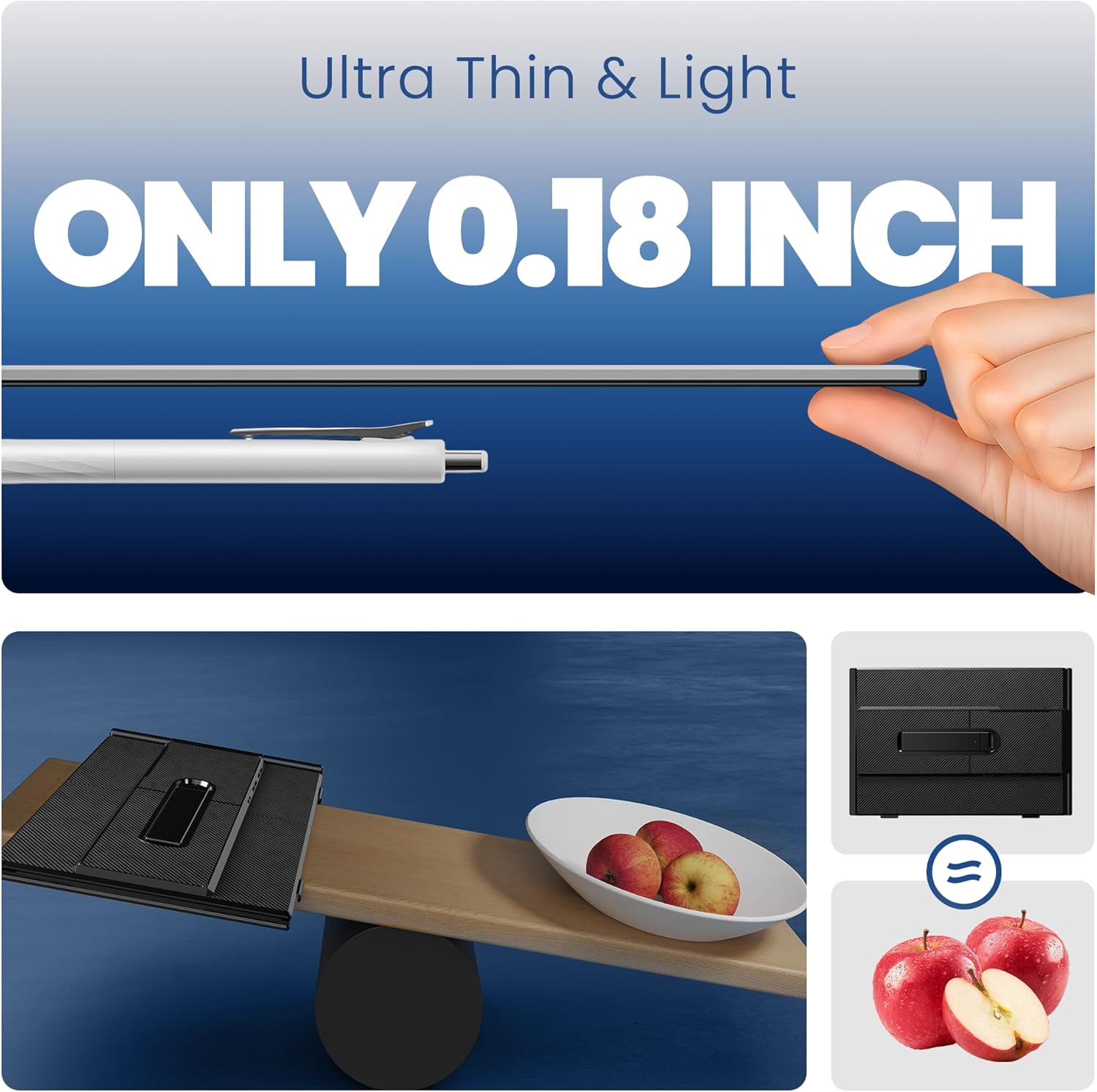
Image: The ultra-thin design of the SM-S8 Max, measuring only 0.18 inches.

Image: The 15.3-inch FHD screen of the SM-S8 Max with key display specifications.
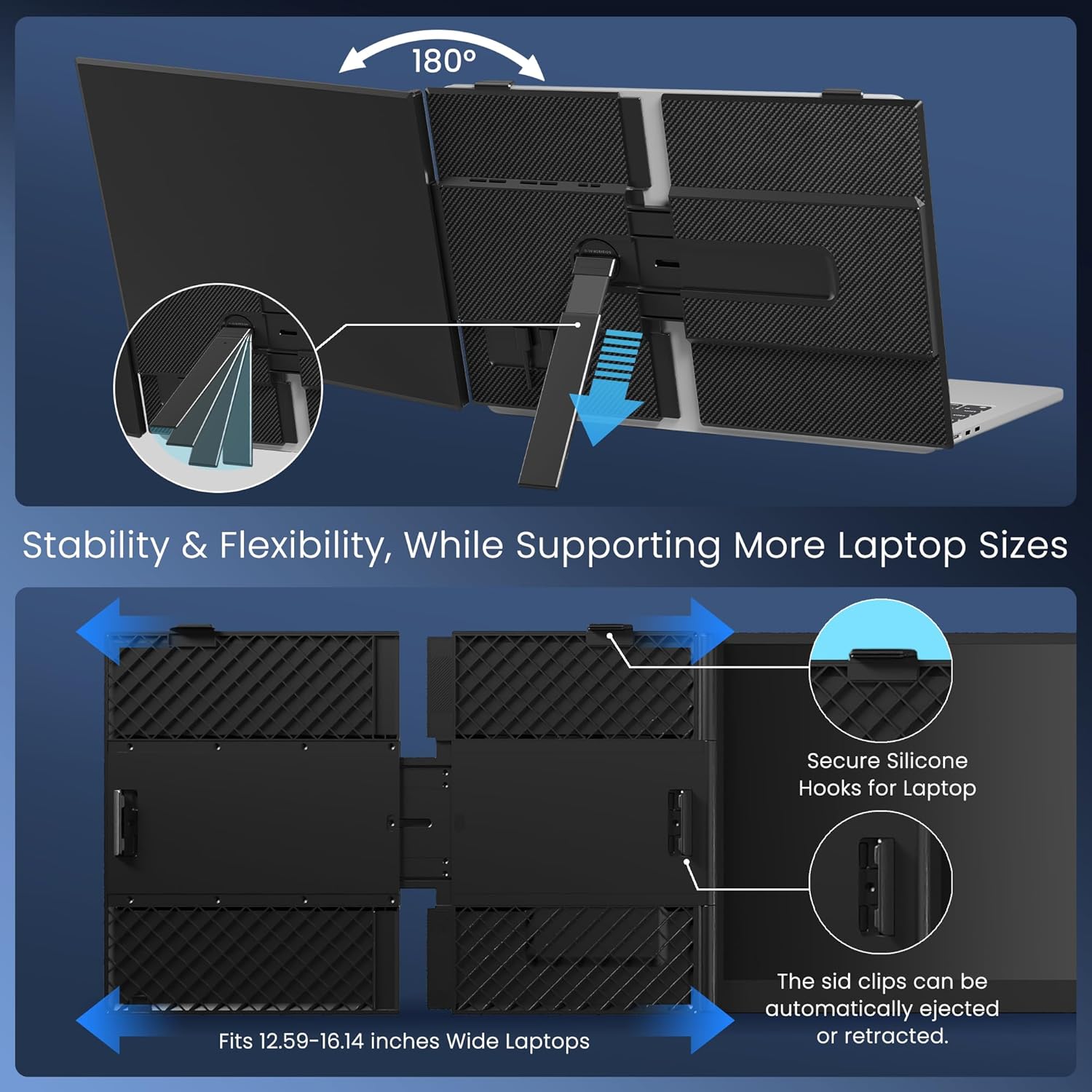
Image: The adjustable bracket and kickstand for stability and flexibility.
5. Setup
5.1 Attaching the Extender to Your Laptop
- Open the laptop screen extender.
- Position the extender over the top edge of your laptop screen.
- Gently slide the side clips to fit the width of your laptop screen (compatible with 12.59" to 16.14" wide laptops).
- Ensure the extender is securely attached and the screen is stable.
- Extend the integrated kickstand from the back of the extender to provide additional support and adjust the viewing angle. The kickstand rotates 90 degrees.

Image: The screen extender supports various display modes for versatile use.
5.2 Connecting to Your Laptop
The SM-S8 Max is plug-and-play, requiring no drivers for most systems. Connection methods vary based on your laptop's available ports:
- Single USB-C Cable Connection: If your laptop has a full-function USB-C port (Thunderbolt 3.0/4.0, supporting DP, or video output), use the provided USB-C to USB-C cable for both power and video signal.
- HDMI & USB-C Cable Connection: If your laptop does not have a full-function USB-C port, connect via an HDMI cable for video and a USB-A to USB-C cable for power supply.

Image: Connection options for the screen extender.

Image: Guide to checking for a full-featured Type-C port.
5.3 Official Product Video: Setup Demonstration
Video: Official demonstration of the 15.3'' 1200P 16:10 Ultra-Thin & Light Laptop Screen Extender setup and features.
6. Operating Instructions
Once connected, your laptop should automatically detect the external display. You can configure the display settings through your operating system.
6.1 Display Modes
- Extended Mode: Extends your desktop across both screens, allowing for more workspace.
- Mirroring Mode (Duplicate): Duplicates your primary laptop screen onto the extender.
- Portrait Mode: Rotates the display to a vertical orientation, useful for documents or coding.
- Landscape Mode: Standard horizontal orientation.
6.2 Adjusting Display Settings
Use the buttons on the back of the extender to adjust brightness, contrast, color temperature, and other display settings. Refer to your laptop's display settings for further configuration options.
7. Maintenance
- Clean the screen with a soft, lint-free cloth. Avoid abrasive cleaners.
- When not in use, store the extender in its protective case to prevent scratches and damage.
- Ensure cables are not bent sharply or tangled to prevent internal damage.
8. Troubleshooting
- No Display / Screen Flickering:
- Ensure all cables are securely connected.
- If using HDMI, ensure the USB-C power cable is also connected to a sufficient power source (5V/3A or higher).
- Verify your laptop's USB-C port is full-function (supports video output).
- Check your laptop's display settings to ensure the external monitor is detected and enabled.
- Incorrect Resolution or Aspect Ratio:
- Adjust the display settings in your operating system. The optimal resolution is 1920x1200.
- Extender Not Fitting Laptop:
- The extender is designed for laptops between 12.59" and 16.14" wide. If your laptop falls outside this range, it may not clip securely. You can still use it by attaching it to the stand on the back of the product.
9. Specifications
| Feature | Detail |
|---|---|
| Standing Screen Display Size | 15.3 Inches |
| Screen Resolution | 1920x1200 Pixels |
| Max Screen Resolution | 1920 x 1200 Pixels |
| Aspect Ratio | 16:10 |
| Screen Surface Description | Matte |
| Brightness | 300 nits |
| Color Gamut | 100% sRGB |
| Viewing Angle | 178 Degrees |
| Item Weight | 1.78 lbs |
| Product Dimensions (LxWxH) | 13.86 x 9.34 x 0.62 inches |
| Color | Black |
| Manufacturer | SMISEACOW |
| Compatible Laptop Sizes | 14''-17.3'' (optimal fit for 12.59''-16.14'' wide laptops) |
| Operating Systems | Windows, Mac, Linux, Chrome, PS, Xbox |
10. Support
For any questions regarding connection issues, compatibility, or display problems, please contact SMISEACOW US customer service. We are dedicated to assisting you promptly.
Visit the SMISEACOW US Store for more information and assistance.