
Jectse Jectse8og49p7mre
Jectse 4G LTE Mobile WiFi Hotspot Router User Manual
Model: Jectse8og49p7mre
1. Introduction
This manual provides essential instructions for the safe and efficient operation of your Jectse 4G LTE Mobile WiFi Hotspot Router. Please read this manual thoroughly before using the device and retain it for future reference.
The Jectse 4G LTE Mobile WiFi Hotspot Router is designed to provide portable internet access, supporting 4G and 3G networks. It features an integrated 8000mAh lithium-ion battery, allowing for extended use and the ability to charge other devices. The device supports connection for up to 10 devices simultaneously and offers secure internet access with WPA/WPA2 encryption.

Figure 1.1: The Jectse router in an outdoor setting, demonstrating its portability for business and travel.
2. Package Contents
Verify that all items are present in the package:
- 1 x Jectse 4G LTE Mobile WiFi Hotspot Router
- 1 x USB Cable
- 1 x User Manual
3. Product Overview
The Jectse 4G LTE Mobile WiFi Hotspot Router is a compact and versatile device. It features an LED display for status indication, a micro SIM card slot, and USB ports for charging and data transfer. Its design emphasizes both functionality and security.

Figure 3.1: Front view of the Jectse 4G LTE Mobile WiFi Hotspot Router, showing its sleek design and transparent side panel with battery indicators.
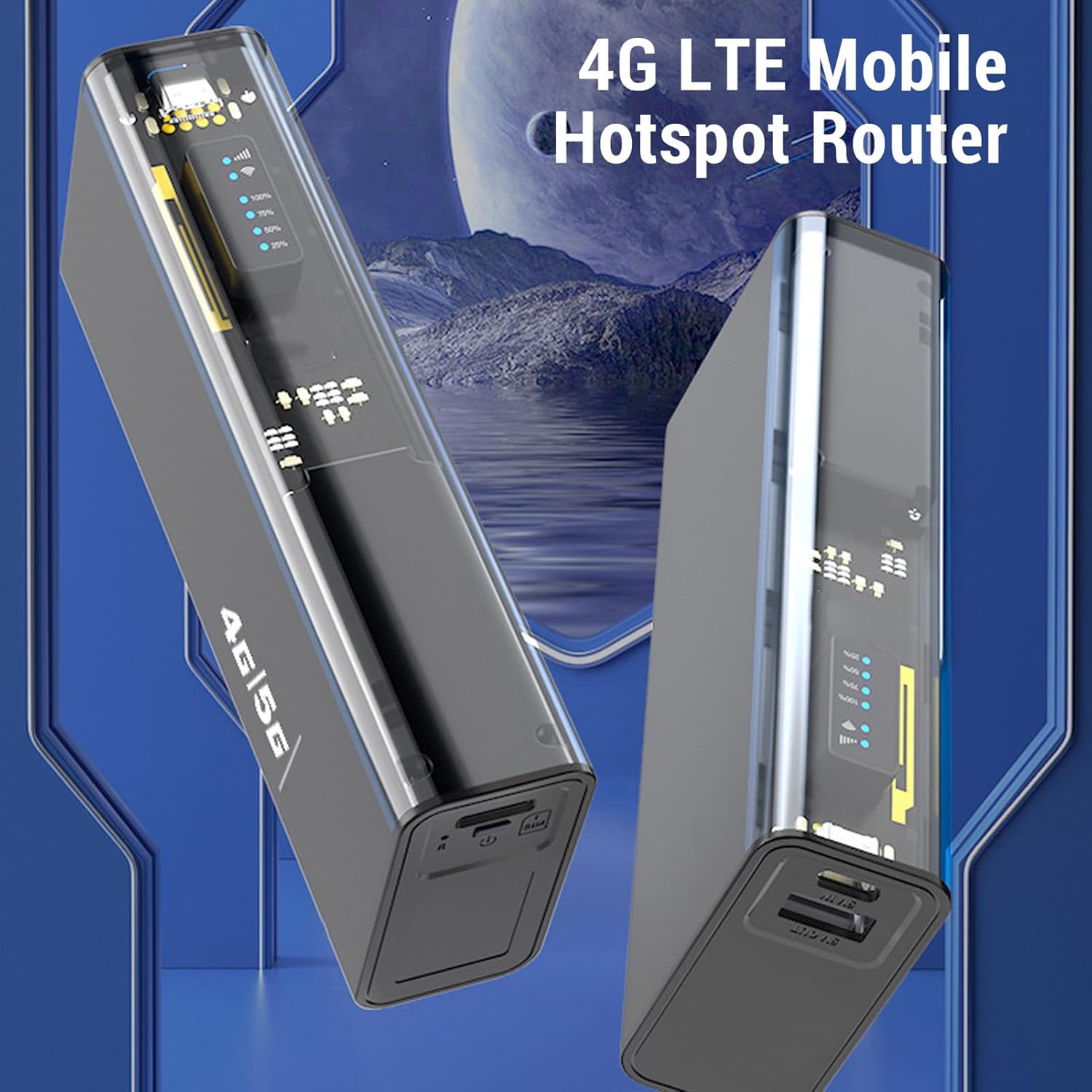
Figure 3.2: Angled view of the Jectse 4G LTE Mobile WiFi Hotspot Router, highlighting its compact form factor.
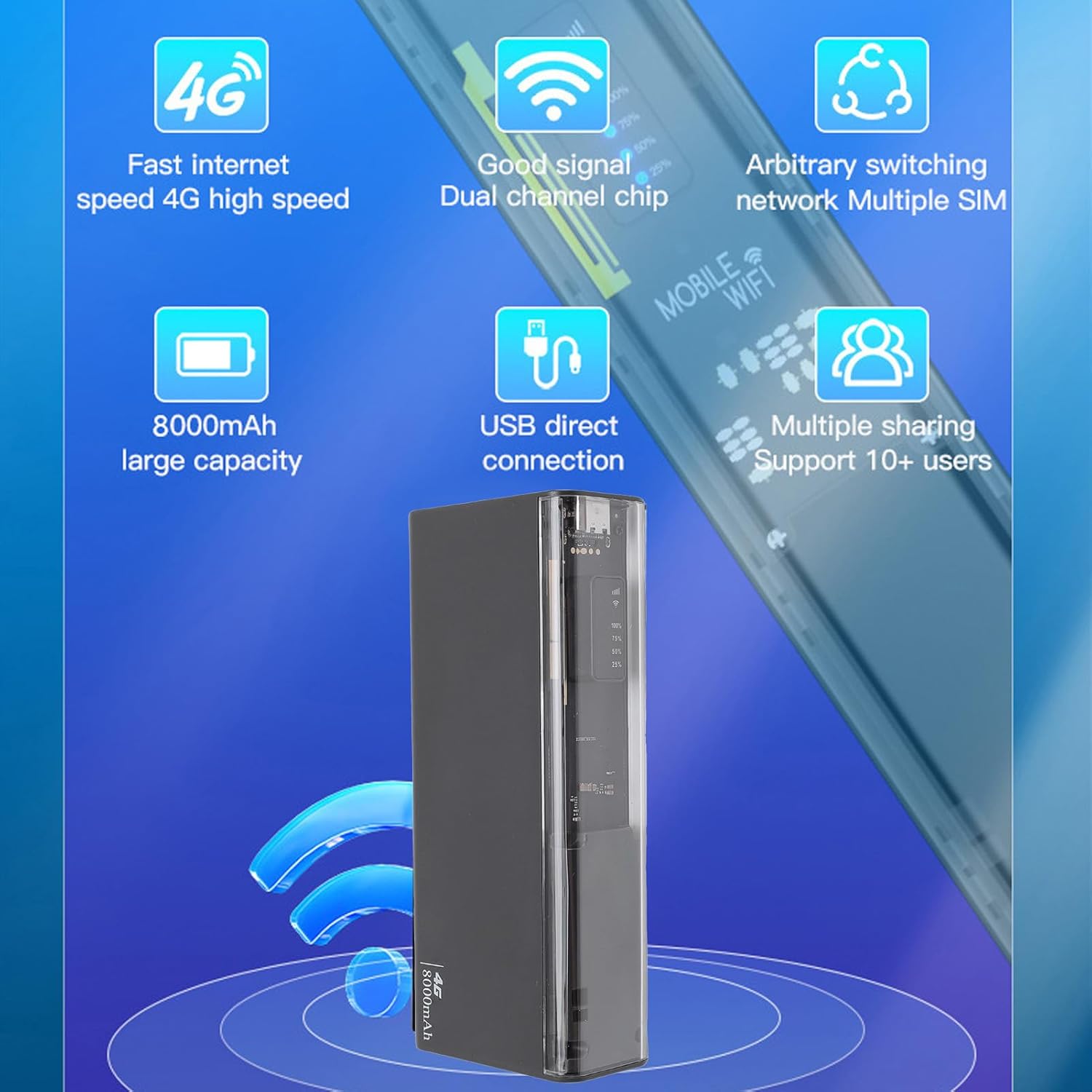
Figure 3.3: The router displaying key features such as 4G high speed, good signal, multiple SIM support, 8000mAh capacity, USB direct connection, and support for 10+ users.

Figure 3.4: The router depicted with a security shield, emphasizing its secure internet access features like WPA/WPA2 encryption.
4. Setup
Follow these steps to set up your Jectse 4G LTE Mobile WiFi Hotspot Router:
- Insert Micro SIM Card: Locate the micro SIM card slot on the device. Carefully insert your activated micro SIM card into the slot until it clicks into place. Ensure the card is inserted in the correct orientation as indicated on the device.
- Power On: Press and hold the power button (usually located near the SIM slot) for a few seconds until the device powers on and the LED indicators light up.
- Initial Configuration (Optional): For advanced settings or to change the default WiFi name (SSID) and password, connect to the device's WiFi network using a computer or smartphone. Open a web browser and navigate to the router's administration page (usually 192.168.0.1 or 192.168.1.1). Refer to the device's label for default login credentials.

Figure 4.1: Illustration of inserting a micro SIM card into the designated slot on the router.
Note: This device is a European version and supports networks in Europe, Africa, Southeast Asia, the Middle East, and Central Asia (FDD B1 3 5 7 8 20, TDD B38 40 41, WCDMA B1 5 8).
5. Operating Instructions
5.1. Connecting to the WiFi Network
- Ensure the hotspot is powered on.
- On your device (smartphone, laptop, tablet), search for available WiFi networks.
- Select the network name (SSID) corresponding to your Jectse Hotspot. The default SSID and password are typically found on a sticker inside the battery compartment or on the device itself.
- Enter the WiFi password when prompted.
- Once connected, you can access the internet. The hotspot supports up to 10 connected devices simultaneously.

Figure 5.1: The router actively providing a WiFi signal to a nearby laptop, illustrating its function as a mobile hotspot.
5.2. Using as a Power Bank
With its 8000mAh battery, the Jectse Hotspot can also function as a power bank to charge other devices.
- Connect your smartphone or other USB-powered device to the "5V OUT" USB port on the hotspot using a compatible USB cable.
- The hotspot will begin charging your device.

Figure 5.2: The router connected via USB to a smartphone, demonstrating its capability to charge external devices.
5.3. Direct USB Connection (Tethering)
You can connect the hotspot directly to a computer via USB for internet access, functioning as a USB modem.
- Connect the hotspot to your computer using the provided USB cable.
- The computer should automatically detect the device and install necessary drivers.
- Once recognized, the computer will use the hotspot's internet connection.
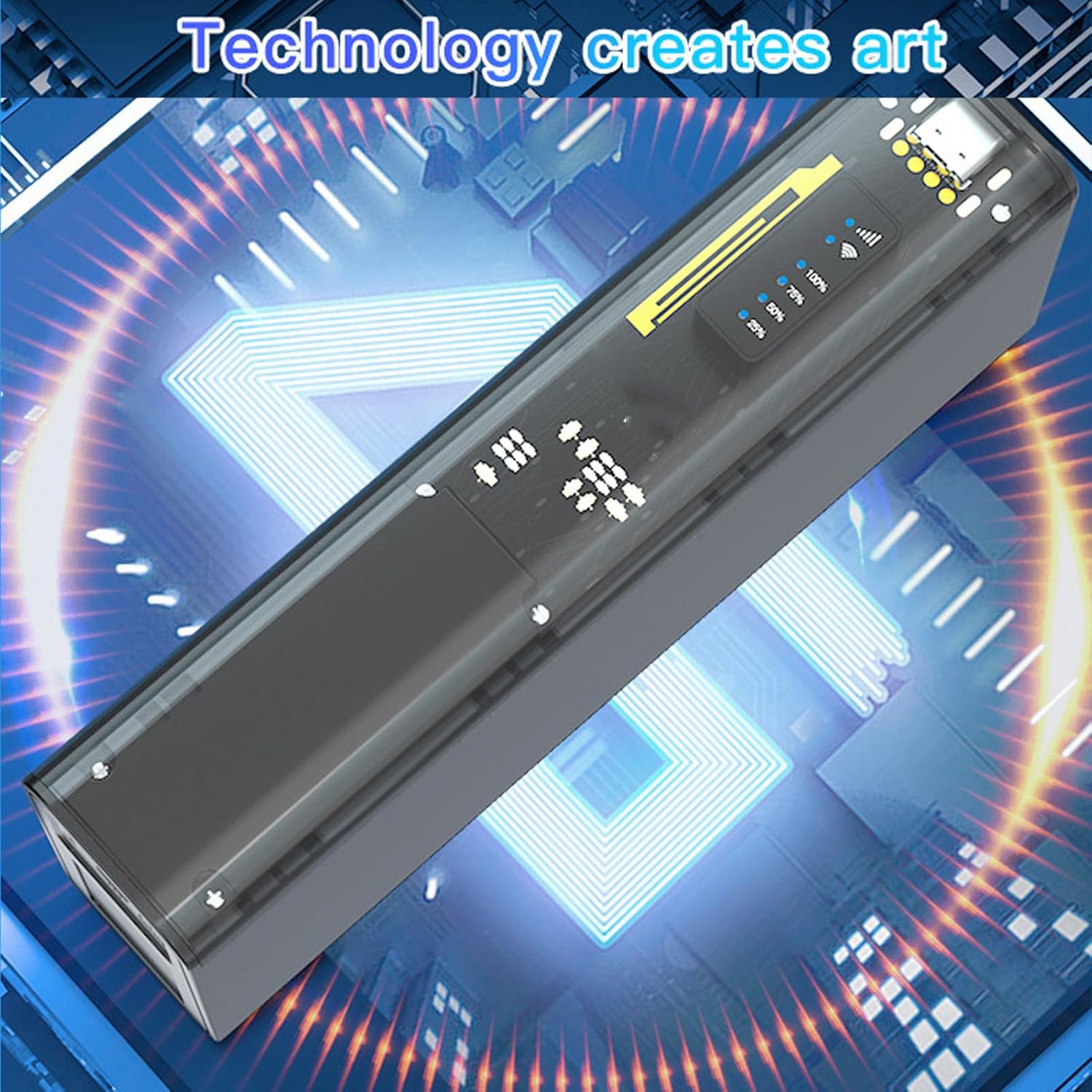
Figure 5.3: The router connected to a desktop computer, illustrating its direct USB connection capability for internet access.
6. Specifications
| Feature | Specification |
|---|---|
| Model Number | Jectse8og49p7mre |
| Network Frequency Bands | FDD B1 3 5 7 8 20, TDD B38 40 41, WCDMA B1 5 8 |
| Supported Network Type | 4G, 3G |
| Transmission Rate | Up to 300 Mbps |
| Supported Protocol | 802.11ac |
| Wireless Network Frequency | 2.4 GHz, 5.8 GHz |
| Built-in Firewall | Yes |
| Battery | 8000 mAh Lithium-ion battery |
| SIM Card Slot | Micro SIM (not included) |
| Material | ABS |
| Supported Regions | Europe, Africa, Southeast Asia, Middle East, Central Asia |
7. Maintenance
To ensure the longevity and optimal performance of your Jectse 4G LTE Mobile WiFi Hotspot Router, follow these maintenance guidelines:
- Cleaning: Use a soft, dry cloth to clean the device. Avoid using liquid cleaners or abrasive materials.
- Storage: Store the device in a cool, dry place away from direct sunlight and extreme temperatures.
- Battery Care: For optimal battery life, avoid fully discharging the battery frequently. If storing for an extended period, charge the battery to about 50% before storage.
- Avoid Impacts: Protect the device from drops and impacts, which can damage internal components.
- Ventilation: Ensure the device has adequate ventilation during operation to prevent overheating.
8. Troubleshooting
If you encounter issues with your Jectse 4G LTE Mobile WiFi Hotspot Router, refer to the following common problems and solutions:
| Problem | Possible Cause / Solution |
|---|---|
| No Internet Connection |
|
| Slow Internet Speed |
|
| Cannot Connect to WiFi |
|
| Device Not Charging |
|
9. Warranty and Support
Your Jectse 4G LTE Mobile WiFi Hotspot Router comes with a manufacturer's warranty.
- Manufacturer Warranty: 2 years.
- Spare Parts Availability: Information unavailable.
- Software Updates: Information unavailable.
For technical support or warranty claims, please contact your retailer or the manufacturer directly. Keep your purchase receipt as proof of purchase.
Ask a question about this manual
Ask about setup, troubleshooting, compatibility, parts, safety, or missing instructions. Manuals+ will review the question and use this page’s manual context to help answer it.