
1. Introduction
The Portronics Vader 2.0 Wired Gaming Mouse is engineered for precision, speed, and customization, designed to enhance your gaming experience. This manual provides instructions for setup, operation, customization, and maintenance of your gaming mouse.
Key features include:
- Adjustable DPI up to 7200 for precise tracking.
- High-performance optical sensor with 7000 FPS.
- 7 programmable buttons with macro support.
- Customizable RGB lighting.
- Ultra-fast 1000Hz polling rate.
- Ergonomic and durable design for extended use.
2. Package Contents
Verify that your package contains the following items:
- 1 N Wired Gaming Mouse (Portronics Vader 2.0)
- 1 N User Manual
3. Setup Instructions
3.1 Connecting the Mouse
- Unpack the Portronics Vader 2.0 Wired Gaming Mouse from its packaging.
- Locate an available USB port on your computer (Windows or Mac OS).
- Insert the USB connector of the mouse into the USB port.
- The mouse will be automatically detected by your operating system.
3.2 Software Installation (Optional for Advanced Customization)
For full customization of DPI, RGB lighting, and programmable buttons, download and install the dedicated software from the official Portronics website. The software is compatible with Windows and Mac OS.
- Visit the official Portronics support website.
- Navigate to the support page for the Vader 2.0 Gaming Mouse.
- Download the appropriate software version for your operating system.
- Follow the on-screen instructions to complete the installation.
4. Operating Instructions
4.1 DPI Adjustment
The Vader 2.0 mouse features adjustable DPI settings, allowing you to change cursor sensitivity on the fly. Use the dedicated DPI buttons (usually located near the scroll wheel) to cycle through preset DPI levels.

Image: The Portronics Vader 2.0 Gaming Mouse highlighting its adjustable DPI settings, with indicators for 1200, 2400, 4800, and 7200 DPI levels.
The mouse supports DPI levels up to 7200, providing precision for various gaming genres.
4.2 Programmable Buttons
The mouse is equipped with 7 programmable buttons, including dedicated backward and forward buttons. These buttons can be customized using the advanced software suite to assign complex commands, macros, or specific functions for faster in-game reactions.

Image: A detailed view of the Portronics Vader 2.0 Gaming Mouse, emphasizing its 7-button design for easy operations, including dedicated backward and forward buttons.
4.3 RGB Lighting Customization
The Vader 2.0 features customizable RGB lighting. Use the dedicated software to personalize your setup by choosing from multiple lighting modes and color profiles to match your preferences.
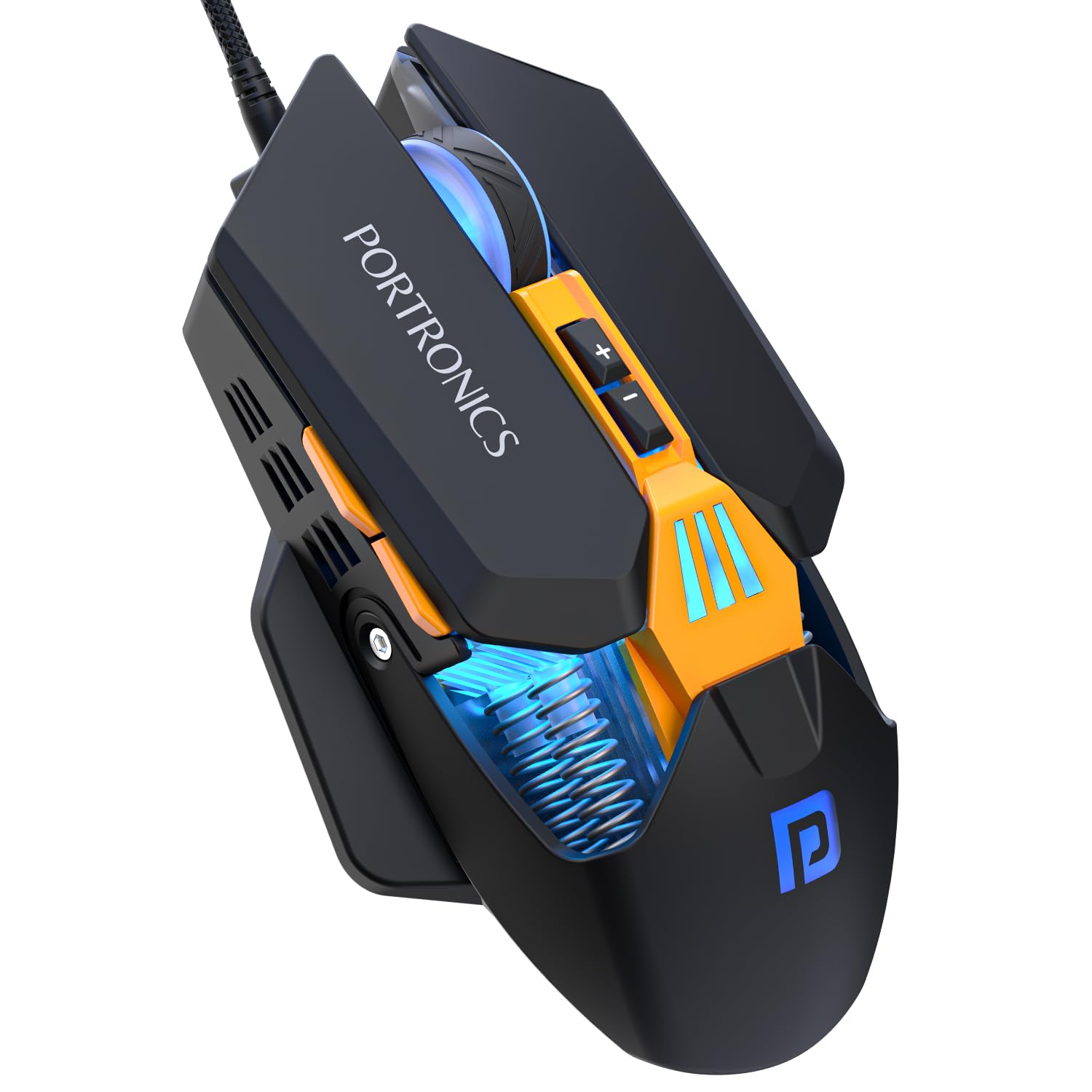
Image: The Portronics Vader 2.0 Gaming Mouse showcasing its customizable RGB lighting, with vibrant colors illuminating the mouse body.
4.4 Advanced Software Customization
The advanced software suite allows comprehensive customization of your mouse. You can adjust DPI levels, lighting effects, and assign macros to buttons. The software also supports saving multiple profiles, tailored for different games or users.

Image: A visual representation of the Portronics Vader 2.0's advanced software interface, showing options for backlight, performance, macro, and button customization.
5. Maintenance
5.1 Cleaning
To maintain optimal performance and appearance:
- Disconnect the mouse from your computer before cleaning.
- Use a soft, dry cloth to wipe the surface of the mouse.
- For stubborn dirt, slightly dampen the cloth with water or a mild cleaning solution. Avoid harsh chemicals.
- Use a soft brush or compressed air to clean dust from crevices and around buttons.
- Do not immerse the mouse in water or any liquid.
5.2 Cable Care
The mouse features a 1.5M rugged braided cable. To prolong its life:
- Avoid sharp bends or kinks in the cable.
- Do not pull the cable forcefully when disconnecting the mouse. Always grasp the USB connector.
6. Troubleshooting
6.1 Mouse Not Responding
- Ensure the USB cable is securely connected to your computer's USB port.
- Try connecting the mouse to a different USB port.
- Restart your computer.
- Test the mouse on another computer to determine if the issue is with the mouse or your system.
6.2 Cursor Movement is Erratic or Jumpy
- Clean the optical sensor on the underside of the mouse.
- Ensure you are using the mouse on a clean, non-reflective, and uniform surface (e.g., a mouse pad).
- Adjust the DPI settings to a lower value if the cursor is too sensitive.
6.3 RGB Lighting Not Working
- Ensure the mouse software is installed and running.
- Check the lighting settings within the software to ensure RGB is enabled and configured correctly.
- Restart your computer.
6.4 Programmable Buttons Not Functioning
- Verify that the mouse software is installed and the button assignments are correctly configured.
- Ensure the software profile for your current application or game is active.
- Update the mouse software to the latest version.
7. Specifications
| Brand | Portronics |
| Model Name | Vader 2.0 |
| Item Model Number | POR-3107 |
| Connectivity Technology | USB (Wired) |
| Movement Detection Technology | Optical |
| Adjustable DPI | Up to 7200 |
| FPS | 7000 FPS |
| Polling Rate | 1000Hz |
| Programmable Buttons | 7 |
| RGB Lighting | Customizable |
| Cable Length | 1.5 meters (Braided) |
| Operating System Compatibility | Windows, Mac OS |
| Item Weight | 130 g |
| Product Dimensions (LxWxH) | 13 x 8.5 x 0.1 cm |
8. Warranty and Support
8.1 Warranty Information
For detailed warranty information, please refer to the warranty card included with your product or visit the official Portronics website. Keep your purchase receipt as proof of purchase for warranty claims.
8.2 Customer Support
If you encounter any issues or have questions regarding your Portronics Vader 2.0 Gaming Mouse, please contact Portronics customer support:
- Email: help@portronics.com
- Phone: +91 9555-245-245
Please have your product model number (POR-3107) and purchase details ready when contacting support.