1. Important Safety Information
Please read all instructions carefully and retain them for future reference. Observe all warnings and instructions marked on the product. Disconnect the power cord from the AC outlet before cleaning the monitor. Do not expose the monitor to rain or moisture. Never open the monitor casing. There are no user-serviceable parts inside. Refer all servicing to qualified service personnel.
2. Package Contents
Verify that all items listed below are present in your product package. If any item is missing or damaged, contact your retailer immediately.
- MSI MAG 275CQF E18 Monitor
- Monitor Stand (Base and Neck)
- Power Cord
- HDMI Cable
- DisplayPort Cable
- Quick Start Guide
- Warranty Card
3. Product Overview
The MSI MAG 275CQF E18 is a 27-inch curved gaming monitor designed for an immersive visual experience. It features a QHD (2560 x 1440) resolution, a 180Hz refresh rate, and a 0.5ms response time.
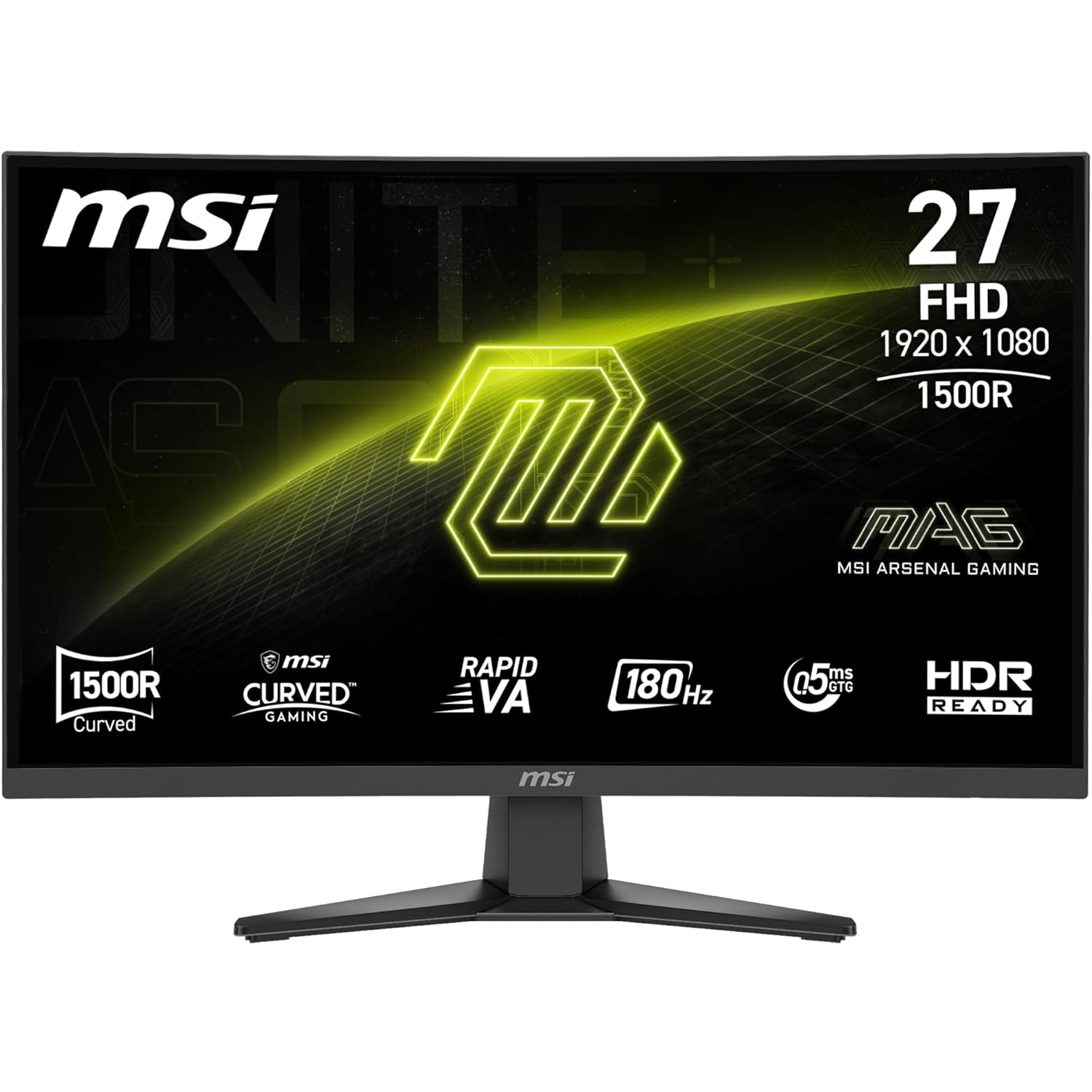
Image: Front view of the MSI MAG 275CQF E18 monitor, showcasing its curved screen and slim bezels.
3.1. Monitor Controls
The monitor features a 5-way joystick navigator for easy access and adjustment of the On-Screen Display (OSD) menu. This joystick is typically located on the back or bottom-right side of the monitor.

Image: Close-up view of the monitor's rear, highlighting the 5-way joystick control and the VESA mounting area.
3.2. Input/Output Ports
The monitor is equipped with various ports for connectivity, including HDMI, DisplayPort, and a headphone jack.
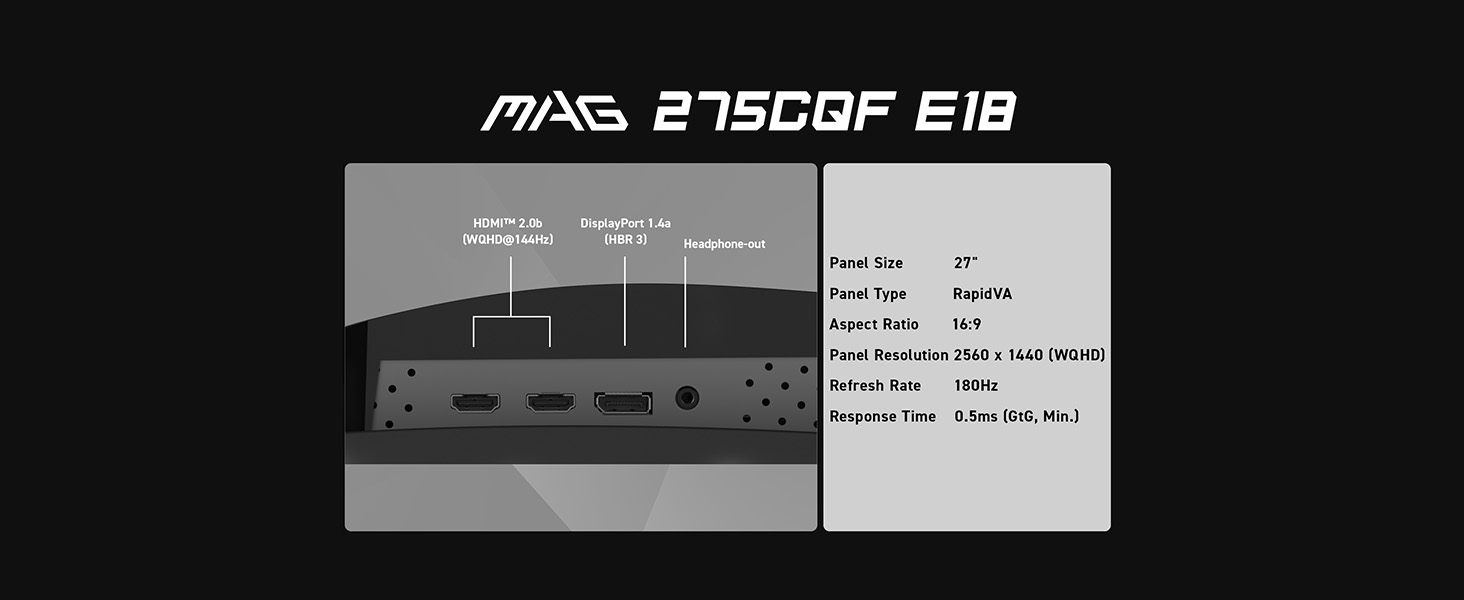
Image: Diagram illustrating the input/output ports on the back of the MSI MAG 275CQF E18 monitor, including HDMI 2.0b, DisplayPort 1.4a, and a headphone-out jack.
4. Setup
4.1. Stand Assembly
- Carefully remove the monitor and stand components from the packaging.
- Attach the stand neck to the monitor panel. Ensure it clicks securely into place.
- Attach the stand base to the neck and tighten the captive screw at the bottom of the base.
- Place the assembled monitor on a stable, flat surface.
4.2. Connecting the Monitor
Connect the monitor to your computer using either the provided HDMI or DisplayPort cable. Ensure both the monitor and your computer are powered off before making connections.
- Power Connection: Connect the power cord to the monitor's power input and then to a wall outlet.
- Video Connection: Connect one end of the HDMI or DisplayPort cable to the corresponding port on your computer's graphics card and the other end to the monitor.
- Audio Connection (Optional): If desired, connect headphones or external speakers to the monitor's headphone-out jack.
4.3. Initial Power On
After all connections are made, power on your computer, then press the power button on the monitor. The monitor should automatically detect the input signal. If not, use the OSD menu to manually select the input source.
5. Operating the Monitor
5.1. OSD Menu Navigation
Use the 5-way joystick on the back of the monitor to navigate the On-Screen Display (OSD) menu. Press the joystick in to open the menu, then move it up, down, left, or right to select and adjust settings.
5.2. Display Settings
Adjust various display parameters to optimize your viewing experience.
- Resolution: For optimal clarity, set your computer's display resolution to 2560 x 1440 (QHD).
- Refresh Rate: The monitor supports up to 180Hz. Ensure your graphics card settings are configured to utilize this refresh rate for smoother motion.
- HDR Ready: This monitor supports HDR content. Enable HDR in your operating system and application settings for enhanced contrast and color depth.
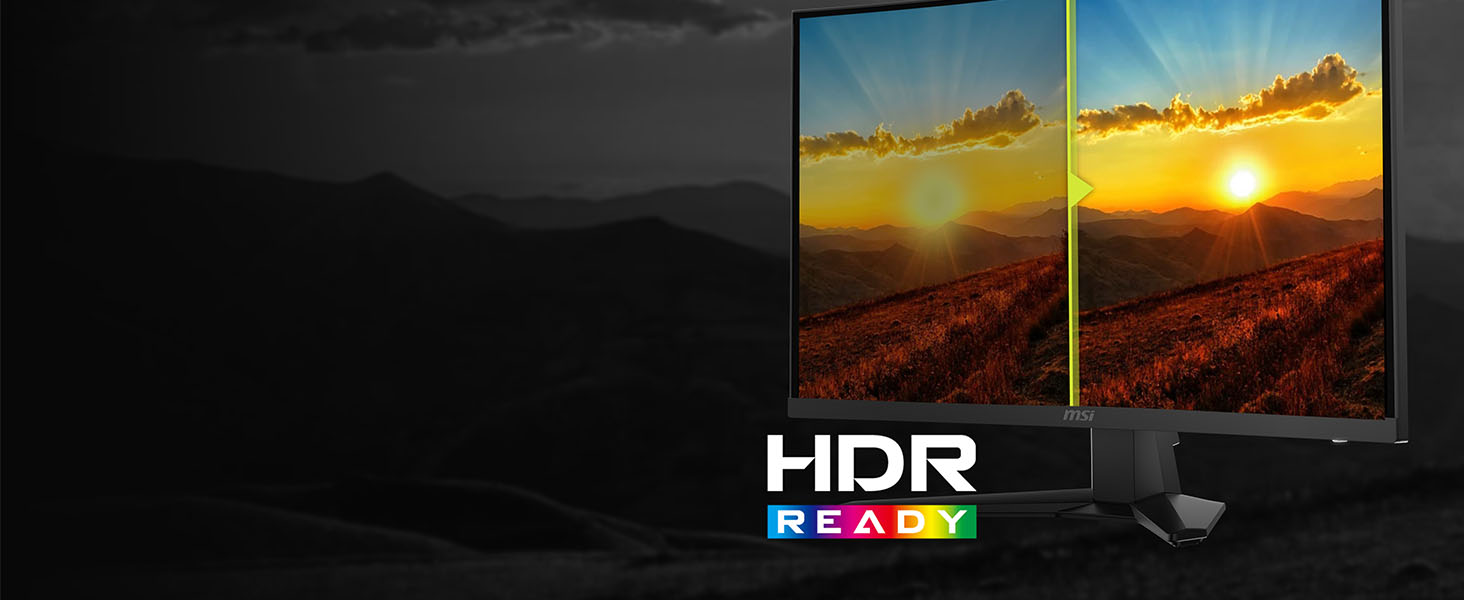
Image: Visual representation of the HDR Ready feature, showing enhanced detail and contrast in a landscape scene.
5.3. Gaming Features
The MAG 275CQF E18 includes features designed to enhance your gaming experience.
- Adaptive-Sync: This technology synchronizes the monitor's refresh rate with your GPU's frame rate to eliminate screen tearing and stuttering. Ensure it is enabled in your graphics card control panel.
- 0.5ms Response Time: The rapid 0.5ms (GtG, Min.) response time reduces motion blur, providing clear visuals in fast-paced games.
- AI Vision: This feature enhances details in dark areas and improves overall brightness and color saturation, providing a clearer view in dimly lit game environments.
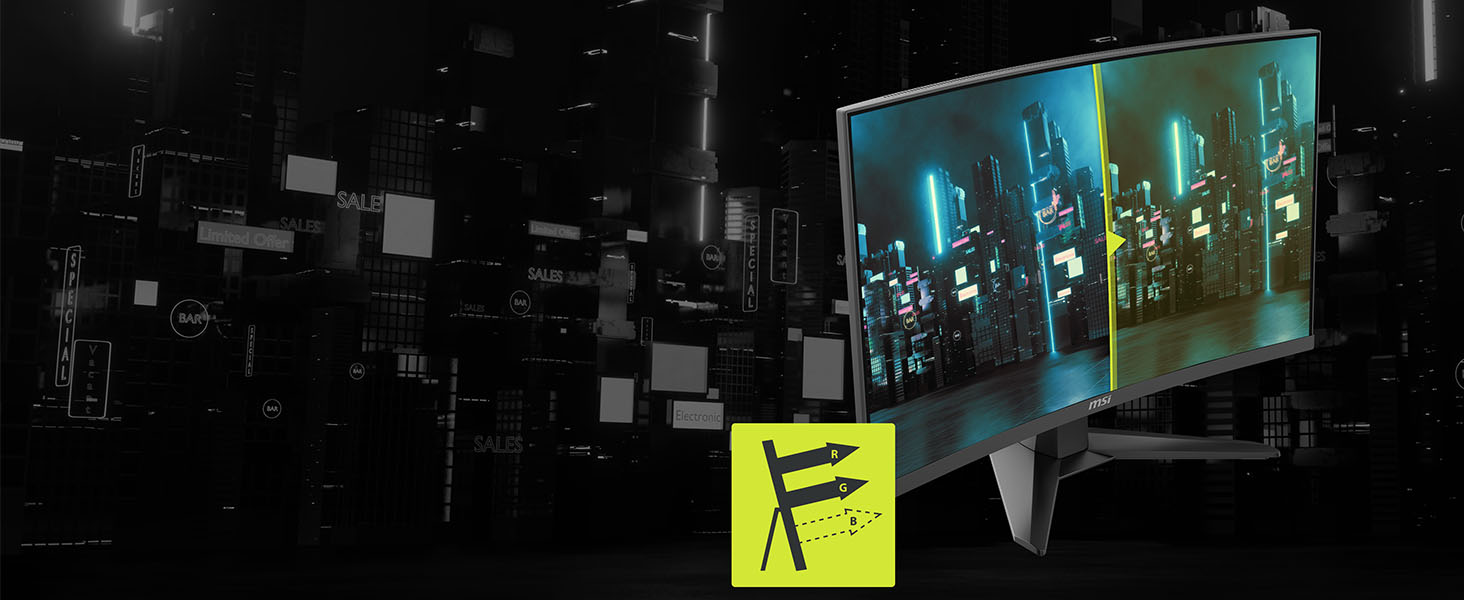
Image: Illustration of the AI Vision feature, demonstrating how it brightens and reveals details in dark areas of an image.
5.4. Ergonomics
The monitor stand allows for tilt adjustments to find a comfortable viewing angle.

Image: Side view of the monitor demonstrating its tilt range, from -5° to 20°.
6. Maintenance
6.1. Cleaning the Monitor
To clean the monitor, first ensure it is powered off and unplugged. Use a soft, lint-free cloth lightly dampened with water or a specialized screen cleaner. Do not use abrasive cleaners, waxes, or solvents. Avoid spraying liquid directly onto the screen.
6.2. Storage
When storing the monitor for an extended period, ensure it is clean, dry, and protected from extreme temperatures and humidity. It is recommended to store it in its original packaging to prevent damage.
7. Troubleshooting
If you encounter issues with your monitor, refer to the following common problems and solutions.
- No Power: Ensure the power cord is securely connected to both the monitor and a working power outlet. Check if the power indicator light is on.
- No Signal: Verify that the video cable (HDMI/DisplayPort) is correctly connected to both the monitor and your computer. Ensure the correct input source is selected in the OSD menu.
- Flickering Screen: Check the video cable for damage or loose connections. Try a different cable or port. Ensure your graphics card drivers are up to date.
- Incorrect Resolution/Refresh Rate: Adjust the display settings in your computer's operating system to the recommended QHD (2560 x 1440) resolution and 180Hz refresh rate.
- Dead Pixels: A small number of dead or stuck pixels is common in LCD/LED technology and typically does not indicate a defect. Refer to MSI's pixel policy for warranty information.
8. Specifications
Detailed technical specifications for the MSI MAG 275CQF E18 monitor.
| Feature | Specification |
|---|---|
| Model Number | MAG 275CQF E18 |
| Screen Size | 27 inches |
| Resolution | 2560 x 1440 (QHD) |
| Panel Type | Rapid VA |
| Refresh Rate | 180Hz |
| Response Time | 0.5ms (GtG, Min.) |
| Aspect Ratio | 16:9 |
| Curvature | 1500R |
| HDR Support | HDR Ready |
| Video Ports | 2 x HDMI 2.0b, 1 x DisplayPort 1.4a |
| Audio Ports | 1 x Headphone-out |
| VESA Mounting | Supported |
| Tilt Adjustment | -5° ~ 20° |
| Product Dimensions | 24.07 x 9.83 x 17.29 inches |
| Weight | 6.85 Pounds |
9. Warranty and Support
MSI provides a limited warranty for this product. The specific terms and conditions of the warranty, including coverage period and limitations, are detailed in the warranty card included with your product. Please retain your proof of purchase for warranty claims.
For technical support, driver downloads, or further assistance, please visit the official MSI website or contact MSI customer service. You can find contact information and support resources on the MSI support page: www.msi.com/support